What is a JWT?
A JSON Web Token (JWT) is an encrypted token format that securely transfers data, such as authentication and authorization credentials,, between two applications. In Document360, JWT is used to authenticate reader logins. Click here to read about JWT.
Document360 uses an approach similar to PKCE (Proof Key for Code Exchange, a secure OAuth method) to generate the JWT token.
Enterprise SSO using JWT in Document360
Document360 supports JWT as one of its SSO (Single Sign-On) methods for authenticating reader logins. It provides a secure way to transfer authentication and authorization data between your application and your Document360 Knowledge base.
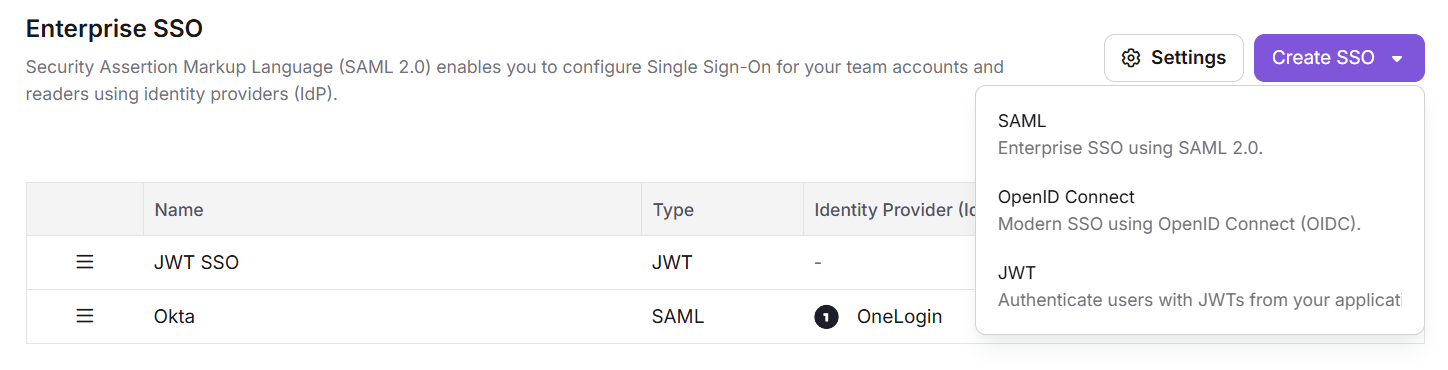
You can create up to 5 JWT configurations per project. Up to 3 of them can appear as login buttons on the reader-facing login page. If you have more than 3, readers can still reach the remaining configurations by typing their domain name in the Domain name input field on the login page.
JWT also works alongside SSO providers like SAML and OpenID, you can have all of them active in the same project at the same time.
Choosing the right SSO method: JWT vs SAML vs OpenID
Document360 supports three SSO options for reader authentication: JWT, SAML, and OpenID Connect. Choosing the right method depends on how you manage users, what infrastructure you already have, and how much control you need over the login process.
The table below compares JWT against the other options:
Feature | JWT | SAML / OpenID |
|---|---|---|
Reader management | Readers are authenticated from your own application. You don’t need to create or manage reader accounts manually in the Document360 portal. | Readers are managed through your organization’s identity provider (IdP) like Okta, Azure AD, or Google Workspace. |
Login destination | JWT logins always redirect to the knowledge base site. Even if the user is a team member, they cannot access the Document360 portal using JWT. | Can support both reader and team logins, depending on configuration. |
When to use | Ideal if you don’t have an IdP, or prefer to manage authentication in your own app. | Recommended if your organization already uses an IdP and wants centralized authentication and access control. |
User registration flow | You control the login and user provisioning in your own app. | Can support features like self-registration, password reset, and user lifecycle management (depending on the IdP). |
SSO login page | You define the Sign in URL and optionally the Sign out URL in the JWT configuration settings. | The login page is handled by the IdP, and redirects are managed through SAML/OpenID settings. |
Advanced features | Some features are not supported with JWT, such as:– Auto-register SSO readers– Skipping Document360's common sign-in page– Reader self-registration | These advanced features are available depending on the IdP’s capabilities. |
Implementation | Simpler setup for developers. You generate the JWT, sign it using a client secret created in Document360, and handle authentication in your app. | Requires configuration of IdP metadata, certificates, and mappings with Document360. |
How JWT authentication works
The high-level diagram below shows how to achieve JWT authentication flow in Document360.

The steps below explain the complete JWT authentication flow in Document360 for developers setting up reader SSO using their own login system.
Key terminology
Term | Description |
|---|---|
Login URL | A public login page in your application where users are redirected to authenticate. |
Code generation URL | Secure backend endpoint in your app that sends user data to Document360 to obtain an authorization code. |
Callback URL | The URL in Document360 where your app redirects the user after receiving the authorization code. This is auto-generated by Document360. |
Authentication flow
User accesses the private knowledge base
When a user tries to access your knowledge base site, Document360 detects that JWT SSO is enabled and redirects the user to the Sign in URL configured in JWT settings.
User logs in to your application
If the user is not already authenticated, your login page handles their authentication.
Your backend requests a one-time auth code
After the user logs in, your backend sends a
POSTrequest to the Code generation URL configured in Document360 with the following:User identity (e.g., name, email)
Optional
readerGroupIdstokenValidityin minutes
This request must be authorized using HTTP Basic Auth with your Client ID and Client Secret.
Example Authorization Header
Authorization: Basic Base64Encode(clientId:clientSecret)JSON Payload Example
{
"username": "firstname + lastname",
"firstName": "firstname",
"lastName": "lastname",
"emailId": "user email",
"readerGroupIds": ["Obtain from Reader groups overview page in the Document360 portal (Optional)"],
"tokenValidity": 15 //minutes
}NOTE
Ensure correct JSON syntax to avoid configuration errors.
Document360 Identity server returns an auth code
If the request is valid, Document360’s identity server generates a single-use authorization code and sends it back to your app (backend).
Your app redirects the user back to Document360
Your backend appends the code to the Callback URL and redirects the user to it.
For example:
https://yourproject.document360.io/jwt/authorize?code=xyz
NOTE
The authentication code is a one-time use code and cannot be reused.
Document360 validates the code
Once it receives the code, Document360 sends it to the identity server via backchannel to exchange it for a JWT token.
Reader session is created
Document360 extracts user information and access rules (based on
readerGroupIds) from the token.A session is created for the reader, granting them access to allowed categories, languages, or versions.
Token validity and session behavior
You can define the session duration using the
tokenValidityfield in the payload (min: 5 minutes, max: 1440).Once the token expires:
The reader is redirected back to your Sign in URL.
If the user is still authenticated in your app, a new code is generated, and the session is re-established seamlessly.
Configuring JWT in Document360
Configure JSON Web Token (JWT) authentication to let readers securely sign in using tokens from your application or identity provider. You can create up to 5 JWT configurations per project, with up to 3 displayed as login buttons on the reader login page for quick access. Additional JWT options remain accessible through the Domain name field. JWT works seamlessly alongside SSO providers such as SAML and OpenID, allowing multiple authentication methods to coexist in the same project.
To access the JWT page, navigate to Settings > Users & permissions > JWT.
.png)
New to JWT on Document360
If no JWT configuration exists in your project, complete the following steps in order:
Configure JWT login — configure shared project-level settings.
Create a JWT configuration — add your first JWT configuration.
Set up your application — connect your application to Document360.
Additional JWT configurations and SSO providers (SAML or OpenID) can be added to the same project at any time without affecting existing configurations.
Existing JWT configuration
If you set up JWT before June 2026, your existing configuration appears in a read-only view. Your current JWT configuration remains active, and readers can continue signing in without interruption.
When you navigate to Settings > Users & Permissions > JWT, you can:
Continue using the configuration: No changes required.
Edit the configuration: Click the Edit icon to update the settings.
Delete the configuration: Click the Delete icon to remove it.
Add another JWT configuration
Click Create JWT to add a new configuration. Follow configure JWT login and create JWT configuration to create additional JWT configurations. A project can have up to 5 JWT configurations. After saving, the page switches to the list view and displays all configured JWT entries. Your existing configuration remains unchanged
Configure SSO alongside JWT
Go to Settings > Users & Permissions > SSO Configuration and set up your SSO provider. Your JWT configuration is not affected at all. Both will be active at the same time and readers will see both options on the login page. See JWT and SSO coexistence for details on how the login page looks.
Step 1 — Configure JWT login
Click Configure JWT login in the banner on the JWT page to open the configuration modal.

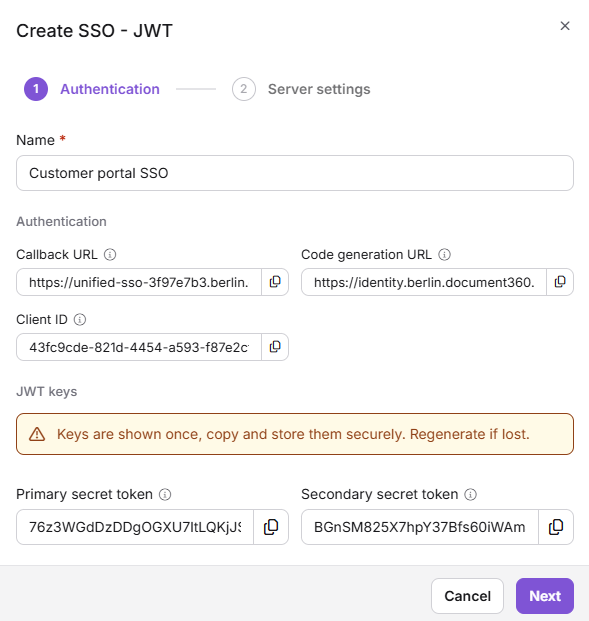
Authentication
These are read-only values generated by Document360. Copy them using the Copy button and configure them in your identity provider.
Field | Description |
|---|---|
Callback URL | The redirect URL where the identity provider sends readers after successful authentication. Register this in your IdP to complete the sign-in process. |
Code generation URL | The endpoint Document360 calls to retrieve the token used to sign in readers. |
Other settings
Direct JWT login
Default: ON
When enabled, readers are redirected directly to JWT sign-in without being shown a login selection screen. This is appropriate when JWT is the sole authentication method for your knowledge base.
When disabled, readers are presented with a login selection screen showing all configured sign-in options — JWT, SSO, and the default Document360 login. Disable this setting when multiple authentication methods are active and readers need to choose their sign-in method. A confirmation is required before this change is applied.
When multiple JWT configurations and SSO are set up, but the project owner wants readers to sign in only through JWT authentication, they can enable Direct JWT login.
Disable default login page
Default: OFF
When enabled, the standard Document360 email and password login is hidden. Readers can only authenticate through configured JWT or SSO providers. This is typically used in enterprise environments where all reader access must be controlled through a centralized identity system.
NOTE
Enable this setting only after JWT or SSO authentication has been fully configured and tested. If the external authentication provider is misconfigured, readers will be unable to access the knowledge base.
Click Close to dismiss the modal. Changes are applied immediately.
Step 2 — Create a JWT configuration
On the JWT page, click Create JWT in the top-right corner. The Create JWT modal opens.

Name
Enter a descriptive name to identify this configuration - for example, Customer Portal SSO. This name appears in the JWT list in the portal. If the login button is enabled, this name is also displayed to readers on the login page, so it should be meaningful to the audience signing in.
Authentication
Field | Required | Description |
|---|---|---|
Client ID | Yes | Auto-generated by Document360. This is the unique identifier for this JWT configuration. Copy it using the copy icon and add it to your client application. |
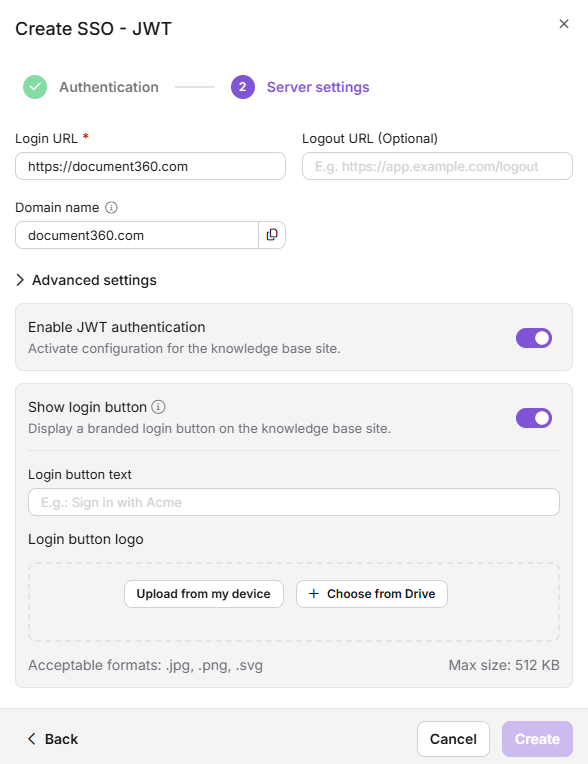
Login URL | Yes | The URL in your application where readers are sent to authenticate (e.g., |
Domain name | Yes | Automatically derived from the Login URL. This is the domain associated with this JWT configuration. When a reader enters this domain on the login page, they are routed to this configuration's Login URL. The domain must be unique across all JWT configurations in the project. |
Logout URL | No | The URL to which readers are redirected after signing out (e.g., |
Domain name validation rules:
Sub-domains are treated as distinct entries.
portal.example.comandexample.comare separate domains and can be assigned to different configurations.Wildcard domains such as
*.example.comare not supported. Each domain must be an exact value.A domain already assigned to another JWT configuration in the same project cannot be reused. An inline validation error is shown on save.
JWT keys
IMPORTANT
Secret tokens are displayed only once at the time of creation. Copy and store them securely before closing the modal. If lost, they must be regenerated, which immediately invalidates the previous tokens.
Document360 automatically generates two secret tokens when the modal opens. These tokens are visible in plain text only during this session. Once the modal is closed, they are masked and cannot be retrieved.
Token | Purpose |
|---|---|
Primary secret token | Signs and verifies JWT authentication requests between your application and Document360. This token must be kept confidential. If compromised, regenerate it immediately and update your application to prevent unauthorized access. |
Secondary secret token | Serves as a backup signing key to support credential rotation without service interruption. During a rotation, the secondary token allows authentication to continue while the primary token is being updated. |
Use the Copy icon adjacent to each token to copy its value.
Advanced settings
Expand Advanced settings to configure the following options.
Enable JWT authentication
Default: ON
When enabled, this configuration is active and readers can use it to sign in. Disabling it deactivates the configuration without deleting it, which is useful for temporarily suspending a configuration without losing its settings.
Show login button
Default: OFF
When enabled, a branded login button for this configuration appears on the knowledge base login page. This provides readers with a direct sign-in option without needing to enter a domain name.
NOTE
A maximum of 3 JWT login buttons can be displayed on the login page simultaneously. When this limit is reached, the toggle is automatically disabled for additional configurations. Readers assigned to configurations without a visible button can still authenticate by entering their domain name in the Domain name field on the login page, which routes them to the correct configuration.
When Show login button is enabled, the following additional fields are available:
Login button text — the label displayed on the button This should clearly identify the authentication source for readers.
Login button logo — an image uploaded to brand the button. Accepted formats: JPG, PNG, SVG Maximum file size: 512 KB.
Step 3 — Set up your application
Copy the following values from the JWT configuration and add them to the corresponding fields in your client application:
Client ID
Callback URL
Code generation URL
Primary secret token
Secondary secret token
Save the configuration
Click Create. The button remains inactive until all required fields contain valid values. On success, the modal closes and the new configuration appears in the JWT list.
NOTE
Readers do not require a separate Document360 account. Authentication is handled entirely through your application. An account in your application is sufficient for a reader to access the knowledge base
Developer checklist
Register the Login URL, Callback URL, and Code generation URL in your JWT settings.
Store the Client Secret securely. It is displayed only once at the time of creation.
Implement backend logic to call the Code generation URL using HTTP Basic Auth.
Sign the JWT in your backend using your client secret. Never expose signing logic on the client side.
Enforce HTTPS on all endpoints involved in the authentication flow.
Test session behaviour, token expiry, and automatic session renewal before going live.
Monitor backend logs for 401 errors, which typically indicate expired authorization codes or token mismatches.
Implementing the JWT SSO redirect logic
After completing the JWT configuration in Document360, your application needs a backend route to handle the final step of the login flow.
This route:
Validates that the user is already authenticated in your application
Sends a secure request to Document360’s Code generation URL
Retrieves a one-time authorization code
Redirects the user to the knowledge base site with that code
/// <summary>
/// Example endpoint to authenticate a user and retrieve a token from the identity server,
/// and redirect the user to the Knowledge Base (KB) using the token code.
/// </summary>
/// <param name="clientId">Client ID issued for your application</param>
/// <param name="clientSecret">Client secret associated with the client ID</param>
/// <returns>Redirects to the KB with the issued code</returns>
[HttpGet]
[Route("authenticate")]
public async Task<IActionResult> AuthenticateAsync(string clientId, string clientSecret)
{
if (!HttpContext.User.Identity.IsAuthenticated)
{
// user is not authenticated, redirect to an error or login page
return Unauthorized(new { message = "User not authenticated" });
}
// Ensure you have the correct client ID and secret from your Document360 JWT configuration
var authToken = Encoding.ASCII.GetBytes($"{clientId}:{clientSecret}");
// Create an HttpClient instance
using var httpClient = new HttpClient();
// Set the Authorization header with Basic authentication
httpClient.DefaultRequestHeaders.Authorization = new AuthenticationHeaderValue("Basic", Convert.ToBase64String(authToken));
// Prepare the payload with user information
var payload = new
{
username = User.Identity.Name,
firstName = "FirstName", // Replace or customize as needed
lastName = "LastName",
emailId = "user@example.com", // Replace with actual user email
readerGroupIds = new List<string> { "group1", "group2" }, // Replace with actual reader group IDs if needed (Optional)
tokenValidity = 3600 // Token validity in seconds (Optional, default is 5 minutes)
};
var payloadContent = new StringContent(JsonConvert.SerializeObject(payload), Encoding.UTF8, "application/json");
// Identity server token endpoint - replace with your actual URL
string identityServerUrl = "codeGeneration endpoint, you can find that in JWT config portal";
// KB login URL to redirect after successful token issuance
string kbLoginUrl = "https://{your subdomain}.document360.io";
var response = await httpClient.PostAsync(identityServerUrl, payloadContent);
if (response.IsSuccessStatusCode)
{
var content = await response.Content.ReadAsStringAsync();
var tokenJson = JObject.Parse(content);
// Extract the code from the response
var tokenCode = (string)tokenJson.SelectToken("code");
// Construct the KB login URL with code query parameter
string finalRedirectUrl = $"{kbLoginUrl}?code={tokenCode}";
return Redirect(finalRedirectUrl);
}
else
{
// Handle error response from the identity server
var error = await response.Content.ReadAsStringAsync();
return StatusCode((int)response.StatusCode, new { error = "Token request failed", details = error });
}
}const express = require('express');
const https = require('https');
const axios = require('axios');
const app = express();
// Middleware to parse JSON
app.use(express.json());
// Replace with your actual client ID and secret from Document360
const clientId = 'b20bf794-050c-4194-bc30-bd834c51adad';
const clientSecret = '07U7nXLbOY7-klsmWrOOT3_qHa631XMOuqSd_gl69I8';
const codeGenerationUrl = 'https://identity.document360.net/jwt/generateCode';
// Your D360 KB URL (Replace your-subdomain)
const kbLoginUrl = 'https://jwt-readergroup1-sep.document360.net/jwt/authorize';
// ROUTE: /authenticate
app.get('/authenticate', async (req, res) => {
try {
// Example — add your real auth logic
const isAuthenticated = true;
if (!isAuthenticated) {
return res.status(401).json({ message: 'User not authenticated' });
}
// Basic Authorization header
const authHeader = Buffer.from(`${clientId}:${clientSecret}`).toString('base64');
// Payload to send to D360
const payload = {
username: 'john.doe',
firstName: 'John',
lastName: 'Doe',
emailId: 'john.doe@example.com',
readerGroupIds: ['group1', 'group2'],
tokenValidity: 3600
};
// POST to D360 identity server to get the code
const response = await axios.post(
codeGenerateUrl,
payload,
{
headers: {
'Authorization': `Basic ${authHeader}`,
'Content-Type': 'application/json',
'Accept': 'application/json'
},
httpsAgent: new https.Agent({ maxVersion: 'TLSv1.2' })
}
);
const tokenCode = response.data?.code;
if (!tokenCode) {
return res.status(500).json({ message: 'No code received from Document360' });
}
console.log("Redirecting to:", `${kbLoginUrl}?code=${tokenCode}`);
// Redirect user to KB with ?code=<token>
return res.redirect(`${kbLoginUrl}?code=${tokenCode}`);
} catch (error) {
console.error("JWT SSO error:", error.message);
return res.status(500).json({
message: "JWT SSO failed",
details: error.response?.data || error.message
});
}
});import org.springframework.http.*;
import org.springframework.web.bind.annotation.*;
import org.springframework.web.client.RestTemplate;
import org.springframework.web.util.UriComponentsBuilder;
import java.nio.charset.StandardCharsets;
import java.util.*;
@RestController
public class JwtSsoController {
private final String clientId = "your-client-id";
private final String clientSecret = "your-client-secret";
private final String codeGenerationUrl = "https://identity.document360.io/api/jwt/generate-code";
private final String kbLoginUrl = "https://your-subdomain.document360.io/jwt/authorize";
@GetMapping("/authenticate")
public ResponseEntity<?> authenticate() {
// Example: Check if user is authenticated in your system
boolean isAuthenticated = true; // Replace with actual logic
if (!isAuthenticated) {
return ResponseEntity.status(HttpStatus.UNAUTHORIZED).body("User not authenticated");
}
// Create Basic Auth header
String auth = clientId + ":" + clientSecret;
String encodedAuth = Base64.getEncoder().encodeToString(auth.getBytes(StandardCharsets.UTF_8));
HttpHeaders headers = new HttpHeaders();
headers.setContentType(MediaType.APPLICATION_JSON);
headers.set("Authorization", "Basic " + encodedAuth);
headers.setAccept(Collections.singletonList(MediaType.APPLICATION_JSON));
// Construct payload
Map<String, Object> payload = new HashMap<>();
payload.put("username", "john.doe");
payload.put("firstName", "John");
payload.put("lastName", "Doe");
payload.put("emailId", "john.doe@example.com");
payload.put("readerGroupIds", Arrays.asList("group1", "group2"));
payload.put("tokenValidity", 3600); // Optional
HttpEntity<Map<String, Object>> request = new HttpEntity<>(payload, headers);
RestTemplate restTemplate = new RestTemplate();
try {
ResponseEntity<Map> response = restTemplate.postForEntity(codeGenerationUrl, request, Map.class);
if (response.getStatusCode() == HttpStatus.OK && response.getBody() != null) {
String tokenCode = (String) response.getBody().get("code");
if (tokenCode == null || tokenCode.isEmpty()) {
return ResponseEntity.status(HttpStatus.INTERNAL_SERVER_ERROR)
.body("No code returned from Document360");
}
// Redirect to the KB site with code
String redirectUrl = UriComponentsBuilder.fromHttpUrl(kbLoginUrl)
.queryParam("code", tokenCode)
.toUriString();
HttpHeaders redirectHeaders = new HttpHeaders();
redirectHeaders.setLocation(java.net.URI.create(redirectUrl));
return new ResponseEntity<>(redirectHeaders, HttpStatus.FOUND); // 302 redirect
} else {
return ResponseEntity.status(HttpStatus.BAD_GATEWAY)
.body("Failed to get code from Document360: " + response.getStatusCode());
}
} catch (Exception ex) {
return ResponseEntity.status(HttpStatus.INTERNAL_SERVER_ERROR)
.body("JWT SSO error: " + ex.getMessage());
}
}
}Testing your JWT configuration
Once you've implemented the JWT SSO logic in your backend, you can test the integration using either cURL or Postman. These tests simulate how your backend communicates with the Document360 identity server to retrieve a one-time authorization code.
Testing JWT configuration using cURL
To test the JWT configuration, you can use the cURL command with the following specifications. The HTTP version should be specified (HTTP2 over TLS and version of SSL to TLS 1.2. Without this, the cURL would fail.
curl -X POST https://identity.document360.io/api/jwt/generate-code \
-H "Authorization: Basic BASE64_ENCODED_CLIENTID:CLIENTSECRET" \
-H "Content-Type: application/json" \
--http2-prior-knowledge \
--tls-max 1.2 \
-d '{
"username": "john.doe",
"firstName": "John",
"lastName": "Doe",
"emailId": "john.doe@example.com",
"readerGroupIds": ["group1", "group2"],
"tokenValidity": 15
}'
NOTE
Replace the encoded authorization string and payload fields with your actual client credentials and user information from your system.
Unlike other IdP options available (Okta, Azure AD, etc.), the user does not need a separate reader account on Document360. An account on the client application is sufficient.
After enabling the JWT login, the reader can use the client application to log in as a reader account on the Document360 knowledge base site.
Testing JWT configuration using Postman
You can test your JWT SSO configuration using Postman by manually sending a request to the Code generation URL. This allows you to verify that your client credentials and payload are accepted and that a one-time authorization code is generated successfully.
To test using Postman, follow these steps:
Open Postman and create a new request.
Set the request method to POST, and in the URL field, enter the Code generation URL from the JWT configuration screen:
https://identity.document360.io/api/jwt/generate-codeGo to the Authorization tab.
Set the Type to
Basic Auth.In the Username field, enter your Client ID.
In the Password field, enter your Client Secret.
Navigate to the Body tab.
Select the raw option and set the format to JSON.
Enter the required JSON payload. Example:
{ "username": "john.doe", "firstName": "John", "lastName": "Doe", "emailId": "john.doe@example.com", "readerGroupIds": ["group1", "group2"], "tokenValidity": 15 }Click Send to submit the request.
If the configuration is correct, you should receive a 200 OK response with a one-time code. You can then use this code to redirect the reader to the knowledge base site and complete the SSO login flow.
Domain-based reader routing
When a reader enters a domain in the Domain name field on the login page, Document360 matches it against all active JWT configurations and routes the reader to the matching configuration's Login URL.
Document360 applies a most-specific-match rule. For example, if both example.com and support.example.com are configured, a reader who enters support.example.com is routed to the support.example.com configuration rather than the parent domain. This allows sub-domains to be handled by dedicated configurations without conflict.
Additional routing rules:
Domain matching is case-insensitive, and each domain name must be unique.
If the matched configuration is inactive, the reader is directed to the default login options.
If no match is found, the reader is directed to the default login options.
The Domain name field applies exclusively to JWT routing. SSO providers cannot be accessed through this field.
JWT and SSO coexistence
JWT and SSO (SAML or OpenID) configurations can be active simultaneously in the same project. Each type is managed independently — modifying a JWT configuration has no effect on SSO configurations, and vice versa. This allows organizations to support readers from different identity systems through a single knowledge base portal without any conflict between authentication methods.
For example, enterprise customers may authenticate via a JWT-based system tied to your application, while internal team members sign in through a centralized IdP such as Okta using SAML. Both methods can be active at the same time without interference.
Login button limits
Authentication type | Maximum login buttons displayed | Access beyond the limit |
|---|---|---|
JWT | 3 | The first 3 JWT configurations are displayed as sign-in buttons based on their CTA position order. If you configure more than 3 JWT providers, readers can authenticate using the Domain name field, which routes them to the appropriate configuration. You can configure up to 5 JWT providers in total. |
SSO | 5 | Only the first 5 SSO providers (by CTA position order) are displayed. SSO providers beyond this limit are not accessible to readers through any means. |
For example, if 5 JWT configurations are active, 3 appear as login buttons and the remaining 2 are accessible only through domain entry. If 6 SSO configurations are active, only 5 are accessible — the 6th cannot be reached by readers.
The JWT limit (3) and the SSO limit (5) are applied independently. Reaching one limit has no effect on the other.
When the 3-button limit for JWT is reached, all Project Admins receive a system notification: "You've reached the limit of 3 JWT login buttons. Additional JWT configurations will not appear as buttons on the login page. Readers can still sign in by entering their domain name."
Reader login page states
The login page presented to readers is determined by two factors: the state of the Disable default login page toggle, and which JWT and SSO configurations are currently active.
State | Toggle | JWT active | SSO active | Reader experience |
|---|---|---|---|---|
1 | OFF | No | Yes | Standard email/password form with SSO login buttons |
2 | OFF | Yes | Yes | Standard email/password form with SSO and JWT login buttons |
3 | OFF | Yes | No | Standard email/password form with JWT login buttons |
4 | ON | No | Yes | SSO login buttons only — no email/password form |
5 | ON | Yes | No | Domain name input field with JWT login buttons — no email/password form |
6 | ON | Yes | Yes | Domain name input field with JWT login buttons and SSO — no email/password form |
Applicable rules:
Only active configurations are displayed. Inactive configurations are never shown to readers regardless of toggle state.
The Domain name input field is displayed whenever the toggle is ON and at least one JWT configuration is active. This ensures that JWT configurations without a visible login button remain reachable through domain entry.
If all JWT and SSO configurations are inactive while the toggle is ON, readers are shown a message indicating that no login options are currently available.
Changes to toggle state or configuration status take effect immediately for new reader sessions. Existing authenticated sessions are not affected.
Audit logging and notifications
All JWT configuration actions are automatically captured in the audit log. This provides a complete and tamper-proof record of changes for compliance and security review purposes.
Logged actions:
Create, Update, Delete
Enable, Disable
Regenerate Primary Token, Regenerate Secondary Token
Enable/Disable Direct JWT Login
Enable/Disable Default Login Page toggle
Each log entry records the action type, timestamp (UTC), the identity of the administrator who performed the action, and the configuration name at the time of the action. For update actions, the log captures the specific fields that changed along with the previous and new values. Token values are never recorded — only the fact of rotation is logged to protect credential security.
Logs are retained for a minimum of 90 days. Access to JWT audit logs is restricted to users with Security & Audit permissions.
To enable JWT activity tracking in Team Auditing, navigate to Settings > Security & Audit > Team auditing > Audit configuration and enable the relevant JWT event toggles. Once enabled, JWT activity is recorded in the Team auditing tab. Use the Event dropdown and search for "JWT" to filter records by event type.
Email notification recipients:
Event type | Recipients |
|---|---|
All JWT configuration events | Project Admins |
Secret token regeneration | Project Admins and Project Owners |
Redirection to other pages instead of the home page
By default, after logging in, users are redirected to the Home page of your knowledge base.
If your Home page is unpublished, users will be redirected to the /docs page.
To redirect users to a different page in your knowledge base (other than the Home or /docs pages), configure the redirection during JWT setup using the following code.
URL pattern
https://<Knowledge base URL>/jwt/authorize?code=<code>&redirectUrl=<redirect path>Parameters
<Knowledge base URL>: The main URL of your knowledge base site.
<Code>: The code generated by the Document360 code generation endpoint.
<redirect path>: The new URL where you want users to land after login.
Example
https://example.document360.io/jwt/authorize?code=FOTaS_SW6dLGytQXvrG_rRFGhyPvrDDrgxJAZzYvJcY&redirectUrl=/docs/5-basic-things-to-get-started
NOTE
Document360 will send the Redirection URL as
redirectPathto the login endpoint. When the login endpoint redirects back to the knowledge base with the authentication code, it should return the Redirection URL as aredirectUrlparameter.In KB Site 2.0, redirection is handled using cookies instead of the
redirectUrlparameter. If your JWT implementation is based on query string redirection (using theredirectUrlparameter), please note that the cookie-based approach does not support this parameter. You may need to update your implementation or contact support for further clarification.
Troubleshooting
If you encounter issues during the JWT SSO setup, refer to the following common errors and their solutions:
401-unauthorized error when testing JWT in Postman
Error: 401 Unauthorized error
If you encounter a 401 Unauthorized error while testing JWT (JSON Web Token) using Postman, this typically occurs because the authorization settings are not configured correctly.
Steps to resolve:
To resolve this error,
In Postman, open the request you are testing.
Navigate to the Authorization tab.
Set the authorization type to Basic Auth.
In the Username field, enter the Client ID.
In the Password field, enter the Client Secret.
Go to the Body tab.
Select the raw option from the dropdown and ensure the format is set to JSON.
Add the required JSON payload for the API request.
Click Send to execute the request.
Check the response for the expected results. If the request is successful, you should receive an auth code or token in the response.
FAQ
If a configured JWT user logs out of the client application, does that mean they would also be logged out of Document360?
No, the session on Document360 is independent after the initial Single Sign-On. Users can continue using Document360 until the token's validity expires, even after logging out of the client application.
Example: If the token validity is set to 1 day, the Document360 session will remain active until the token expires. Once it does, the user will be logged out.
Can I provide a value that exceeds the allowed token validity band?
No, if a value outside the range is provided, the system will automatically assign the nearest allowed value:
5 minutes for values below the minimum.
1440 minutes for values above the maximum.
What is the difference between JWT and SSO?
You can view a comparison between JWT (JSON Web Token) and SSO (Single Sign-On) in the table below:
Category | JWT (JSON Web Token) | SSO (Single Sign-On) |
Authentication | Tokens generated per session/user request. | Centralized authentication across apps. |
Token Expiry | Tokens typically expire after a set period. | No token, session handled by identity provider. |
Security | Requires secure token storage. | More secure, centralized credential storage. |
Usage | Used for stateless, single-use authentication. | Used for multiple applications with a single login. |
Integration | Easier to implement in custom apps. | Requires integration with an identity provider. |
Can JWT and SSO (SAML or OpenID) be active simultaneously?
Yes. JWT and SSO configurations can coexist in the same project without conflict. Each type is managed independently, changes to one do not affect the other.
What should be done if secret tokens are lost?
Secret tokens are displayed only once at the time of configuration creation. If lost, navigate to the Edit configuration modal and click Regenerate for the relevant token. Regeneration immediately invalidates the existing token. The application must be updated with the new token without delay to avoid authentication failures.
Will our JWT setup or user access change after migrating to the KB site 2.0?
No. When you migrate to KB site 2.0, there will be no changes to your current JWT configuration, reader access, or internal users. A dedicated migration team will support you through the process, ensuring that your existing customizations and settings remain intact after your review.