Your Knowledge Base widget is often the first touchpoint a user has with your support content. A widget that matches your product's visual identity feels native and trustworthy — one that doesn't can feel like a third-party afterthought. This article covers every visual setting available for the widget and explains when and why you'd use each one.
Styling settings reference
| Setting | What it controls |
|---|---|
| Widget color | The theme and icon background color |
| Widget icon | The button graphic that opens the widget |
| Widget position | Left or right side of the screen, with spacing control |
| Welcome message | A short prompt shown above the icon before the user clicks |
| Hide widget | Suppress the floating icon (used when triggering via a custom button) |
| Hide most searched articles | Removes the trending articles shown when the widget opens |
Access widget styling settings
- In the left navigation bar, go to Connections () > Knowledge base widget.
- Hover over the desired widget and click the Edit () icon.
- In the Installation & Setup tab, expand the Appearance section.
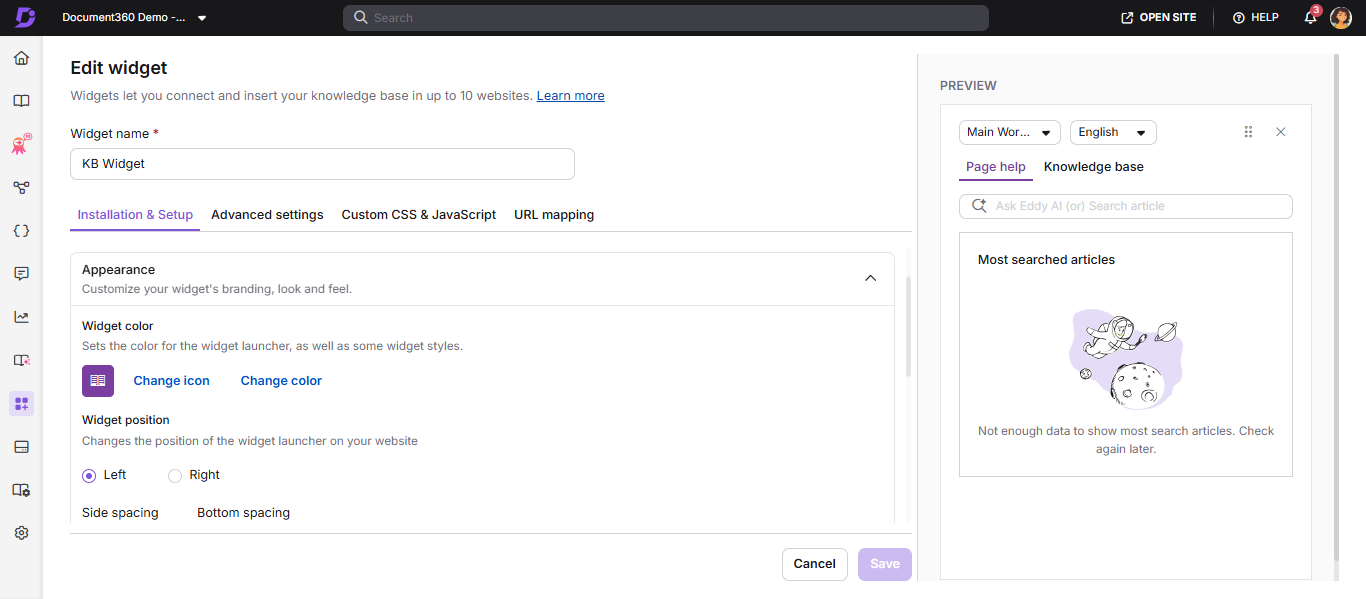
Changes are autosaved as you navigate between tabs. Click Save to explicitly apply before leaving the page.
When to configure widget styling
- During initial setup, to align the widget with your product's brand colors and icon.
- When repositioning to avoid overlap with a live chat widget or cookie banner.
- When using a custom trigger button and wanting to hide the default floating icon.
- When adding an onboarding welcome message for new users.
Before you begin
You must have a Project Owner or Admin role.
Widget color
Why it matters: Matching your widget's accent color to your product's primary brand color makes it feel like a designed part of your interface, not an embedded tool. This is especially important for SaaS products where brand consistency affects perceived quality.
How to set it:
- Click Change color. The color palette opens.
- Select a color from the picker, or enter a hex, RGB, or HSL value directly.
- Click Save.
Result: The widget icon and its header bar update immediately in the preview and on your live site after the next page load.
Example: If your product uses
#0057FFas its primary blue, entering that hex value will make the widget icon match your navigation bar and CTA buttons perfectly.
Widget icon
Why it matters: The default icon is a generic help bubble. Replacing it with your logo or a custom icon signals to users that this widget belongs to your product, not a third-party tool — increasing click-through rates.
How to set it:
- Click Change icon.
- Choose from the Icon set tab to pick a pre-built icon, or click Insert image to use a custom image:
- From URL: Paste the image link and click Insert.
- From device: Click Upload an image and select your file.
- Click Save.
- To revert, click Default.
Tip: Use a square image with a transparent background (PNG, recommended 64×64px or larger) for the cleanest result at all screen sizes.
Widget position
Why it matters: The default bottom-right position works for most sites, but some layouts have fixed navigation bars, cookie banners, or chat widgets in that corner. Repositioning avoids overlap and ensures the widget is always visible and accessible.
How to set it:
- Select Left or Right to choose which side of the screen the widget appears on.
- Enter values in Side spacing (horizontal distance from the edge) and Bottom spacing (vertical distance from the bottom) in pixels.
- Click Save.
Example: If your live chat widget sits at bottom-right with a 20px margin, position your Knowledge Base widget on the left at the same bottom spacing so both are accessible without overlap.
Welcome message
Why it matters: Most users won't notice a floating icon unless something draws their eye. A welcome message appears as a chat bubble above the icon and acts as a soft nudge — especially useful during onboarding flows or after a new feature launch.
How to set it:
- Enter your message in the Welcome message field (max 50 characters).
- Click Save.
Examples of effective welcome messages:
- "Need help? Start here."
- "New to this feature? We've got guides."
- "Search our knowledge base."
When to skip it: If your widget is embedded in a highly task-focused UI (like a checkout flow), a welcome message can feel intrusive. Leave it blank in those contexts.
Hide widget
Why it matters: If you're triggering the widget via a custom button (e.g. a "Help" link in your navbar), you don't want the default floating icon to also appear — that creates two entry points and visual clutter. Hiding the widget icon lets you control exactly where and how the widget is launched.
How to set it:
- Enable the Hide widget toggle.
- Click Save.
If you've mapped the widget to a custom button but the floating icon is still appearing, check that this toggle is on.
Hide most searched articles
Why it matters: The "most searched" section shows trending articles when the widget first opens. This is helpful for general-purpose knowledge bases. However, if your widget is scoped to a specific product area or workflow, showing unrelated popular articles can confuse users.
How to set it:
- Enable the Hide most searched articles toggle.
- Click Save.
Enabling this toggle also disables URL-based list mapping for the widget. If you rely on URL mapping to surface category lists on specific pages, keep this setting off.
Best practices
- Match the widget color to your product's primary CTA color for a native feel.
- If another widget (e.g. live chat) occupies the bottom-right corner, move the knowledge base widget to the left with matching bottom spacing.
- Use a custom icon with a transparent PNG background for brand-consistent results.
- Leave the welcome message blank on high-intent pages (checkout, submit forms) where distractions hurt conversion.