In Document360, you can add hyperlinks to text, images, and files within your articles or category pages. Links help readers navigate between related content, reach external resources, or jump to a specific section within the same article.
Document360 supports four types of hyperlinks:
| Link type | What it does |
|---|---|
| Article link | Links to an existing article within your knowledge base |
| Heading / anchor link | Links to a specific heading within any article |
| External link | Links to a URL outside your knowledge base |
| Email link | Opens the reader's email client with an address pre-filled |
All link types are available in the Advanced WYSIWYG editor. The Markdown editor supports article links, external links, and email links, but heading/anchor links work differently.
Replicated articles created using the Replicate feature cannot be added as internal article links. You can still link to the original article.
When would you use this
- Link to a software download page using an external link so readers can access the file without searching for it
- Use anchor links in a table of contents at the top of long troubleshooting articles to let readers jump directly to the relevant section
- Link to a related article at the end of each article to guide readers to the next logical step
- Copy heading links from the knowledge base site and share them directly in support tickets to point readers to the exact section they need
- Link to a PDF guide, configuration template, or release notes document stored in Drive
Add links
Opening the add link dialog
In the Advanced WYSIWYG editor, you can open the link dialog in three ways:
- Quick insert menu — Select the desired text. When the Quick insert menu appears, click the Link icon.
- Slash command — Type
/Linkin the editor. - Keyboard shortcut — Select text and press
Ctrl + K.
.png)
The Add link dialog will appear with two options: Article and External link.
Article link
Use an article link to connect readers to another article within your knowledge base. You can also link to a specific heading within any article.
- Open the Add link dialog using any of the methods above.
- Select the Article radio button.
- In the Text field, update the hyperlink display text if needed.
- Select the workspace and language of the target article from the Workspace & Language dropdown. This is especially important in multi-language or multi-workspace knowledge bases.
- Start typing the article name in the Search article field and select the desired article from the list.
.png)
Once an article is selected, a Reset to current article option appears. Use this to reset the link back to the article you are currently editing.
- Optionally, select a heading from the Link to a heading dropdown to link directly to a specific section within the article.
- Select the Open in a new tab checkbox if needed.
- Click Add.
Internal anchor link (bookmark link)
An anchor link points to a specific heading within an article rather than the top of the page. This is also called a bookmark link or heading link. They are the same thing in Document360.
Anchor links are useful for long articles where readers need to jump directly to a relevant section.
- Select the desired text and press
Ctrl + K. The Add link dialog will appear. - Select the Article radio button. The Text field will auto-populate with your selected text. The Workspace & Language dropdown will show your current workspace. The Search article field will default to the current article.
- Select a heading from the Link to a heading dropdown.
- Select the Open in a new tab checkbox if needed.
- Click Add.
The Link to a heading dropdown lists all H2, H3, and H4 headings in the selected article. This is independent of the heading levels you select for the table of contents (under Settings > Knowledge base site > Article settings > Article right section), so you don't need to change any settings for headings to appear here.
External link
Use an external link to point readers to a URL outside your knowledge base — such as a third-party tool, a product download page, or official documentation.
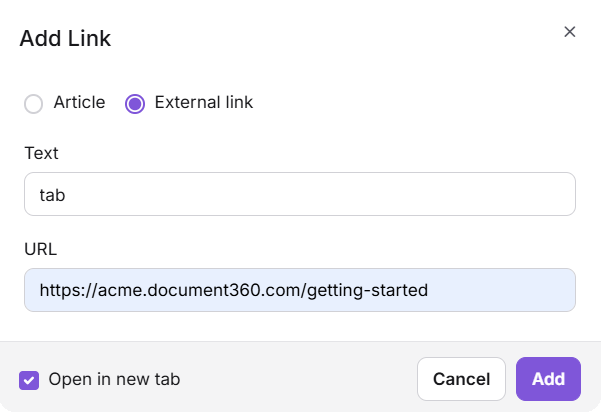
- Open the Add link dialog.
- Select the External link radio button.
- Enter the display text in the Text field.
- Paste the destination URL in the URL field.
- Select the Open in a new tab checkbox if needed. This is recommended for external links so readers do not lose their place in your knowledge base.
- Click Add.
How heading IDs work
Every heading (H2 to H6) in the Advanced WYSIWYG editor is automatically assigned a unique, permanent ID when created. This ID is based on the heading text at the time of creation and does not change — even if you rename the heading later. This means:
- Anchor links remain functional even after heading text is edited.
- If two headings share the same title, Document360 appends suffixes (
_1,_2, etc.) to keep IDs unique. - Heading IDs are consistent across language versions — the same ID is preserved in every translated version of the article.
Copying heading links from the knowledge base site
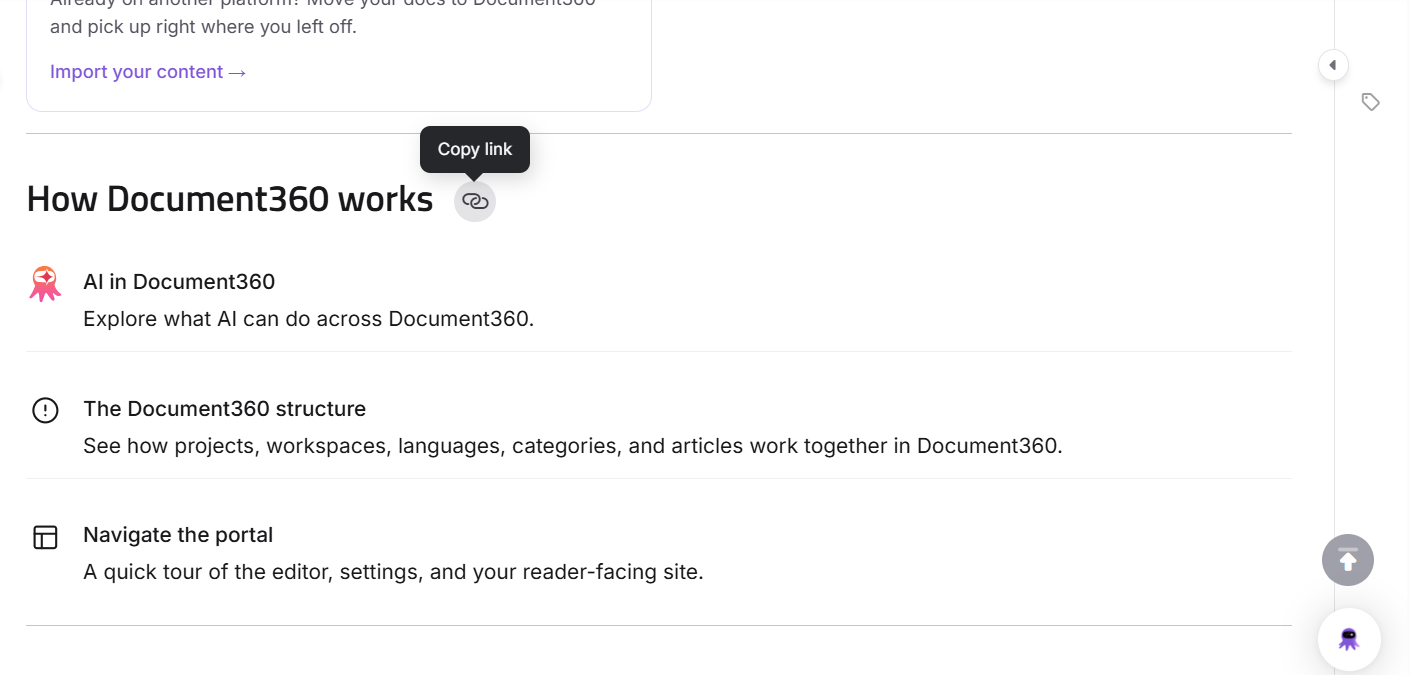
On the published knowledge base site, a Copy link icon appears next to every H2, H3, and H4 heading when you hover over it. Clicking it copies the direct URL to that section. This is useful for support teams sharing a specific section with a reader, or for linking directly from external tools.
If you prefer not to display the copy link icon on your knowledge base site, you can hide it using Custom CSS. See How to hide the copy link icon next to headings in the Custom CSS article for the steps and CSS snippet.
Email link
An email link opens the reader's default email client with the address pre-filled.
- Select the desired text and press
Ctrl + K. The Add link dialog will appear. - Select the External link radio button.
- In the URL field, enter the email address in the following format:
mailto:email@example.com - Click Add.
Linking to files (PDFs, images, Word documents)
To link readers to a downloadable file stored in Document360 Drive:
- Upload the file to Document360 Drive.
- Click the uploaded file to open the File details pane.
- Under Location, click the Copy icon next to the file path to copy the file URL.
- Go to your article, select the text you want to hyperlink, and press
Ctrl + K. - Select External link, paste the copied URL, and click Add.
Readers clicking the link on the knowledge base site will be taken directly to the file.
In private and mixed knowledge bases, the copied file URL includes a temporary access token and works only for a limited time, and only for readers who are logged in with the necessary permissions. If you need to share the file with someone outside your knowledge base, or want the link to keep working over time, use Share articles via private link instead of linking directly to the file.
Editing and removing links
To edit or remove an existing hyperlink in the Advanced WYSIWYG editor:
Click the hyperlinked text. A small toolbar will appear with four options:
- Open the link — Click to visit the linked URL.
- Edit — Modify the hyperlink text or URL.
- Unlink — Remove the hyperlink while keeping the text.
- Copy — Copy the hyperlink URL to the clipboard.
.png)
In the Markdown editor, links are edited manually by modifying the Markdown syntax directly.
How Document360 handles internal link URLs
When you add an internal article link, the generated URL may include additional components such as the workspace version or a different domain format. For example:
https://docs.yourcompany.com/v1/docs/article-namehttps://yourproject.document360.io/docs/article-name
These variations are expected and are handled automatically by Document360. A 404 error will only occur if the target article has been deleted, unpublished, or hidden, or if the target heading no longer exists.
Best practices
- Use article links instead of external links for content within your knowledge base — they are more stable and update correctly if the article slug changes.
- Open external links in a new tab so readers do not lose their place in your knowledge base.
- Use anchor links in long articles to help readers navigate directly to relevant sections — especially in troubleshooting guides and reference articles.
- Do not link to hidden or unpublished articles — they return a 404 error for readers on the knowledge base site.
- Limit external links to 1–3 per article for optimal SEO health. Articles with no external links or more than three are flagged under Suggestions in Document360's Health Check Metrics.
- Use internal links frequently — 1 to 3 internal links per article is considered optimal for both reader navigation and SEO performance, as indicated by the Health Check Metrics tool.
FAQ
Will my anchor link break if I rename the heading it points to?
No. Document360 assigns each heading a unique, permanent ID when it is created. This ID does not change when the heading text is edited, so existing anchor links remain functional.
Can I link to a hidden or unpublished article?
You can add the link, but hidden and unpublished articles return a 404 error for readers on the knowledge base site. The article must be published and visible for the link to work.
Should internal links open in a new tab?
A common convention is: internal article links open in the same tab; external links and file downloads open in a new tab. Document360 gives you the option on every link — use your judgment based on where the link leads.