The Markdown editor supports standard link syntax and, through inline HTML, a range of enhancements — tooltips on hover text, link styling, opening links in new tabs, and custom icons or emojis. This article covers all of these techniques.
When to use these techniques
- Internal anchor links — help readers jump to a specific section within a long article without scrolling.
- Cross-article links — connect related articles in your knowledge base to guide readers through a topic.
- Tooltips — explain abbreviations, technical terms, or optional details inline without cluttering the page.
- Styled links — use bold or italic link text to draw attention to important references.
- Open in new tab — keep readers on the current article while letting them open a reference in the background.
- Icons and emojis — add visual signals to callouts, labels, or status indicators.
Quick reference
| Goal | Syntax |
|---|---|
| Internal anchor link | [Link text](#heading-slug) |
| Cross-article link | [Link text](../article-slug) |
| Link with tooltip | [Link text](#section "Tooltip text") |
| Bold link text | [**Bold text**](url) |
| Italic link text | [_Italic text_](url) |
| Open in new tab | <a href="url" target="_blank">Link text</a> |
| Hover tooltip on text | <span title="Full term">Abbreviation</span> |
| Inline emoji | Paste directly — 📌 ⚠️ ✅ |
| Inline icon from URL | <img src="icon-url" width="16" height="16"> Label |
How to add links in Markdown
Internal anchor links
An internal anchor link takes readers to a specific heading within the same article.
-
Add a heading in your article. For example:
## How it works -
Create the link using this pattern:
- Link text inside square brackets
[ ] #followed by the heading text inside parentheses( )- Convert the heading to lowercase and replace spaces with hyphens
[Jump to How it works](#how-it-works)When a reader clicks this link, they are taken directly to the
## How it workssection. - Link text inside square brackets
Anchor links are case-insensitive and spaces become hyphens automatically. Remove any special characters from the heading before building the anchor slug.
Cross-article links
To link to a different article in your knowledge base, use the article slug prefixed with ../ to move one level up from the current article's location.
[Go to Getting Started](../getting-started)
This link moves one level up from the current article and opens the Getting Started article.
Adding a tooltip to a link
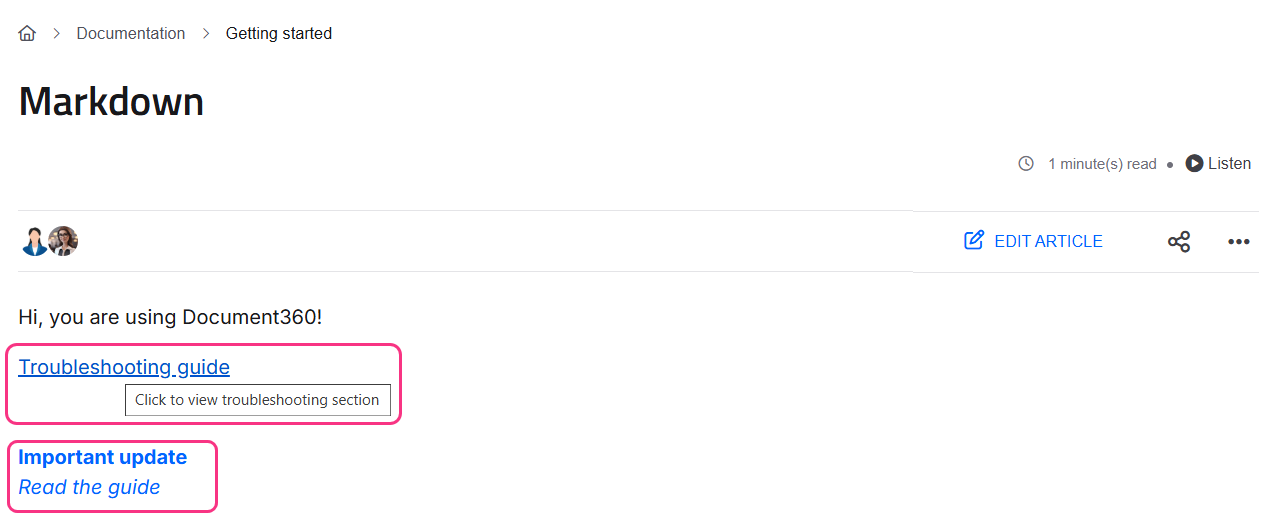
Add a tooltip that appears on hover by placing the tooltip text in quotes after the link target, inside the parentheses.
[Troubleshooting guide](#troubleshooting "Click to view troubleshooting section")
Hovering over the link displays: Click to view troubleshooting section.
Styling link text
Apply bold or italic formatting to link text by wrapping the text inside the square brackets with standard Markdown syntax.
[**Important update**](../release-notes)
[_Read the guide_](../setup-guide)
Opening a link in a new tab
By default, Markdown links open in the same tab. Use an HTML <a> tag with target="_blank" to open the link in a new tab instead.
<a href="https://docs.document360.com/docs/getting-started" target="_blank">Go to Getting Started</a>
How to add hover tooltips to text
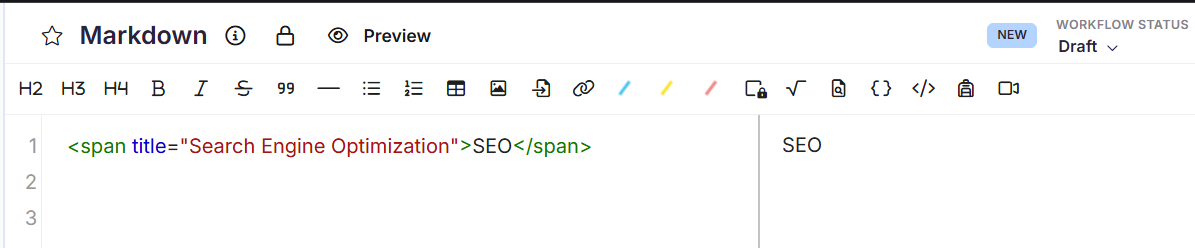
Use the HTML <span> tag with a title attribute to display a tooltip when a reader hovers over any word or phrase — not just links.
<span title="display-text">term</span>
Example — expand an abbreviation on hover:
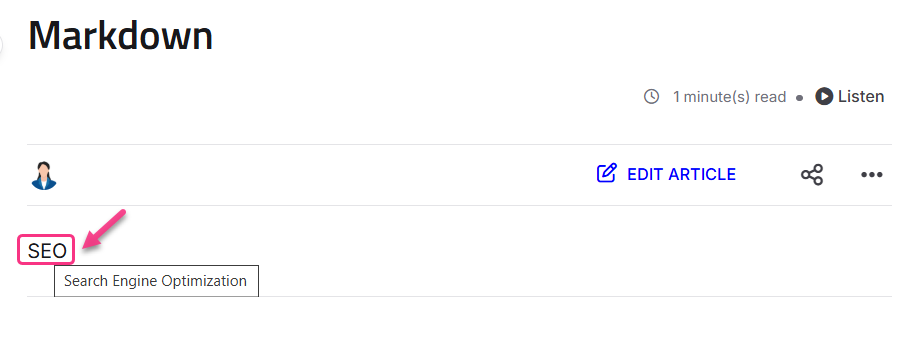
<span title="Search Engine Optimization">SEO</span>
Hovering over SEO displays: Search Engine Optimization.
Outcome:
How to add icons and emojis
Using emojis
Copy and paste emojis directly into your content. They render inline without any additional syntax.
📌 Important note
⚠️ Caution
✅ Completed
Using icons from a URL
Use an HTML <img> tag to insert an icon from an external URL inline with your text.
<img src="https://img.icons8.com/color/48/000000/info.png" width="16" height="16"> Information
Replace the src URL, width, height, and label text with your required values.

Best practices
- Use descriptive link text — avoid "click here" or "read more". Use text that tells readers where the link goes, such as "Getting Started guide" or "API reference".
- Test anchor links after editing headings — if you rename a heading, any anchor links pointing to it will break. Update the slug in all links that reference the heading.
- Use tooltips for abbreviations, not definitions — tooltips are read on hover only and are not accessible to all users. For essential definitions, include the explanation in the body text.
- Keep emoji and icon use consistent — agree on a small set of icons or emojis for your knowledge base (for example, ⚠️ for warnings, ✅ for completed steps) and use them consistently across articles.