The glossary in Document360 is a single, project-wide collection of defined terms that you create once and reuse across all articles and category pages. Glossary terms appear with a dotted underline in your content. Readers can hover over any term to view its definition without navigating away from the page.
For example, when adding the acronym GDPR, you can define it as "General Data Protection Regulation," and the term will be consistently used across all relevant articles. Document360 supports one glossary per project. All terms are stored centrally and are available across every workspace and language in that project.
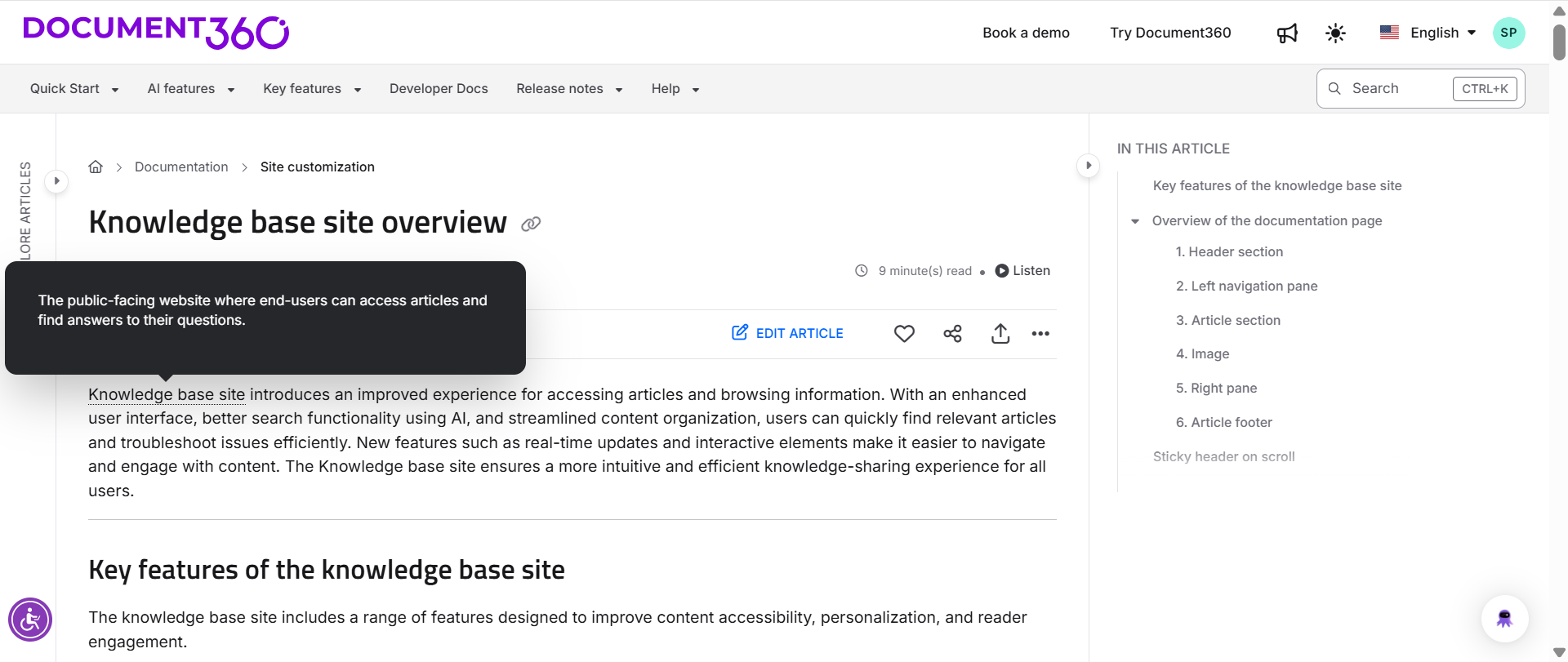
Glossary terms are available in both the knowledge base and the knowledge base widget.
Why add a glossary to your knowledge base
- Improved readability: Glossary terms let readers get instant definitions for complex terms without leaving the page, reducing confusion and improving comprehension.
- Consistency: Once a term is added to the glossary, it can be reused across multiple articles, ensuring terminology is defined consistently across your entire knowledge base.
- Time-saving for writers: Technical writers no longer have to define terms in each individual article, which reduces redundancy and speeds up content creation.
- Product-specific education: Use the glossary to define product-specific terms or industry jargon, helping readers get familiar with your terminology and enhancing their understanding of your product.
Adding industry-specific terms to your glossary also improves your knowledge base's SEO. Glossary terms increase the relevance of your documentation in search engine results by associating definitions with keywords.
The Glossary page
Navigate to Content tools () > Content resources > Glossary to access and manage your glossary terms.
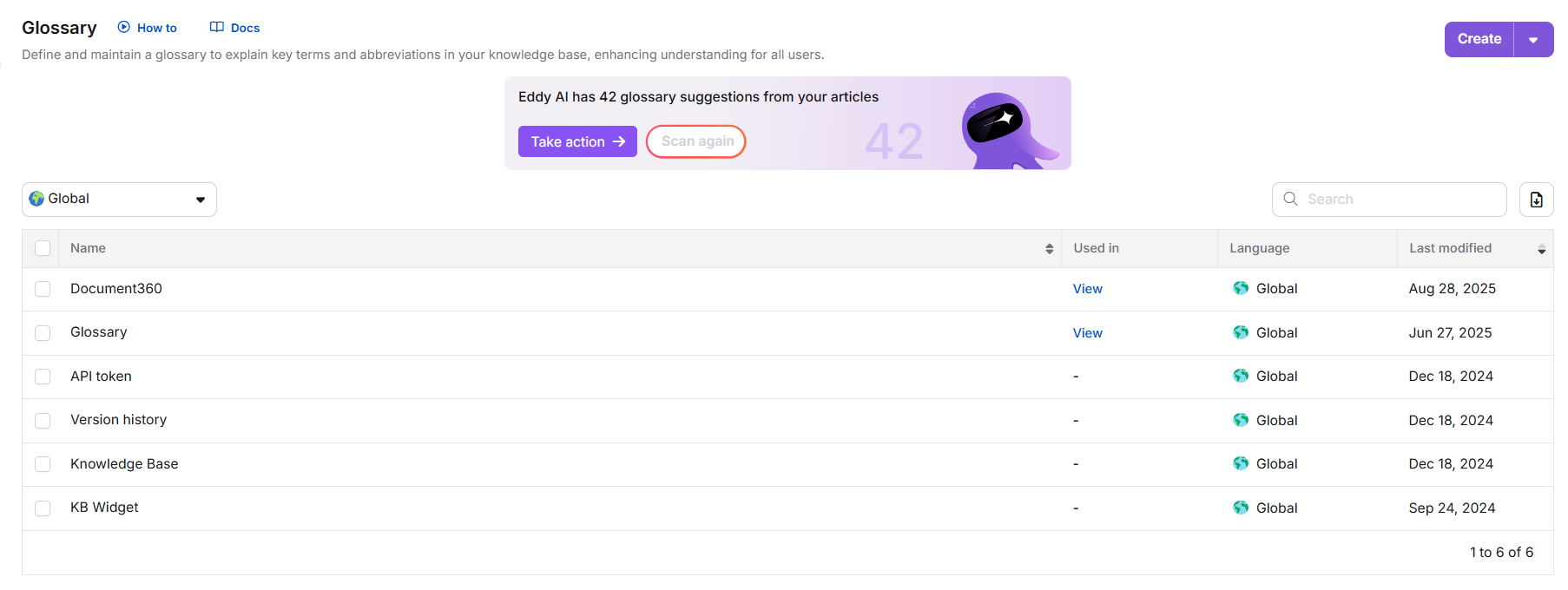
| Element | Description |
|---|---|
| Use Eddy AI for glossary generation | Uses Eddy AI to scan your content and suggest glossary terms for key phrases and acronyms automatically. |
| Create | Creates a new glossary term. |
| Import glossary | Imports multiple glossary terms from a CSV file. |
| Languages | Filters the glossary by Global or a specific language. |
| Search glossary | Searches for a glossary term by name. |
| Export CSV | Exports selected glossary terms as a CSV file for backup or external use. |
| Preview | Click a glossary term name to preview its content. |
| Used in | Shows a dash if the term is unused. If used, click View to see the list of articles and category pages where it is referenced, along with workspace, language, article status, version, contributor details, and last updated date. |
| Language | Shows the language assigned to each glossary term. |
| Last modified | Displays the date and time the term was last updated. |
Get started with glossary
AI glossary generator
Use Eddy AI to automatically scan your knowledge base content and generate glossary term suggestions for key phrases and acronyms.
Learn more →Add new glossary terms
Create glossary terms individually or import multiple terms at once from a CSV file, with formatting options for definitions.
Learn more →Manage and translate glossary terms
Edit, translate, delete, and export glossary terms across your project and languages.
Learn more →Insert glossary term in article
Add glossary terms to your articles using two methods in the Markdown editor or the slash command in the Advanced WYSIWYG editor.
Learn more →Add glossary to your knowledge base site
Surface the glossary to readers by adding a link to your site header, footer, or secondary navigation.
Learn more →Best practices
- Define terms at the right level of detail. Write definitions for your least-technical readers. If a term is obvious to your audience, it does not need a glossary entry. If it is likely to confuse even one reader, add it.
- Use the Name field as a stable identifier. Keep the Name field lowercase and without spaces, for example
api_keyorgdpr. This stays consistent across languages even when the visible Term text changes per locale. - Set Global scope for terms that are not translated. Use Global for terms such as product names or acronyms that are the same in every language. Use a specific language scope only when the term itself differs by locale.
- Check usage before deleting. Deleting a glossary term removes the tooltip from all articles where it was used. Use View in the Used in column to check the impact before deleting a widely used term.
- Use Eddy AI to seed your glossary. For a new or large project, use the AI glossary generator to get an initial set of suggestions based on your existing content, then review and refine each one before publishing.
FAQ
What happens if I delete a glossary term?
When a glossary term is deleted, it is removed from all articles where it was used. The term will no longer display its definition as a tooltip for readers.
Can I import multiple glossary terms at once?
Yes. Use the Import glossary option on the Glossary page to bulk import terms from a CSV file. This is useful for large projects where multiple terms need to be added quickly.
Can glossary terms be filtered by language?
Yes. Use the Languages dropdown on the Glossary page to filter terms by language. Terms marked as Global are available across all languages in your knowledge base.
Does the glossary change when I switch between workspaces?
No. The glossary is configured at the project level, not the workspace level. All terms are stored in one project-wide glossary and appear across the entire knowledge base site. Switching between workspaces does not change the glossary or any other Content tools configuration.
How do I add a glossary term to my articles?
Navigate to Content tools () > Content resources > Glossary and create a new term. Once added, the term can be inserted into your articles and readers can hover over it to view the definition.