The AI glossary generator in Document360 scans your published articles, identifies recurring business terms, and suggests definitions for them. It is part of the Eddy AI premium suite and is available to Admins and Owners in the Knowledge base portal. Use it to build a shared, consistent glossary across your knowledge base without manually combing through content.
When to use the AI glossary generator
Use the AI glossary generator when:
- Different teams use the same term differently — Surface recurring terms across your knowledge base and define them once so all readers get a consistent explanation.
- You are building a glossary from scratch — Instead of manually identifying terms, let Eddy AI scan your published content and generate a candidate list to review.
- Your knowledge base spans multiple languages — Add approved terms to specific language versions to maintain accuracy across locales.
- Content has grown organically over time — Run a periodic rescan to catch new terms that have emerged as your documentation expands.
Before you begin
- Only Admins and Owners, or users with the relevant permissions under custom roles, can enable and use the AI glossary generator.
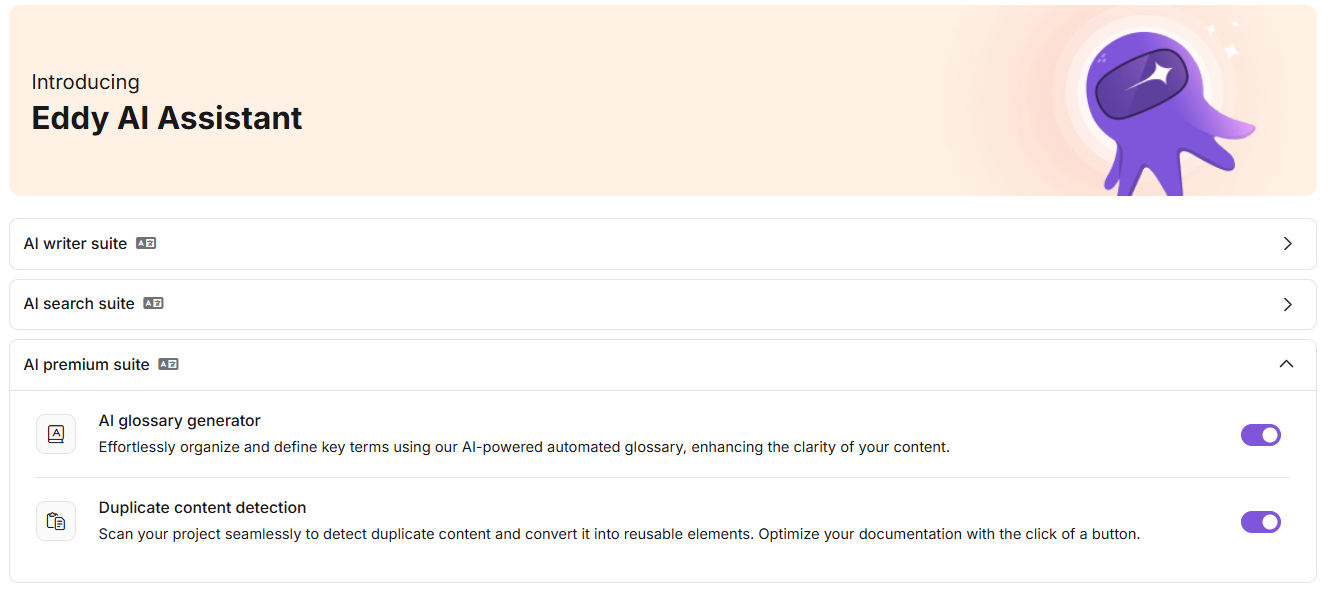
- The feature must be enabled under Settings > AI settings > Eddy AI settings before you can access it.
- Suggestions are generated only from published articles. Unpublished articles are not scanned.
- Rescans can be performed once every 7 days and must be triggered manually.
Enable the AI glossary generator
- Navigate to Settings > AI settings in the left navigation bar of the Knowledge base portal.
- Select Eddy AI settings from the left navigation pane.
- Scroll down to the AI premium suite section and locate AI glossary generator.
- Toggle the switch to enable the feature.
Review and add glossary suggestions
Access the suggestions panel
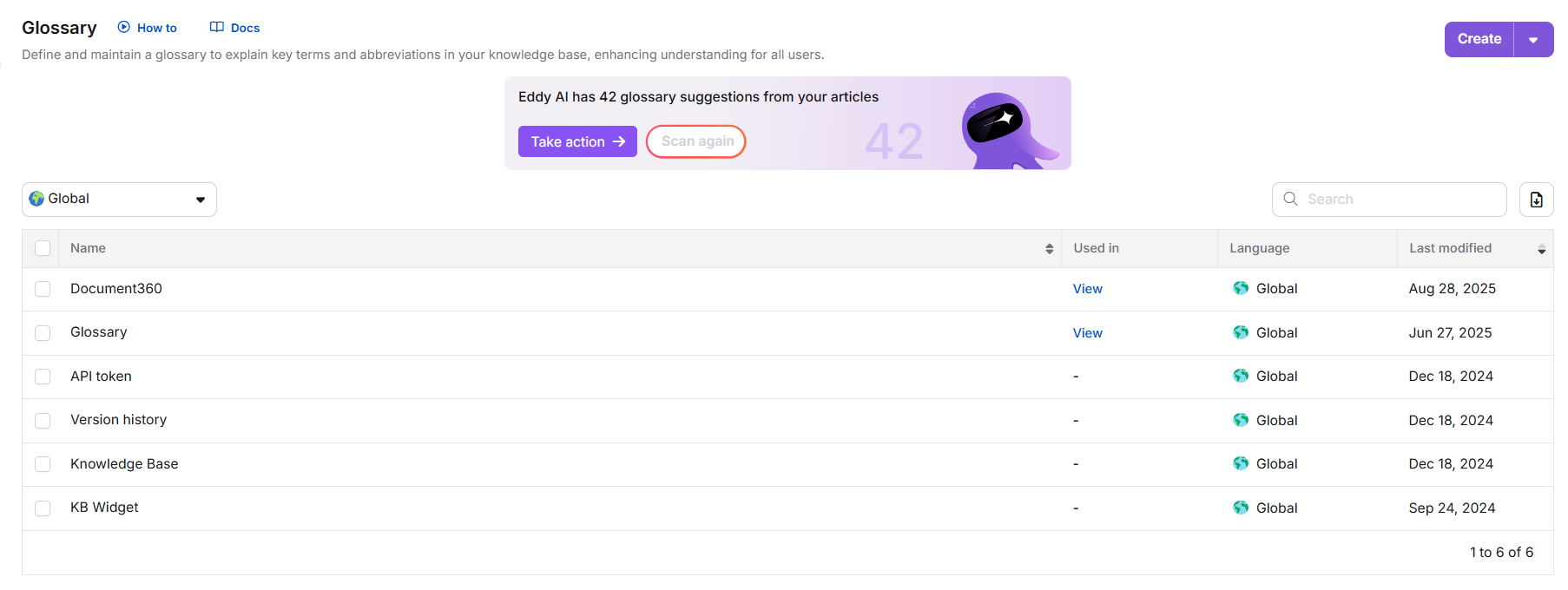
- Navigate to Content tools (
 ) > Content reuse > Glossary in the left navigation bar.
 - Click Take action on the Eddy AI banner in the centre of the page.
The Open suggestions section appears by default under Eddy AI glossary suggestions, listing all terms Eddy AI has identified from your published articles.
If no published articles exist, the generator returns 0 suggestions. Publish at least one article before running a scan.
Review and add a term
- Select a term from the list on the left. Each term shows how many times it appears and in how many articles — for example, "Backup is used 1 time(s) in 1 article(s)."
- Review or edit the AI-suggested definition in the Definition text box. You can use the formatting toolbar to apply styling.
- In the Add to dropdown, select the language version to add the term to. English is selected by default. The term is added only to the selected language version.
- To link the term to matching articles, enable the Update in articles (n) checkbox. The number shows how many articles contain the term.
- Click Show articles to preview which articles will be updated. Only articles you have access to are displayed.
- Leave the checkbox unchecked to save the term to the glossary without updating any articles.
- Click + Add to glossary to save the term. The term moves from the suggestions list to the glossary.
Ignore a suggestion
- Select the term you want to dismiss.
- Click Ignore term.
The term moves to the Ignored suggestions section and will not reappear in the open suggestions list after a rescan. To reconsider it, go to Ignored suggestions and click Move to open list.
Save your progress
Click Continue later at any point to close the panel. Open suggestions and ignored terms are saved automatically and remain as you left them.
Rescan for new suggestions
- Open the AI glossary generator panel from Content tools () > Content resources > Glossary.
- Click Rescan (available once 7 days have passed since the last scan).
After the rescan completes, new suggestions are added to the Open suggestions list and you receive an email notification. Terms previously marked as ignored are not re-suggested.
Keyboard shortcuts
When working in the Edit glossary suggestions panel, use these shortcuts to move through suggestions faster:
| Shortcut | Action |
|---|---|
| Arrow keys | Navigate between suggestions |
| Enter | Add the current term to the glossary |
| Backspace | Ignore the current term |
Best practices
- Review suggestions in batches — Use keyboard shortcuts (arrow keys, Enter, Backspace) to move through the list quickly rather than clicking each term individually.
- Edit AI-generated definitions before saving — Treat suggestions as drafts. Adjust the wording to match your product's voice and the specific meaning your team uses.
- Standardize on one form of each term — Because singular and plural forms are treated separately, decide which form you want in the glossary and ignore the other to avoid duplicate entries.
- Scope terms to the correct language version — Before clicking + Add to glossary, confirm the Add to dropdown is set to the right language, especially in multilingual knowledge bases.
- Schedule rescans after publishing batches of new content — Wait until you have published a meaningful volume of new articles before rescanning, so the generator has enough content to surface useful new terms.
FAQ
Does the AI glossary generator treat singular and plural forms as the same term?
No. Singular and plural forms are treated as two separate terms. For example, "account" and "accounts" appear as distinct suggestions. Decide which form you want in your glossary and ignore the other to avoid duplicates.
Does the generator merge synonymous terms into one suggestion?
No. Synonymous terms are treated as separate suggestions. For example, "routine" and "daily" are surfaced independently even though they share meaning.
Can the rescan run automatically on a schedule?
No. Rescans are manual. The system does not trigger them automatically. You can run a rescan once every 7 days from the AI glossary generator panel.
What happens to ignored terms after a rescan?
Terms you have marked as ignored remain in the Ignored suggestions section and are not re-suggested after a rescan. To reconsider an ignored term, go to Ignored suggestions and click Move to open list.
Why does a green "Recommendations" dropdown appear while I am editing an article?
When you edit an article, Document360 detects content that matches existing glossary terms and surfaces them as recommendations in the top-right corner of the editor. Inserting a recommended term links it to its glossary definition. Note that only the first occurrence of a term is highlighted — subsequent occurrences in the same article are not flagged again. The first letter of an inserted term is automatically capitalised.