Duplicate Content Detection is an Eddy AI feature in Document360 that scans your published articles, identifies repeated text blocks, and recommends converting them into reusable snippets. Use it to maintain a consistent single source of truth across your knowledge base and reduce the maintenance overhead of updating the same content in multiple places.
When to use Duplicate content detection
- Your knowledge base has grown over time — As article count increases, the same explanatory text tends to get copy-pasted across articles. Use this feature to find and consolidate those blocks before they diverge.
- You are standardizing content for reuse — If your team is moving toward a snippets-first approach, this scan gives you a ready-made list of candidates to convert.
- You have updated a core piece of content — After changing a product name, process, or policy, scan to find all articles where the old wording was duplicated and update them in one action.
- You want to reduce support tickets from conflicting information — Duplicate content that falls out of sync creates reader confusion. Converting it to a snippet ensures every article always shows the latest version.
Before you begin
- Only Admins, Owners, or users with the relevant permissions under custom roles can enable Duplicate Content Detection.
- Only users with update access to the Content resources module can initiate scans.
- Duplicate Content Detection currently supports English content only.
- Both published and draft articles are scanned for content duplication.
- You can run a maximum of 4 manual scans per month. The limit resets on the 1st of each month. Once reached, the scan option is disabled until the next reset.
- Scans can be run manually at any time. In addition, a scheduled scan runs automatically every month
- Articles you do not have access to will not appear in scan results.
What content is scanned?
The scan analyses plain text paragraphs only. A paragraph must be between 50 and 4,000 characters and contain at least 3 sentences to be eligible. The following content types are excluded from scanning:
| Excluded content type | Notes |
|---|---|
| Lists | Ordered and unordered |
| Tables | All table content |
| Callouts | Info, warning, error boxes |
| Accordions and FAQs | Collapsed content blocks |
| Tabs | Tabbed content sections |
| Media elements | Images, videos, GIFs |
| Content with hyperlinks | Any paragraph containing a link |
| Paragraphs with variables | Dynamic variable content |
| Conditional content | Audience- or role-gated blocks |
| Step-by-step guides | Procedural content pages |
| Decision trees | Branching content pages |
| Custom pages | Non-standard page types |
A snippet is only suggested when the match score is 80% or higher, calculated as: (Vector Score × 70%) + (ROUGE Score × 30%) ÷ 100. Suggestions are listed in descending order by the number of times the duplicate appears.
Enable Duplicate content detection
- In the Knowledge base portal, navigate to Settings () > AI Settings > Eddy AI settings.
- Scroll down to the AI Premium suite accordion.
- Toggle on Duplicate content detection.
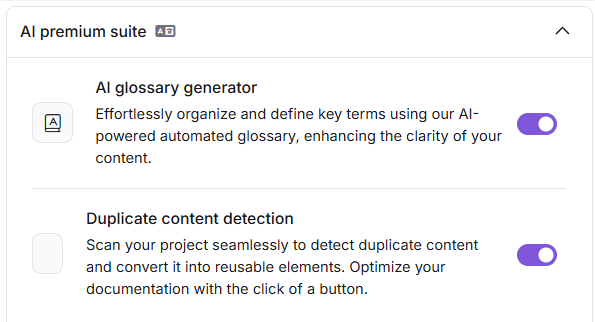
Once enabled, you can initiate scans and view reports from the Snippets page or the Knowledge pulse page.
Run a scan
From the Snippets page
- Navigate to Content tools > Content resources > Snippets.
- Locate the Duplicate content detection banner at the top of the page.
- Click Find duplicates to start the scan (on first use). If a previous scan exists, click Scan again.
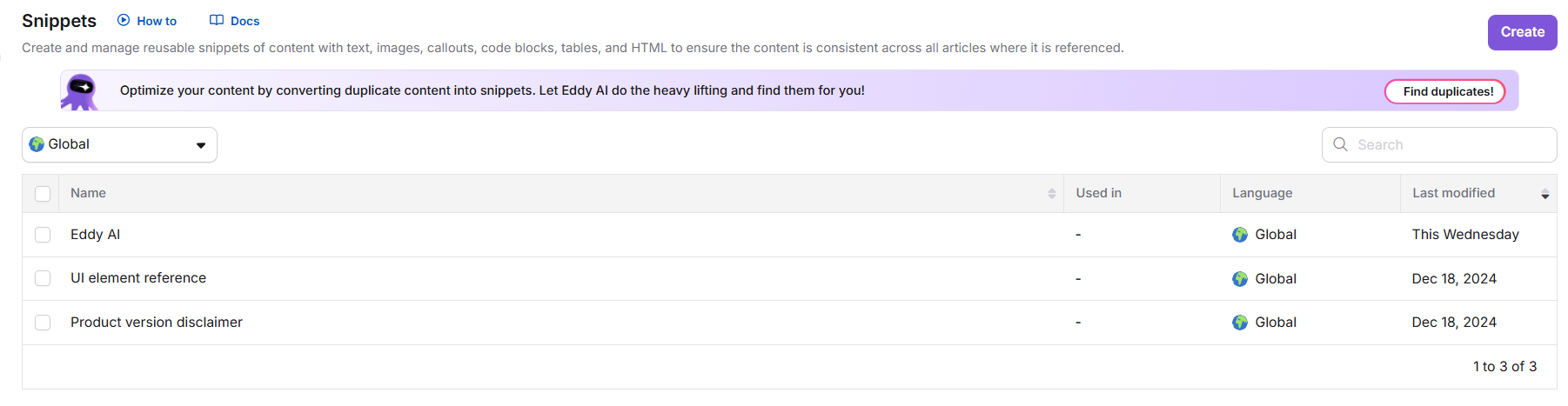
- Once the scan completes, click Review suggestion to open the duplicate content report.
From the Knowledge pulse page
- In the Knowledge base portal, click the Knowledge pulse icon in the left navigation bar.
- In the Duplicate content detection section, click Scan now.
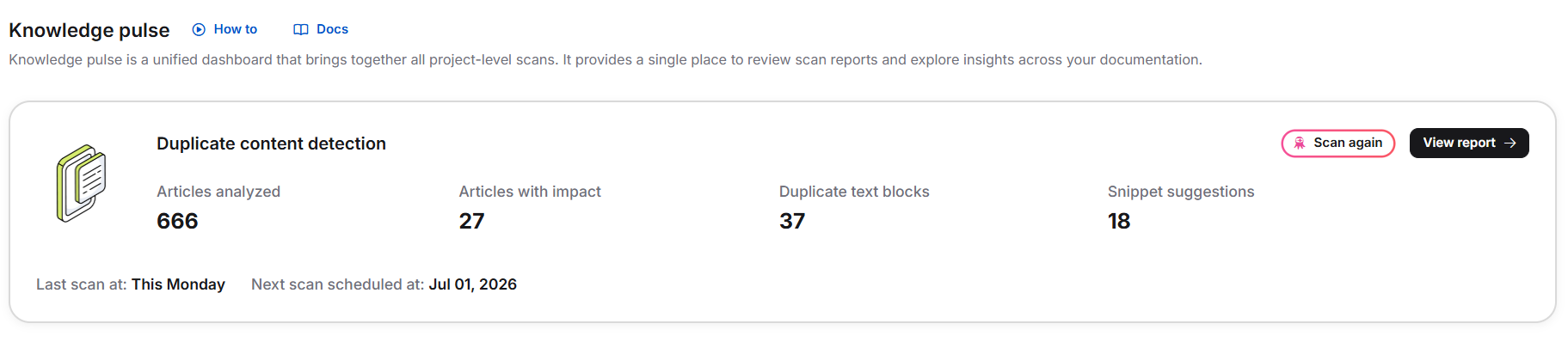
Once the scan completes, the following metrics are shown:
| Metric | Description |
|---|---|
| Articles analyzed | Total number of published articles scanned |
| Articles with impact | Articles containing at least one duplicate text block |
| Duplicate text blocks | Total number of duplicate instances identified |
| Snippet suggestions | Number of snippets Eddy AI recommends creating |
| Last scan date | When the most recent scan was run |
| Next available scan date | When the next scan can be initiated |
- Click View report to open the detailed results, or Scan again to rerun detection.
To see which articles make up the Impacted articles count, click View report. Each entry in the Duplicates identified tab lists the articles where that content appears.
Review and act on the report
The Duplicate content detection report has two tabs: Duplicates identified and Ignored duplicates.
Duplicates identified tab
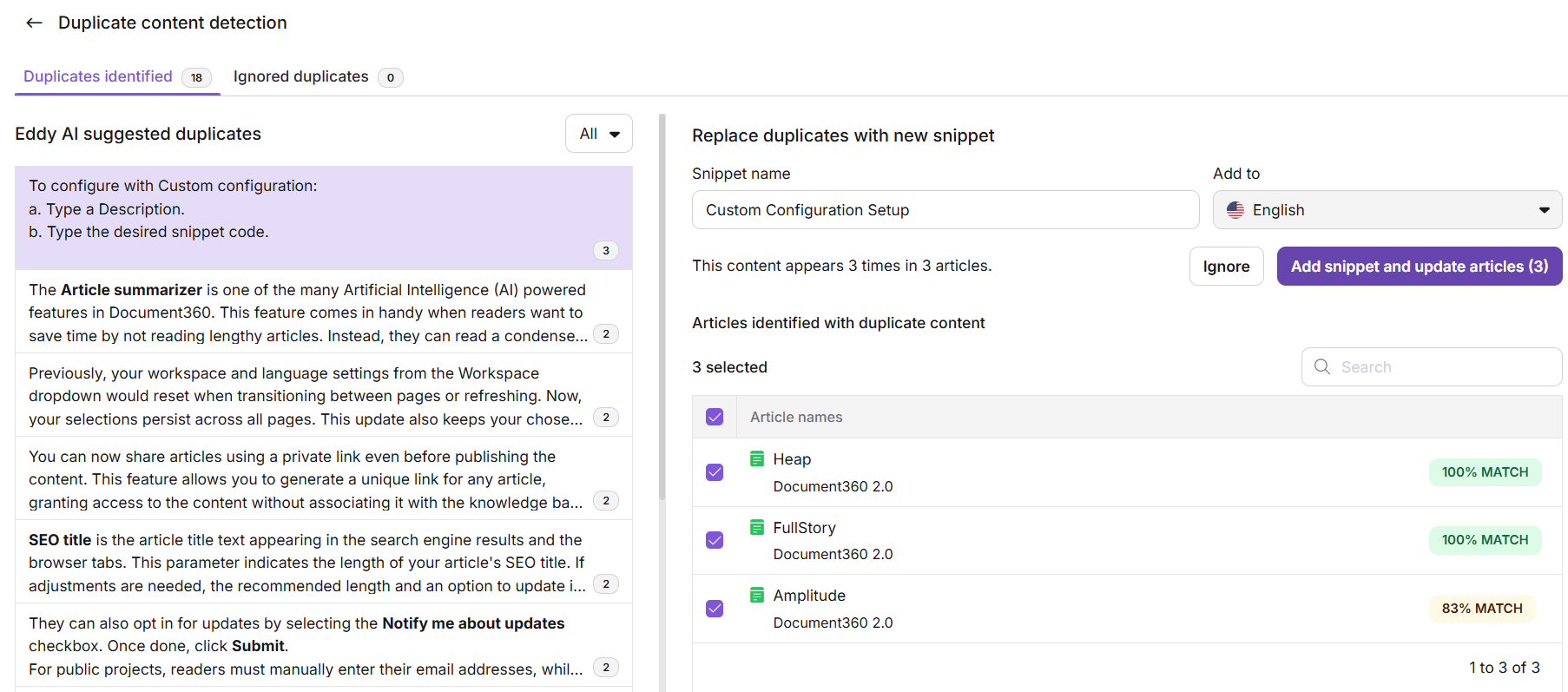
The left panel lists all duplicates Eddy AI has identified. Each entry shows how many times the content appears and across how many articles — for example, "This content appears 16 times in 10 articles."
Use the filter dropdown to narrow the list:
| Filter | What it shows |
|---|---|
| All | Every duplicate suggestion regardless of status |
| New | Duplicates for which no snippet exists yet |
| Existing | Duplicates that match content already saved as a snippet |
The latest published version of each article is always used for comparison. If an article or snippet was modified since the last scan, a prompt will ask you to rescan before acting on the suggestion.
Click any entry to open the detail panel on the right, where you can:
- Edit the suggested snippet name.
- Confirm or change the target language (English by default).
- Click Ignore to move the entry to the Ignored duplicates tab.
- View the percentage match score for each duplicate.
- Click Add snippet & update articles to apply the snippet across all listed articles.
Edit a suggested snippet
-
Click the Edit () icon next to the suggested content.
-
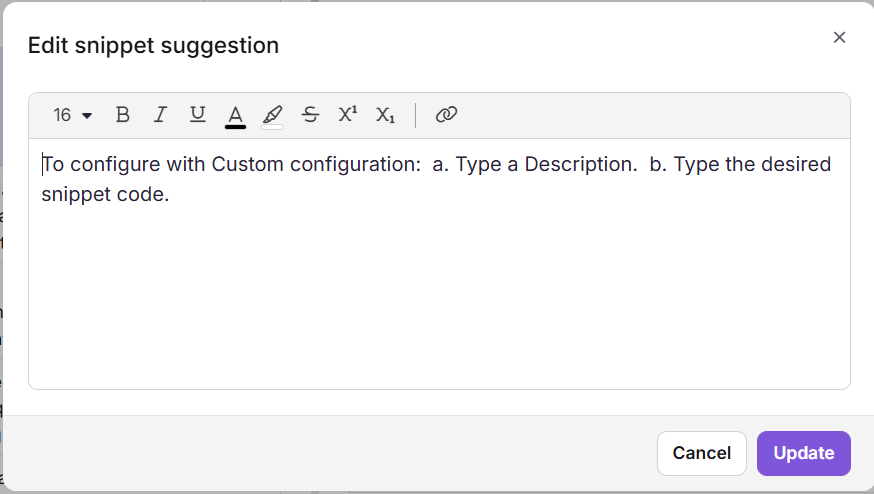
In the Edit snippet suggestion dialog, edit the text and apply formatting using the available tools.
When you edit the content, the match percentage recalculates automatically. Even if the score drops below 80%, the updated percentage remains visible for comparison. The suggestion list does not refresh — it continues to reflect the original matches identified before editing.
-
Click Update to save your changes.
Preview changes before applying
Before applying a snippet, you can verify how each article will look after the change:
-
In the Duplicates identified tab, hover over an article in the right panel and click the ⓘ icon to view its details.
-
Click Preview to open the split view.
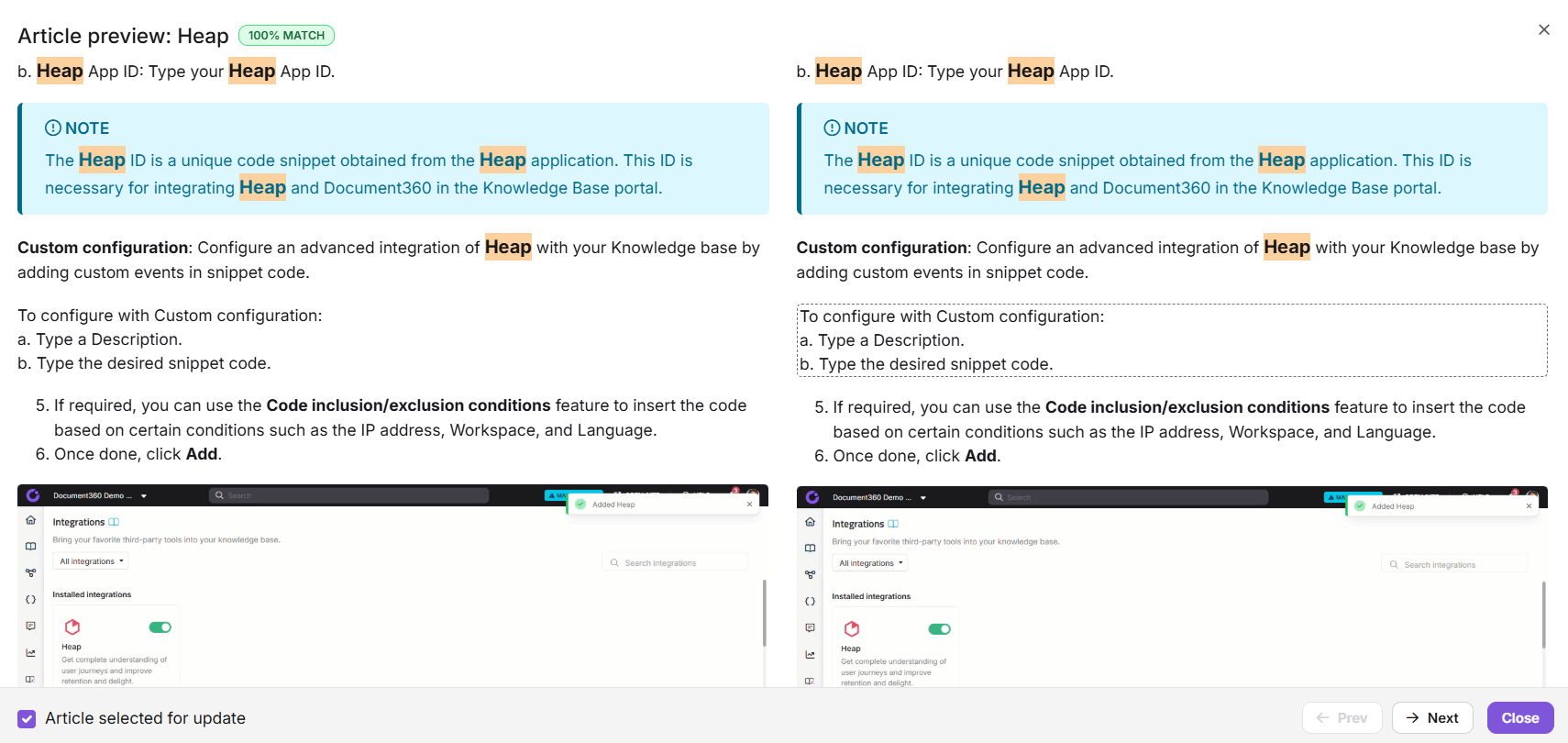
The left side shows the original article content. The right side shows the updated version with the snippet applied. Deleted text is highlighted in red, added text in green, and formatting changes in blue. The inserted snippet is outlined with a dotted rectangle on the right side.
-
Use Next and Prev to move between article previews. To exclude a specific article from the update, uncheck the Article selected for update checkbox for that article.
When a snippet is applied to a published article, the article is immediately republished. For draft articles, changes are applied within the same version unless the draft is locked. A note titled "Published through Snippets" is added to the version history, and the action is recorded in team auditing.
Apply the snippet
- Review the preview and confirm which articles to include.
- Click Add snippet & update articles.
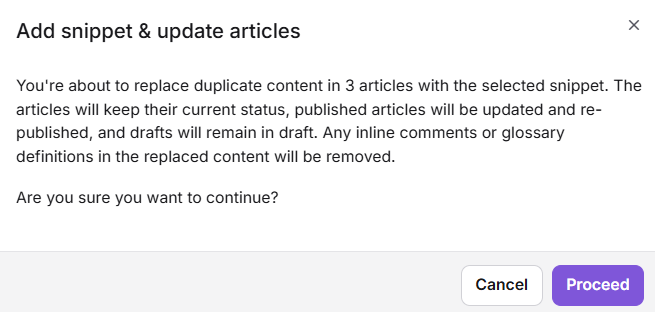
- Click Proceed in the confirmation dialog.
A confirmation message appears: "Snippet added, and articles updated successfully."
When duplicate content is converted into a snippet, any inline comments within that content are deleted from the article. They remain available in the resolved section of the Inline comments panel for reference. If the content contains a glossary term, the glossary definition linked to that term is also removed during replacement — the term remains, but its definition will no longer appear. You are notified about this during the update confirmation.
Ignored duplicates tab
The Ignored duplicates tab lists entries you have dismissed using the Ignore option. Ignored suggestions:
- Cannot be edited.
- Persist after a new scan — if the list of impacted articles changes, the entry is updated to reflect the new article list, but the suggestion remains ignored.
- Can be restored at any time by clicking Move to open list.
Limitations
| Limit | Value | Notes |
|---|---|---|
| Scans per month | 4 | Resets on the 1st of each month |
| Scan trigger | Manual only | Not automated |
| Minimum paragraph length | 50 characters | Shorter paragraphs are excluded |
| Maximum paragraph length | 4,000 characters | Longer paragraphs are excluded |
| Minimum sentence count | 3 sentences | Paragraphs with fewer sentences are excluded |
| Minimum match score | 80% | Suggestions below this threshold are not shown |
| Language support | English only | Other language versions are not scanned |
| Article eligibility | Published articles only | Drafts and unpublished articles are excluded |
| Editor type for snippet | Depends on impacted articles | If all are Markdown, the snippet is Markdown; if any use Advanced WYSIWYG, the snippet is Advanced WYSIWYG |
Best practices
- Preview before applying — Use the split-view preview to verify every article before committing. This is especially important for published articles, which are republished immediately when a snippet is applied.
- Apply selectively when needed — You do not have to apply a snippet to every impacted article at once. Uncheck articles that need individual review before you proceed.
- Rename snippet suggestions before saving — Auto-generated snippet names are often generic. Rename them to something descriptive (e.g.,
[Shared] Account deletion warning) so they are easy to manage in the Snippets module later. - Run a scan after major content updates — If multiple articles were updated since the last scan, rescan before acting on suggestions to ensure the report reflects the current state of your knowledge base.
- Edit existing snippets in the Snippets module — When a detected duplicate matches an existing snippet, any future edits to that content must be made in Content tools > Content resources > Snippets, not in the Duplicate Content Detection report.
- Space out scans strategically — With only 4 scans per month, avoid scanning immediately after every small change. Wait until a meaningful batch of articles has been published or updated.
FAQ
What happens if detected duplicate content already exists as a snippet?
Eddy AI still flags it as a duplicate. The existing snippet content becomes the primary content, an existing snippet tag is shown against the suggestion, and the match percentage is recalculated against that snippet. Duplicate content in other articles is replaced with the existing snippet. To edit the snippet, go to the Snippets module — edits cannot be made from the Duplicate Content Detection report.
What happens if a snippet or article is deleted after the scan?
If the snippet is deleted, attempting to update an article using it fails and an "Update failed" message appears — the suggestion is removed from the list. If an article is deleted after the scan, it no longer appears in the impacted articles list, but the original occurrence count (e.g. "16 times in 10 articles") still reflects the scan results. The deleted article cannot be selected for update.
What happens if an article is edited after the scan?
The preview shows: "Looks like the article was updated since the last scan. The suggested duplicate content is no longer found. Please rescan to get the latest results." The article is deselected and disabled in the preview by default. If you try to update without previewing first, the result message will indicate how many articles were updated and how many failed.
Do cloned articles appear in the scan?
Yes. The scan runs at the project level. Cloned articles — whether created within the same workspace or across different workspaces — are treated as separate articles, and any duplicate content in them appears as a separate entry in the scan results.