Once glossary terms have been added to your knowledge base, you can edit their content, translate them into other languages, delete them individually or in bulk, and export them as a CSV file. All glossary management is done from Content tools () > Content resources > Glossary.
Translate a glossary term
You can manage glossary terms in multiple languages to ensure a consistent and localised experience when your articles are translated.
Global terms cannot be translated. Only terms created with a specific language scope support translation.
- Navigate to Content tools () > Content resources > Glossary.
- Click Create.
- From the Language dropdown, select a specific language (not Global).
- Enter the glossary Name, Term, and Definition in your default language.
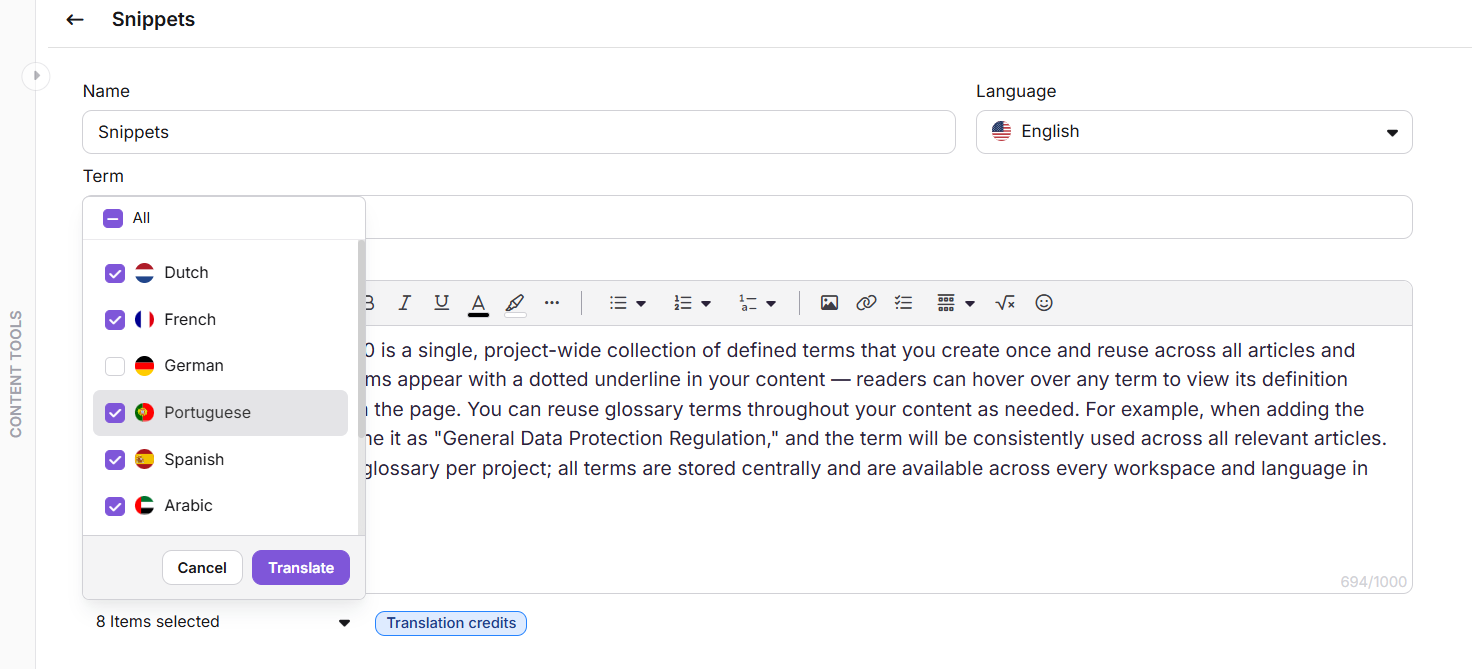
- Click the Translate to other languages dropdown, select one or more languages, and click Translate.
- To retranslate the content, click Translate again. This overwrites the existing translation.
The default language is marked as Main. Translated languages show a green tick to indicate the translation is complete.
- Click Create to save the glossary term with all translations.
Edit a glossary term
- Navigate to Content tools () > Content resources > Glossary.
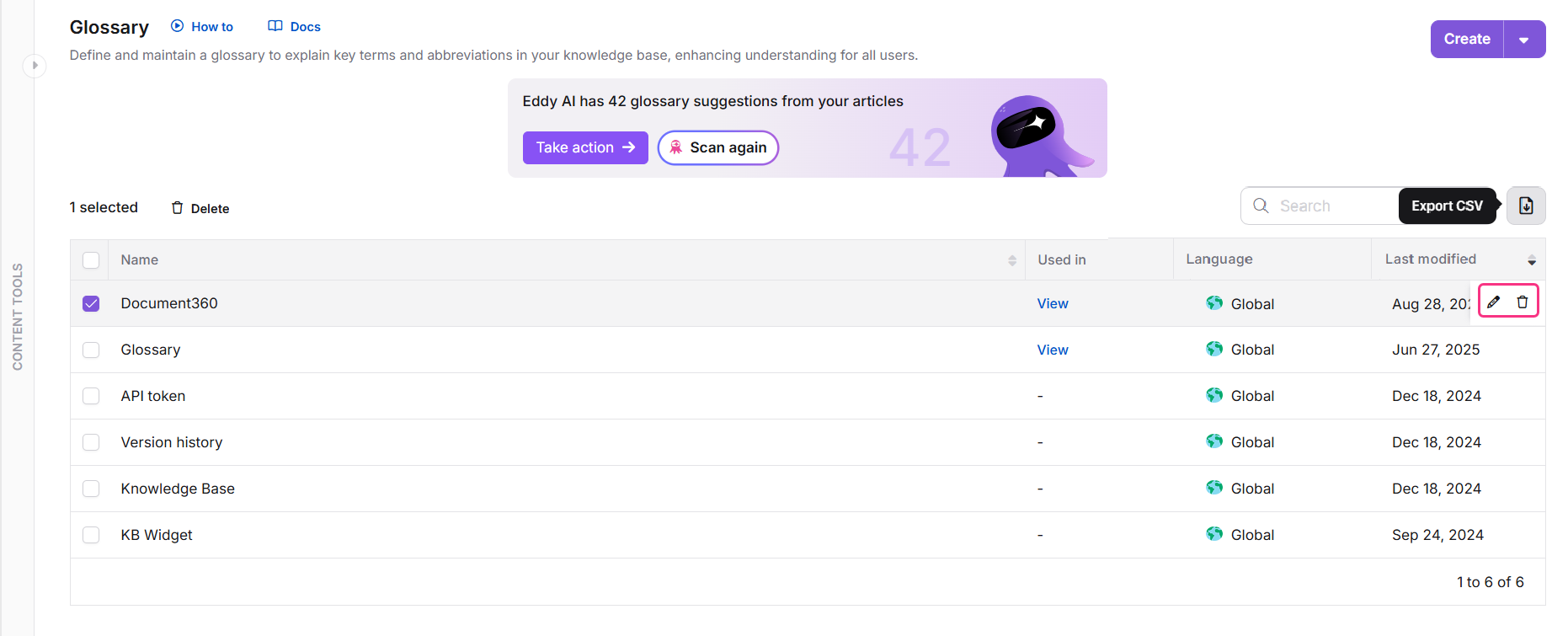
- Hover over the glossary term and click the Edit () icon. You can update the Term and Definition.
- Click the Translate to other languages dropdown, select one or more languages, and click Translate.
- To retranslate, click Translate again. This overwrites the existing translation.
- To remove a translation for a specific language, select the language and click Remove language.
- Click Update once all changes are complete.
Global glossary terms cannot be translated and will always appear as-is across all languages. If you want a glossary term available in multiple languages, create it in your main language first, then use the translation feature to generate versions in other languages.
Delete a glossary term
If a glossary term is linked in any articles, deleting it removes the visible text from those locations on the knowledge base site, not just the tooltip. The text is not retained as plain text. To avoid unintended content loss, unlink the term from all articles first: navigate to the glossary term, click View, open each article listed in the View references panel, remove the glossary term manually, and then return to the Glossary page to proceed with deletion.
- Navigate to Content tools () > Content resources > Glossary.
- Hover over the glossary term and click the Delete () icon. Alternatively, open the glossary term and click Delete.
- To bulk delete multiple terms, select the terms from the Glossary page and click Delete at the top of the list.
- Click Yes in the confirmation dialog.
After deletion, the term is removed from all articles and no longer appears on the knowledge base site. The article itself is not modified or republished. On the knowledge base site, surrounding content adjusts automatically with no empty space remaining. In the portal, the glossary term is replaced with the placeholder text "Loading...". Replace it with another glossary term or delete the placeholder manually.
Export glossary terms
You can export glossary terms as a CSV file for backup or team sharing.
- Navigate to Content tools () > Content resources > Glossary.
- Select the language from the Languages dropdown. The default is Global.
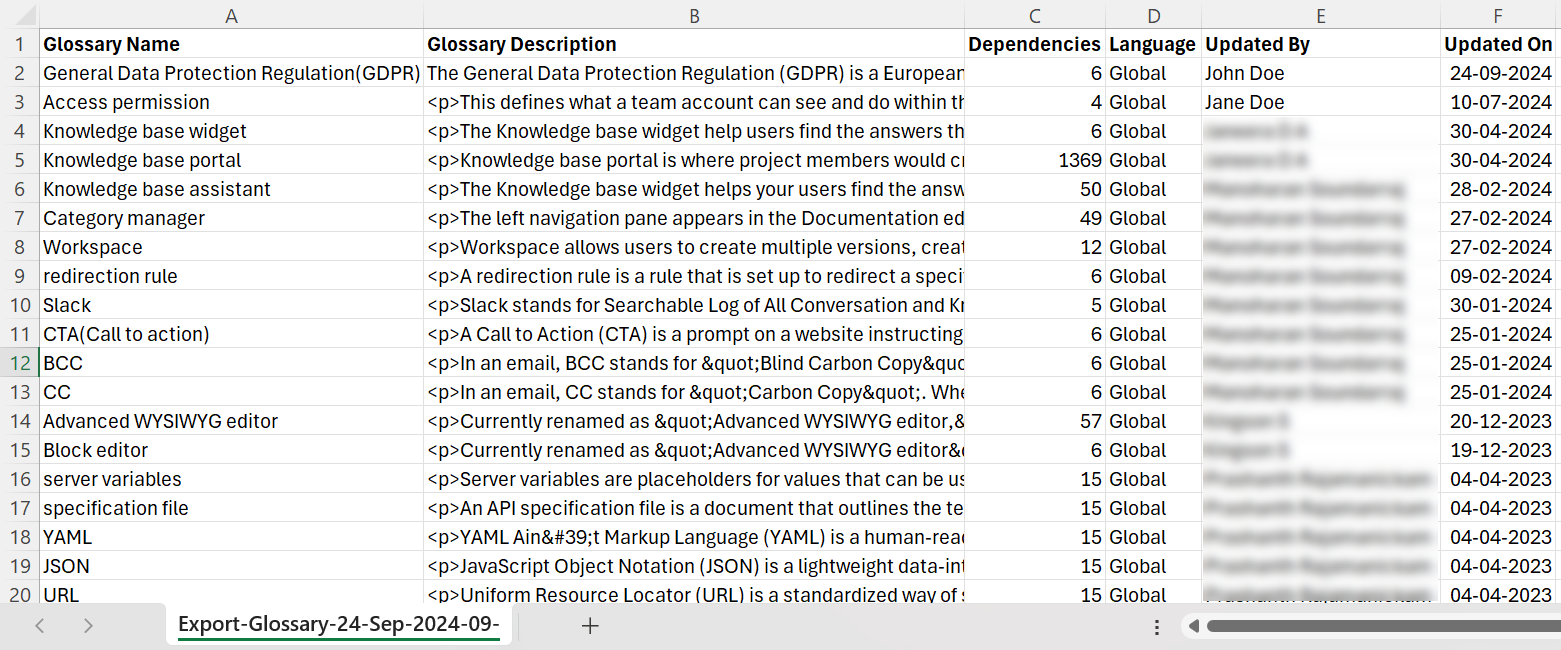
- Click Export CSV at the top right. A
.csvfile downloads to your device.
You can open the exported CSV file with Microsoft Excel, OpenOffice Calc, Google Sheets, or other CSV tools.
The exported file includes the following fields:
| Field | Description |
|---|---|
| Glossary Name | The name of each glossary term. |
| Glossary Definition | The definition associated with each term. |
| Dependencies | The number of articles or categories linked to each term. |
| Updated By | The name of the user who last updated the term. |
| Updated On | The date when the term was last modified. |
FAQ
What happens to articles when a glossary term is deleted?
The term is removed from all articles where it was used. If the term was linked in any articles, the visible text is also removed, not just the tooltip. The article itself is not republished. On the knowledge base site, surrounding content adjusts automatically with no empty space remaining.
Can I change the Name of a glossary term after it has been created?
No. The Name field cannot be changed after creation. If you need a different name, delete the term and create a new one.