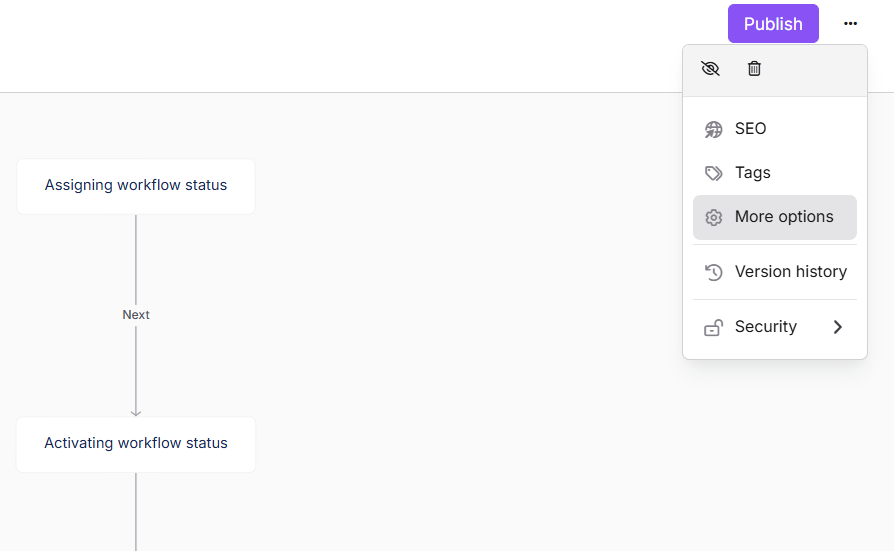
The Settings panel lets you control how an individual interactive decision tree is presented, discovered, accessed, and versioned. All settings are accessible from the More options (⋯) menu in the top-right corner of the decision tree editor.
For editing steps, organizing categories, and publishing to the site, see Managing interactive decision trees.
Accessing the More options menu
- Navigate to Interactive decision trees () in the left navigation bar of the Knowledge base portal.
- Select the decision tree you want to configure.
- Click the More options (⋯) button in the top-right corner of the editor.
.png)
The menu contains the following options:
| Option | What it does |
|---|---|
| Hide | Temporarily removes the decision tree from the knowledge base site. It is not deleted and can be made visible again at any time. |
| Delete | Permanently removes the decision tree. This action cannot be undone. |
| GEO/SEO | Shortcut to open the SEO section of the Decision tree settings dialog. |
| Tags | Shortcut to open the Tags section of the Decision tree settings dialog. |
| More options | Opens the full Decision tree settings panel, covering SEO, custom fields, search visibility, tags, featured image, status indicator, and deprecated status. |
| Version history | View, preview, and restore previous versions of the decision tree. |
| Security | Configure who can access the decision tree in the portal and on the site. |
Decision tree settings panel
Clicking More options in the menu opens the Decision tree settings dialog, which organizes all configuration options into the sections below.
Remember to click Save after making any changes in the Decision tree settings dialog.
AI & search description (GEO/SEO)
Control how the decision tree appears in external search engine results.
| Field | Description |
|---|---|
| Meta title | The title shown in search results and browser tabs. |
| Slug | The URL-friendly identifier for the decision tree. Example: project-name.document360.com/en/decision-tree/decision-tree-slug |
| Description | An optional summary used for search engine indexing. |
| Exclude from external search engine results | Check this to prevent search engines from crawling and indexing this decision tree. |
.png)
Keep your meta title under 60 characters and your description under 160 characters for optimal display in search results.
Custom fields
Use custom fields to store and manage additional metadata for the decision tree.
- Custom fields support structured values such as text, dates, dropdown selections, or status-related information.
- They help organize and manage decision trees more effectively alongside your standard content metadata.
.png)
To know more information on custom fields, read Custom fields.
Search visibility
Control whether the decision tree appears in your knowledge base site's internal search.
- Exclude from Knowledge base search: Hides the decision tree from internal search results on the knowledge base site. The decision tree remains accessible via direct URL or navigation.
.png)
Use this for decision trees that are linked from other articles but should not surface independently in search — for example, supplementary or work-in-progress trees.
Tags
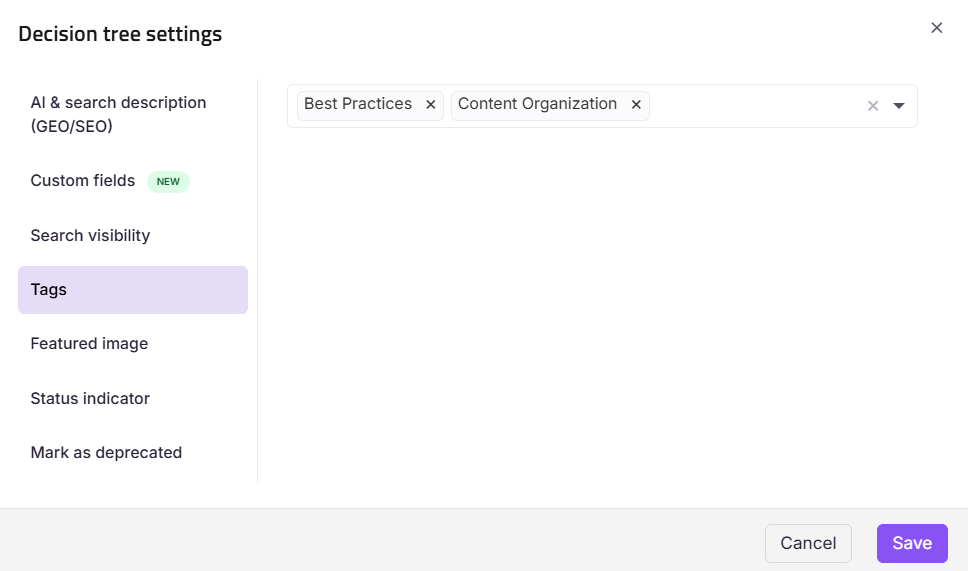
Tags help readers and team members find, filter, and organize decision trees across the knowledge base site.
- Select existing tags from the dropdown, or type to create new ones.
- Tags are shared across all decision trees in the project.
Featured image
A featured image visually represents the decision tree in listings, link previews, and when shared on external platforms. The featured image appears alongside the SEO title in link previews and card-style listings.
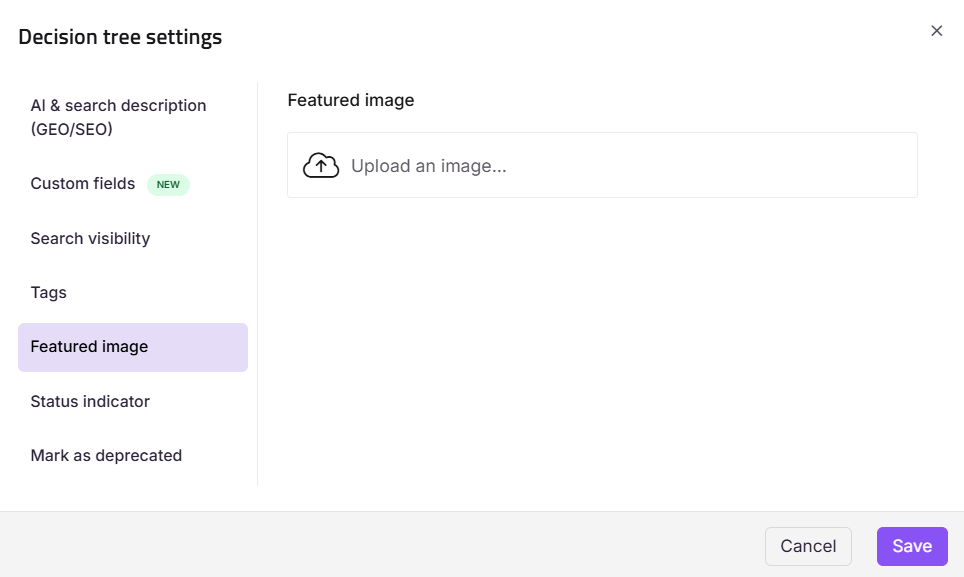
You cannot upload a featured image if your project or article is private.
Status indicator
Display a label on the decision tree to communicate its current state to readers on the knowledge base site.
| Field | Description |
|---|---|
| Select status | Choose from None, New, Updated, or Custom. |
| Show status for | Enter the number of days the label should remain visible on the site. |
.png)
The status indicator must be set and cleared manually — it does not update automatically based on edit history.
Mark as deprecated
Indicate that the decision tree is outdated but should remain accessible for reference.
- Enable the toggle to display a Deprecated label on the decision tree in the knowledge base site.
- Add a custom message to explain why the tree is deprecated and to point readers to a newer resource.
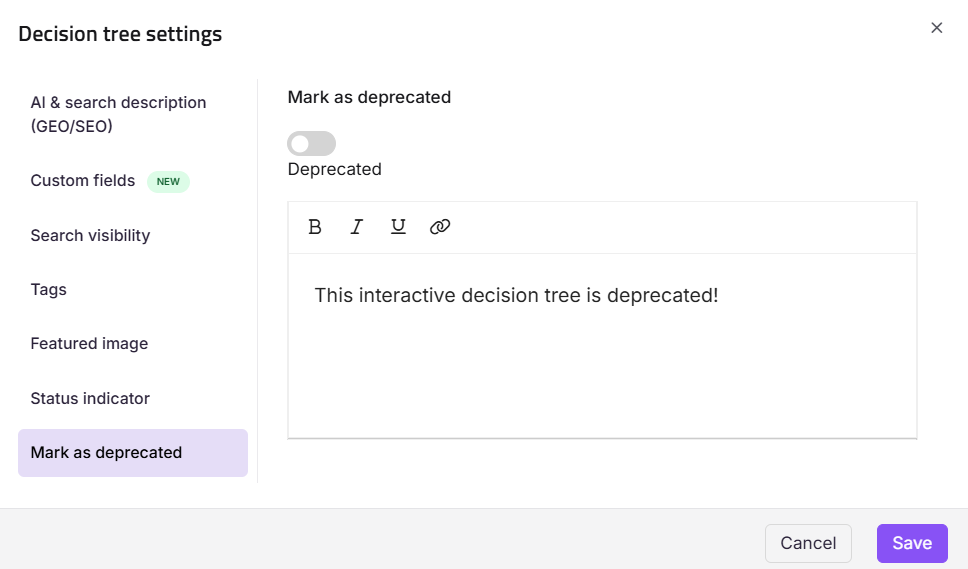
Before deprecating, update the description or add a note linking to the replacement content so readers are not left without guidance.
Security settings
Use the Security option in the More options (⋯) menu to manage content access separately for internal team members (portal) and external readers (site).
.png)
Knowledge base portal — user access
Manage which team members can access this decision tree inside the portal.
- Click More options (⋯) and select Security.
- Select the Knowledge base portal access control.
The Assign content access: Knowledge base portal dialog appears with the list of existing users. - If no accounts are listed, click Assign article access to add team members.
- Select the desired user and click Apply.
- Enable the Block inherited account toggle to override any permissions inherited from the category level.
- In the user section, use Edit or Deny to adjust individual user permissions.
- Once done, click Reader access.
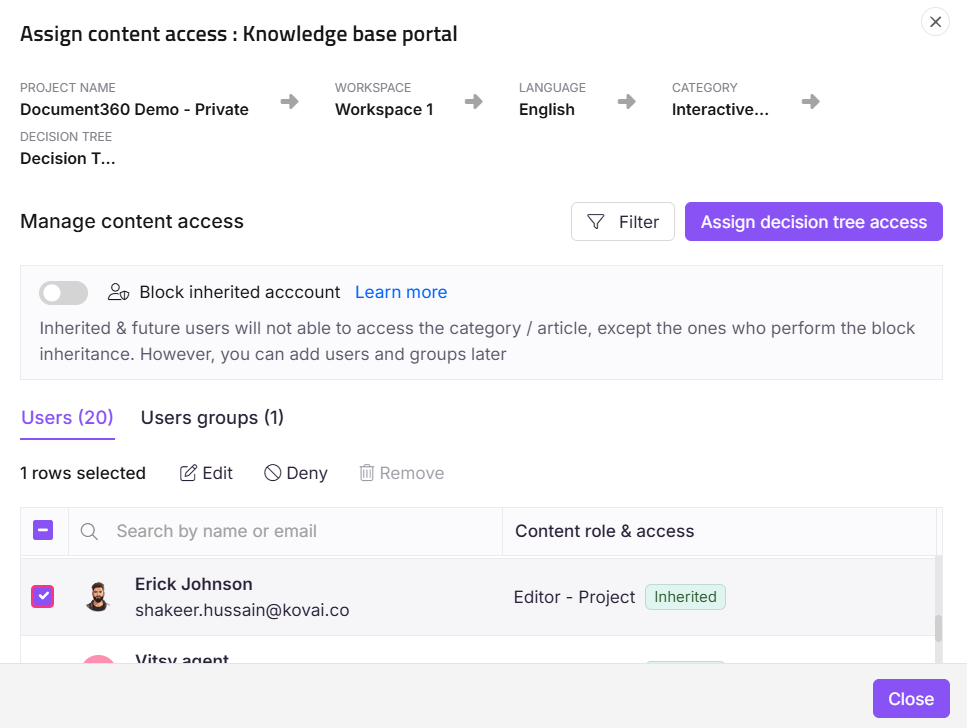
Inherited users cannot be removed from this settings panel.
Knowledge base site — reader access
Manage which readers can view this decision tree on the knowledge base site.
- Click More options (⋯) and select Security.
- Select the Knowledge base site reader access control.
The Assign content access: Knowledge base site panel appears with the list of existing readers. - If no readers are listed, click Assign article access to add reader accounts.
- Select the desired reader account and click Apply.
- In the Readers section, select the desired reader and click Deny to restrict their access.
- Once done, click Reader access.
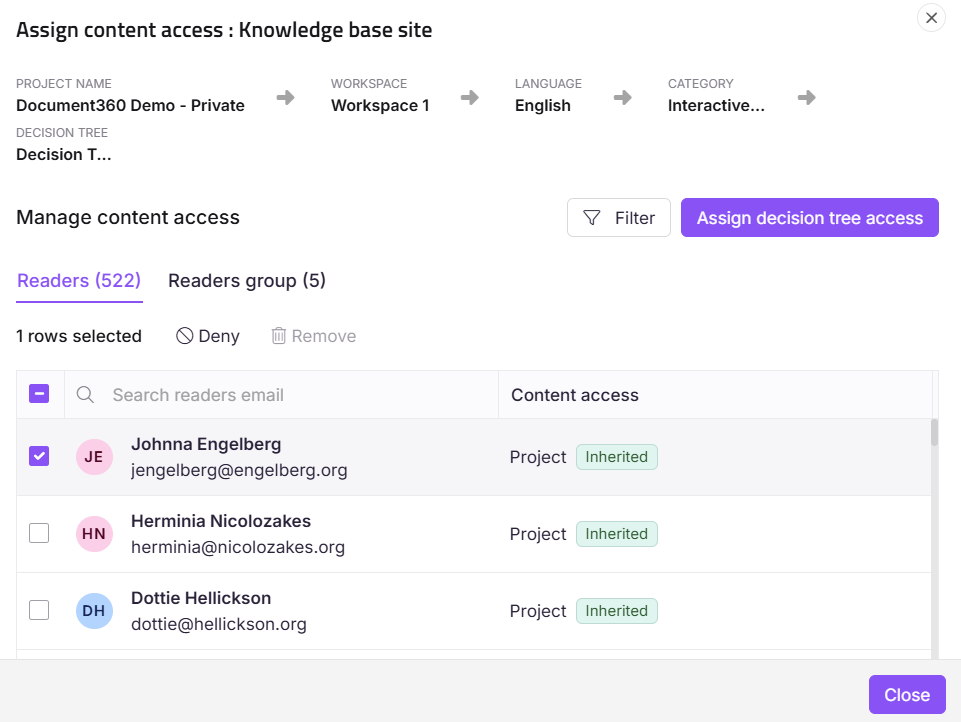
The reader access option is inactive (grayed out) when your knowledge base reader access is set to Public, since all content is openly accessible.
Version history
Document360 automatically saves a version of the decision tree each time it is published. You can view, preview, or restore any previous version at any time.
Accessing version history
- Click More options (⋯) in the editor.
- Select Version history.
.png)
A list of saved versions appears, with the most recent Published version labeled for easy identification.
Available actions
| Action | Description |
|---|---|
| Open | Preview the decision tree as it appeared in that version. |
| Copy to current version | Restore a previous version as the current working draft. This overwrites the existing content in the editor. |
| Delete version forever | Permanently delete a specific version. This cannot be undone. |
Using Copy to current version does not immediately publish the restored content. It replaces the current draft in the editor, giving you a chance to review before publishing.
FAQ
Does hiding a decision tree delete it?
No. Hiding a decision tree removes it from the knowledge base site temporarily. It remains in the portal and can be made visible again at any time.
What is the difference between the SEO option in the menu and SEO inside the Decision tree settings panel?
Both lead to the same fields. The SEO item in the More options (⋯) menu is a shortcut that opens the settings dialog directly on the SEO section. Selecting More options opens the full settings dialog from the top, covering all sections.
What happens when I use "Copy to current version" to restore an old version?
The restored version replaces the current draft in the editor. It is not immediately published — you can review and make further edits before publishing. The version history is preserved and unaffected by this action.
Can I permanently delete a specific version from the history?
Yes. Use Delete version forever in the version history panel. This action is permanent and the version cannot be recovered.
Can I assign different access for different languages or workspaces?
Yes. Use the Workspace/Language filter in the Security settings to manage access per workspace or language variant.
Is there a version history feature for decision trees?
Yes. Document360 supports version history for interactive decision trees. You can view and restore previous versions to track changes or revert to an earlier state if needed.