The Connect Knowledge base widget section covers how to get the widget JavaScript code, install it on your site, and verify which domains it is running on via the Connected domains panel. This is the first step to making the widget live on any website or application.
When to use this
Use Connect knowledge base widget when you want to verify which domains the widget is currently active on.
Before you begin
- You must have a Project Owner or Admin role.
- A widget must already exist in Connections > Knowledge base widget.
Get the widget JavaScript code
-
In the left navigation bar, navigate to Connections () > Knowledge base widget.
-
Hover over the desired widget and click the Copy script () icon to copy the JavaScript snippet directly.
Or, to view the script inside the widget settings:
- Click the Edit () icon.
- In the Installation & Setup tab, under Installation, expand the Widget JavaScript panel.
- Click Copy to copy the code snippet.
Install the widget on the Document360 knowledge base site
- Navigate to Connections () > Integrations in the left navigation bar.
- Click Add in the Custom HTML tile.
- In the Add new integration panel, set Insert code to At the end of body (below
</body>). - Paste the copied code snippet into the code panel.
- Click Add.
The Knowledge base widget is now installed on your documentation site.
The autosave option is available when navigating between Knowledge base widget tabs.
View connected domains
The Connected domains accordion shows you all domains where the widget script has been detected and is actively running.
- Navigate to Connections () > Knowledge base widget.
- Hover over the desired widget and click () Edit.
- In the Advanced settings tab, expand the Connected domains accordion.
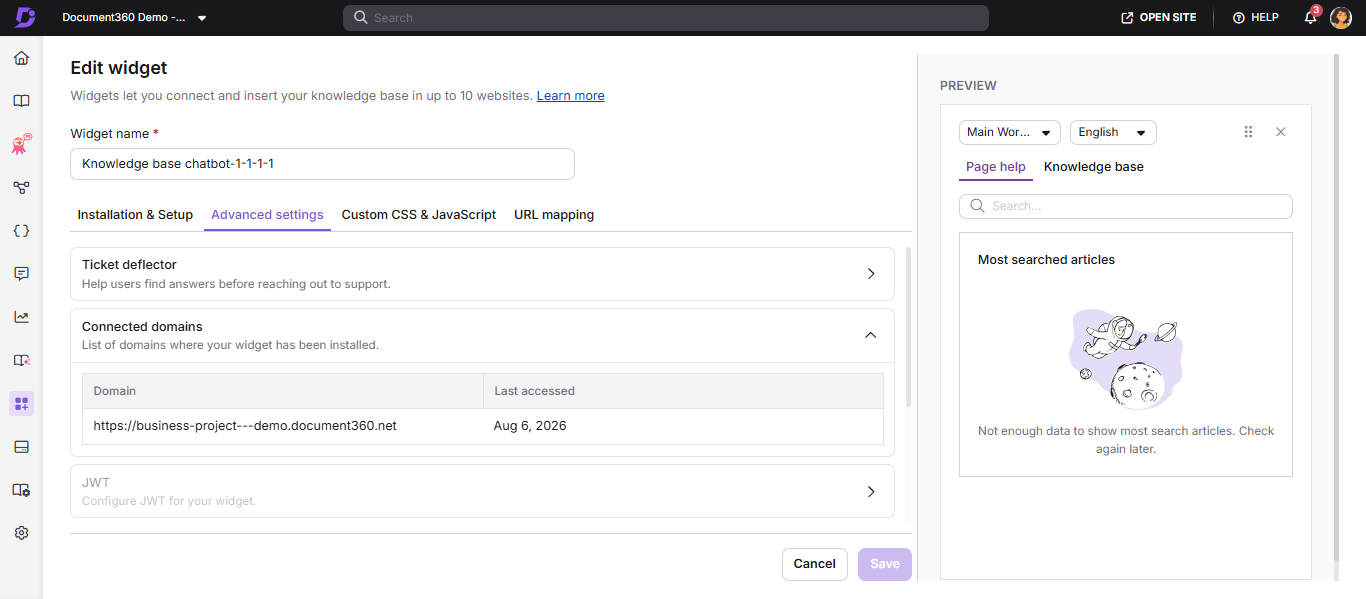
The Connected Domains field is automatically populated when the widget script is installed and loaded on a domain.
- The Connected domains field is read-only. It cannot be manually edited.
- If the field is empty, the widget has not yet been detected on any domain.
- To control which domains are permitted to load the widget, use the Widget security section.
Best practices
- Check the Connected domains panel to confirm the domain was detected after the first page load.
- If the widget is not appearing, verify the script is placed immediately before the closing
</body>tag.