Document360 lets you restrict the Knowledge base widget to specific domains. Once a domain is added to the widget security list, the widget will only load on those specified domains — any attempt to embed it on an unlisted domain will be blocked.
If no domains are added to the list, the knowledge base widget can be embedded on any SaaS application or public website without restriction.
When to configure domain restriction
- Immediately after installing the widget on any public-facing production site.
- When you have multiple environments and need the widget restricted to specific domains per environment.
- When you want to prevent unauthorized embedding — the widget API key is visible in plain text in the JavaScript code and cannot be encrypted. Restricting to trusted domains is the only way to ensure the key cannot be misused on unauthorized sites.
Restrict the knowledge base widget to a specific domain
- Navigate to Connections () > Knowledge base widget in the left navigation bar.
- Hover over the desired widget and click the Edit () icon.
- In the Advanced settings tab, expand the Widget security accordion. You can find the list of domains previously added (if any).
- Enter the domain where you want the widget to be permitted to load.
- Click Add, then click Save to apply.
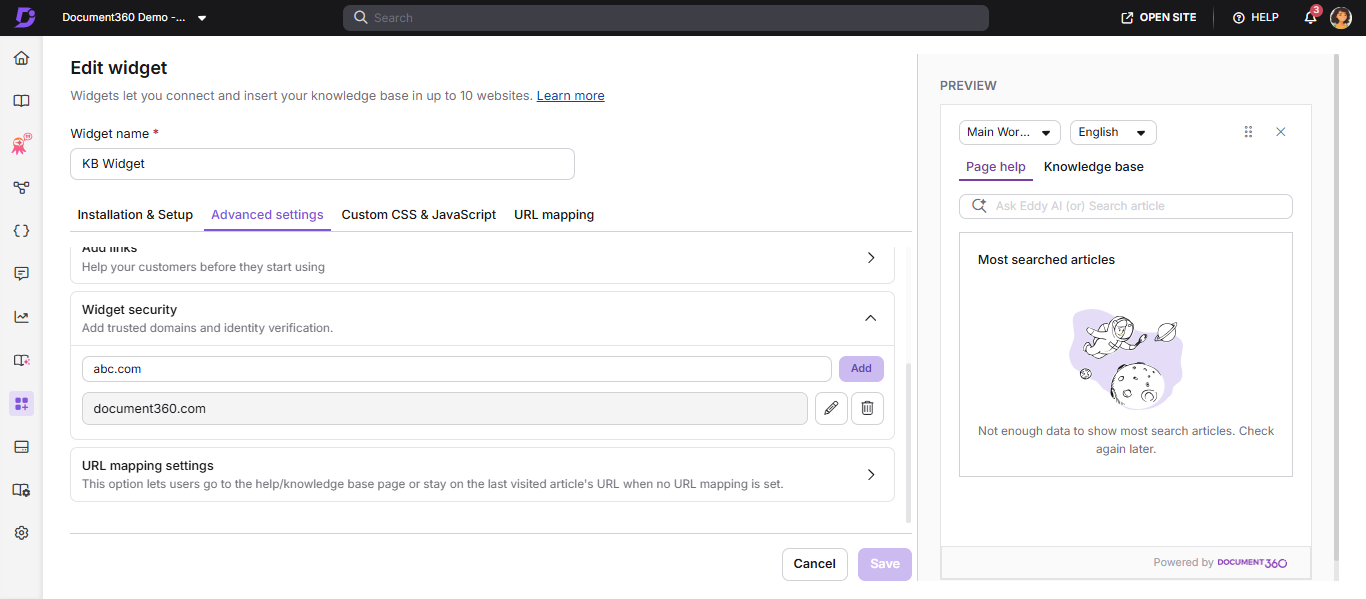
Domain format rules
- Enter only what comes after the
www.in your URL. Example:document360.com - Wildcard notation is not supported. You cannot use
*.domain.comto allow all subdomains at once. - URL paths are not supported. Entries like
domain.com/path/pageare not valid. - Adding the parent domain is sufficient. If you add
group.docuware.cloud, all subdomains under it (e.g.team1.group.docuware.cloud) are automatically allowed. - An empty list means unrestricted — the widget can load on any domain or subdomain.
Best practices
- Add both your production and staging domains to the list so both environments function correctly.
- Review and clean up the domain list when decommissioning old environments.
- Combine domain restriction with JWT authentication for private knowledge bases to maximize security.
FAQ
How do I restrict the knowledge base widget to a specific domain?
Navigate to Connections > Knowledge base widget > Edit > Advanced settings > Widget security. Enter the domain (without www.), click Add, then click Save. The widget will only load on domains in this list.
NOTE
Configuring domain restriction is also recommended as a security measure because the widget API key is visible in plain text in the JavaScript code. Restricting the widget to trusted domains ensures the API key cannot be misused on unauthorized websites even if it is exposed in the code.
Why should I configure domain restriction if the API key is already in the script?
The widget API key is visible in plain text in the widget JavaScript code and cannot be encrypted. Without domain restriction, anyone who copies the script can embed your widget on their own site, potentially misusing your knowledge base content. Restricting the widget to trusted domains ensures the API key cannot be misused on unauthorized websites even if exposed.