The ticket deflector integration lets you surface a support request form inside the knowledge base widget. When enabled, a dedicated menu tab appears in the widget that guides users through a self-service flow — showing relevant articles first, then allowing form submission if the issue remains unresolved. You configure this integration from the widget's Advanced settings tab in the Document360 portal.
When to use ticket deflector in the widget
Use this integration when:
- You want to reduce incoming support ticket volume by surfacing relevant articles before a user can submit a request.
- You have already configured a ticket deflector in Document360 and want to embed it in the widget for in-app access.
- You want to capture structured user queries before routing them to your helpdesk.
Add a ticket deflector to the knowledge base widget
- Navigate to Connections () > Knowledge base widget in the left navigation bar.
- Hover over the desired widget and click the Edit () icon.
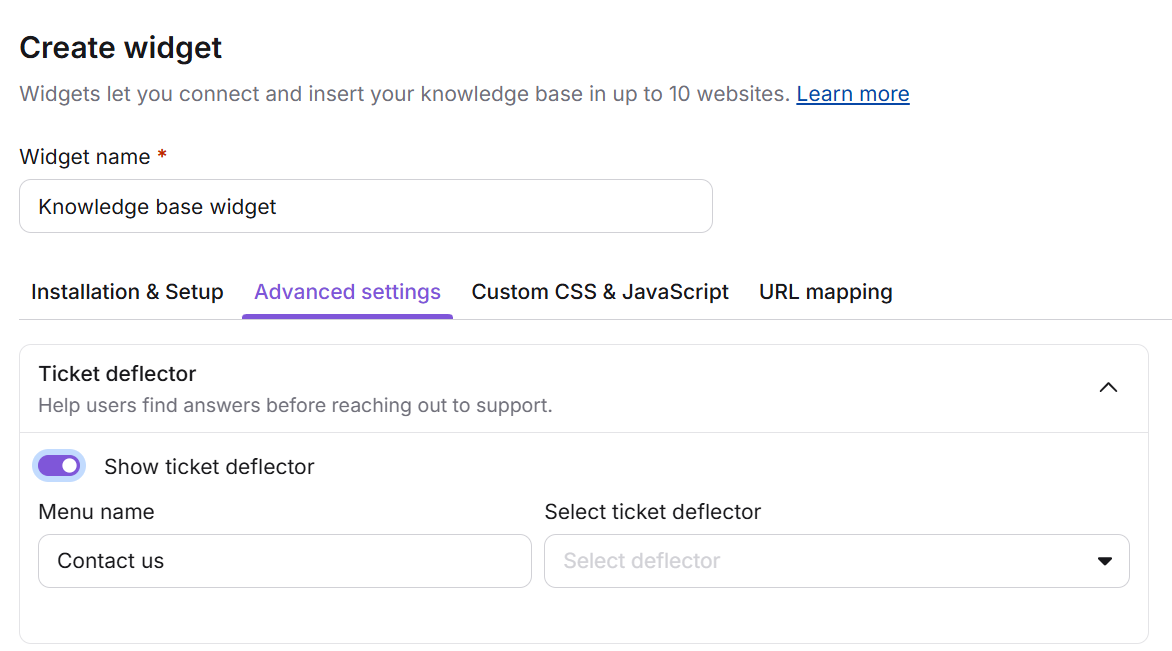
- In the Advanced settings tab, expand the Ticket deflector accordion.
- Turn on the Show ticket deflector toggle.
- If required, edit the Menu name field to customize how the tab label appears in the widget (for example, "Contact support" or "Submit a request").
- In the Select ticket deflector dropdown, choose the desired ticket deflector.
- Click Save to apply changes.
The widget now includes the selected ticket deflector as a menu tab.
Considerations
| Item | Detail |
|---|---|
| Offline deflectors | Ticket deflectors set to Offline do not appear in the widget dropdown and cannot be embedded. Set the deflector to Online before configuring the widget. |
| Workspace scope | Ticket deflectors can only be configured for the main workspace and its languages. They are not available for additional workspaces. |
| Decision Tree links | Decision Tree links are not supported inside the widget. They will either open in a new browser tab or return a 404 error. Use standard article links in your ticket deflector content instead. |
Best practices
- Only set the deflector to Online when it is ready for production — offline deflectors cannot be linked or embedded.
- Preview the deflector on the knowledge base site before embedding it in the widget. Use Preview in knowledge base from the Ticket deflectors overview page.
- Keep the Menu name short and action-oriented (for example, "Contact support" or "Submit a request").
- Map each deflector to a dedicated notification email address so the right team receives the right tickets without manual triage.
- Review ticket deflector analytics regularly to identify topics where your knowledge base is not resolving queries — those gaps are candidates for new articles.
FAQ
How do you enable the ticket deflector in the knowledge base widget?
Go to the Advanced settings tab of the desired knowledge base widget (Knowledge base widget > Edit).
Enable the Show ticket deflector toggle.
Click the Save button at the bottom.
How do I remove the knowledge base widget icon from an article?
Go to the URL mapping tab of the desired knowledge base widget (Knowledge base widget > Edit).
Create a new URL mapping with the Hide action for the desired article.