The Custom pages feature in Document360 allows you to create dedicated, standalone pages for your knowledge base site. Custom pages are separate from standard articles and provide the flexibility to add content like Terms & Conditions, Privacy policies, and Copyrights. With options for customization, multilingual support, and navigation configuration, custom pages can enhance the user experience of the knowledge base site and keep your content organized.
Users with Draft writer or Editor content roles can create a custom page in the knowledge base portal. You can also create custom roles with exclusive permissions for custom pages.
Creating a custom page
To create a custom page:
- Navigate to the Knowledge base portal.
- In the left navigation pane, hover on Content tools and select Content resources > Custom pages.
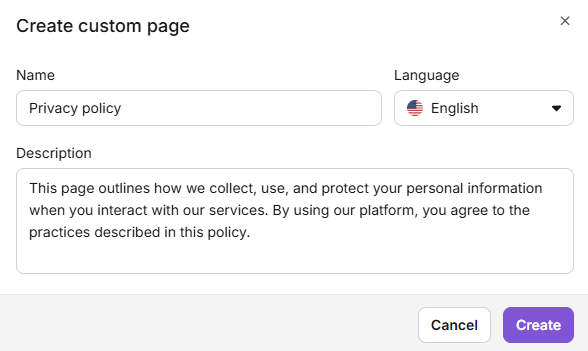
- Click the Create page button to open the Create custom page dialog.
- In the Create custom page dialog, enter the page name and optional description. Then, select the language for the custom page from the language dropdown.
The language dropdown displays all languages configured across all workspaces and versions within the project, not just the languages in your current workspace. This is because custom pages are created at the project level and are not tied to a specific workspace or version. If you select a language that belongs to a different workspace version, the page URL will automatically use that version's slug and will render correctly on the knowledge base site.
- Click Create to open the editor.
- In the editor, enter the desired content for your custom page.
The editor provides Advanced WYSIWYG options, allowing you to format text, add images, and structure content as needed.
- Add and format content — Add content, images, and other formatting and insert options to organize the content as needed.
- Set SEO details — Navigate to More > SEO, and enter the Meta title, URL slug, and Description for your custom page.
- Collaborate with team members — Add inline comments directly on the content, allowing others to provide feedback and suggestions.
Once you have finished creating your custom page, click Publish to go live.
To keep a custom page in draft mode, save your content without selecting Publish. This keeps the page hidden from the live site until it's ready to be published.
Managing a custom page
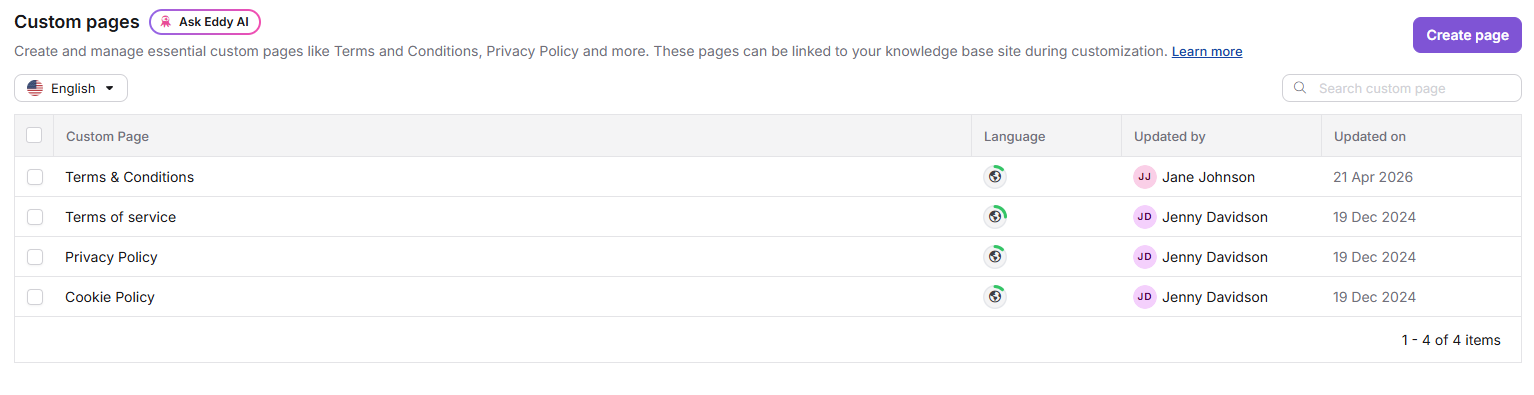
You can easily manage your custom pages from the Custom pages list in Content tools > Content resources.
Editing a custom page
To edit an existing custom page:
- In Content resources > Custom pages, select the page you wish to edit, and click Edit.
- Make the desired updates in the editor, such as changing text, images, or page details.
- Save any changes to keep your draft updated, or Publish to make it live immediately.
Deleting a custom page
To delete a custom page:
- In Content resources > Custom pages, select the page you wish to delete, and click Delete.
- Once you click Delete, the Delete confirmation dialog will open.
- Click View dependencies to see the articles and KB customizations that use the custom page.
- Click Delete to permanently delete the custom page.
Deleted pages cannot be restored, so ensure the page is no longer needed before deleting.
Cloning a custom page
In Content resources > Custom pages, select the page you wish to clone, and click Clone. A duplicate custom page will be created with the "Clone -" prefix.
For example, if you clone a custom page titled Terms and Conditions, the duplicate custom page will be titled Clone - Terms and Conditions.
Multilingual custom pages
Custom pages support Translate with Eddy AI, enabling you to provide content in multiple languages. To translate the custom pages to another language:
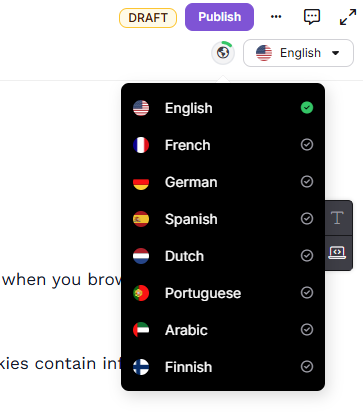
- Click the language dropdown from the top right of the editor to view the available languages.
- Select the desired language from the dropdown to enable the Translate dropdown.
- Expand the Translate dropdown to view the number of characters to be translated and the number of characters available for Translate with Eddy AI.
- Click Translate to translate the contents of your custom page to the desired language.
Language visibility in custom pages
Custom pages are created at the project level and are not workspace-specific.
Because of this, the language dropdown in custom pages displays all languages configured anywhere in the project, including languages associated with other workspaces.
This behavior may cause a language to appear in the custom page editor even if:
- The language was removed from the current workspace.
- The language does not appear in the knowledge base site language selector.
Language configuration behavior
Languages in Document360 are configured at the workspace level.
If a language exists in another workspace within the same project, it will continue to appear in the custom pages language dropdown.
For example:
- Workspace V1 includes Swedish and English (UK).
- Workspace V1-{{ glossary.API}} includes English.
- If English is removed from V1 but still exists in V1-API, it will continue to appear in the custom page language dropdown.
Knowledge base site behavior
The knowledge base site displays languages based on the active workspace slug.
If the site resolves to the V1 slug:
- Only languages configured in V1 will appear in the site language selector.
- Languages from other workspaces will not be shown.
If you create a custom page in a language that belongs to another workspace:
- The page URL automatically uses the corresponding workspace slug.
- The page renders correctly on the knowledge base site.
Removing a language from custom pages
Removing a language from one workspace does not remove it from the entire project.
To completely remove a language from custom pages:
- Navigate to Settings > Knowledge base portal > Workspace and Localization.
- Check all versions within the project.
- Remove the language from every workspace where it exists.
If the language exists in any workspace, it will remain available in the custom pages language dropdown.
Adding custom pages to the knowledge base site
Once created, custom pages can be added to your knowledge base site's navigation. You can integrate a custom page into the site's header or footer, making it visible across your knowledge base.
To add a custom page to the header or footer, go to Site customization in the Knowledge base site settings, where you can choose the location and display options.
- To add a custom page to a header, select Custom page from the list of navigation menus under Primary navigation.
- To add a custom page to a footer, enter your desired title and a link to the custom page while adding a new link to the footer.
For more information on adding custom pages to the knowledge base site, read Primary navigation.
Use cases
- Legal and compliance pages — Create standalone pages for Terms & Conditions, Privacy Policy, and Copyright notices. These pages sit outside the article structure, keeping your knowledge base categories clean while ensuring the content is always accessible.
- Product announcements — Publish a dedicated page for major product updates or release announcements that you want to surface prominently in the header without it being buried inside a category.
- Contact and support pages — Build a formatted contact page with team details, support hours, and escalation paths, and add it to the footer so it is accessible from every page in the knowledge base.
- Onboarding landing pages — Create a welcome page for new readers that introduces the knowledge base, explains how to navigate it, and links to the most important getting started articles.
- Multilingual legal pages — Use the built-in machine translation to maintain translated versions of legal or compliance pages across all languages in your workspace, ensuring consistent coverage without manual effort.
- Regional or audience-specific pages — Create separate custom pages for different audiences (e.g., enterprise customers vs. individual users) and link them in the appropriate navigation areas.
Best practices
- Keep custom pages for standalone content only. Custom pages are not indexed in the knowledge base search and are separate from your article structure. Use them for content that does not belong in a category — such as legal pages, contact details, or site-wide announcements.
- Always add published custom pages to the header or footer. A published page that is not linked in the navigation can only be accessed by readers who have a direct URL. Ensure visibility by adding it to the appropriate navigation location immediately after publishing.
- Use the Advanced WYSIWYG editor capabilities fully. Custom pages support all Advanced WYSIWYG editor features — use callouts, formatted sections, images, and structured layouts to make the page clear and professional.
- Set SEO metadata for every custom page. Navigate to More > SEO and fill in the meta title, URL slug, and description. This ensures the page is correctly indexed by external search engines and appears with the right information in search results.
- Save as draft before publishing. Use the draft state to review and collaborate on custom page content with team members using inline comments before making the page live.
- Plan your page limit carefully. Each project allows up to 5 custom pages by default. Prioritise the most important standalone content and avoid creating custom pages for content that would be better placed as a regular article or category page.
- Clone before making major edits. If you need to significantly update an existing custom page, clone it first as a backup using the Clone option. This protects the original in case the edits do not work as intended.
- Translate promptly when adding new languages. When a new language is added to your workspace, update existing custom pages using the machine translation option to ensure readers in all languages have access to the same content.
FAQ
How many custom pages can I create?
Each project allows up to 5 custom pages by default, with options to add more depending on your plan.
Can I make a custom page private?
You can restrict access to custom pages based on user roles in your knowledge base settings.
Where will custom pages appear?
They can be included in the left navigation or placed in the header or footer for quick access across the site. If a custom page is published, but not included in the header or footer, only users with a link to the custom page can access it.
What can I do if I accidentally delete a custom page?
Deleted pages cannot be restored, so always double-check before deleting.
Can I restrict access to a custom page to specific users or groups?
No. Unlike articles, custom pages do not support granular access at the user/group level.
- If set as Private, they can only be accessed by Users with roles that have permission to view the Custom page section.
- Reader group–level restrictions are not available for custom pages.
Why does a deleted language still appear in the custom page language dropdown?
Custom pages are project-level entities. If the language exists in another version within the same project, it will continue to appear in the dropdown. To remove it completely, ensure the language is deleted from all versions in the project.