Plans supporting this feature: Professional Business Enterprise
In Document360, you can add multiple languages to a single project version or create a language-specific Knowledge base.
Available languages
Document360 supports a variety of languages for localization using the Document360 Translate with Eddy AI. The languages supported by Document360 are:
Supported languages
Afrikaans
Arabic
Arabic - Egypt
Bulgarian
Cantonese
Chinese
Chinese (Simplified, People's Republic of China)
Chinese (Traditional, Taiwan)
Chinese (Traditional)
Croatian
Czech
Danish
Dutch
Dutch (Belgium)
English
English (Australia)
English (UK)
English (US)
Estonian
Fijian
Filipino
Finnish
French
French (Canada)
Georgian
German
Greek
Greek (Greece)
He - עִבְרִית
Hungarian
Icelandic
Indonesian
Italian
Ja - 日本語
Korean
Kurdish
Latvian
Lithuanian
Malagasy
Mongolian
Norwegian
Persian
Polish
Portuguese
Portuguese (Brazil)
Punjabi
Romanian
Slovakian
Slovenian
Spanish
Spanish (Mexico)
Swedish
Thai
Türkçe
Ukrainian
Vietnamese
Русский
Adding multiple languages to a single version
Navigate to Settings () in the left navigation bar in the Knowledge base portal.
In the left navigation pane, navigate to Knowledge base portal > Workspace & localization.
In the Localization & Workspaces tab, you can find the list of versions available in the project.
There are two ways to add a new language to the project version.
Method 1
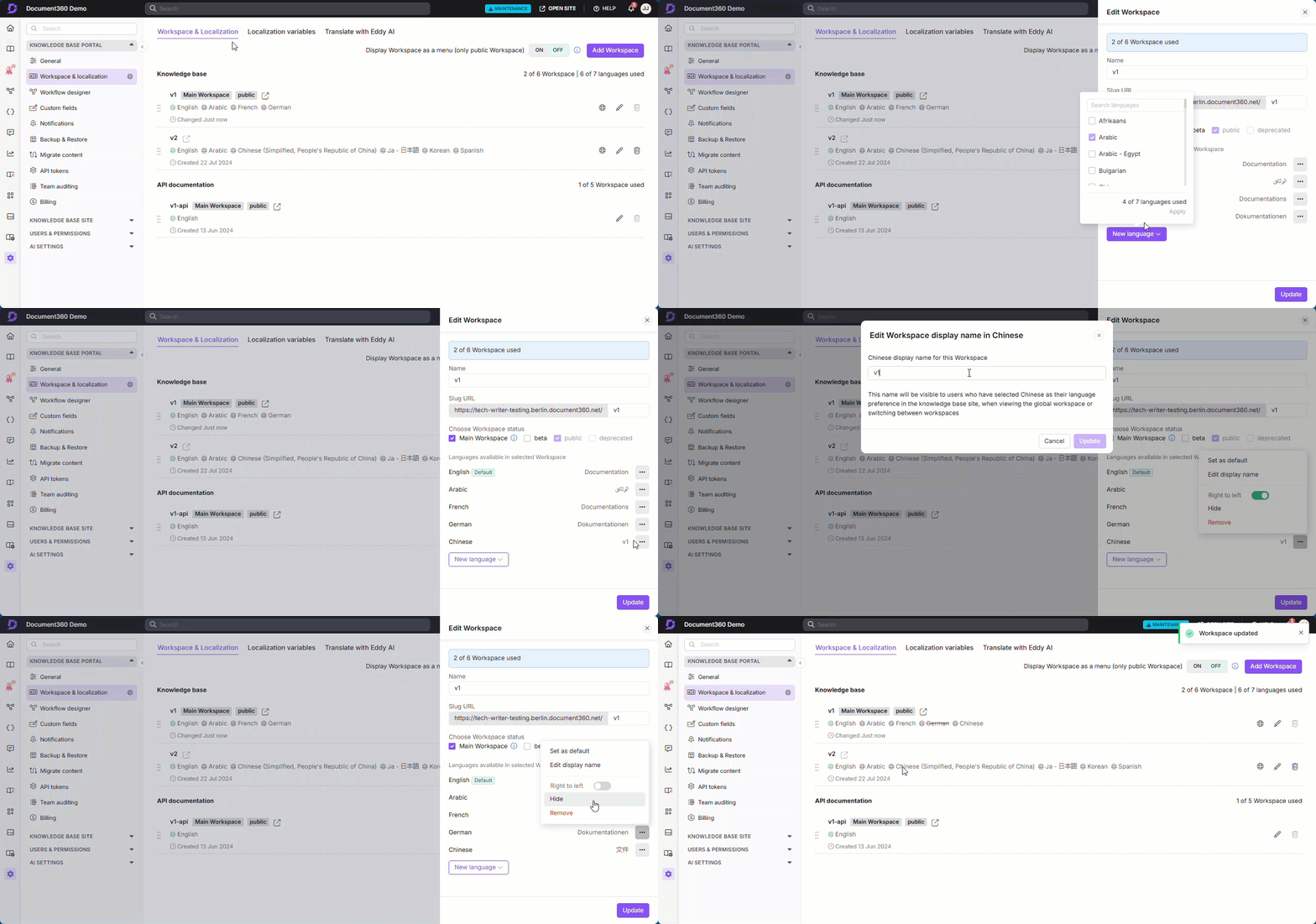
Click Edit (🖉) on the right, and the Edit workspace panel appears.
Click the New language dropdown, and a list of languages appears.
Enter the desired language or keyword in the Search languages field, and the result is populated.
Select the checkbox for the desired language(s) and click Apply.
Once done, click Update at the bottom of the panel.
For more settings related to a language, you can also use More options (•••) adjacent to the language name.
Set as default: Select this option to set the corresponding language as the default language for your knowledge base site.
Edit display name: Use this option to update the display name for your workspace. The updated name will be shown on the knowledge base site when the corresponding language is selected. You can set a custom display name for your workspace in each of the available languages.
Right to left: Most languages are written from left to right. However, there are a handful of languages written in the opposite direction. By enabling this, article content in the HTML editor and reader view (Knowledge base site) would start on the right and end on the left.
NOTE
Languages such as Chinese, Japanese, and Korean follow their respective native text layout conventions and render correctly in the knowledge base site where applicable.
Hide: Hides the language from the knowledge base. Hidden languages are indicated by strikethrough in the Knowledge base portal for reference.
Delete: Delete the language from the selected list.
NOTE
You cannot hide or delete a default language.
Method 2
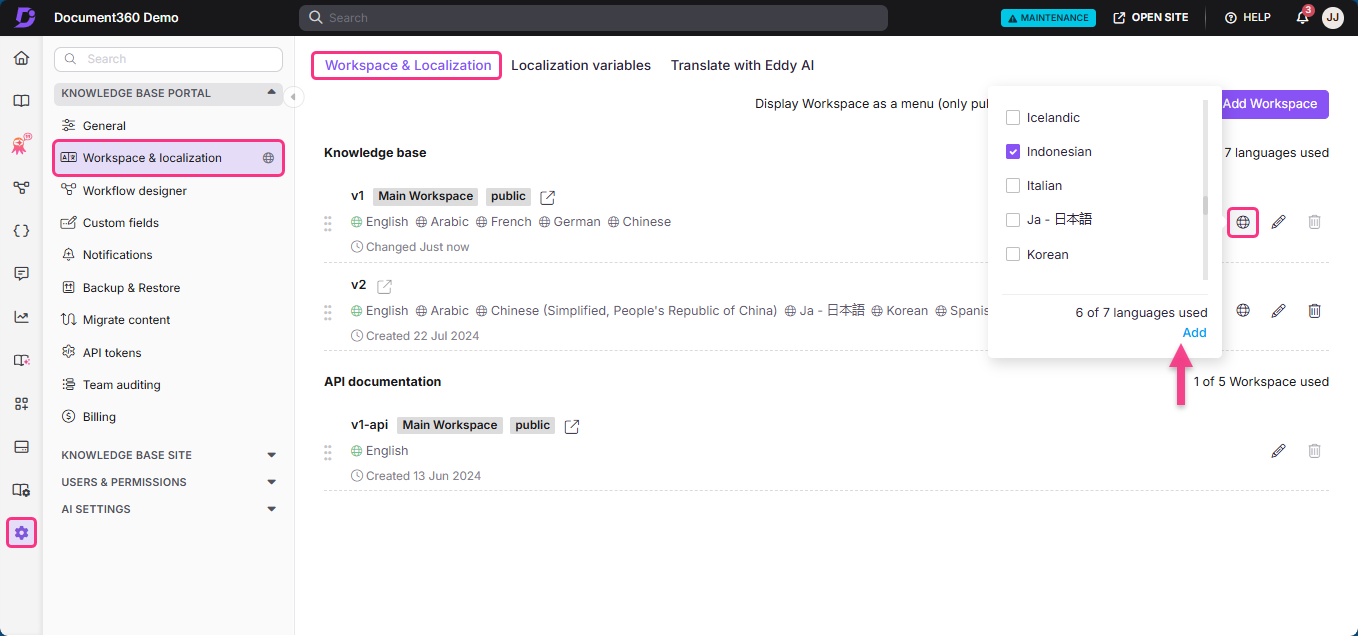
Click Add new language() adjacent to the Edit (🖉) icon.
Select the check box for the desired language(s) and click Add.
Enter the desired language or keyword in the Filter languages field, and the result is populated.
All the categories and articles from your default language are available in the new language(s). However, these articles and categories must be manually translated using Translate with Eddy AI (HTML editor only) or with extensions like Crowdin.
NOTE
While selecting a language for your workspace, all languages other than English will be displayed in their native script.
FAQ
Why does content from some published articles in the default language not appear in the editor for the same article in the secondary language?
When a new article is created and content is added in the default language, the article will appear in the secondary language, but the content will not be automatically carried over. To translate the content, use the All articles section to bulk translate the articles from the default language to the secondary language.