“Invalid scope” error while connecting Document360 MCP to ChatGPT using a custom connector
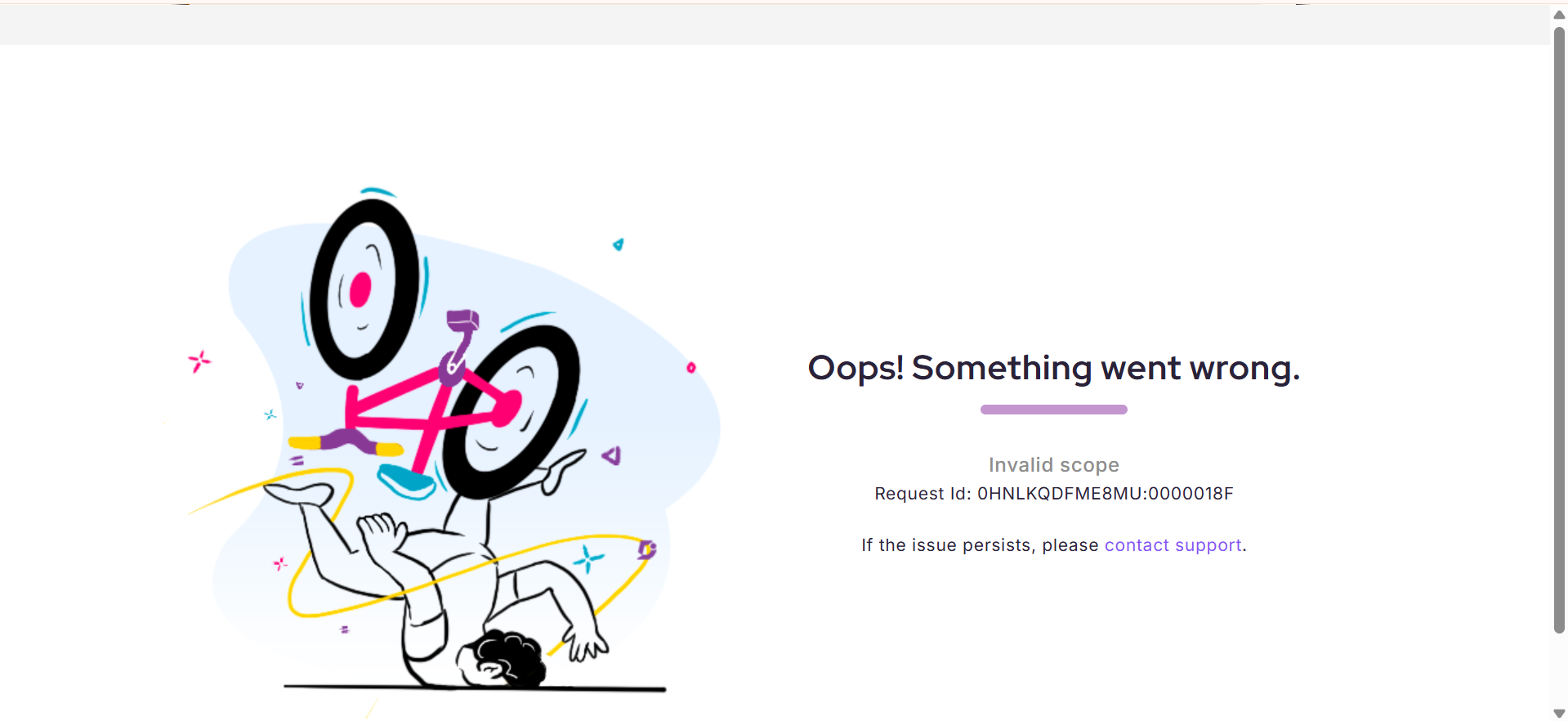
Ensure that the OIDC enabled option is unchecked under Advanced settings while creating the custom connector app in ChatGPT. Leaving this option enabled can result in an “Invalid scope” authorization error during the connection flow.
The following example shows the authorization error that can occur when OIDC remains enabled:
ChatGPT returns an empty response when retrieving or editing an article through MCP
This can happen when the connection between ChatGPT and Document360 is not fully set up, or when the signed-in user does not have the correct content access. Check the following, in order:
- Confirm that MCP is enabled in your Document360 project. Go to Settings > AI Settings > MCP and check that MCP is turned on.
- Confirm that the Document360 plugin connector is active in ChatGPT. Go to Settings > Plugins in ChatGPT and check that Document360 is listed and connected.
- Reconnect the plugin. Go to Settings > Plugins > Document360, select Reconnect, choose the project, select the I understand and trust this URL checkbox, and click Continue.
- Check the Content Access setting for the user attempting the request. Go to Settings > Users and security > Content access in Document360, and confirm that the user's Content Access is set to All, not None. If Content Access is set to None, the user cannot read, create, or update articles through the MCP integration.
- Test the connection by starting a new chat, adding the Document360 plugin, and asking ChatGPT to fetch or search an article.
If the issue persists after checking all of the above, contact Document360 support.