Turn off the Document360 login page when everyone in your project signs in through SSO. After you turn it off, the login page no longer shows the email and password form, so no one can sign in with a Document360 password. You can turn off the Document360 login page for both SAML and OpenID Connect configurations.
When to deactivate the Document360 login page
- Every user in your project has an SSO account, and your security policy requires all access to go through your identity provider (IdP).
- You want to stop people from signing in with a Document360 email and password.
Don't deactivate it if your project still has users who sign in without SSO.
Before you begin
Don't deactivate the Document360 login page if your project has both SSO users and non-SSO users. Non-SSO users can't sign in to their Document360 accounts while this setting is on.
- All users in the project must be SSO users. To move existing accounts to SSO, read Convert user to SSO and Convert reader to SSO. To add new people as SSO users, read Inviting or Adding SSO users.
- You need the Owner or Admin project role to change this setting.
- At least one SSO configuration (SAML or OpenID Connect) must be active in the project.
How to deactivate the Document360 login page
- Go to Settings () > Users & Permissions > Enterprise SSO.
- At the top right of the Enterprise SSO page, click the Settings () icon.
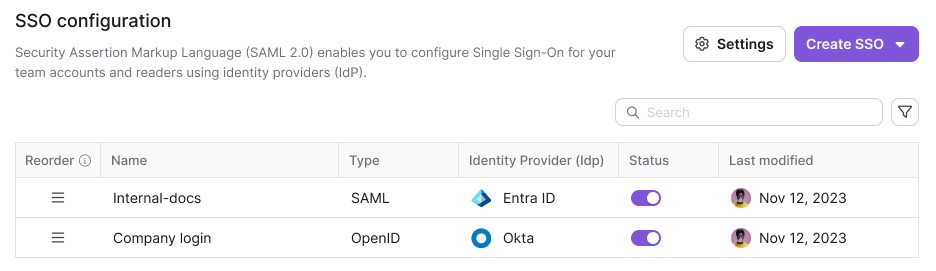
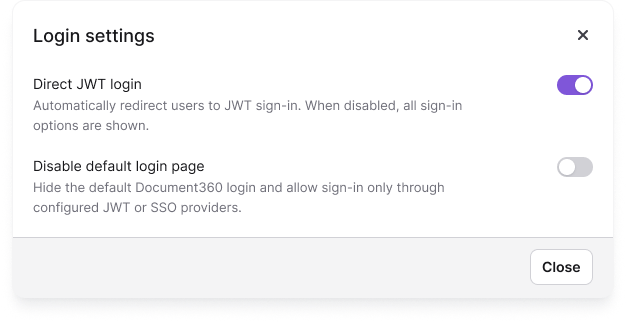
- In the Settings popup, turn on the Disable default login page toggle.
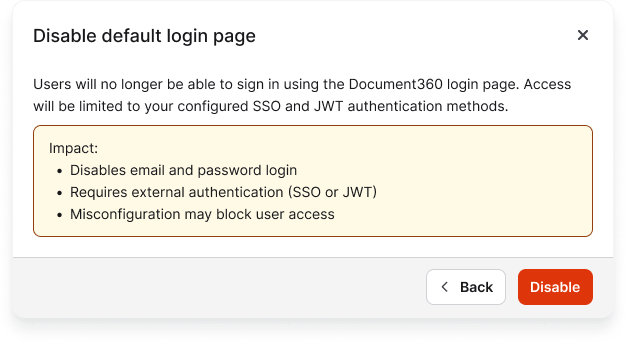
- In the confirmation dialog, click Disable.
The login page now shows only your SSO sign-in options. The email and password form no longer appears. To check, open the login page in a private browser window.
Limits and limitations
| Item | Limit |
|---|---|
| Non-SSO users | People without an SSO account can't sign in while the setting is on. |
| Last active configuration | While the default login page is disabled, you can't turn off or delete the last active SSO or JWT configuration. Document360 shows: "This is the only active SSO or JWT configuration and the default login page is disabled, so turning it off or deleting it would lock everyone out. Enable another configuration, or turn the default login page back on, first." |
To remove your last SSO configuration, first turn the Disable default login page toggle off, or enable another configuration. For the removal steps, read Remove a configured SAML SSO or Remove a configured OpenID SSO.
Best practices
- Confirm SSO works for everyone first. Before you deactivate the login page, check that every user in the project has an active SSO account and can sign in with SSO. Anyone who hasn't set up SSO access is locked out.
- Keep a working Owner account on SSO. Confirm that at least one Owner can sign in with SSO before you deactivate the login page, so you always have administrative access to the project.
- Turn the toggle off before you add a non-SSO user. If you later need to add a non-SSO user, turn the Disable default login page toggle off first so they can sign in with their email and password.
- Put the most used sign-in option first. If your project has several SSO configurations, reorder the login buttons in the site builder so the most used option appears first for readers on your knowledge base site. By default, buttons appear in the order you created the configurations. To learn how, read Managing JWT configurations and Login page.
Related articles
More on sign-in options:
FAQ
What happens when the Disable default login page toggle is on?
The login page shows only SSO sign-in options. No one can sign in with a Document360 email address and password.
Why can't I turn off or delete my SSO configuration?
When the default login page is disabled, Document360 blocks you from turning off or deleting the last active SSO or JWT configuration, because doing so would lock everyone out. Turn the default login page back on, or enable another configuration, and then try again.