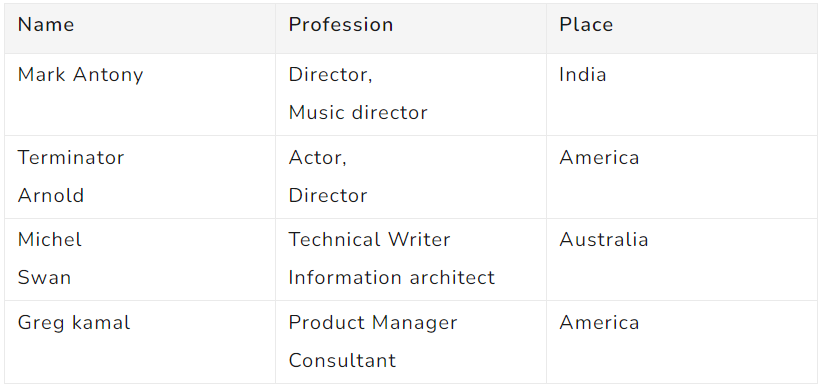
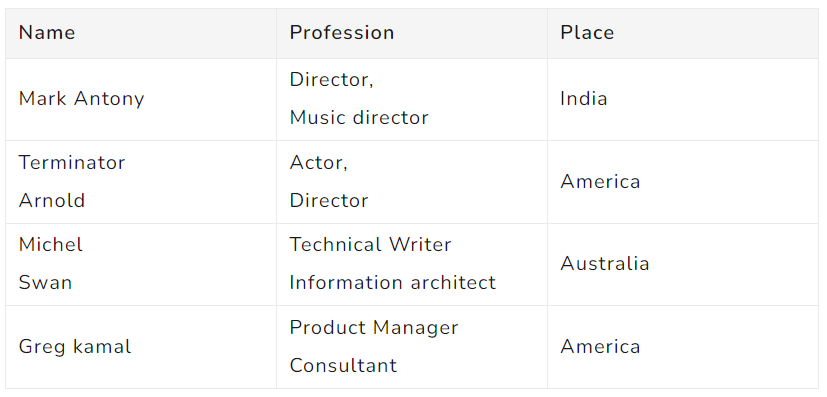
By default, table cell content on the Knowledge Base site is vertically centred. If you prefer content to align to the top of each cell, which is generally easier to read in tables with multi-line content, you can override this using Custom CSS. The change applies globally to all tables on the site.
When to use custom vertical alignment
- Multi-line cell content: when cells contain bullet lists, paragraphs, or multiple lines of text, top alignment makes rows easier to scan because all content starts at the same visual baseline.
- Mixed-length rows: in tables where some cells are short and others are tall, top alignment prevents short content from appearing to float in the middle of a large cell.
- Matching a design standard: top alignment is the most common convention for data tables in documentation and product interfaces.
NOTE
This CSS change applies to all tables across your Knowledge Base site. It is not possible to target individual tables using this method.
Quick reference
To change vertical alignment, replace top with middle or bottom as required.
table td, table th, table tr {
    vertical-align: top !important;
}
| Value | Effect |
|---|---|
top |
Aligns content to the top of each cell |
middle |
Centres content vertically (default) |
bottom |
Aligns content to the bottom of each cell |
How to change table vertical alignment
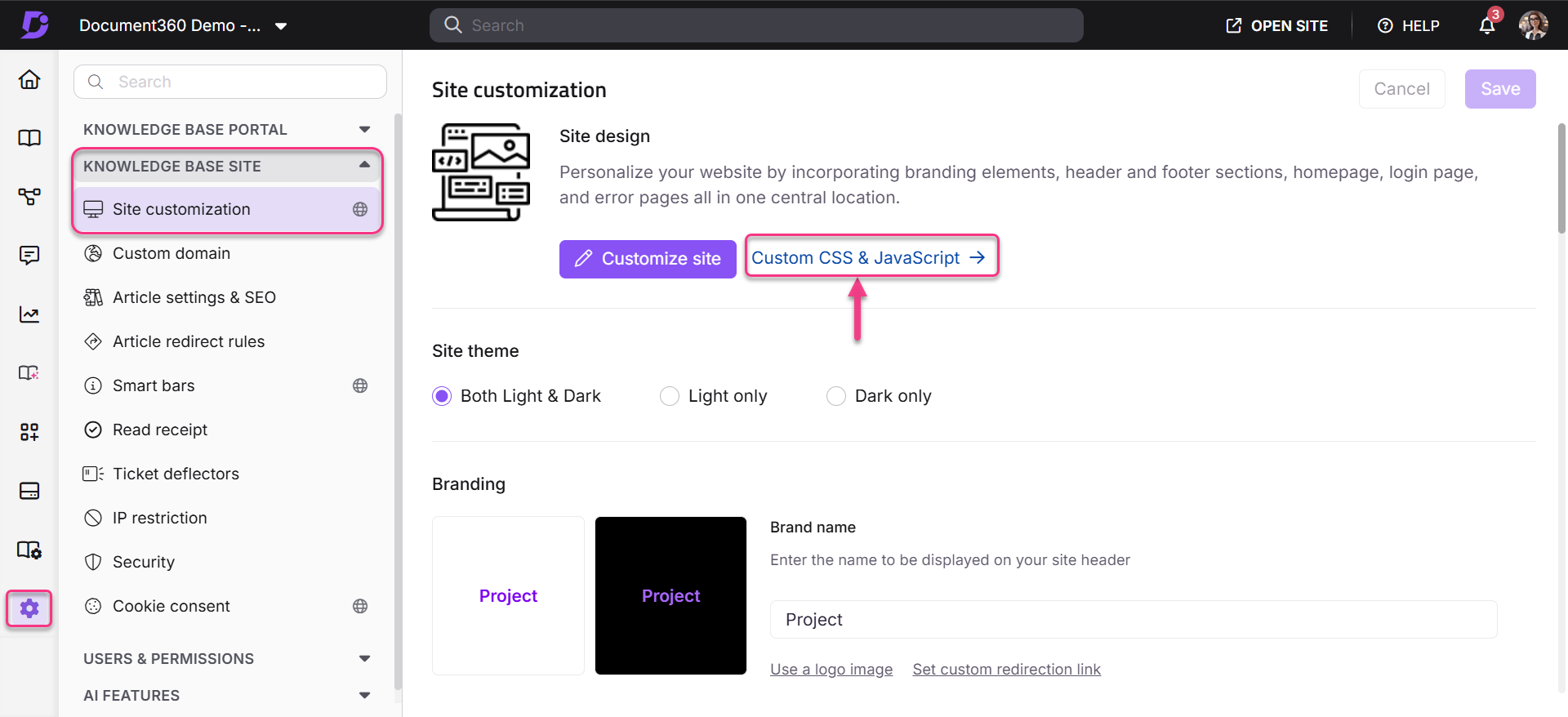
- In the Knowledge Base portal, go to Settings > Knowledge base site > Custom CSS & JavaScript.
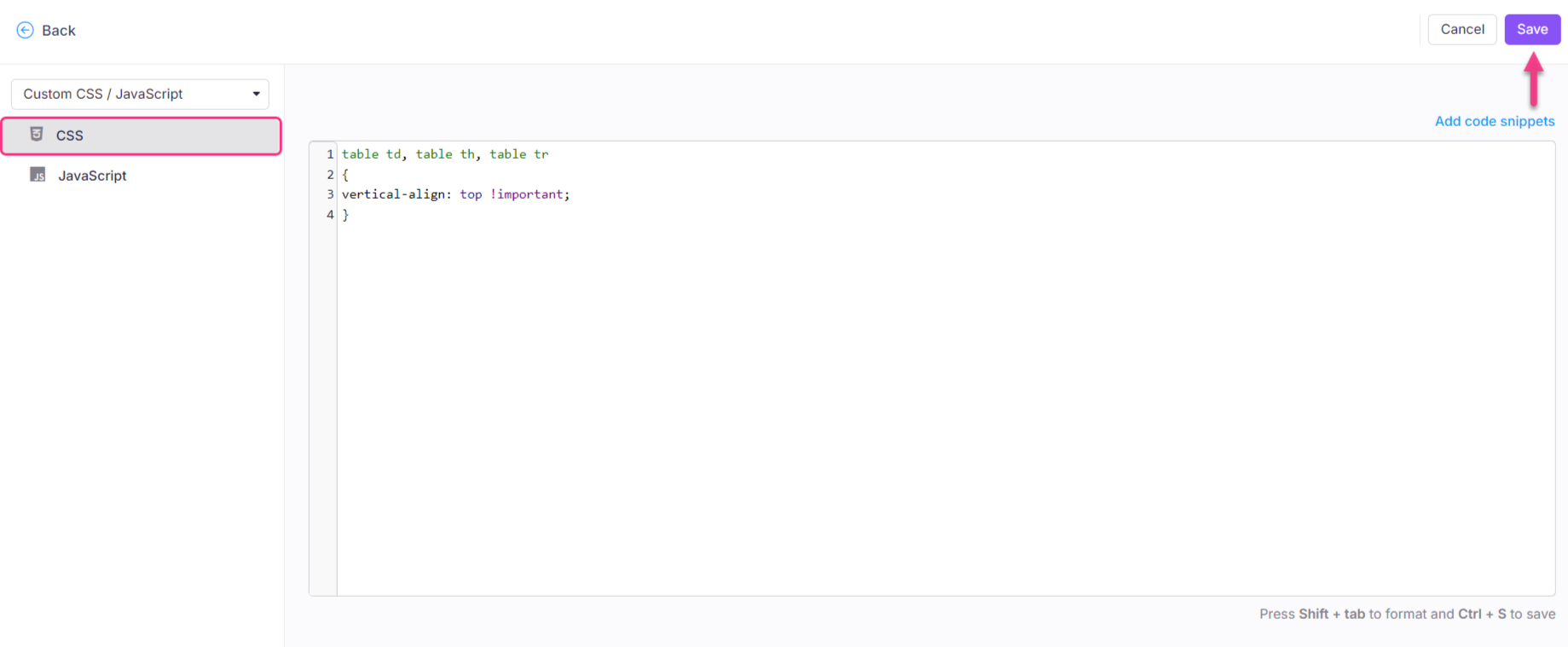
- Select the CSS tab and paste the following snippet:
table td, table th, table tr {
    vertical-align: top !important;
}
- Replace
topwith your desired alignment value if needed, see the reference table above. - Click Save.
Outcome
Before
After