Intercom is a customer messaging platform that supports live chat, bots, and user engagement. Integrating Intercom with Document360 lets you streamline how your support team shares knowledge base content during live conversations and enables users to self-serve by accessing relevant articles directly from the Intercom messenger.
This article covers the chatbot-based integration for end-user interactions. If you also want your support agents to search and share Document360 articles inside Intercom Inbox, see the Intercom helpdesk extension article.
Key features of the Intercom chat integration:
- Messenger integration: users can search and view help articles from Document360 directly in the Intercom Messenger on your website.
- Agent sidebar access: support agents can search, preview, and share Document360 articles while responding to conversations in the Intercom Inbox.
- Article creation from chat: agents can create new Document360 articles without leaving Intercom, making documentation updates seamless and contextual.
- Conversation context: improve support quality by leveraging Intercom's user data, behavior tracking, and custom events to provide more relevant responses.
Before you begin
- You need an Intercom account.
- You need your Intercom ID (also called the Workspace ID or App ID). See How to find your Intercom ID below.
Access your Intercom ID
Your Intercom ID is the Workspace ID (App ID) from your Intercom account.
- Sign in to your Intercom workspace.
- Click the Settings icon in the left navigation menu.
- Navigate to Channels > Messenger, then click the Install tab at the top.
- In the Install the messenger on your site or app section, click the Install for web tile if it is not already selected.
- Under Choose how to install the messenger, select the Code snippet option.
- In the Configure your code snippet section, select the Basic JavaScript tab.
- In the code snippet shown, locate the value for
app_id. - Copy the
app_idvalue. This is your Intercom ID to use in Document360.
You can also find your Intercom ID directly from the URL when you are logged into your Intercom dashboard. For example:
https://app.intercom.com/a/apps/abc123/getting-started
The part after /apps/ and before /getting-started (in this case, abc123) is your Intercom Workspace ID (App ID). Copy this value and paste it into the Intercom ID field in Document360.
Integrate Intercom with Document360
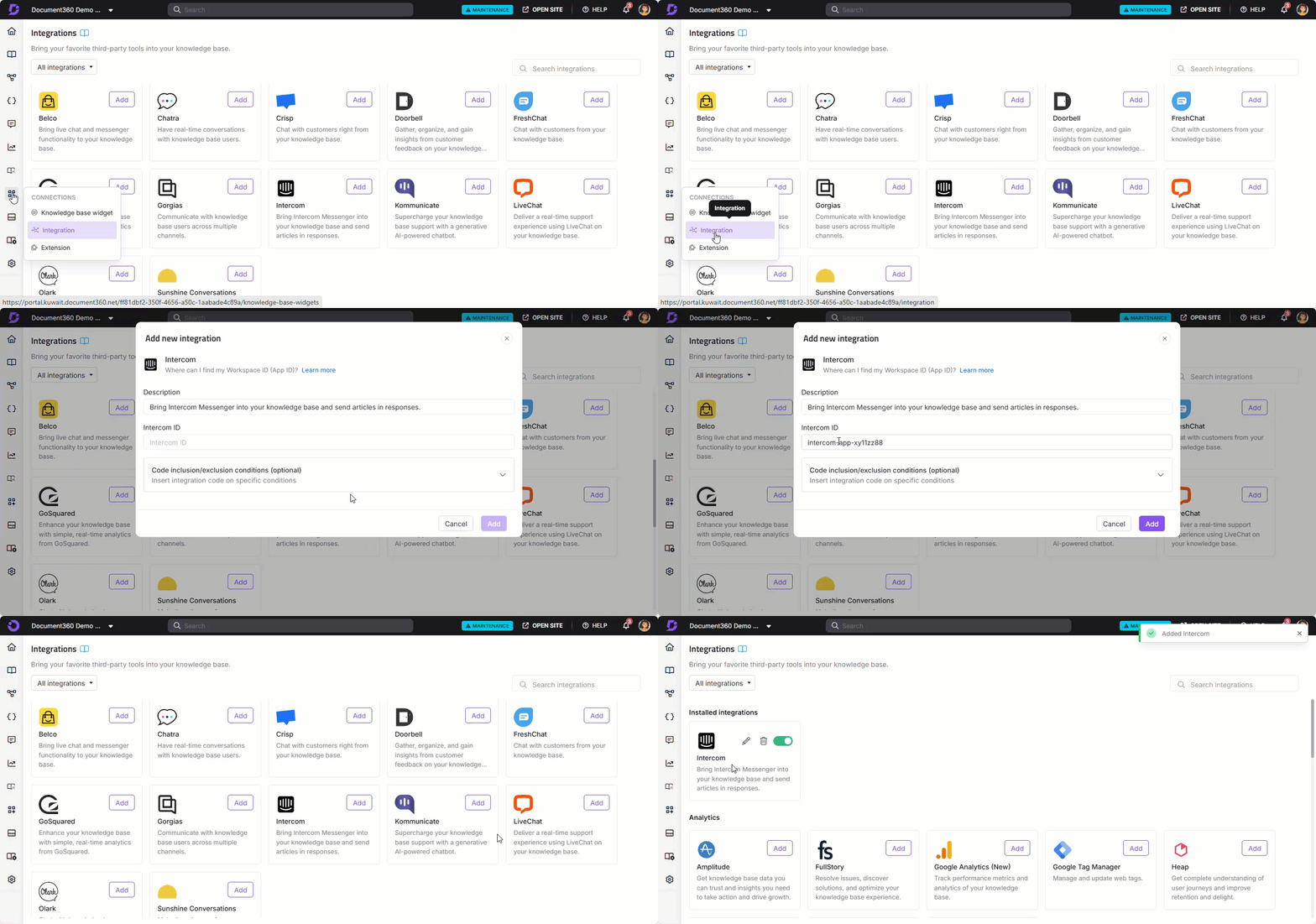
- In the Document360 portal, navigate to Connections () > Integrations () in the left navigation bar.
- Select Intercom from the list of integrations and click Add. The Add new integration panel appears.
- Enter a Description and paste your Intercom ID in the provided field.
- Optionally, expand Code inclusion/exclusion conditions to control when the integration runs based on IP address, Workspace, or Language.
- Click Add to complete the integration setup.
Best practices
- Use messenger integration for self-serve support. Once integrated, readers can search and view Document360 articles directly in the Intercom Messenger without contacting your support team.
- Train agents to share articles from the sidebar. The agent sidebar lets support agents search and share relevant articles mid-conversation, reducing resolution time and improving consistency.
- Create articles from chat to capture knowledge in context. When an agent answers a question that isn't yet documented, use the article creation feature to capture the answer as a new Document360 article without leaving Intercom.
- Use Code inclusion/exclusion conditions to control where the messenger appears. If you only want the Intercom messenger on specific workspaces or for users in certain languages, configure conditions to limit where the integration runs.
- Use the PRO TIP to quickly retrieve your Intercom ID. Rather than navigating through Messenger settings, copy the App ID directly from your Intercom dashboard URL.
FAQ
What is the difference between the Intercom chat integration and the Intercom helpdesk extension?
The Intercom chat integration focuses on chatbot-based interactions with end-users, allowing readers to search and view Document360 articles in the Intercom Messenger. The Intercom helpdesk extension is for support agents, giving them the ability to search, preview, and share articles from inside the Intercom Inbox. See the Intercom helpdesk extension article for setup details.
What is the Intercom ID?
The Intercom ID is your Intercom Workspace ID (also called the App ID). You can find it by navigating to Settings > Channels > Messenger > Install > Code snippet > Basic JavaScript tab, and copying the app_id value. You can also copy it directly from your Intercom dashboard URL. It is the value between /apps/ and /getting-started.
Can users access Document360 articles from the Intercom Messenger?
Yes. After the integration is set up, users on your website can search and view Document360 help articles directly from the Intercom Messenger, enabling self-serve support without needing to contact your team.
Can agents create Document360 articles from inside Intercom?
Yes. The Intercom chat integration includes an article creation feature that lets agents create new Document360 articles without leaving Intercom. This makes it easy to document answers in context as conversations happen.
Can I limit which workspaces or languages the Intercom integration runs on?
Yes. When adding or editing the Intercom integration, expand Code inclusion/exclusion conditions and add conditions based on IP address, Workspace, or Language. See Code inclusion and exclusion conditions for full details.