The in-editor find and replace tool lets you search for and replace text within a single article, directly from the Markdown or Advanced WYSIWYG editor. Unlike the global find and replace tool, this affects only the open article.
Why use the in-editor tool
- You want to fix a typo or update a term that repeats several times within the same article.
- You need to make a change scoped to one article only, without affecting other articles, variables, snippets, or glossary terms.
- You're already working in the editor and want a faster way to locate and update text than scrolling manually.
Use find and replace in the editor
Markdown editor: Select the Find and replace () icon in the article header, or use Ctrl+F.
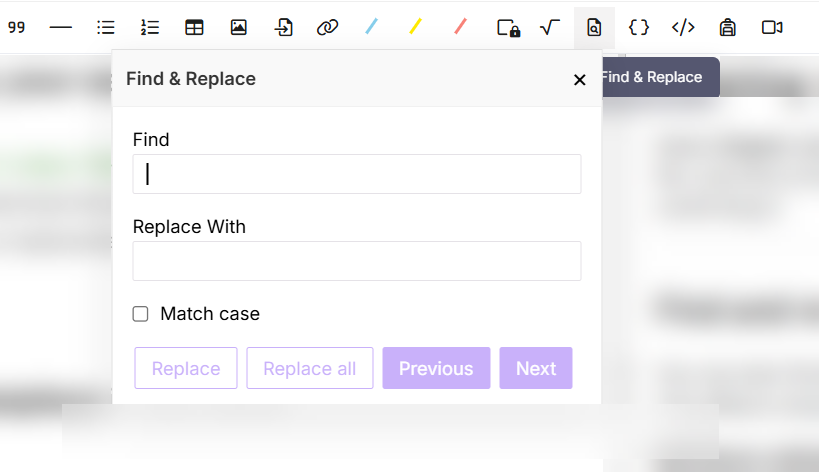
Advanced WYSIWYG editor: Select the More () icon in the article header, then select Find and replace ().
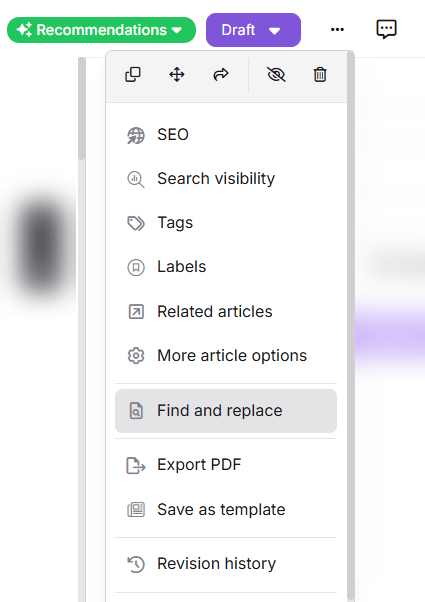
Once the tool is open:
- Enter the word or phrase to search for. Every matching occurrence in the article is highlighted.
- Enable Match case to limit matches to text with the exact same capitalization.
- Use Previous and Next to move between occurrences in the article.
- Enter the replacement text, then select:
- Replace to update only the currently selected occurrence.
- Replace all to update every occurrence in the article at once.
Best practices
- Use the in-editor tool for changes limited to a single article — it's faster and scopes the change to that article only.
- For changes that need to apply across multiple articles, variables, snippets, or glossary terms, use the global find and replace tool instead.
FAQ
Is find and replace case sensitive?
Not by default. Searching for "api" finds API, Api, and api. Enable Match case if you need to match only text with the exact same capitalization.