Article GEO/SEO in Document360 lets you configure a meta title, slug, and meta description for each article so that search engines can accurately discover, index, and display your content — and so that AI agents can retrieve and cite it accurately. Without these settings, search engines fall back to the article title and auto-generated content, which may not represent the article accurately in results.
When to use article SEO
- You want your knowledge base articles to appear in Google, Bing, or Yahoo search results with accurate, compelling titles and descriptions.
- An article is internal, in draft, or restricted and should not be publicly discoverable. Use the Exclude from external search engine results option.
- The article title is too long, too short, or not keyword-focused enough for search results. Set a custom meta title without having to rename the article.
AI & search description (GEO/SEO) settings
| Setting | Description |
|---|---|
| Exclude from external search engine results | Prevents the article from being indexed by external search engines. Does not affect knowledge base site search or Eddy AI search. |
| Meta title | The title shown in search engine results and the browser tab. Defaults to the article title if left blank. |
| Slug | The URL-friendly identifier for the article. Auto-generated on creation. Can be edited manually. |
| Description | The meta description shown in search engine results and used by AI agents to retrieve and cite this article. Enter manually or generate using Eddy AI. Keep between 150 and 160 characters. |
These settings also apply to Step by step guides. Guides are structured for AI agents and LLMs to read and are listed in your llms.txt file, so the description you set here is what an AI assistant uses to decide whether to retrieve the guide.
Add an SEO/GEO title and description
- Open the article in the knowledge base portal.
- Click the More () icon in the article header and select GEO/SEO.
- The Article settings panel appears with the AI & search optimization (GEO/SEO) tab.
- Select Exclude from external search engine results if the article should not appear in external search engines.
- Enter a Meta title.
Keep the meta title between 50 and 60 characters for optimal display in search results. The field accepts up to 70 characters.
- Edit the Slug if needed. The slug is auto-generated from the article title when the article is created.
- Enter a Description, or click Generate to create one or Regenerate to replace the existing description with a new one.
Keep the meta description between 150 and 160 characters. The article must have at least 200 words for Ask Eddy AI to be available.
- Click Save.
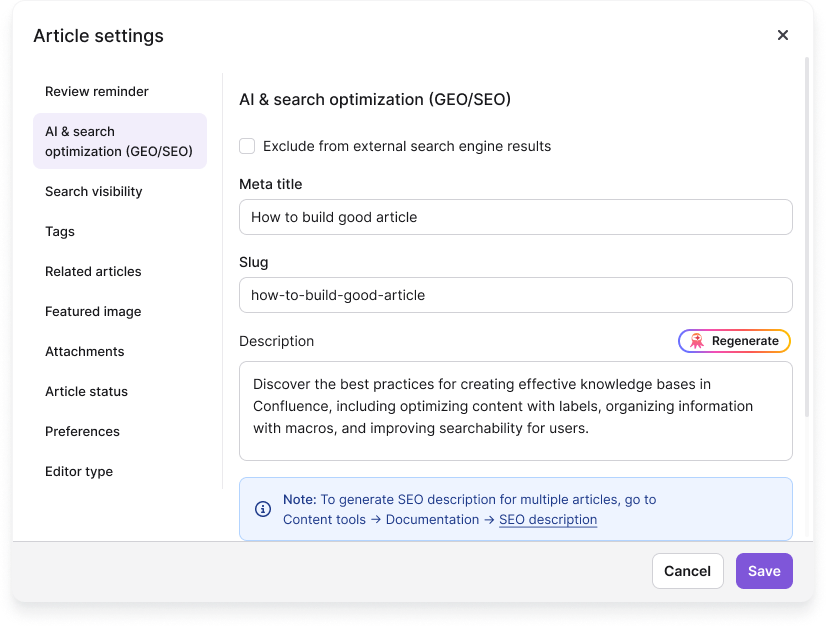
To manage AI & search descriptions for multiple articles at once, go to Content tools () > AI & search description.
Edit the meta title
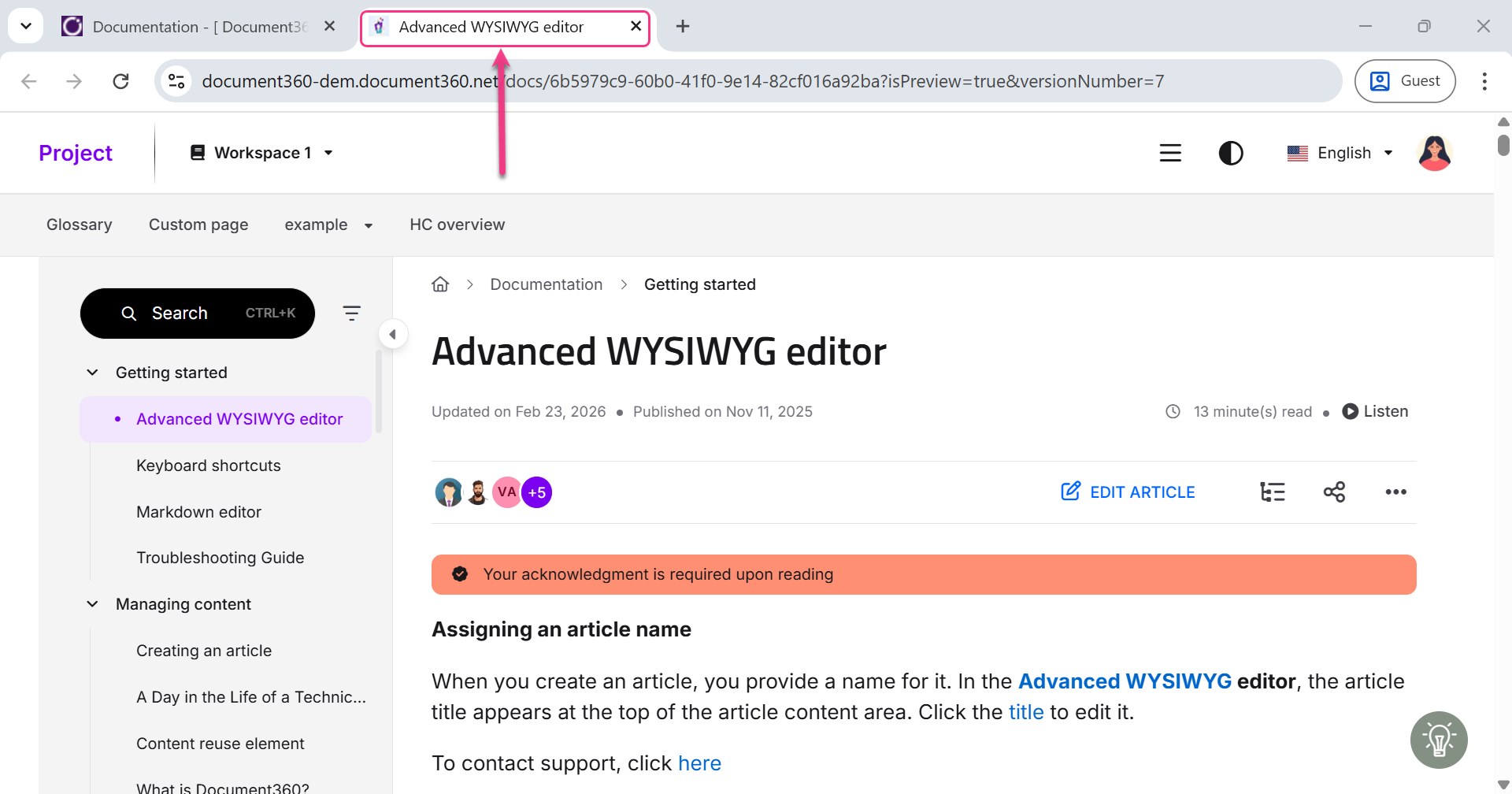
The meta title and the article title are independent. Updating the meta title does not rename the article, and renaming the article does not update the meta title.
- Open the article in the knowledge base portal.
- Click the More () icon in the article header and select GEO/SEO.
- Go to the GEO/SEO tab and update the Meta title field.
- Click Save.
The updated meta title appears in the browser tab and in search engine results on the knowledge base site.
Best practices
- Write a unique meta title and description for every article. Avoid descriptions that could apply to multiple articles.
- Do not leave the meta title blank on high-traffic articles. When blank, it defaults to the article title, which may not be optimised for search.
- Edit the slug to be short, descriptive, and lowercase with hyphens. Avoid auto-generated slugs that contain numbers or random characters.
- Use the AI & search description (GEO/SEO) page in Content tools to identify and fill gaps across all articles in bulk, rather than updating them one at a time.
- If you rename an article, republish it for the changes to reflect on the knowledge base site.
FAQ
Are the article title and meta title the same?
No. The article title appears in the article header on the knowledge base site. The meta title appears in the browser tab and in search engine results. By default the meta title matches the article title. Update it in the GEO/SEO tab to make it distinct.
Why is the Ask Eddy AI button inactive even though I have Eddy credits?
The article must have at least 200 words for the Eddy AI description generator to be available.
If I update the AI & search description in English, will it automatically translate into other languages?
No. AI & search descriptions are language-specific. You must manually update the description for each language in your project.
Why is the article title not updating on the knowledge base site after I rename it in the portal?
Article title changes are not reflected on the knowledge base site until you republish the article.
Can I disable SEO for a category?
Yes, for Index and Page categories. Open the category, click the More () icon, select GEO/SEO, and check Exclude from external search engine results. Click Save. For Folder categories, convert to an Index or Page category first, then follow the same steps. Note that this excludes only that category. Articles and subcategories within it are not excluded automatically.
Step by step guides support the same settings. Open the guide, click the More (•••) icon, and select GEO/SEO.