PDF export analytics shows you how PDF exports are used across your project, from the portal and from the knowledge base site. You can see how many PDFs were downloaded, how many pages were exported, which articles are exported most, and who exported them. Use it to understand what is using your monthly PDF export credits and which content your readers save for offline use.
Why use PDF export analytics
- Use it to find out what is consuming your monthly PDF export credits, and whether usage comes from your team in the portal or from readers on the knowledge base site.
- Use it to identify the articles your readers export most, so you can keep them accurate and well formatted for PDF.
- Use it to see who is exporting content and how many pages each person exports, for example to review unusually heavy export activity.
Before you begin
- You must have access to the Analytics section in the Knowledge base portal.
- All analytics data is displayed in the UTC time zone.
Access PDF export analytics
- In the knowledge base portal, navigate to Analytics () in the left navigation bar.
- In the left navigation pane, click PDF exports.
The PDF exports page opens and shows data for the last 7 days by default.
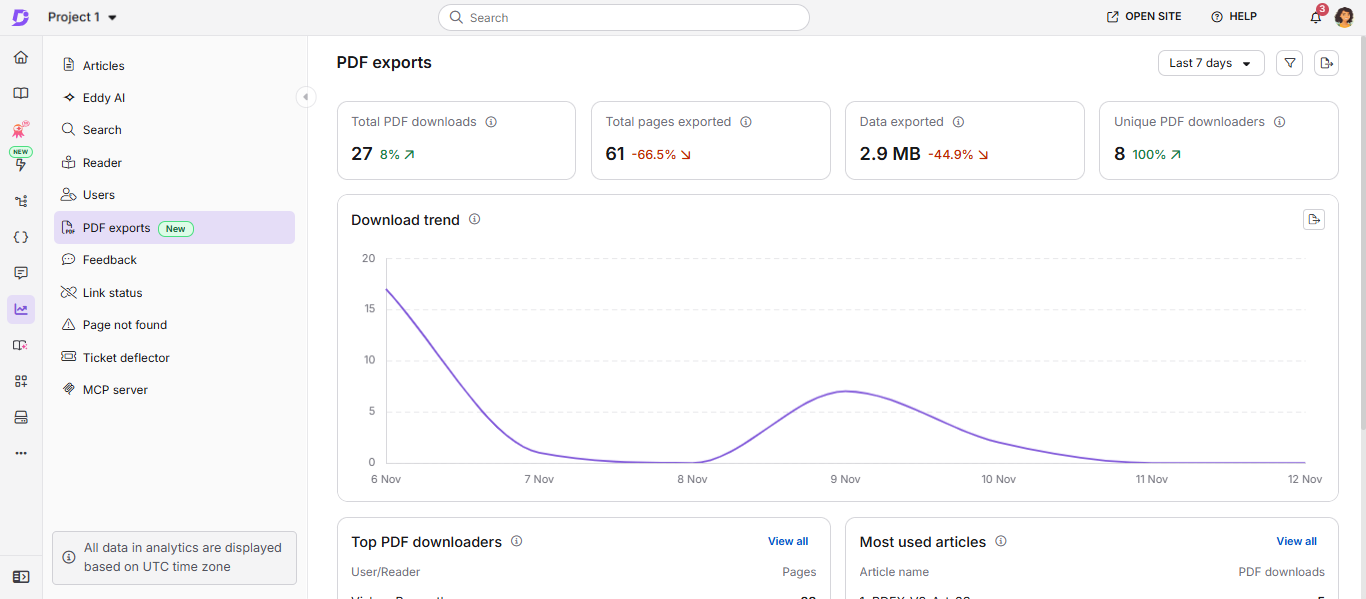
Filter the data
Every tile, chart, widget and table on the page follows the filters you apply.
- Date range: Click the date dropdown in the top-right corner and select Last 7 days, Last month, or Custom date.
- Source and user type: Click the Filter () icon, choose the options below, and click Apply.
| Filter | Options | Use it to |
|---|---|---|
| Source | Portal, Knowledge base site | See exports created by your team in the portal separately from PDFs downloaded by readers on the knowledge base site. If you don't select a source, both are included. |
| Users/Readers | Mixed projects: Users, Public readers, Private readers Private projects: Users, Private readers Public projects: Users, Public readers |
See activity from team members only or from readers only. Select Public readers to see only downloads by readers who are not logged in. |
Summary tiles
The top of the page shows four tiles for the selected period. Each tile also shows how the value changed compared with the previous period of the same length, for example the previous 7 days. The trend appears only for Last 7 days and Last month, and only when the previous period has data.
| Tile | What it shows |
|---|---|
| Total PDF downloads | Number of PDFs downloaded in the selected period. One export counts as one download, even if it contains several articles. |
| Total pages exported | Total number of pages across all downloaded PDFs. Each exported page uses one PDF export credit, so this tile shows how much of your allowance the selected period used. |
| Data exported | Total file size of the downloaded PDFs. |
| Unique PDF downloaders | Number of distinct team members and readers who downloaded at least one PDF. All downloads by readers who are not logged in count as one downloader. |
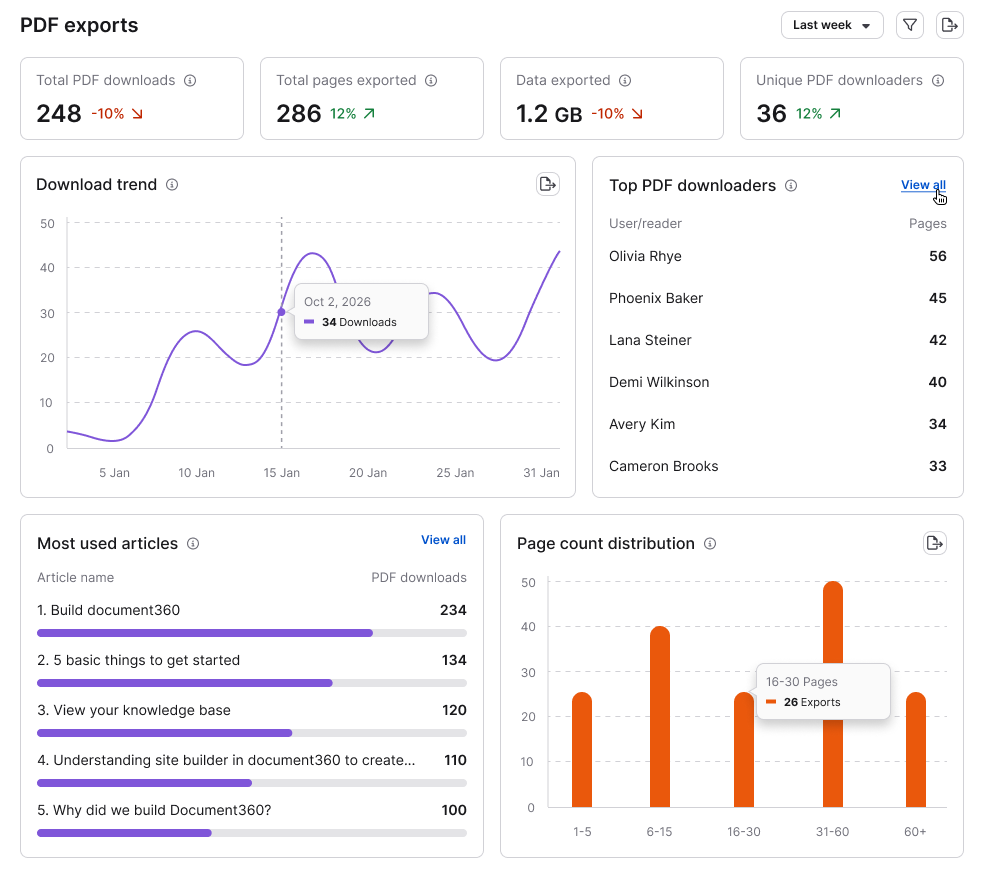
Charts and widgets
Download trend shows the number of PDF downloads per day. Hover over a point to see the date and the download count for that day.
Top PDF downloaders lists the team members and readers who exported the most pages. Click View all to open the full list.
Most used articles lists the articles that appear in the most PDF downloads. Click View all to open the full list.
To save the Download trend chart as a PNG image, click Export image () in the top-right corner of the chart.
Find which articles are exported
- On the Most used articles widget, click View all. The All exported articles list opens.
- Review the following details for each article:
| Column | Description |
|---|---|
| Article | Name of the exported article. |
| PDF downloads | Number of PDF downloads that included the article. |
| Downloaded by | Number of unique team members and readers who downloaded the article. |
| Source | Where the article was exported from: Portal, KB site, or both. |
| Last exported at | How long ago the most recent export happened, for example 2 days ago. |
- To find a specific article, enter its name in the Search articles box.
- To see who downloaded an article, click the number in its Downloaded by column. The PDF Downloaders list for that article opens, with each person's name, email, source, PDF downloads and last export date. Click the back arrow to return to the article list.
Find who exports content
- On the Top PDF downloaders widget, click View all. The All PDF downloaders list opens, sorted from the most pages exported to the fewest.
- Review the following details for each person:
| Column | Description |
|---|---|
| User/Reader | Name of the team member or reader. |
| Email address of the team member or reader. | |
| Pages | Total number of pages the person exported in the selected period. |
| PDF downloads | Number of PDFs the person downloaded. |
| Source | Where the PDFs were exported from: Portal, KB site, or both. |
| Last exported at | How long ago the person's most recent export happened. |
- To find a specific person, enter their name or email in the Search Users/Readers box.
- Downloads by readers who are not logged in are grouped into a single Anonymous row with no email. They are still counted in the tiles and charts.
- Other team members and readers can appear in more than one row, because the list is based on their PDF downloads.
- Some readers are listed by their email address instead of a name, depending on how they sign in.
Export the data
To download a list as a CSV file, click the Export () icon above the list. The file contains the rows that match your current filters and search.
To save the whole page as a PDF, click Export PDF () next to the Filter icon in the top-right corner.
Best practices
- Check Total pages exported before your credits run low. It shows how much of your monthly PDF export credit allowance was used in the selected period. Compare it across months to plan whether you need additional credits.
- Filter by Source to find what drives usage. If most pages come from the knowledge base site, readers are driving consumption. If most come from the portal, review large bulk exports created by your team.
- Review your top downloaders. If a few people account for most of the pages exported, check their exports in All PDF downloaders to see whether large exports can be narrowed down.
- Keep your most used articles PDF-ready. Check the articles in Most used articles for wide tables and SVG images, which may not render well in PDFs.
FAQ
Why don't I see PDF exports in Analytics?
PDF exports appears only when PDF export analytics is enabled for your project. Contact your Customer Success Manager or Document360 support to enable it.
Does PDF export analytics show data from before it was enabled?
Yes. The data starts from the date PDF export was made available for your project.
Does PDF export analytics include exports from both the portal and the knowledge base site?
Yes. It includes PDFs created from the portal and PDFs downloaded by readers from the knowledge base site. Use the Source filter to view them separately.
How is a PDF download counted when an export contains several articles?
One export counts as one PDF download in the Total PDF downloads tile, regardless of how many articles it contains.
Why do some downloads appear as Anonymous?
Readers who are not logged in cannot be identified, so all their downloads are grouped into one Anonymous row.
Is PDF export activity included in the weekly analytics email?
Yes. If the Analytics weekly mail toggle is turned on, the weekly email includes the number of PDF downloads across the whole project. For more information, read Notification mapping.