RSS stands for Really Simple Syndication - it's a way for readers to subscribe to your knowledge base and automatically receive updates whenever you publish or modify an article. Instead of visiting your site to check for new content, subscribers get notified through an RSS reader app of their choice. By adding an RSS feed link to your knowledge base header or footer, you make it easy for readers to stay up to date without any manual effort on their part.
RSS feeds are only available for public knowledge base projects. If your project is set to private or mixed access, the RSS feed link will lead to a 404 error page.
When to add an RSS feed
- Keeping readers informed automatically - readers who subscribe to your RSS feed receive updates whenever a new article is published or an existing one is updated. This is particularly useful for product documentation that changes frequently with releases.
- Reducing manual check-ins - instead of readers revisiting the knowledge base to find new content, the feed delivers updates directly to their RSS reader.
- Supporting developer and technical audiences - technical readers often use RSS readers as part of their workflow. Adding a feed link makes your knowledge base more accessible to this audience.
How to add an RSS feed to the primary navigation
- Navigate to Settings () > Knowledge base site in the left navigation bar of the Knowledge base portal.
- In the left navigation pane, navigate to Site customization.
- Click the Customize site button.
- From the left dropdown, select Site header & footer.
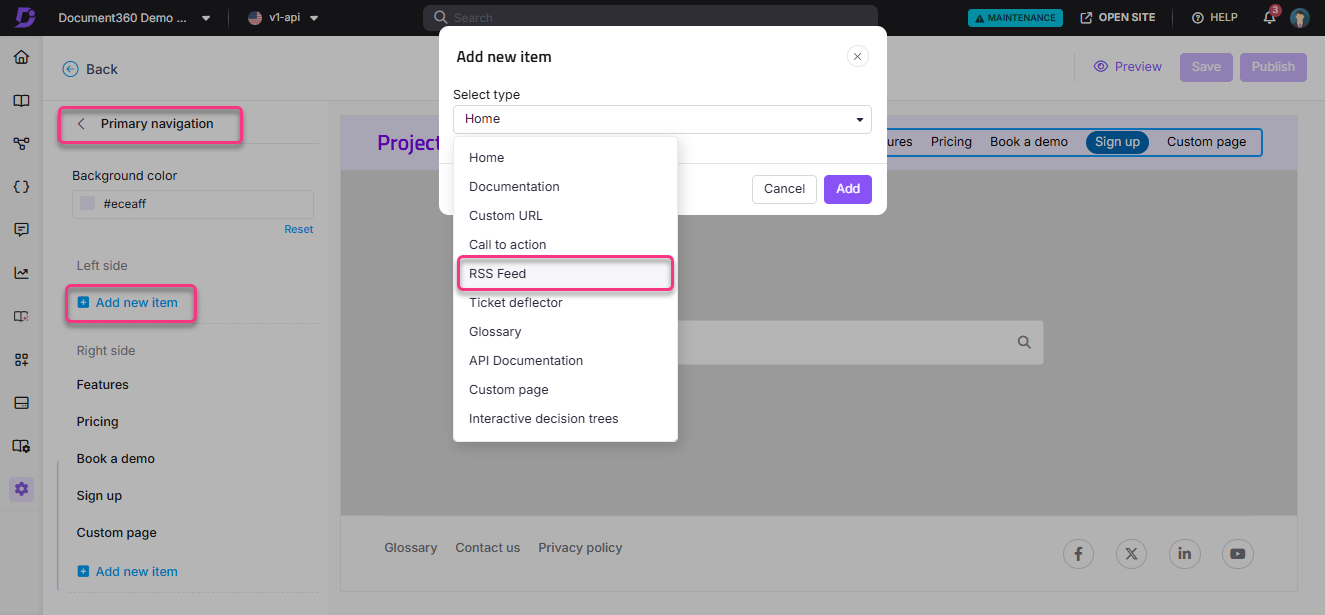
- Expand Header, then select Primary navigation. The Primary navigation panel appears.
- Click Add new item.
- In the Select type dropdown, select RSS Feed.
- In the Title field, enter the text to display in the navigation bar (for example, "Subscribe" or "RSS Feed").
- Select the Open link in new tab checkbox if needed.
- Click Add.
How to add an RSS feed to the secondary navigation
- Navigate to Settings () > Knowledge base site > Site customization and click Customize site.
- From the left dropdown, select Site header & footer.
- Expand Header, then select Secondary navigation.
- Click Add new item.
- In the Select type dropdown, select Single level.
- In the Title field, enter RSS Feed or your preferred label.
- In the Link field, paste the RSS feed XML page URL.
- Select Open link in new tab if needed.
- Click Add.
For more information, read the article on Secondary navigation.
How to add an RSS feed to the footer
Basic footer
- Navigate to Settings () > Knowledge base site > Site customization and click Customize site.
- From the left dropdown, select Site header & footer.
- Select Footer, then choose Basic footer.
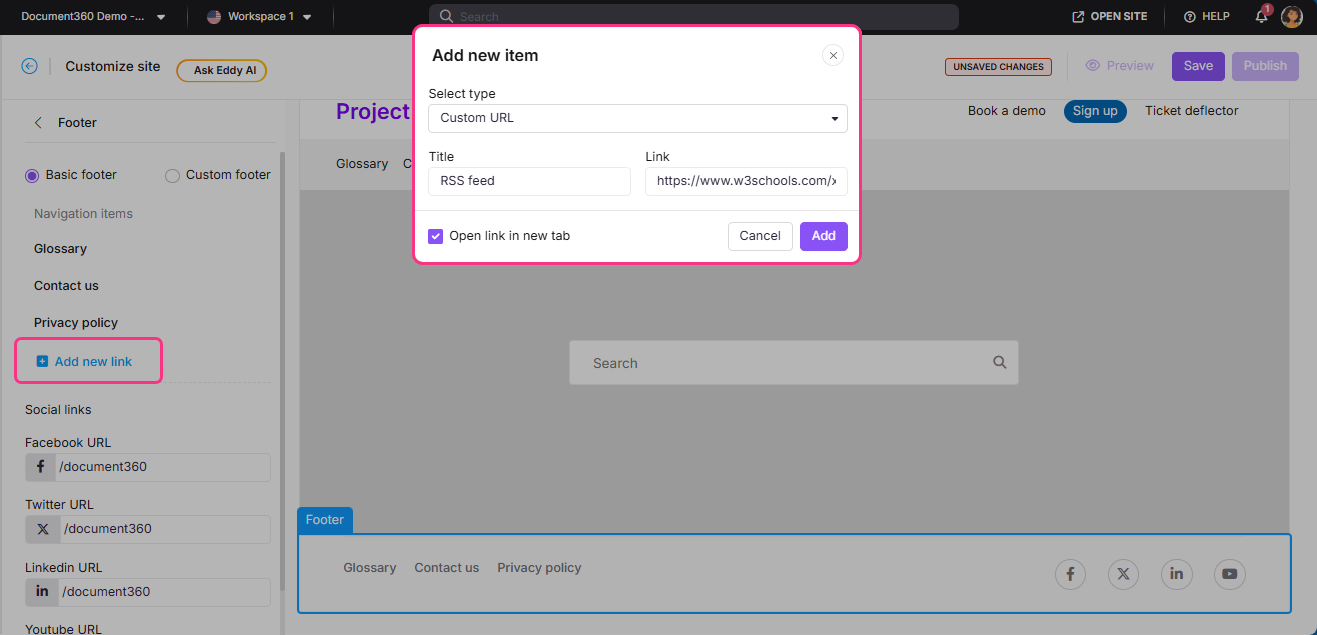
- Click Add new link, and choose the type Custom URL.
- Enter RSS Feed as the title and paste the RSS feed XML page URL in the Link field.
- Select Open link in new tab if needed.
- Click Add.
Custom footer
In the Custom footer HTML editor, paste the RSS feed XML page URL in the desired location as an <a href> element.
How to save and publish
- Use the Preview toggle on the right to review your changes.
- Click Save to save your changes.
- Click Publish to make changes live.
How readers can use the RSS feed
Once the RSS feed link is live on your knowledge base site, readers can subscribe using any RSS reader application, browser extension, or mobile app.
When a reader clicks the RSS feed link, a new browser tab opens displaying the XML file - this is the raw feed data that RSS reader tools use to track and display updates. From there they can:
- Use a browser extension - if the reader has an RSS reader extension installed, it may automatically detect the XML file and prompt a Subscribe option.
- Use an RSS application - the reader copies the URL from the browser address bar and pastes it into their preferred RSS reader application to subscribe.
Popular RSS reader tools include RSS Feed Reader (Chrome Extension by Feeder.co), Feedly, Feeder, NewsBlur, Inoreader, and Feedreader Online. Some offer free tiers; others charge based on usage. Document360 does not endorse these third-party tools.
How to remove an RSS feed
- Navigate to Settings () > Knowledge base site > Site customization and click Customize site.
- From the left dropdown, select Site header & footer.
- Navigate to the location where the RSS feed was added — primary navigation, secondary navigation, or footer.
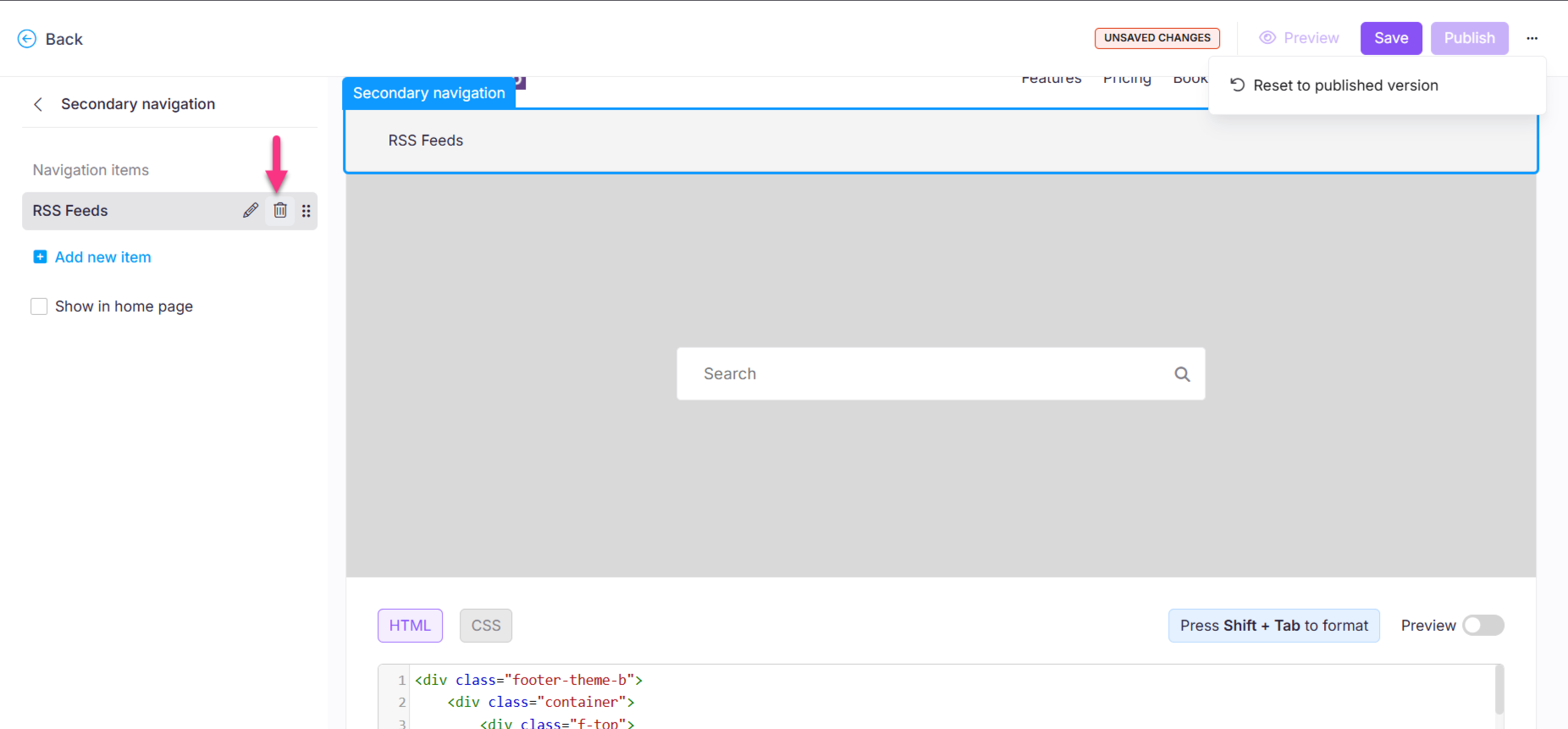
- Hover over the RSS Feed item and click Delete ().
- Click Save and Publish to apply.
Removing the RSS feed link from your knowledge base site does not stop existing subscribers from receiving updates. Readers who previously subscribed will continue to receive feed updates.
Best practices
- Use a clear label - "Subscribe" or "RSS Feed" in the title field is more reader-friendly than leaving it as the default.
- Place it in a consistent location - secondary navigation or footer are the most conventional placements for RSS links. Primary navigation should be reserved for high-priority destinations.
- Only add the feed if your knowledge base is public - an RSS link on a private or mixed knowledge base leads to a 404 error. If you have a mixed knowledge base, consider linking only to the public section's feed URL.
FAQ
Why does clicking the RSS feed lead to a 404 page?
RSS feeds only work for public projects in Document360. If your project is set to private or has mixed access, the RSS feed displays a 404 error page. To make the RSS feed accessible, ensure your project is set to public access.