The Settings — Full portal search page is a dedicated search interface within the Document360 portal that lets you find any setting or feature instantly, without navigating through multiple menus. Instead of browsing each settings category manually, you can type a keyword and jump directly to the relevant settings page in one click.
When to use the settings full portal search
- You need to enable SSO but aren't sure whether it sits under Users & Security or Knowledge base portal — search "SSO" and go directly to the page instead of checking both.
- You're onboarding to a new project and want to see every setting available to your role without clicking through each sidebar section one by one.
- You recall configuring a setting a few weeks ago but can't remember its exact name or location — type a partial keyword and let the search surface it.
How to search for settings in the portal
-
Click the Search () field in the top navigation bar.
NOTEPress the Escape key at any time to close the search screen.
-
From the Search all dropdown to the left of the search bar, select Settings.
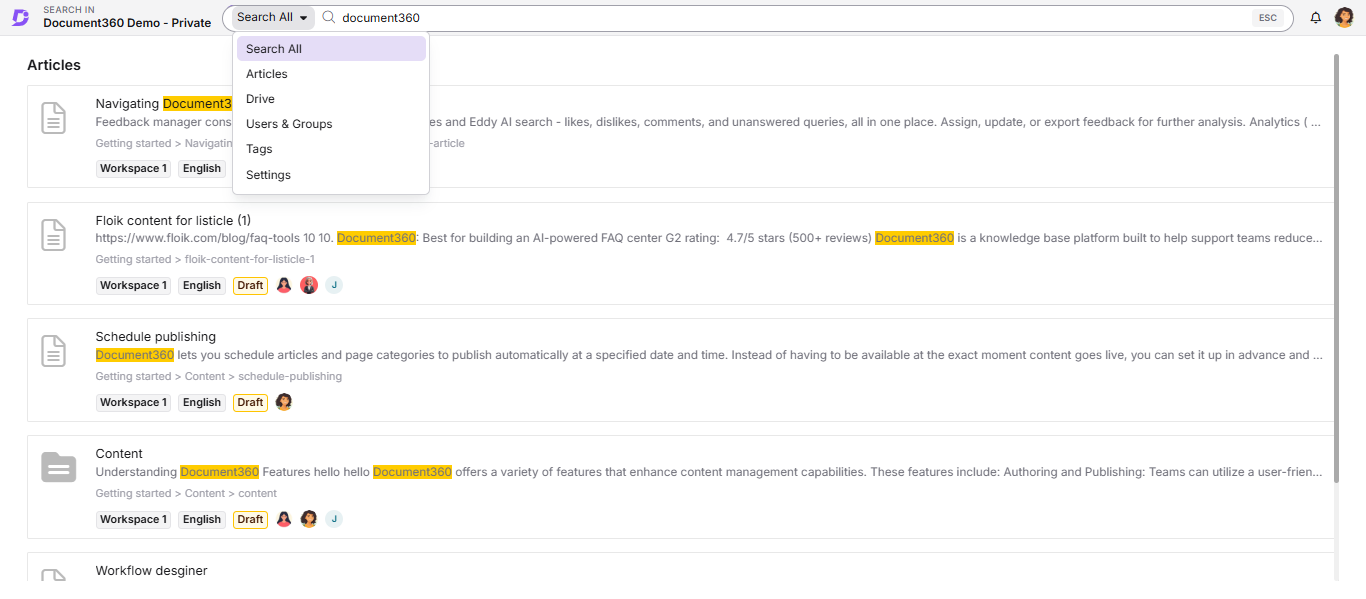
All settings accessible to your user role are displayed. Settings are grouped under the following categories:
- Knowledge base portal
- Knowledge base site
- Users & Security
-
Type a keyword in the search bar.
Results appear in Grid view and display the following for each match:
Field Description Setting/feature name The name of the setting or feature Feature icon A visual icon representing the setting Short description A brief summary of what the setting does -
Click the setting you want. The portal navigates you directly to that settings page.
Best practices
- Use specific keywords — Searching for a precise term (for example, "SSO" or "custom domain") returns more relevant results than a broad term like "settings".
- Check your role permissions — The search only surfaces settings your user role has access to. If an expected setting does not appear, verify your role with your portal admin.