The AI title recommender is an Eddy AI feature in Document360 that generates optimized article titles based on your content. Using Natural Language Processing (NLP), it analyzes your article, identifies the key information, and surfaces up to three title options — helping you write clearer, more discoverable documentation without having to brainstorm titles from scratch.
When to use the AI title recommender
Use the AI title recommender when you want to:
- Name a brand-new article and need a starting point that reflects the content accurately.
- Rename an existing article whose title no longer matches what the content covers.
- Improve SEO discoverability by replacing vague titles with NLP-generated, keyword-aligned alternatives.
- Maintain title consistency across a large knowledge base with many contributors.
Before you begin
Before using the AI title recommender, confirm the following:
- Your article's pre-processed word count exceeds 50 words. Pre-processing excludes HTML tags, images, URLs/links, and code blocks from the count — so your visible word count in the editor may be higher than the pre-processed count.
- You have available AI credits. Each time you click Suggest title, one credit is consumed — regardless of whether you save or discard the suggestion.
To see which languages are supported by Eddy AI, refer to the AI writer suite — multilingual support article.
Use the AI title recommender
The steps differ slightly depending on which editor your article uses.
AI title recommender in Markdown
- Navigate to the desired article in the Knowledge base portal.
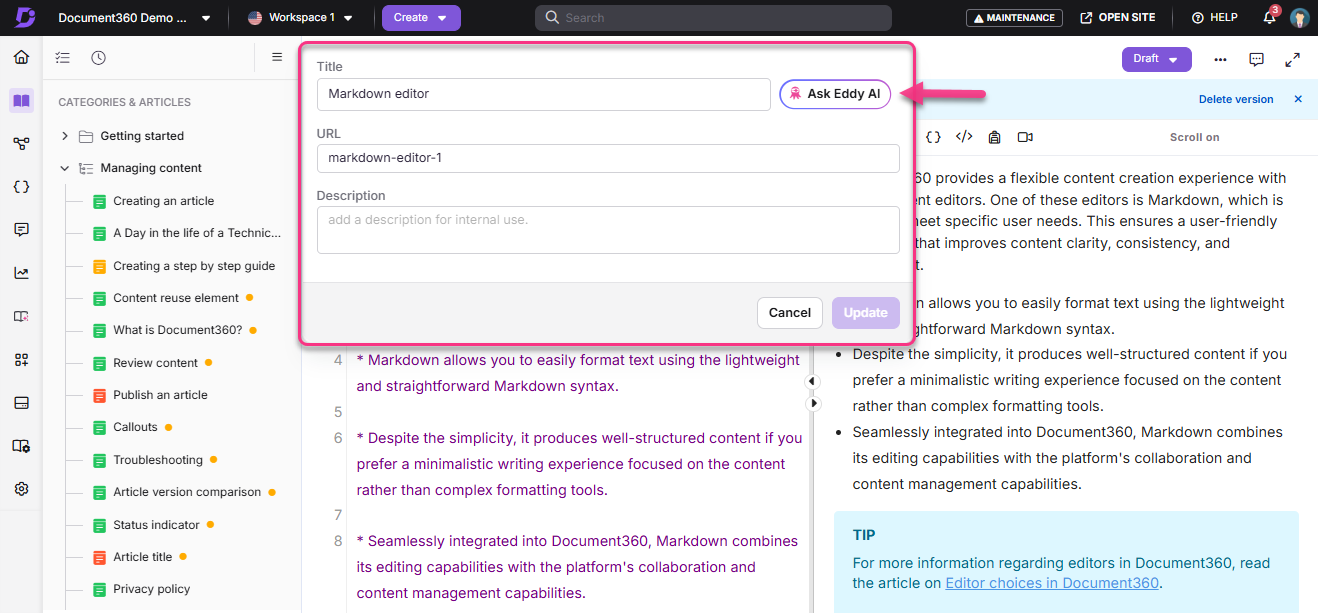
- Click the article title at the top of the editor. A panel appears.
- Click Ask Eddy AI. Eddy generates three title suggestions.
- Select your preferred title using the radio button.
- Click Generate more suggestions if none of the initial three titles fit — three additional suggestions are generated.
- Click Choose to apply the selected title.
- Use the Like () or Dislike () buttons to rate the suggestions. This feedback helps improve future recommendations.
AI title recommender in Advanced WYSIWYG editor
- Navigate to the desired article in the Knowledge base portal.
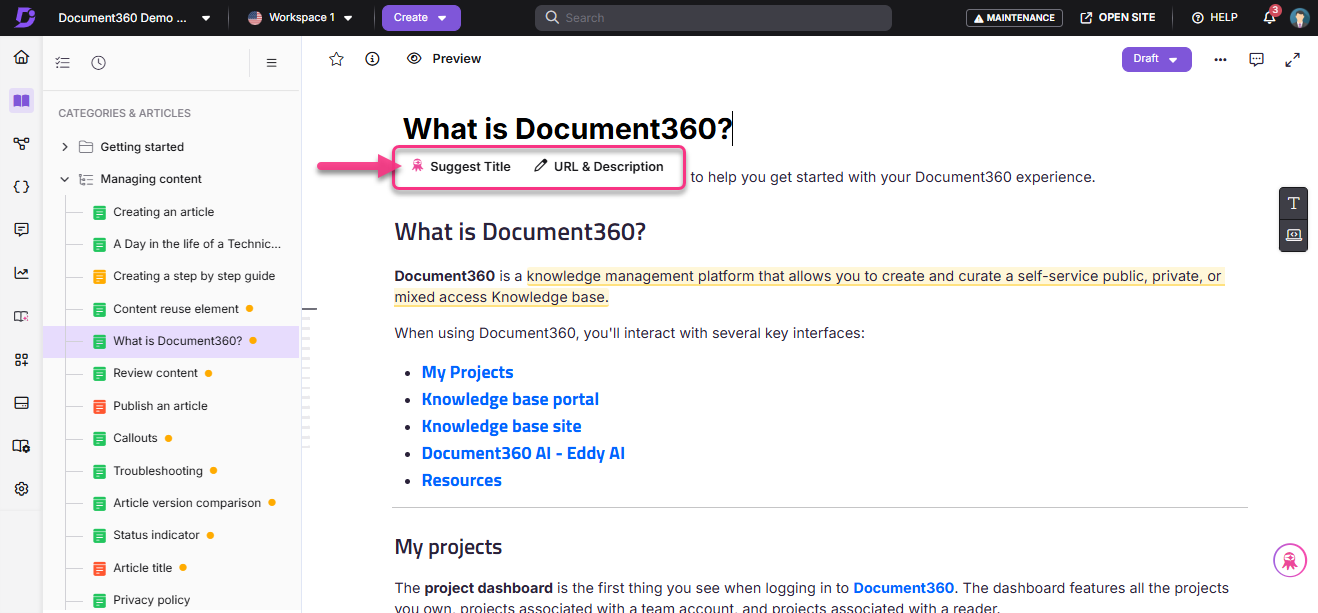
- Click the article title inside the article content area. A toolbar appears.
- Select Suggest title. Eddy AI generates three title suggestions.
- Select your preferred title using the radio button.
- Click Generate more suggestions to see three more alternatives.
- Click Choose to apply the title.
- For published or draft articles, a Title update confirmation prompt appears. Click Yes to confirm the change.
- Use the Like () or Dislike () buttons to share feedback on the suggestions.
What counts as a pre-processed word?
Pre-processing filters out the following elements before counting words:
- HTML tags
- Images
- URLs and links
- Code blocks
For example, if your editor shows 220 words at the bottom, the actual pre-processed count may be lower. Ensure the pre-processed word count exceeds 50 for the recommender to work.
Best practices
- Write the article body first. The more content Eddy has to analyze, the more accurate and relevant the title suggestions will be. Avoid running the recommender on stub articles.
- Use feedback buttons. Clicking () Like or () Dislike after each generation helps the model improve over time for your team.
- Generate more if needed. If the first three suggestions don't fit, click Generate more suggestions before dismissing the panel — each additional set counts as one credit.
- Treat suggestions as a starting point. You can edit the suggested title after applying it. Use the AI output as a foundation, then fine-tune for brand voice or specificity.
- Monitor credit usage. If your team generates titles frequently, check usage in Settings > AI settings > Eddy AI settings to avoid hitting the soft limit mid-month.
FAQ
Does Document360 involve any generative AI or large language model (LLM) features?
Yes, Eddy AI, a feature in Document360, uses third party LLMs such as OpenAI and generative AI to enhance the user experience.
Is my knowledge base data safe when I use the title recommender?
Yes. The title recommender uses OpenAI integration and Document360 adheres strictly to OpenAI's {{ glossary.API}} data usage policy, which states that data submitted via the API is not used to train OpenAI models or improve OpenAI's services. You can read the full OpenAI API data usage policy and Document360's Privacy Policy for further details.
Does a credit get used if I click Suggest title but then cancel?
Yes. One credit is consumed each time you click Suggest title, regardless of whether you save or cancel the suggestion.
What happens when I reach my monthly credit limit?
The title recommender will be unavailable until credits are topped up. Contact Document360 customer support to request additional credits.
Can I use the title recommender in any editor?
Yes. The AI title recommender is available in the Markdown, WYSIWYG, and Advanced WYSIWYG editors, though the access point differs slightly between them — see the procedure above for editor-specific steps.