Okta is an Identity Provider (IdP) that manages user access across multiple applications from a single platform. With OpenID Connect SSO configured between Okta and Document360, your users and readers can sign in to Document360 using their existing Okta credentials.
Only users with the Owner or Admin project role can configure SSO in Document360.
What you can do with Okta as your IdP
| Capability | Supported |
|---|---|
| User (portal) authentication | Yes |
| Reader (knowledge base site) authentication | Yes |
| SCIM user provisioning | Yes |
| SCIM reader provisioning | Yes |
| SCIM group sync | Yes |
| SSO configuration inheritance (parent-child projects) | Yes |
When using Okta with OpenID Connect, SCIM provisioning requires a separate OAuth Bearer Token app from the Okta app catalog. Unlike the SAML setup, SCIM cannot be enabled within the same OIDC application.
Before you begin
- You have an active Okta account with administrator access. If you need to create one, sign up at developer.okta.com/signup.
- You have Owner or Admin access in your Document360 project.
- Open Document360 and Okta in two separate browser tabs. You will need to switch between them multiple times during setup.
Step 1: Create an OpenID Connect application in Okta
- Log in to your Okta account and click Admin in the top right corner to switch to the admin console.
- In the left navigation, expand Applications and click Applications.
- Click Create App Integration.
- Select OIDC - OpenID Connect as the sign-in method.
- Choose Web Application as the application type and click Next.
- On the New Web App Integration page, enter a name for your application in the App integration name field.
.gif)
Step 2: Get the SP parameters from Document360
- Open Document360 in a separate tab.
- Navigate to Settings () > Users & permissions > SSO Configuration.
- Click Create SSO.
.png)
- Select Okta as your identity provider to navigate to the Configure the Service Provider (SP) page automatically.
.png)
- On the Configure the Service Provider (SP) page, select the OpenID radio button.
- A set of parameters will be displayed.
.png)
Step 3: Enter the Document360 parameters in Okta
- Switch to the Okta tab on the New Web App Integration page.
- Enter the Document360 parameters using the mapping below.
| Document360 | Okta |
|---|---|
| Sign-in redirect URIs | Sign in redirect URI |
| Sign-out redirect URIs | Sign out redirect URI |
.png)
- Scroll down to Assignments and select the desired Controlled access option.
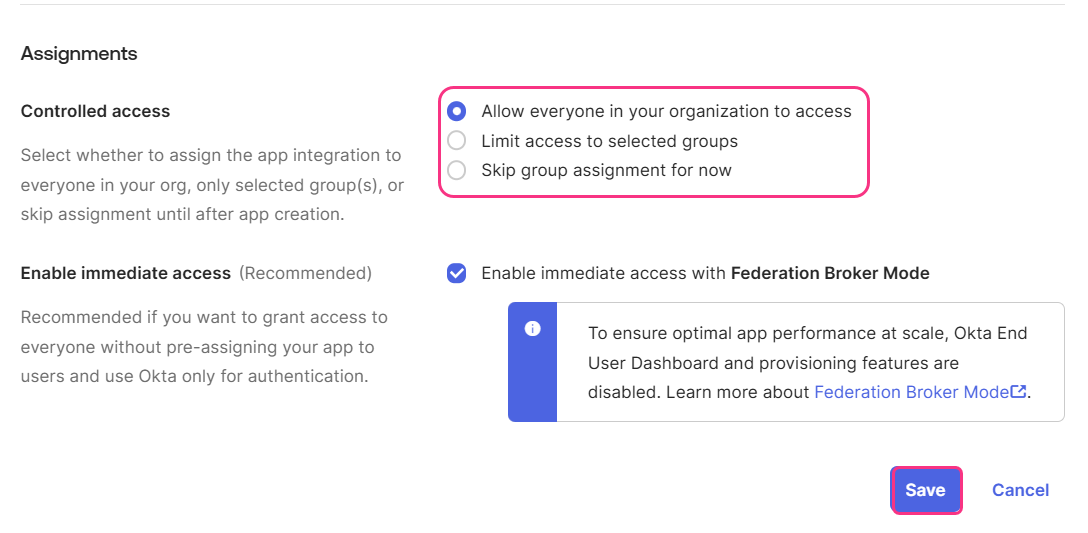
- Click Save. You will be redirected to the application's General page.
Step 4: Configure the Identity Provider in Document360
- Return to Document360 on the Configure the Service Provider (SP) page and click Next to navigate to the Configure the Identity Provider (IdP) page.
.png)
- Enter the corresponding values from your Okta application using the mapping below.
| Okta | Document360 |
|---|---|
| Client ID | Client ID |
| Client Secret | Client Secret |
| Issuer URI | Authority |
To find the Issuer URI in Okta, navigate to Security > API.
- In the Scope (optional) field, type a scope value and click + to add it as a chip. This defines what user information or permissions Document360 requests from Okta. You can add up to 3 scopes.
- Ensure the Client ID and Client Secret match the values generated in Okta.
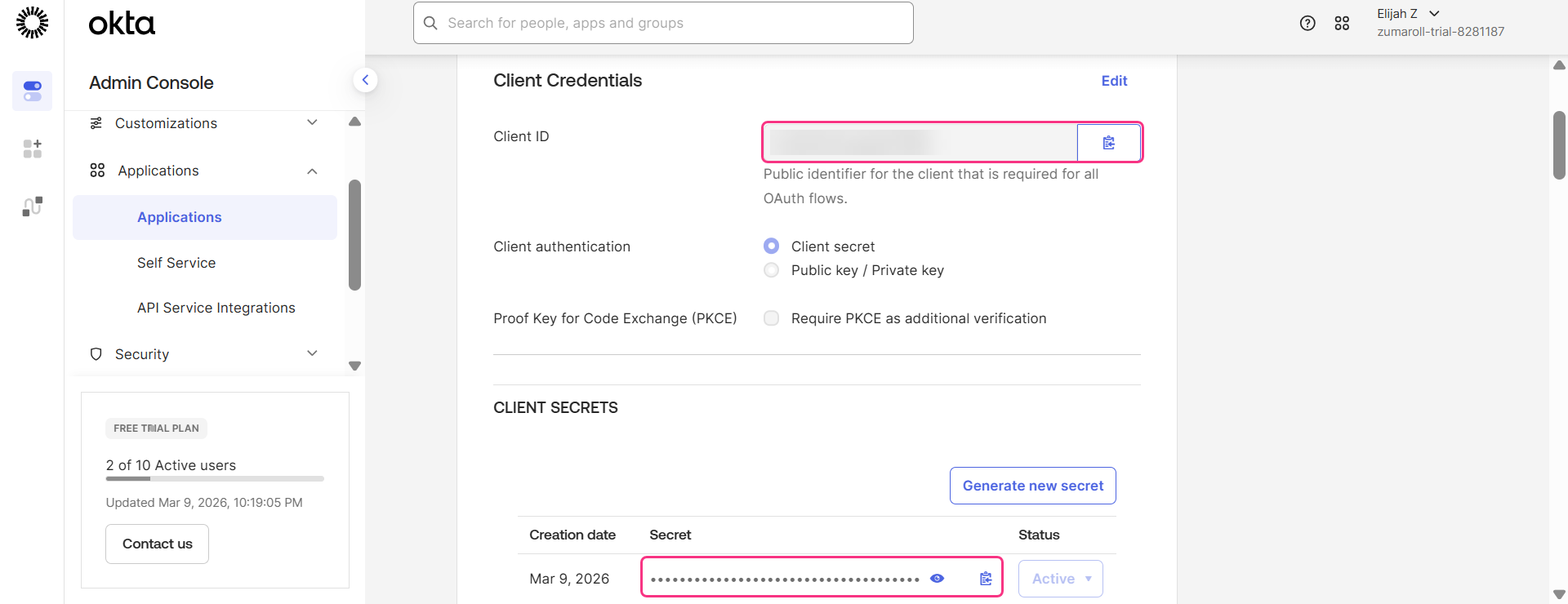
- Click Next to proceed to the SCIM provisioning page.
Step 5: Configure SCIM provisioning
SCIM provisioning automates user and reader lifecycle management between Okta and Document360. When using OpenID Connect, SCIM requires a separate OAuth Bearer Token app in the Okta catalog. It cannot be enabled within the same OIDC application.
If you do not need SCIM provisioning, skip to Step 6: Configure SSO name and login options.
Enable SCIM in Document360
- Turn on the Enable SCIM provisioning toggle.
- A confirmation dialog appears. Review the terms and click Agree.
- The parameters required to complete the SCIM configuration in Okta will then be displayed.
.png)
Add the SCIM OAuth Bearer Token app in Okta
- In Okta, expand Applications in the left navigation and click Applications.
- Click Browse App Catalog and search for SCIM 2.0 (OAuth Bearer Token), then select See all results.
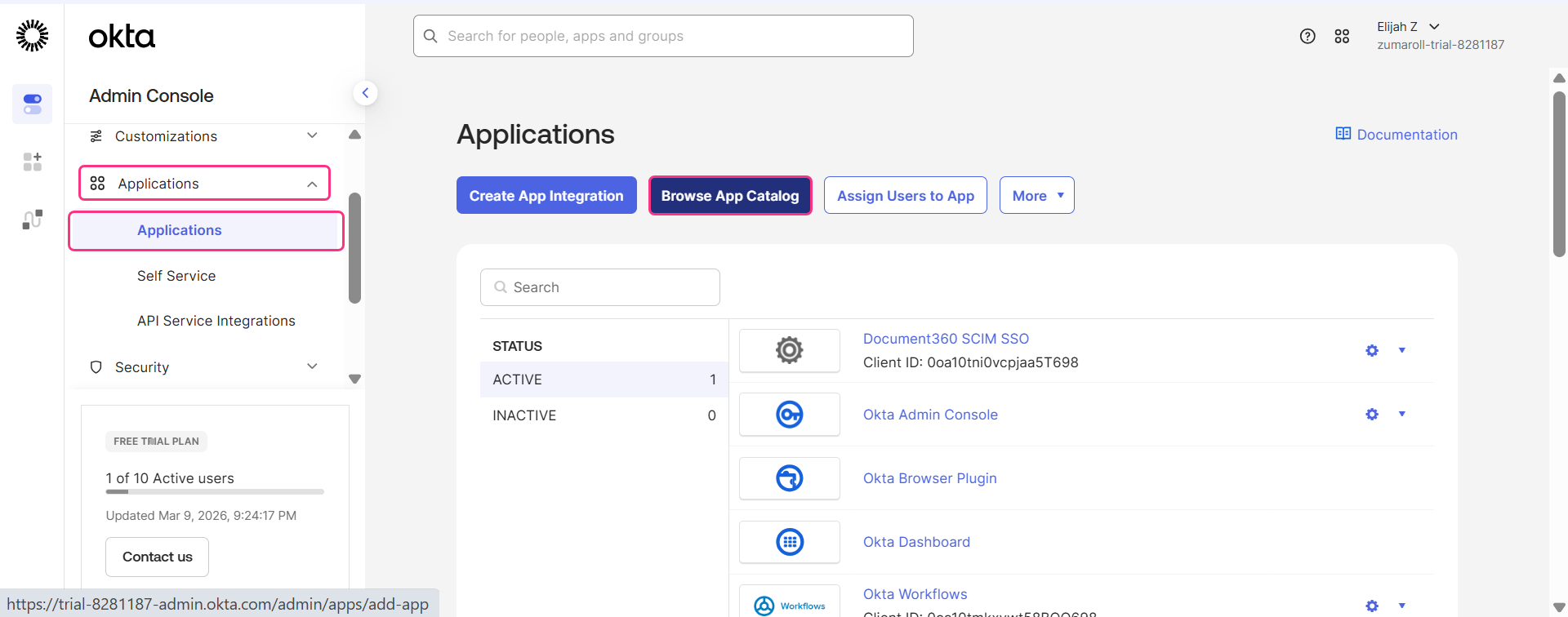
- From the search results, select (OAuth Bearer Token) Governance with SCIM 2.0 and click Add Integration.
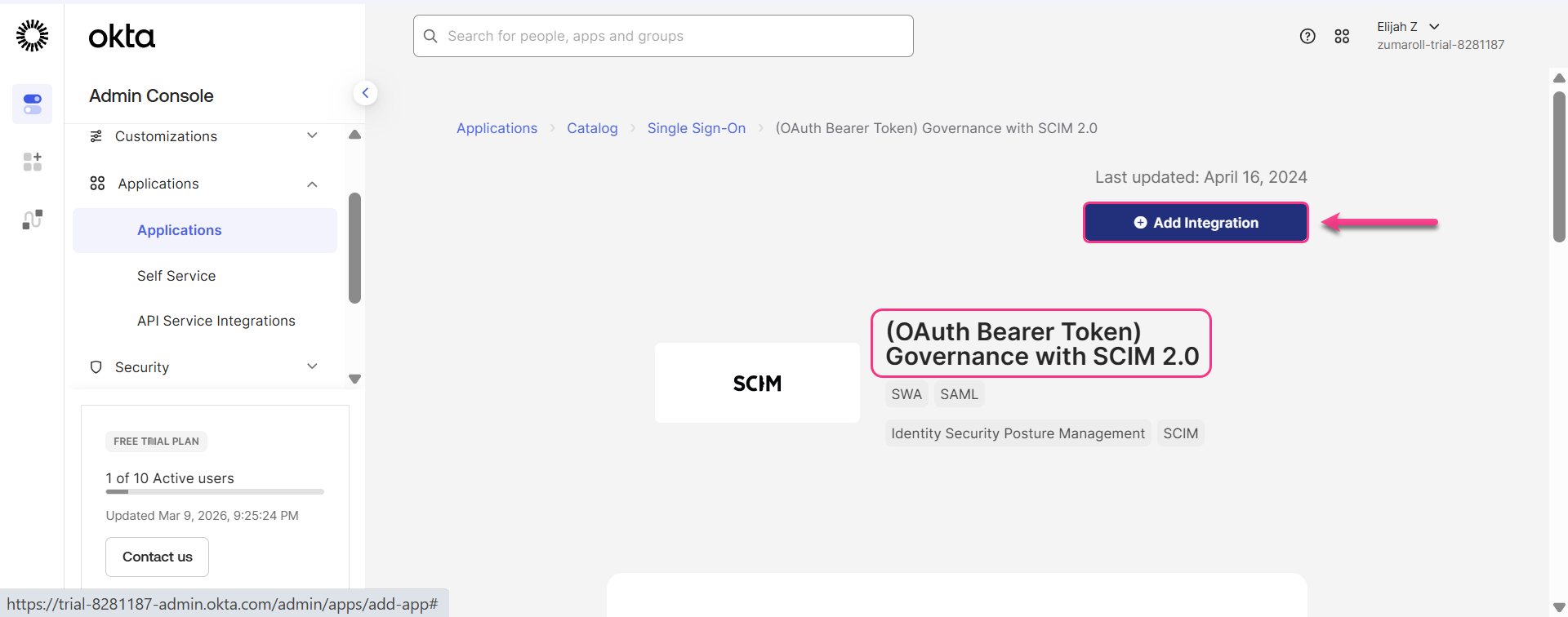
Make sure to select the correct app. Do not select the Test app version.
- In the General Settings page, you can change the Application label if needed and click Next.
.png)
- Click Done on the Sign-On options page.
No configuration is needed on the Sign-On options page. This app is created only for SCIM provisioning — the OpenID SSO configuration was already completed in the previous steps.
Configure the SCIM API connection in Okta
- In the SCIM app, navigate to the Provisioning tab and select Configure API Integration.
- Select the Enable API Integration checkbox. A set of fields will be displayed.
- Enter the Document360 parameters using the mapping below.
| Document360 | Okta |
|---|---|
| SCIM Base URL | Base URL |
| Primary secret token | OAuth Bearer Token |
.png)
Do not click Test Connector Configuration yet. At this stage, SCIM provisioning will not work with Document360 because the SSO configuration is not yet completed in Document360.
- Once done, navigate back to Document360 to complete the configuration.
Assign default role and groups in Document360
- Turn on the Enable group sync toggle if needed.
- In the Default role field, the role is set to Contributor by default. You can change this from the dropdown if needed.
- In the User groups and Reader groups fields, select the groups you want to add. Multiple groups can be added, and they will inherit the default role you selected earlier.
- Click Next to navigate to the More settings page.
Step 6: Configure SSO name and login options
- In the SSO name field, enter a name for the SSO configuration.
- In Customize login button, enter the text for the login button displayed to users.
- Auto assign reader group — this option is only available for existing SSO configurations. For newly created SSO configurations, this toggle will not be displayed as SCIM automatically provisions users and groups. Learn more about Auto assign reader group.
- Enable Sign out idle SSO user if needed, and toggle based on your requirements.
- Choose whether to invite existing user and reader accounts to SSO.
.png)
- Click Create to complete the OpenID SSO configuration.
Step 7: Complete SCIM integration in Okta
- Navigate back to the Okta SCIM app.
- Click Test API Credentials. A success message will appear confirming the SCIM app is integrated successfully.
- Click Save.
- Go to the Provisioning tab, select To App, and click Edit on the Provisioning to App section.
- Select only the following supported actions:
- Create Users
- Update User Attributes
- Deactivate Users
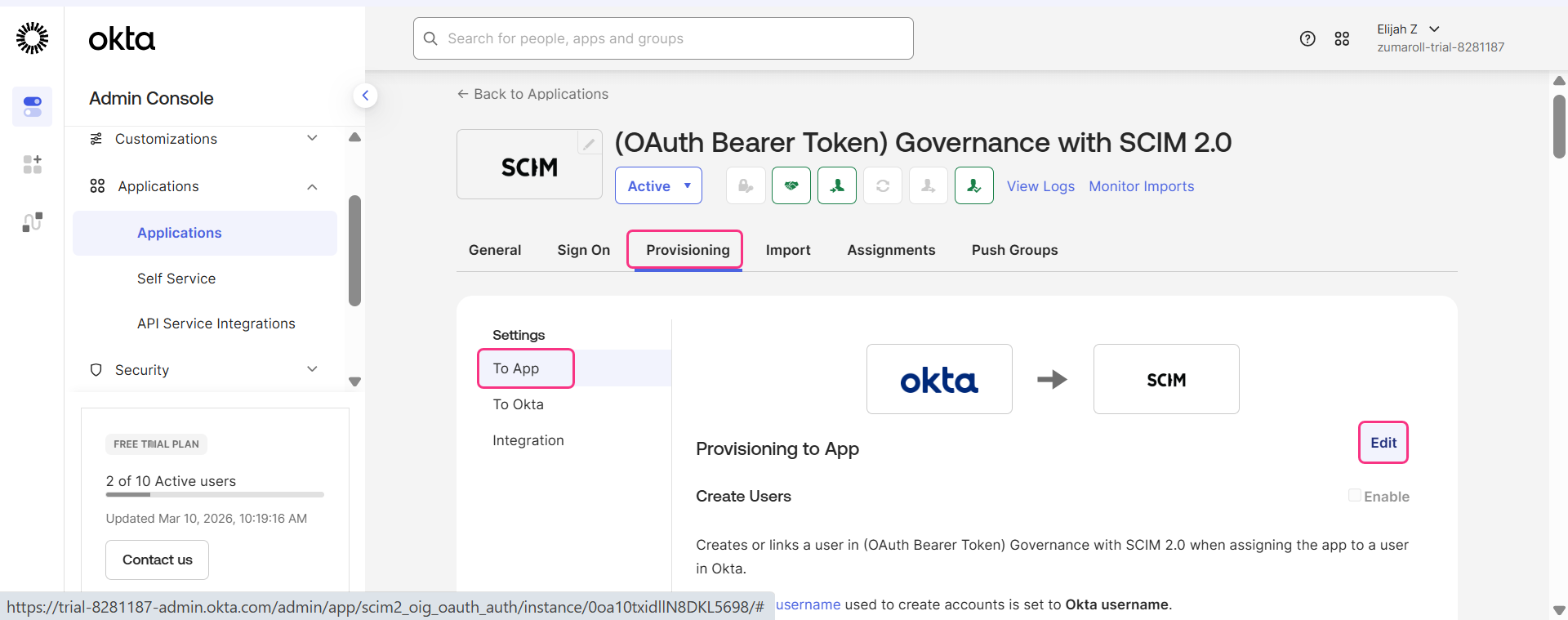
- Click Save.
SCIM provisioning with Okta OpenID Connect is now configured successfully.
The SSO configuration based on the OpenID protocol has been configured using Okta successfully.
For more details on managing users, readers, and groups, see Managing users and readers with SCIM in Okta.
Best practices
- Use a separate SCIM app for provisioning. When using OpenID Connect with Okta, SCIM requires its own OAuth Bearer Token app from the Okta catalog. Do not attempt to enable SCIM within the OIDC app.
- Select the correct SCIM app. Search for (OAuth Bearer Token) Governance with SCIM 2.0 specifically. Do not select the Test app version.
- Complete the Document360 SSO configuration before testing SCIM. Clicking Test Connector Configuration before saving the Document360 configuration will fail. Always save the Document360 configuration first, then return to Okta to test.
- Select only the three supported provisioning actions. Enabling unsupported actions may cause provisioning errors. Limit selection to Create Users, Update User Attributes, and Deactivate Users.
FAQ
Why do I need a separate app for SCIM when using OpenID Connect with Okta?
The OIDC app integration in Okta handles authentication only. It does not support SCIM provisioning natively. A separate OAuth Bearer Token app is needed to establish the SCIM connection between Okta and Document360. This is different from the SAML setup, where SCIM can be enabled within the same Okta application.
Where do I find the Issuer URI in Okta?
In Okta, navigate to Security > API. The Issuer URI is listed there and maps to the Authority field in Document360's IdP configuration page.
What are scopes and do I need to add them?
Scopes define what user information or permissions Document360 requests from Okta during authentication. The Scope field is optional — you can add up to 3 scopes by typing a value and clicking the + button. If you are unsure whether scopes are needed, check with your Okta administrator.