SCIM integration with Okta allows you to manage Document360 users, readers, and groups directly from Okta in an automated and centrally controlled manner.
When a new user is added in Okta, their Document360 account is provisioned automatically. Any updates to their role or group membership are synced in real time, and when a user is deactivated or removed in Okta, the same is reflected in Document360 without any manual intervention. This eliminates the need for separate account management in Document360 and ensures that user data remains accurate and up to date across both platforms.
Why manage users and readers through SCIM
Managing users manually across multiple platforms is time-consuming and creates risk. Without SCIM, administrators must remember to add new employees to Document360 separately and manually revoke access when someone leaves. Mistakes can result in unauthorized access or delayed onboarding.
With SCIM enabled between Okta and Document360:
- New employees are provisioned to Document360 automatically when added in Okta — no separate setup required.
- Role assignments are consistent and controlled through a single source of truth in your IdP.
- When a user is deactivated or deleted in Okta, their access to Document360 is revoked automatically.
- Group membership changes in Okta are reflected in Document360 in real time.
- Content access remains manageable from within Document360 even when identity is controlled by Okta.
Before you begin
SCIM provisioning in Document360 is set up as part of your SSO configuration. Ensure the following are completed before proceeding:
- SSO must be fully configured and working between Okta and Document360. Set up SSO first using one of the guides below.
- SCIM provisioning must be enabled in Document360. Navigate to Settings () > Users & permissions > SSO Configuration, open your SSO setup, and confirm the Enable SCIM provisioning toggle is turned on.
SAML SSO with Okta
Configure SAML SSO and enable SCIM provisioning between Okta and Document360.
Set up SAML with Okta →OpenID Connect SSO with Okta
Configure OpenID Connect SSO and enable SCIM provisioning between Okta and Document360.
Set up OpenID with Okta →SCIM group provisioning requires security groups in your Identity Provider. Distribution lists cannot be used for automated user or reader provisioning, this is a limitation of the IdP's provisioning model (for example, Microsoft Entra ID), not a Document360 restriction. If your organization currently manages access through distribution lists, convert the relevant lists to security groups before configuring group push or group sync.
Assign user attribute mapping
SCIM uses the userType attribute or the legacy isTeamAccount attribute, to determine the role assigned to a person when they are provisioned in Document360: User, Reviewer, or Reader.
userTypevalues map to roles as follows:
userType value |
Assigned role |
|---|---|
user |
User |
reviewer |
Reviewer |
reader |
Reader |
isTeamAccountvalues map to roles as follows:
isTeamAccount value |
Assigned role |
|---|---|
True |
User |
False or unset |
Reader |
userType is a String attribute, unlike isTeamAccount, which is a legacy Boolean attribute. Both attributes are defined in the same extension namespace: urn:ietf:params:scim:schemas:extension:document360:2.0:User.
Add the attributes in Okta:
- In the Okta Admin Console, expand the Applications dropdown and select Applications.
- Select the application you want to configure and navigate to the Provisioning tab.
- Scroll down to Attribute Mappings and click Go to Profile Editor.
- Under the Attributes section, click Add Attribute and fill in the details as shown below.
- To add
userTypeattribute
| Add Attribute | Value |
|---|---|
| Data type | string |
| Display name | User Type |
| Variable name | userType |
| External name | userType |
| External namespace | urn:ietf:params:scim:schemas:extension:document360:2.0:User |
- To add
isTeamAccountattribute
| Add Attribute | Value |
|---|---|
| Data type | |
| Display name | Team Account |
| Variable name | isTeamAccount |
| External name | isTeamAccount |
| External namespace | urn:ietf:params:scim:schemas:extension:document360:2.0:User |
.png)
- Click Save.
For the full precedence rules of the userType and isTeamAccount attribute, see Attribute precedence in the SCIM provisioning article.
Always set the isTeamAccount attribute at the user level, not the group level. If set at the group level, users who belong to multiple groups with conflicting values may receive incorrect roles in Document360. Setting it at the user level ensures each user has one clear, consistent value.
Use Expression Builder to map roles
Instead of manually setting the userType attribute or the legacy isTeamAccount attribute for each user, you can use Okta's Expression Builder to automatically determine whether a user is provisioned as a User, Reviewer or Reader in Document360, based on an existing attribute in their Okta profile such as Job Title, Department, or Group membership.
How it works:
userType = user→ provisioned as a UseruserType = reviewer→ provisioned as a RevieweruserType = reader→ provisioned as a ReaderisTeamAccount = True→ provisioned as a UserisTeamAccount = False→ provisioned as a Reader
Once provisioned, users are automatically added to the respective User groups or Reader groups in Document360.
Steps to configure:
- In the Okta Admin Console, go to Applications and select your SCIM application.
- Navigate to the Provisioning tab and click the To App tab under Settings.
- Scroll down to Attribute Mappings and click the Edit icon next to the
userTypeor theisTeamAccountattribute, depending on which you use.
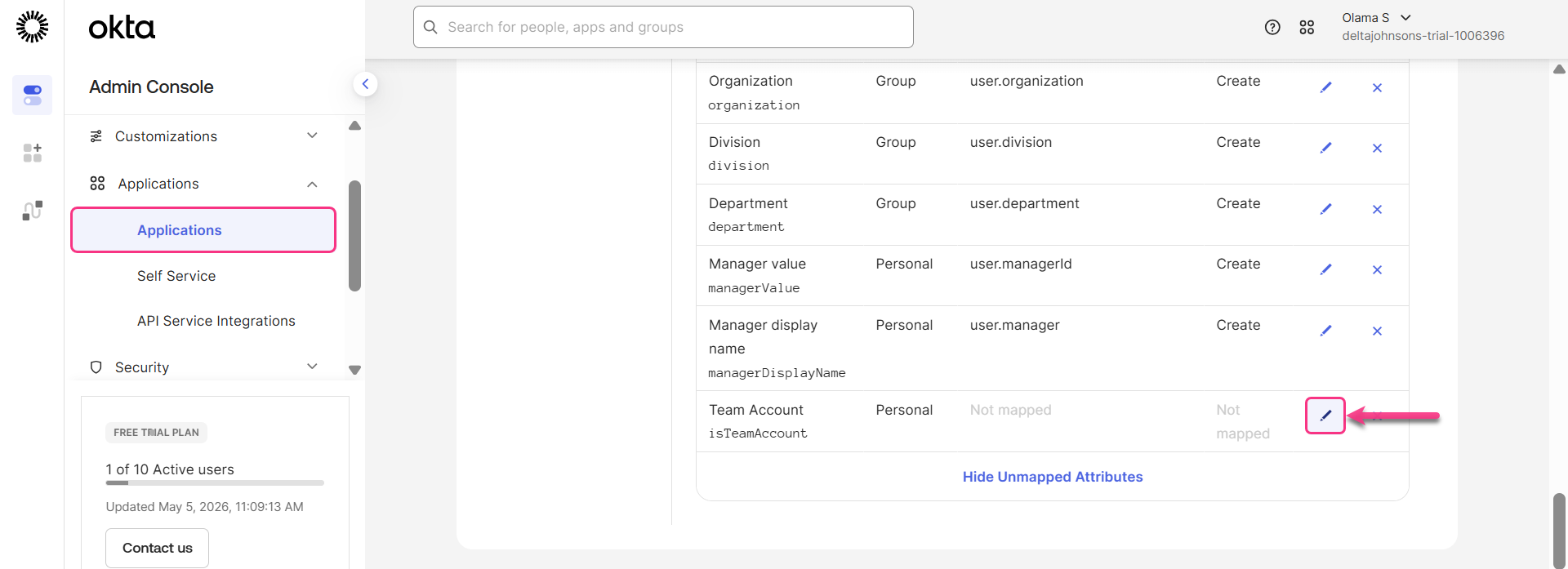
- In the dialog, set the Attribute value dropdown to Expression.
- Enter your expression in the text box provided.
- To verify the expression, enter a user's name in the Preview field. The result is instantly evaluated and displayed in the green bar below the text box, showing whether the user will be provisioned as a User (
true) or a Reader (false). - Under Apply on, select Create or Create and update depending on whether you want the expression applied only during user creation or on updates as well.
- Click Save.
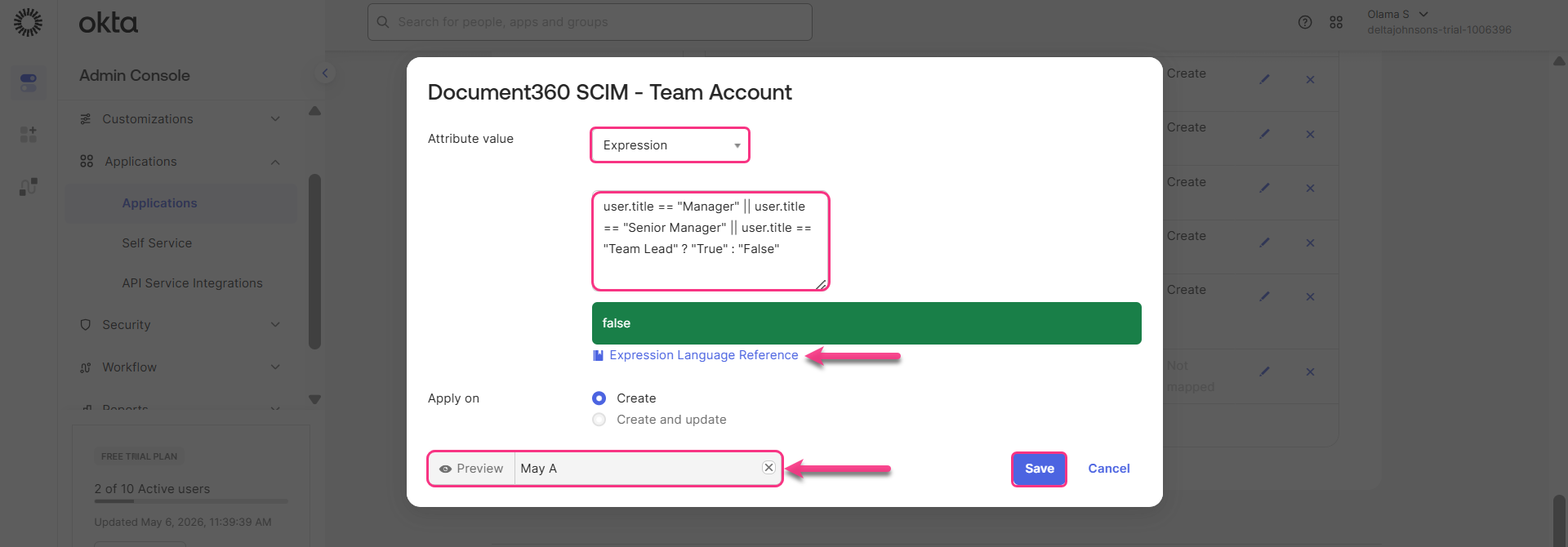
Click Expression Language Reference below the expression box to explore all available functions, operators, and syntax supported in Okta's expression language. For more information, refer to Okta's Expression Language overview guide.
Based on Job Title
- If your users have a Job Title attribute in their Okta profile, you can map roles based on their title using
userType:
user.title == "Manager" || user.title == "Senior Manager" ? "user" : (user.title == "Team Lead" ? "reviewer" : "reader")
Users with the title Manager or Senior Manager are provisioned as Users, Team Lead is provisioned as a Reviewer, and all other titles are provisioned as Readers
- If your users have a Job Title attribute in their Okta profile, you can map roles based on their title using
isTeamAccount:
user.title == "Manager" || user.title == "Senior Manager" || user.title == "Team Lead" ? "True" : "False"
Users with the title Manager, Senior Manager, or Team Lead are provisioned as Users. All other titles are provisioned as Readers.
The attribute variable name (for example, user.title) must match the exact variable name defined in your Okta user profile. You can verify this in Directory > Profile Editor.
Based on Group Membership
If your users are organized into Okta groups, you can map roles based on the groups they belong to using userType:
isMemberOfGroupName("Managers") ? "user" : (isMemberOfGroupName("Reviewers") ? "reviewer" : "reader")
Users in the Managers group are provisioned as Users, users in the Reviewers group are provisioned as Reviewers, and everyone else is provisioned as Readers.
If your users are organized into Okta groups, you can map roles based on the groups they belong to using isTeamAccount:
isMemberOfGroupName("Managers") || isMemberOfGroupName("TeamLead") || isMemberOfGroupName("Directors") ? "True" : "False"
Users who are members of the Managers, TeamLead, or Directors groups are provisioned as Users. Users who do not belong to any of these groups are provisioned as Readers.
You can combine or extend either expression to include additional job titles or group names based on your organization's needs.
Provision Okta to Document360
To link user creation, changes, and deactivation in Okta with Document360:
- In the left navigation bar, expand the Applications dropdown and click Applications.
- Select your SCIM application and navigate to the Provisioning tab.
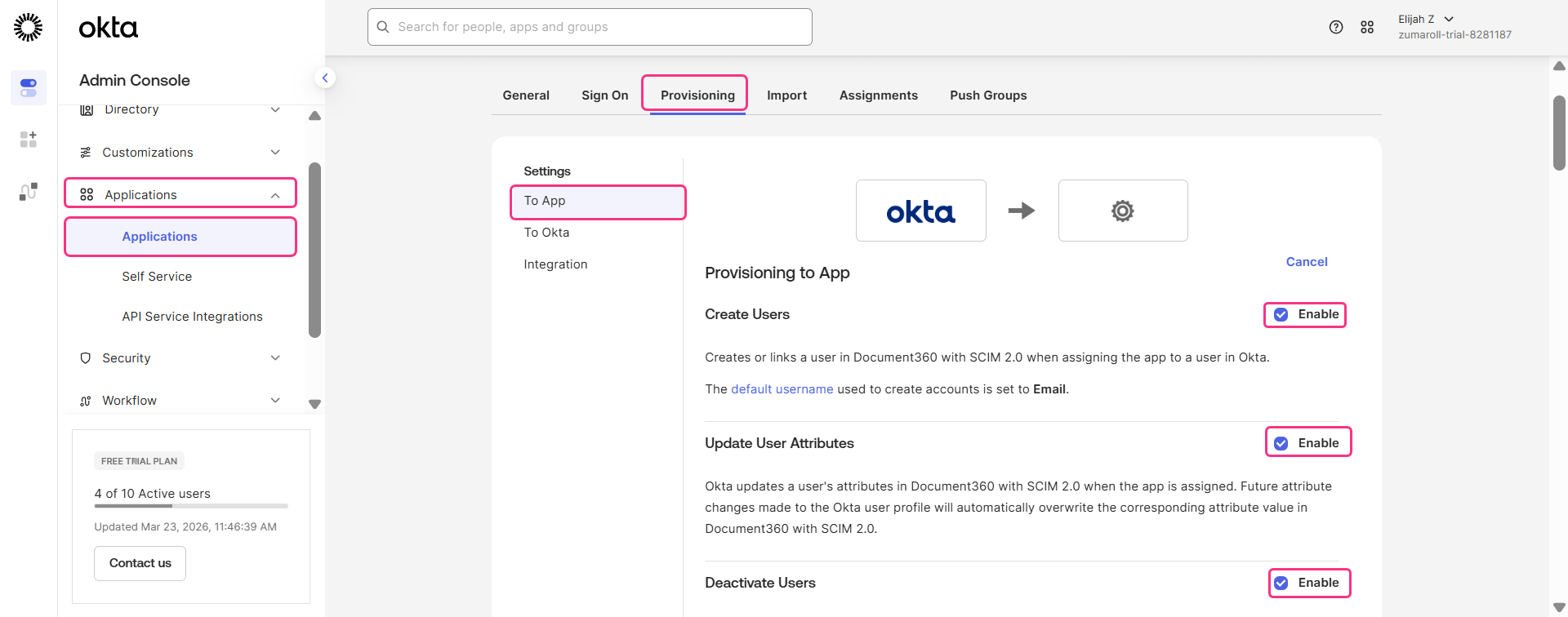
- Click Edit under Provisioning to App and select the following checkboxes:
- Create Users
- Update User Attributes
- Deactivate Users
Create users, readers, and groups
Create a user
- In the Okta Admin Console, expand the Directory dropdown and select People.
- Click Add Person, fill in the required user details, and click Save. Once the user is provisioned, Document360 automatically assigns the role based on the rule configured in the Expression Builder.
.png)
- Select the newly created user and click Assign Applications to link them to an application.
- Choose the application you want to assign the user to and click Apply. The user is successfully created.
To verify, go to Document360 and navigate to Settings () > Users & permissions > Users & groups. The newly created user should appear in the list.
The number of users you can add to Document360 through Okta depends on your subscription plan.
Reviewers can now be provisioned directly from Okta by setting userType = reviewer — no manual conversion needed.
For isTeamAccount only configurations:
All users provisioned through SCIM are initially counted under the User quota. If the User limit is reached, SCIM cannot provision additional users, even if some of them are intended to be Reviewers.
Workaround:
- Provision users from Okta through SCIM as usual. They will sync to Document360 with the default role such as Contributor or Admin.
- After the users are synced, manually change the role of the required users to Reviewer in Document360.
- Once a user is changed to Reviewer, they are counted under the Reviewer quota instead of the User quota. This frees up a User slot.
Example: If your project allows 10 Users and 10 Reviewers and you want to add more users through SCIM after reaching the User limit:
- First, provision 10 users through SCIM.
- Then, change the required users to Reviewers in Document360.
- Those users will move to the Reviewer quota, freeing User slots for additional users.
Create a reader
- In the Okta Admin Console, expand the Directory dropdown and select People.
- On the People page, click Add Person, fill in the required reader details, and click Save. This confirms that the reader has been successfully added to the Identity Provider (Okta).
Once the reader is provisioned, Document360 automatically assigns the role based on the rule configured in the Expression Builder.
- To integrate the reader with Document360, select the newly created reader and click Assign Applications.
- In the Assign Application dialog, select the project you want to assign the reader to, then click Assign > Save and Go Back > Done.
.gif)
- The newly created reader will be automatically synced with Document360. To verify, go to Document360 and navigate to Settings () > Users & permissions > Readers & groups.
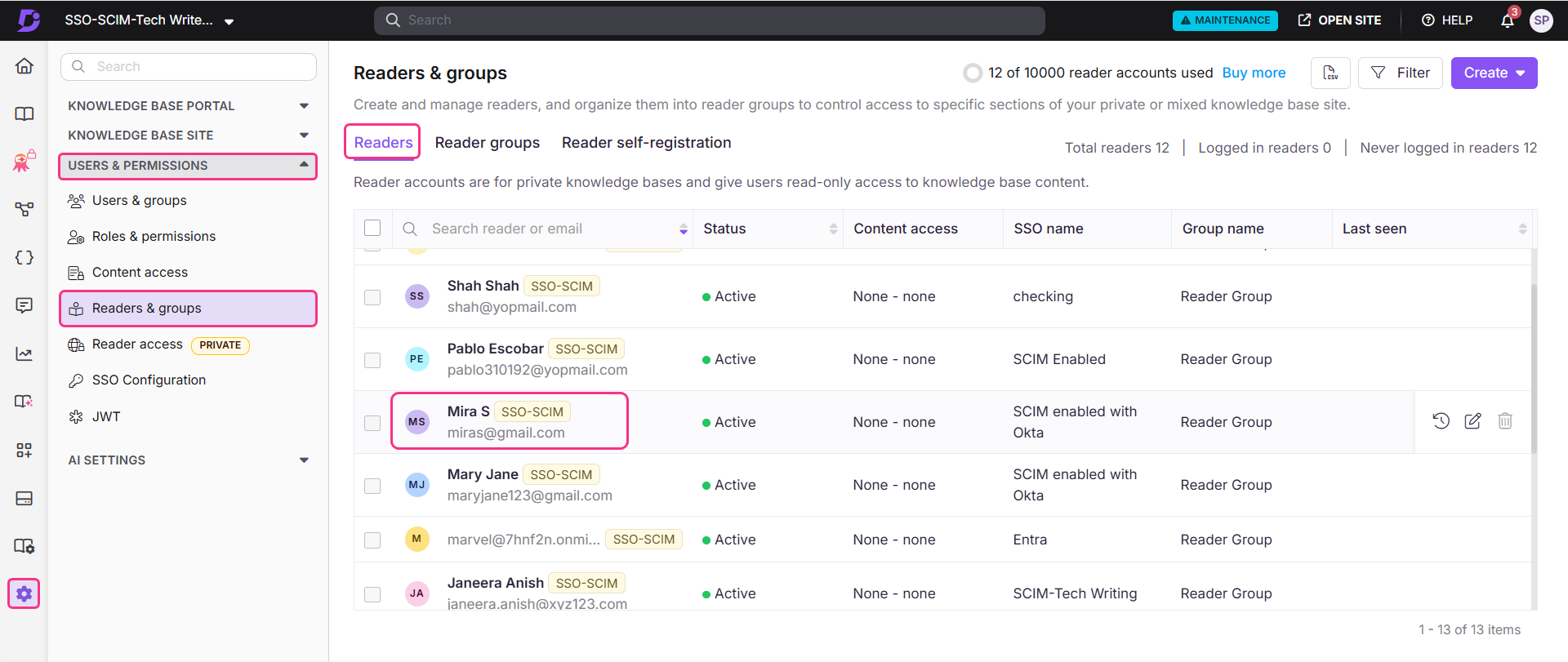
The reader will be added with the default content access that was applied during SSO setup.
Create a group
- In the Okta Admin Console, expand the Directory dropdown and select Groups.
- Click Add Group, enter the desired group name, and click Save.
.png)
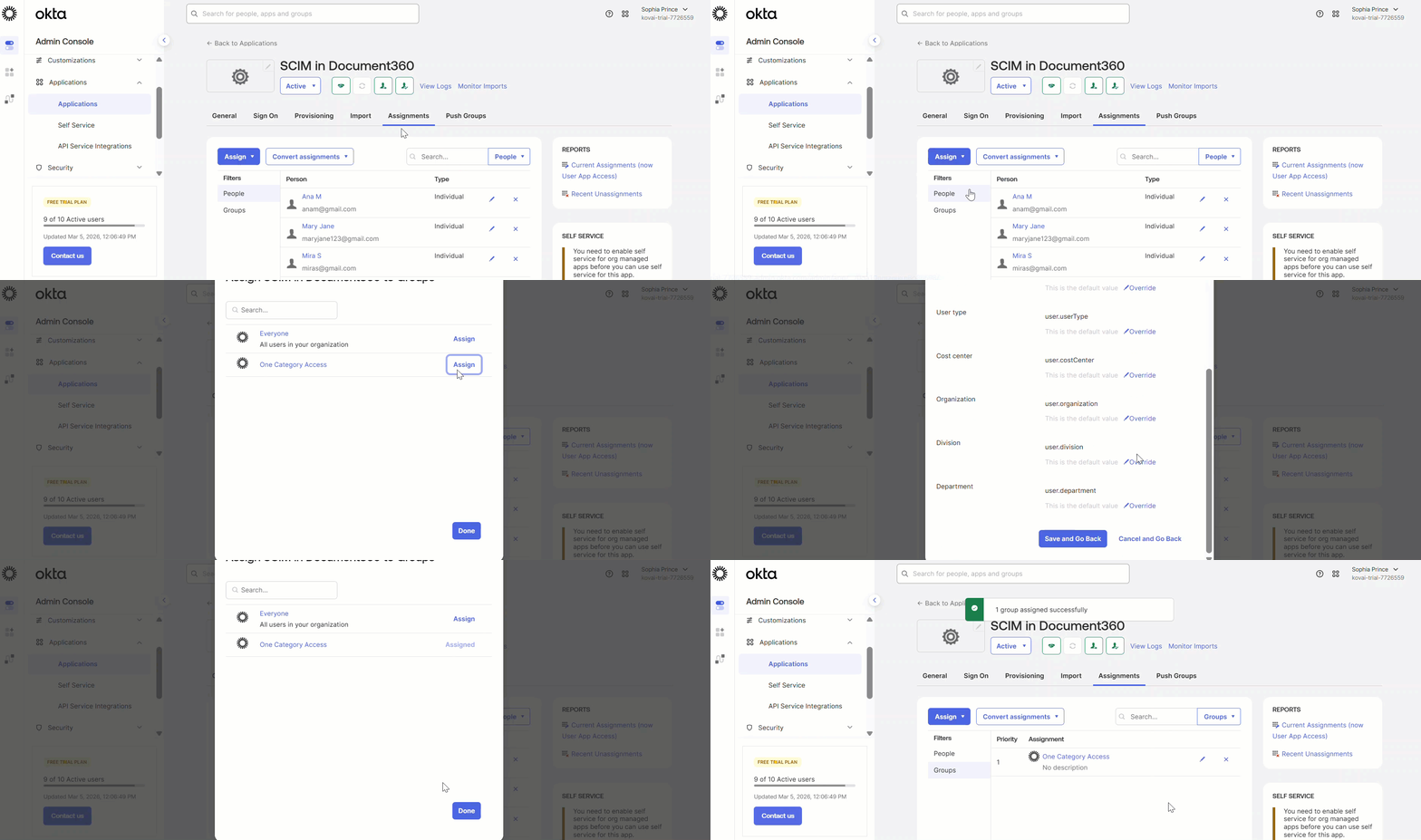
Assign application to group
- Expand the Applications dropdown and select Applications.
- Select the desired application, navigate to the Assignments tab, and click Assign > Assign to Groups.
- Click Assign next to the created group, then click Save to complete the assignment.
Push groups
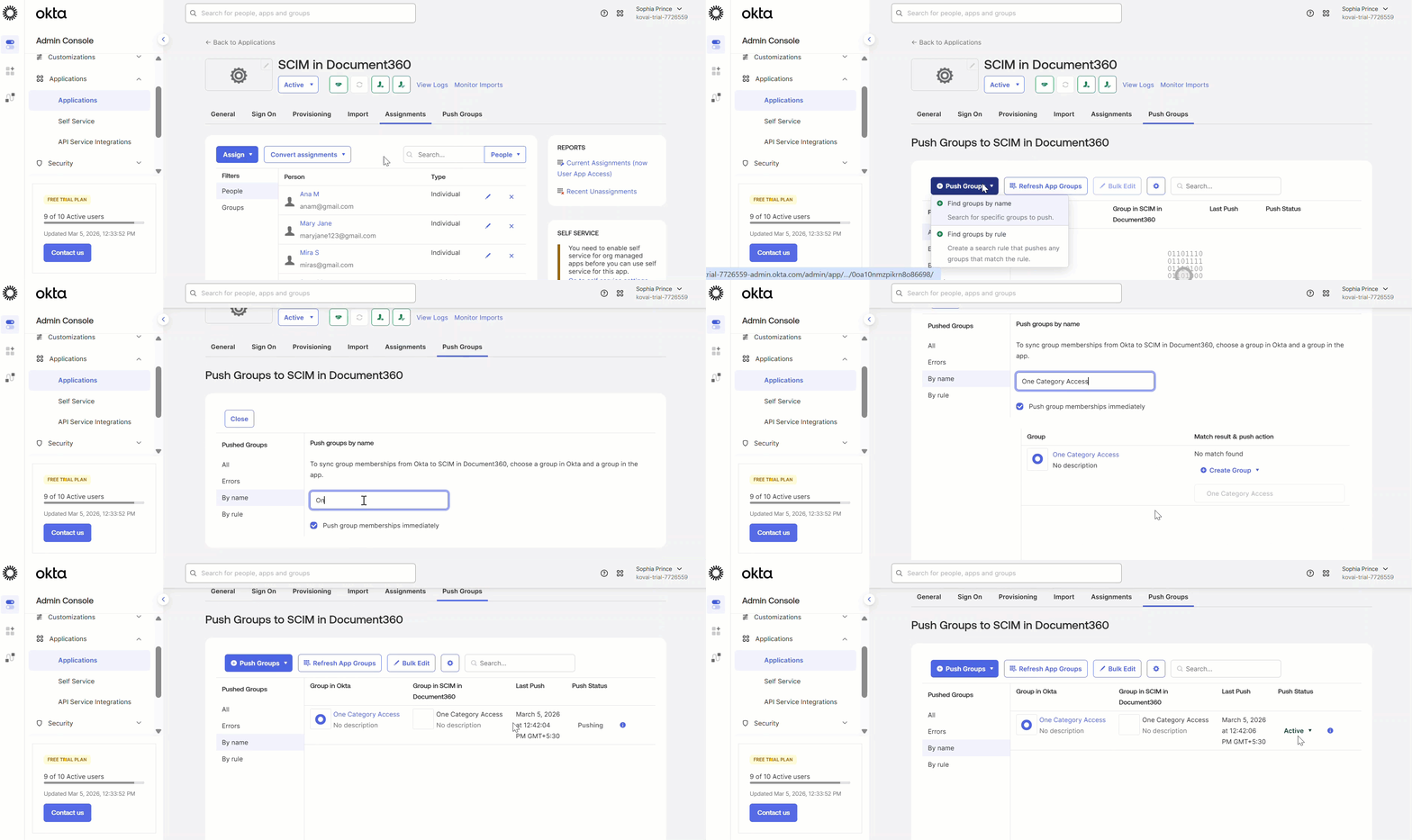
Unlike users, groups are not automatically synced to Document360 and must be pushed manually.
- After assigning the group to the application, navigate to the Push Groups tab and click Push Groups.
- Select Find groups by name and enter the group name.
- Select the group from the results and click Save to successfully push the group to Document360.
- To verify, navigate to Document360 > Settings () > Users & permissions > Readers & groups > Reader groups.
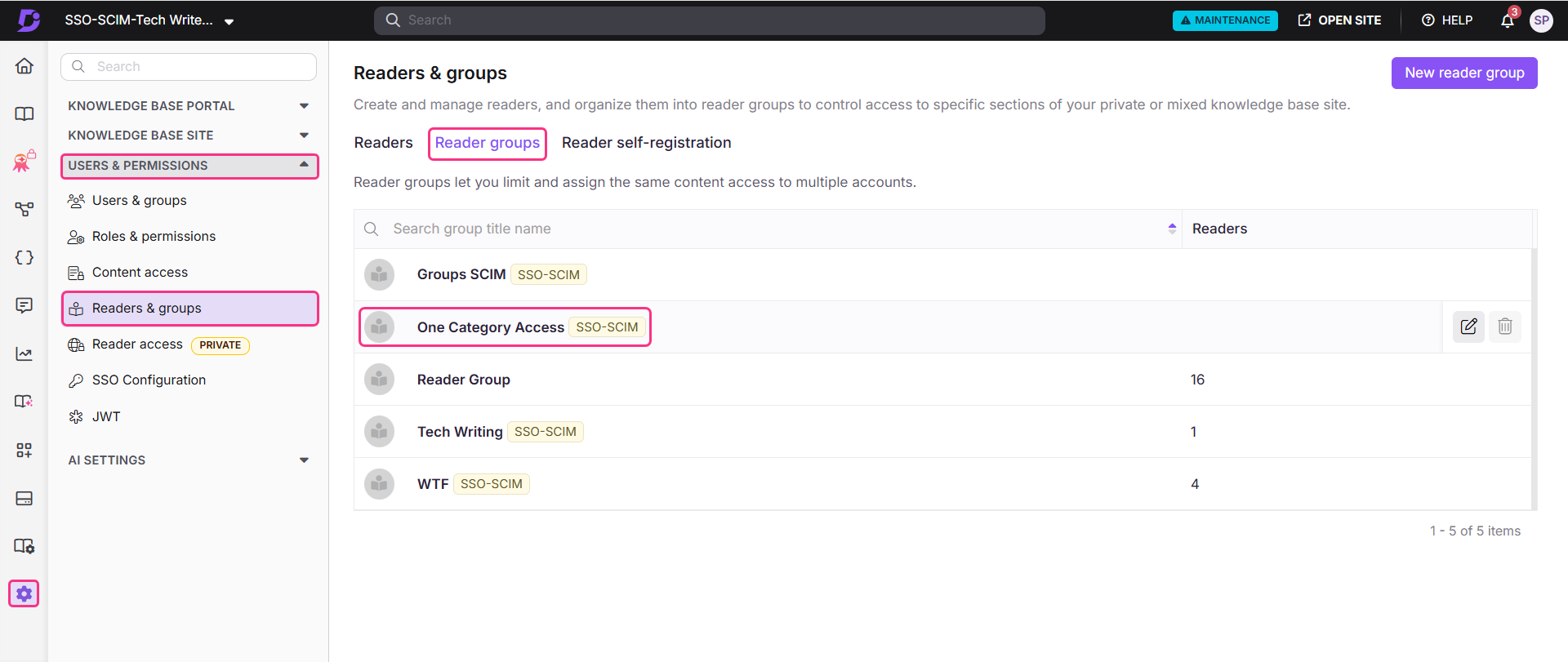
The newly created reader group should appear in your portal.
When Okta pushes a group through SCIM, Document360 always creates a new group instead of linking it to an existing group. This helps prevent issues when the same group is connected to multiple SSO providers. For example, if one provider removes users from the group, it could accidentally impact users managed by another provider. Creating separate groups avoids this conflict. Because of this, always manage SCIM groups and group members from Okta, not directly in Document360.
Add a user or reader to a group
- In the Okta Admin Console, expand the Directory dropdown and select People.
- Navigate to the Groups tab, search for the group you want to add the user or reader to in the Groups field, and select it.
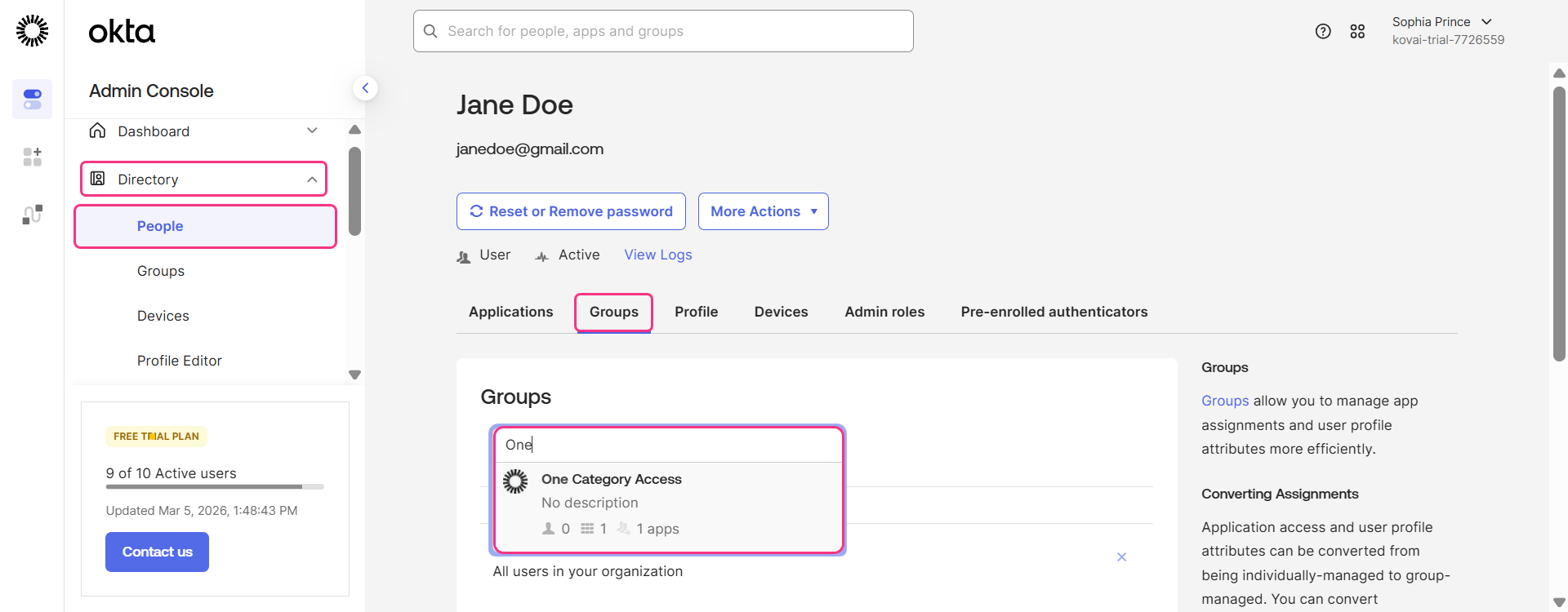
- The user or reader will be successfully added to the selected group.
- To confirm, navigate to Document360 and select the relevant user or reader group. The added member should appear within the group.
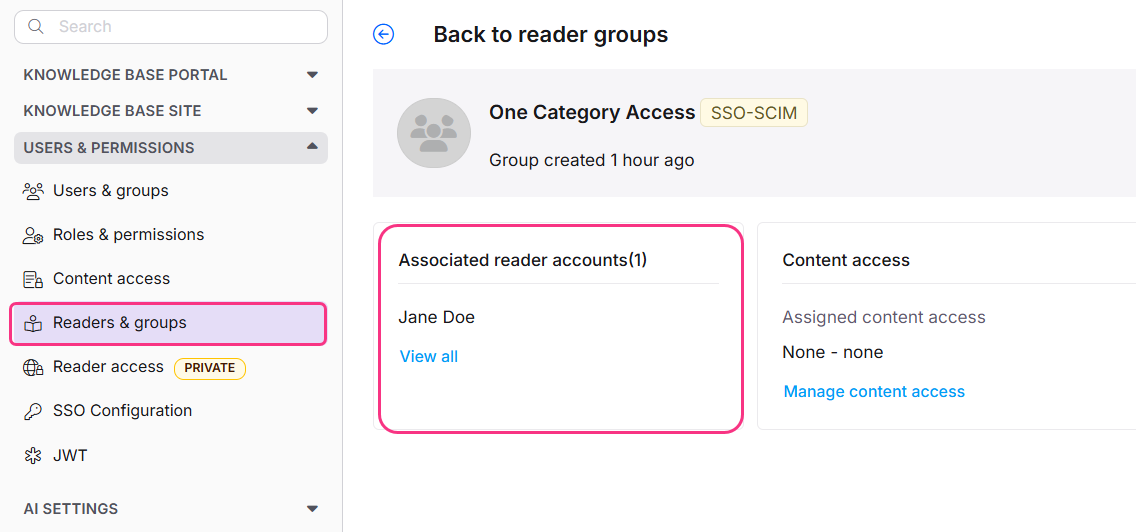
If a group contains both users and readers, it will appear under both the user groups and reader groups in Document360.
Managing users, readers, and groups in Document360
When SCIM is enabled, editing a user's name or deleting a user directly in Document360 is disabled. These actions must be managed through Okta to keep both platforms in sync. You can only manage content access from Document360.
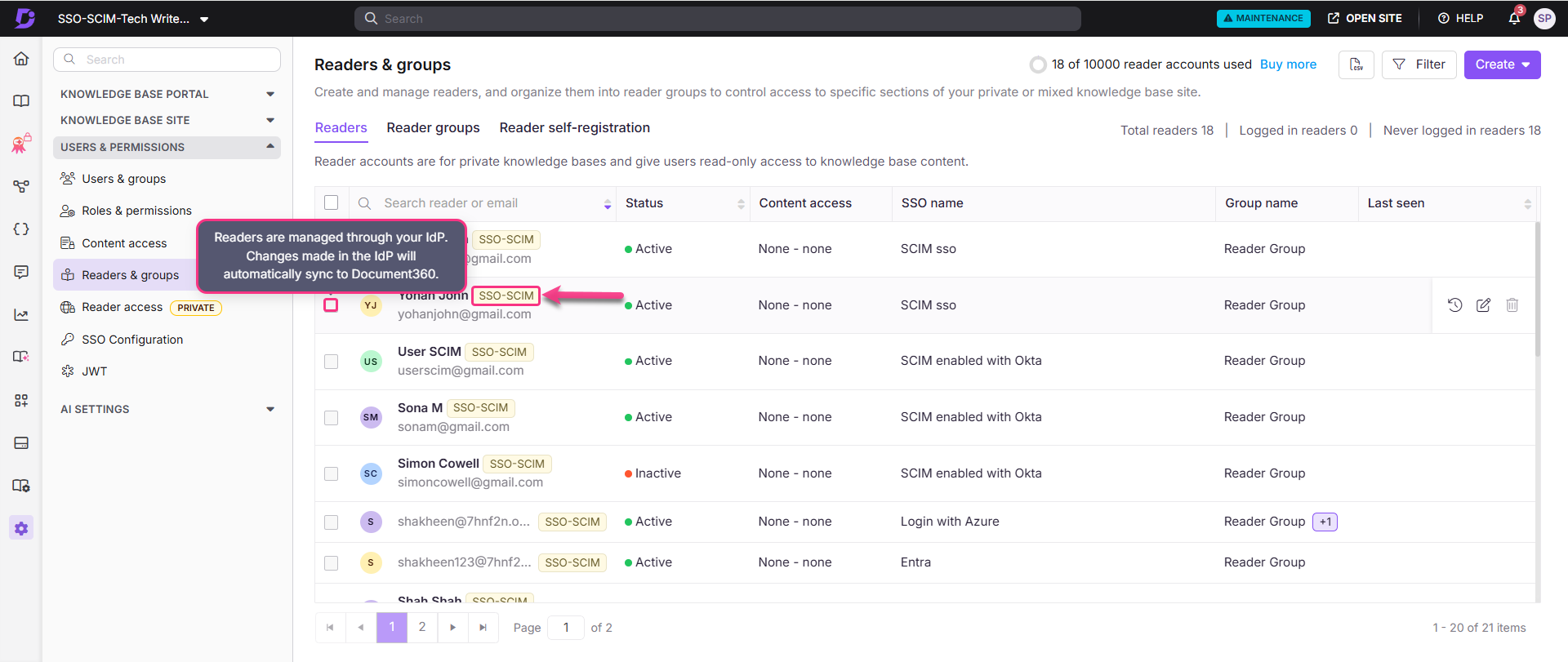
The SSO-SCIM badge indicates whether the user has SCIM enabled.
Manage content access
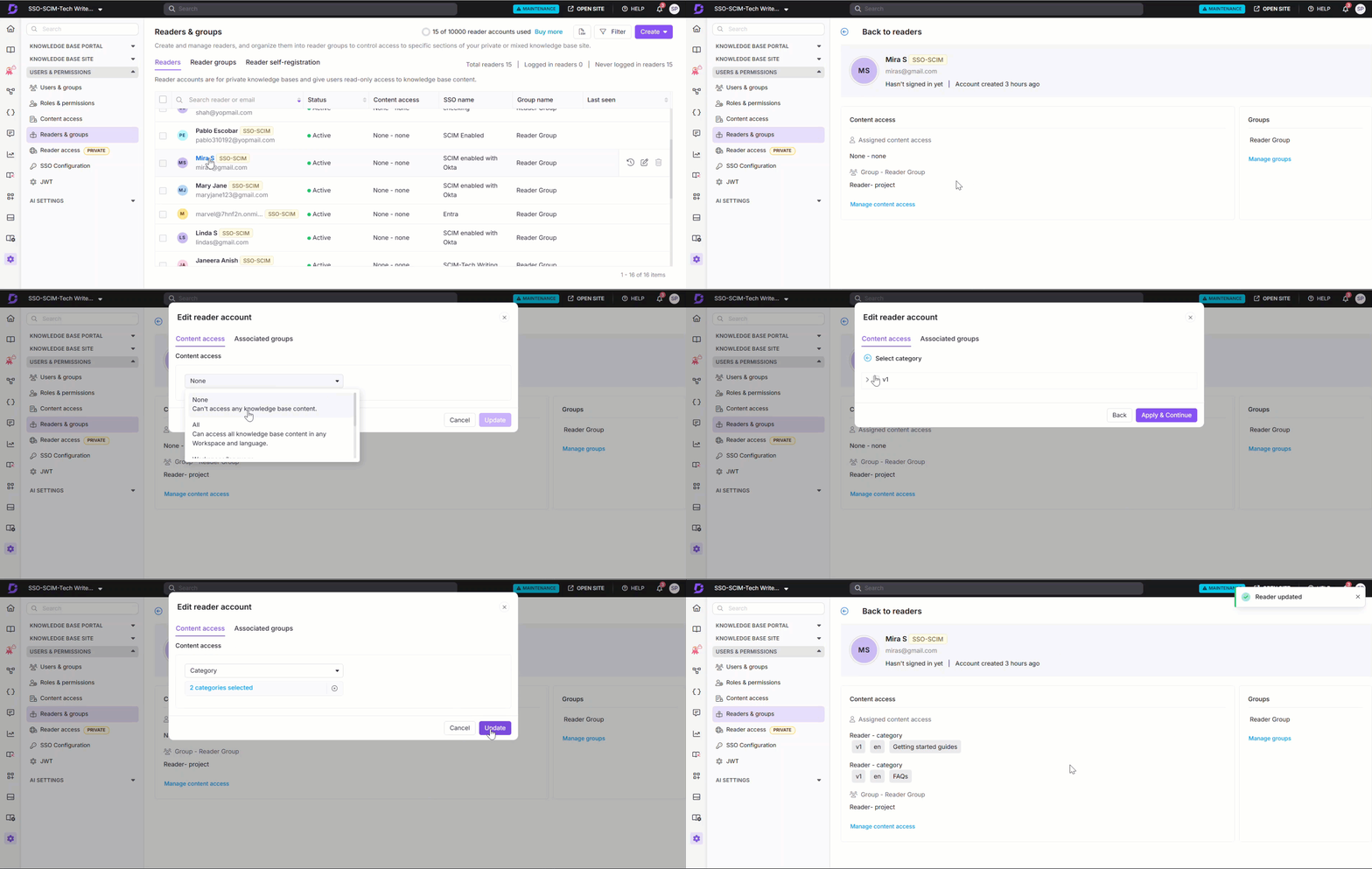
The default content role assigned to any new user, reader, or group is based on what was configured during SCIM provisioning setup. Permissions will be set to None by default but can be updated at any time.
- To manage content access, select the desired reader and click Manage Content Access.
- Choose the desired access level from the dropdown and click Update.
Managing existing users during SCIM provisioning
If a person already has an account in Document360, SCIM will not change their existing role during the first sync. This is a safety measure to prevent accidental role changes.
Example: A user already exists in Document360 as a Reader. If SCIM tries to provision the same user as a User (userType = user, or isTeamAccount = True), the request may fail because the existing role does not match.
How to resolve role conflicts:
- Open Document360 and locate the user account.
- Manually update the user's role to match the role you want to provision.
- Retry the SCIM sync.
Once the user has been successfully linked and provisioned through SCIM, future role changes can be managed using the userType attribute.
Deactivate users and readers
Deactivating a user in Okta does not remove their profile from Document360. The user will be marked as inactive and will lose the ability to sign in to Okta and access their applications. You can reactivate the account at any time, though the user will be required to reset their password upon reactivation.
To deactivate users or readers from Okta:
- Expand the Directory dropdown and select People.
- Select the user you want to deactivate to navigate to their user profile.
- Click More Actions and select Deactivate.
.png)
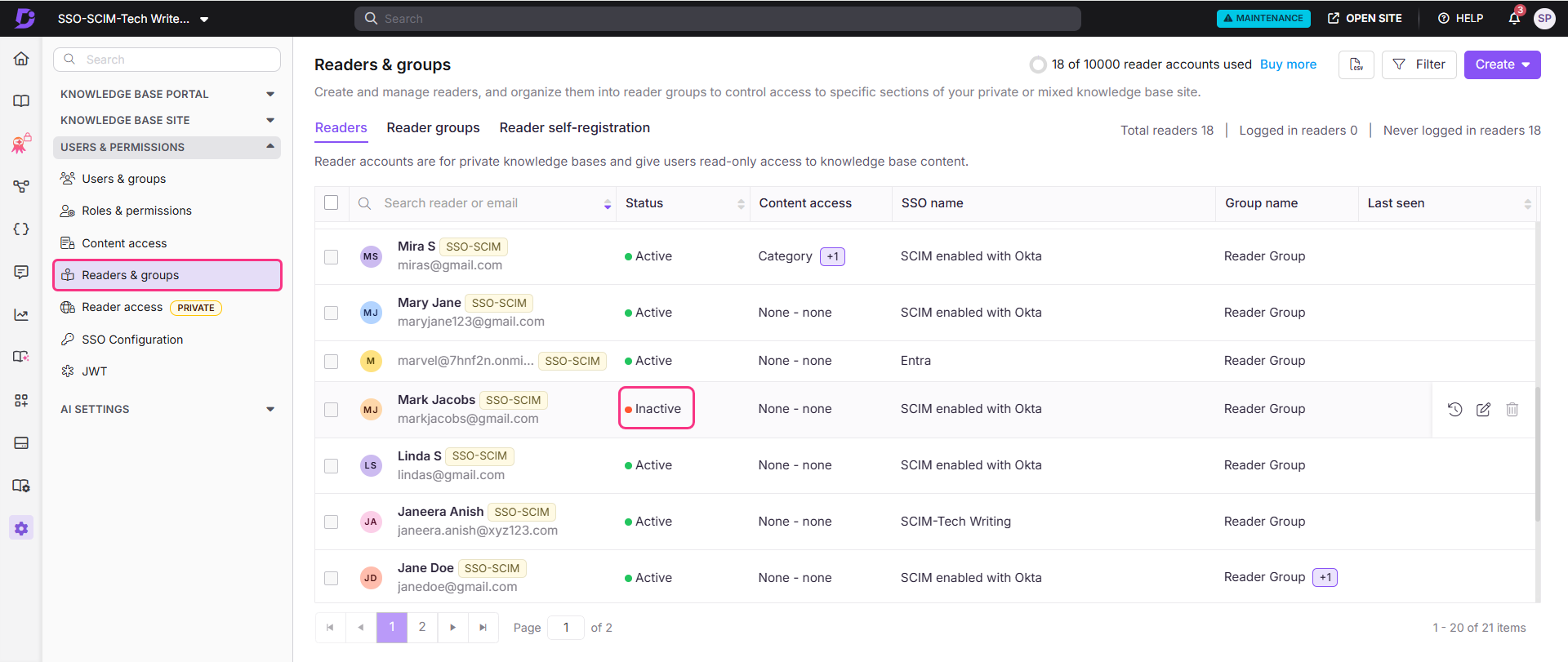
The user will be deactivated successfully. Once deactivated, the user's status in Document360 will change from Active to Inactive.
Delete a user or reader
To permanently remove a user or reader profile from Okta:
- In Okta, click Delete in the user or reader profile.
- A confirmation dialog will appear. Click Delete.
.png)
The profile will be permanently deleted from Okta.
Deleting a profile in Okta does not remove it from Document360. The profile will remain with an Inactive status.
Inherit from another application
When creating a new SSO configuration in Document360, you can inherit SCIM settings from an existing SSO connection. This approach simplifies the setup process, avoids repeating configuration steps, and helps administrators save time while ensuring consistency across integrations.
Child inherited SSO configuration
On the Configure Identity Provider (IdP) page, select the Configure an existing connection field and choose the parent SSO SCIM-enabled application you want to inherit from. Selecting this option designates the current project as the child project, inheriting all relevant properties from the parent.
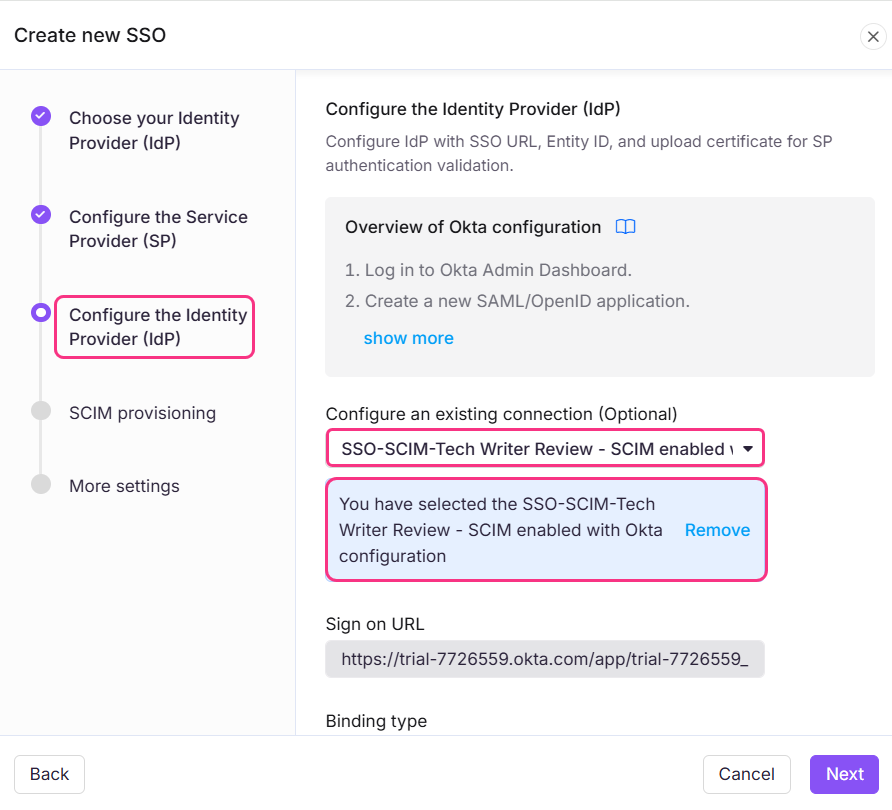
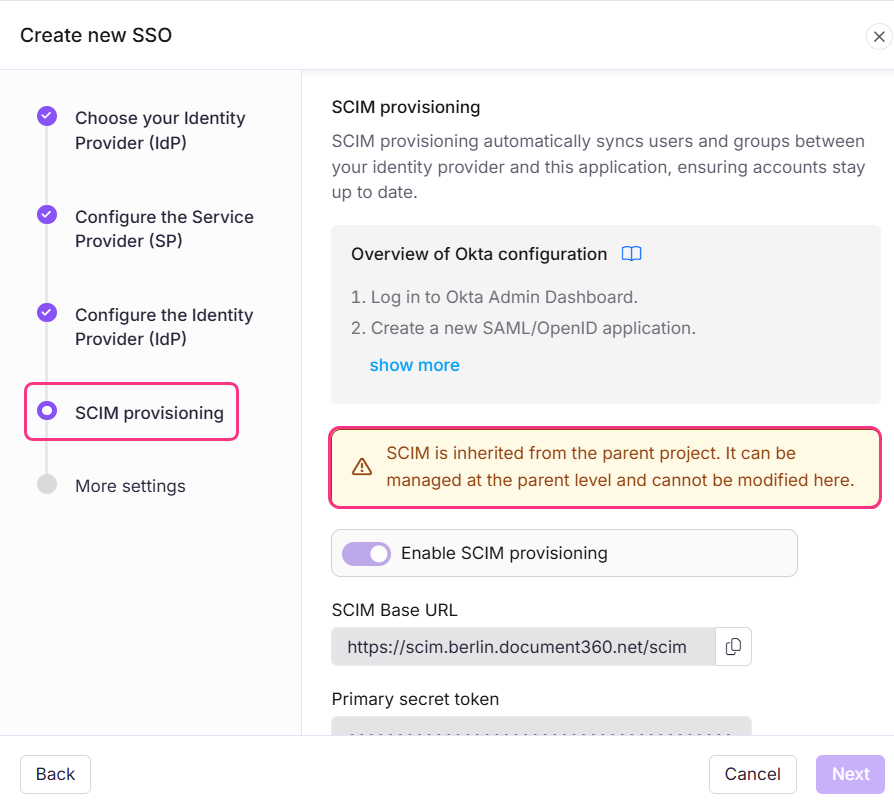
Once the SSO configuration is created, the SCIM provisioning settings will be inherited from the parent application and cannot be modified in the child application.
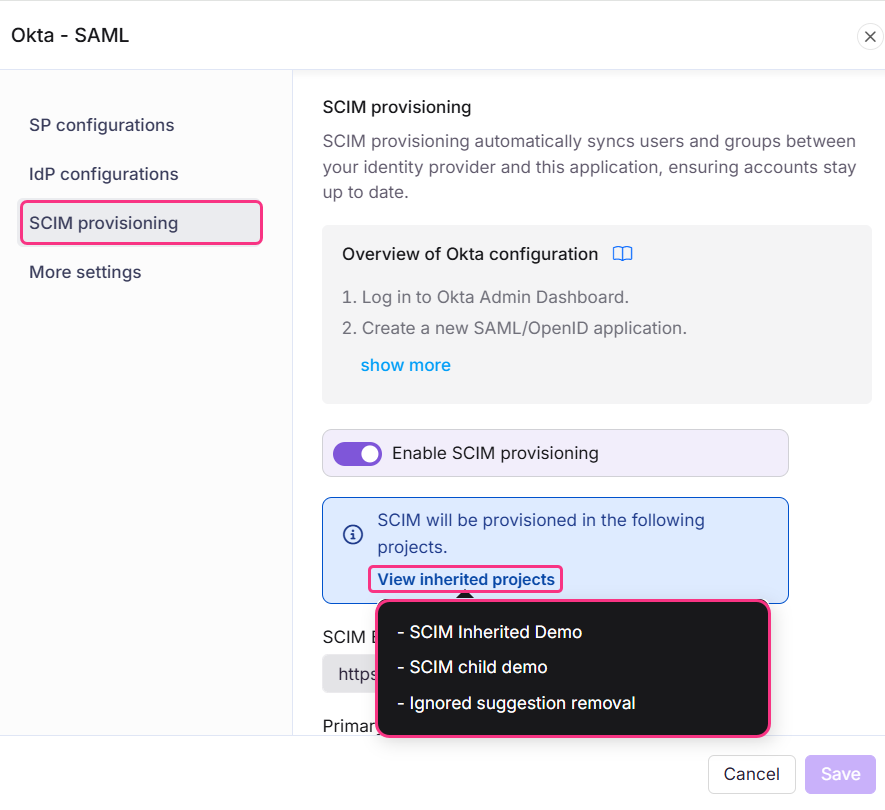
Parent inherited SSO configuration
The parent application will display a list of all projects that have inherited its configuration. Any changes made to the parent application will automatically be reflected in the child application.
- If SCIM is enabled in the parent project after child projects have already inherited it, the users and groups will be automatically provisioned to all child projects in the background.
- Enabling inheritance makes it easier to manage multiple SSO configurations with SCIM enabled, as all settings are controlled from one parent application. This saves time and reduces the effort required to manage each configuration individually.
Best practices
- Always set
userTypeorisTeamAccountat the user level, not the group level. Users who belong to multiple groups with conflicting values may receive incorrect roles in Document360. Setting it at the user level ensures each user has one clear, consistent value. - Do not test the SCIM connector before the Document360 configuration is saved. The test will fail at that stage. Always complete and save the Document360 SSO configuration first, then return to Okta to test.
- Store your primary and secondary secret tokens securely. Tokens are displayed only once at the time of creation. Store them in a secrets manager or password vault. If a token is compromised, regenerate it immediately and update your Okta configuration without delay.
- Use the secondary token for safe rotation. If the primary token needs to be replaced, switch Okta to the secondary token first, then regenerate the primary. This ensures user provisioning continues without interruption during the transition.
- Resolve role conflicts before running SCIM sync for existing users. If a user already exists in Document360 with a different role, manually update their role in Document360 before retrying the sync.
- Manage SCIM groups from Okta, not from Document360. Document360 always creates a new group when Okta pushes one through SCIM. Always manage SCIM group membership from Okta to avoid conflicts.
- Monitor your user quota before provisioning at scale. If the User limit is reached, SCIM cannot provision additional users. Convert users to Reviewers in Document360 where needed to free up User slots.
FAQ
How does the isTeamAccount attribute work in SCIM provisioning?
isTeamAccount attribute work in SCIM provisioning?The isTeamAccount is a legacy boolean attribute that helps you determine the role assigned to a user when they are provisioned in Document360. When isTeamAccount is set to True, the user is provisioned as a User. When isTeamAccount is set to False or left unset, the user is provisioned as a Reader.
How does the userType attribute work, and how does it interact with isTeamAccount?
userType attribute work, and how does it interact with isTeamAccount?The userType attribute is a String value that determines the role assigned to a user during provisioning: user provisions a User, reviewer provisions a Reviewer, and reader provisions a Reader. If neither userType or isTeamAccount attribute is present, the user is provisioned as a Reader by default.