Tags en alt-tekst helpen je om je Drive-bestanden toegankelijker te organiseren, vinden en toegankelijker te maken. Tags groeperen en filteren bestanden in je mediabibliotheek, terwijl alt-tekst de toegankelijkheid en SEO verbetert voor afbeeldingen die in je kennisbank worden gebruikt.
Waarom tags en alternatieve tekst toevoegen
- Snellere bestandsontdekking — Tags laten je bestanden zoeken en filteren in Drive zonder alleen op bestandsnamen of mapstructuur te vertrouwen.
- Consistente organisatie — Bestandstags en artikeltags delen dezelfde tagbibliotheek, dus het taggen van bestanden met dezelfde termen die je in artikelen gebruikt houdt je contenttaxonomie consistent.
- Betere toegankelijkheid — Alternatieve tekst op afbeeldingen zorgt ervoor dat schermlezers visuele elementen kunnen beschrijven aan gebruikers die ze niet kunnen zien.
- Verbeterde SEO — Zoekmachines indexeren alt-tekst, waardoor afbeeldingen rijk aan artikelen in de database beter vindbaar worden.
Voordat je begint
- Alt-tekst kan alleen aan afbeeldingsbestanden worden toegevoegd. Niet-afbeeldingsbestandstypen hebben geen alt-tekstveld.
- Bulk alt-tekst is alleen beschikbaar tijdens het uploaden. Nadat een bestand is geüpload, kan alt-tekst slechts één bestand tegelijk worden toegevoegd of bewerkt.
- Bestandstags en artikeltags delen dezelfde tagbibliotheek. Tags die je hier aanmaakt verschijnen ook bij het taggen van artikelen, en omgekeerd.
- Er is geen limiet aan het aantal tags per bestand.
Voeg tags en alt-tekst toe na het uploaden
Er zijn twee manieren om tags toe te voegen aan Drive:
- Voeg tags toe aan één enkel bestand
- Voeg tags toe aan meerdere bestanden tegelijk
Voeg tags toe aan één enkel bestand
Gebruik deze methode om tags toe te voegen, tags te bewerken, tags te verwijderen of alternatieve tekst aan één bestand tegelijk toe te voegen.
-
Open Drive () vanuit je Document360-project.
-
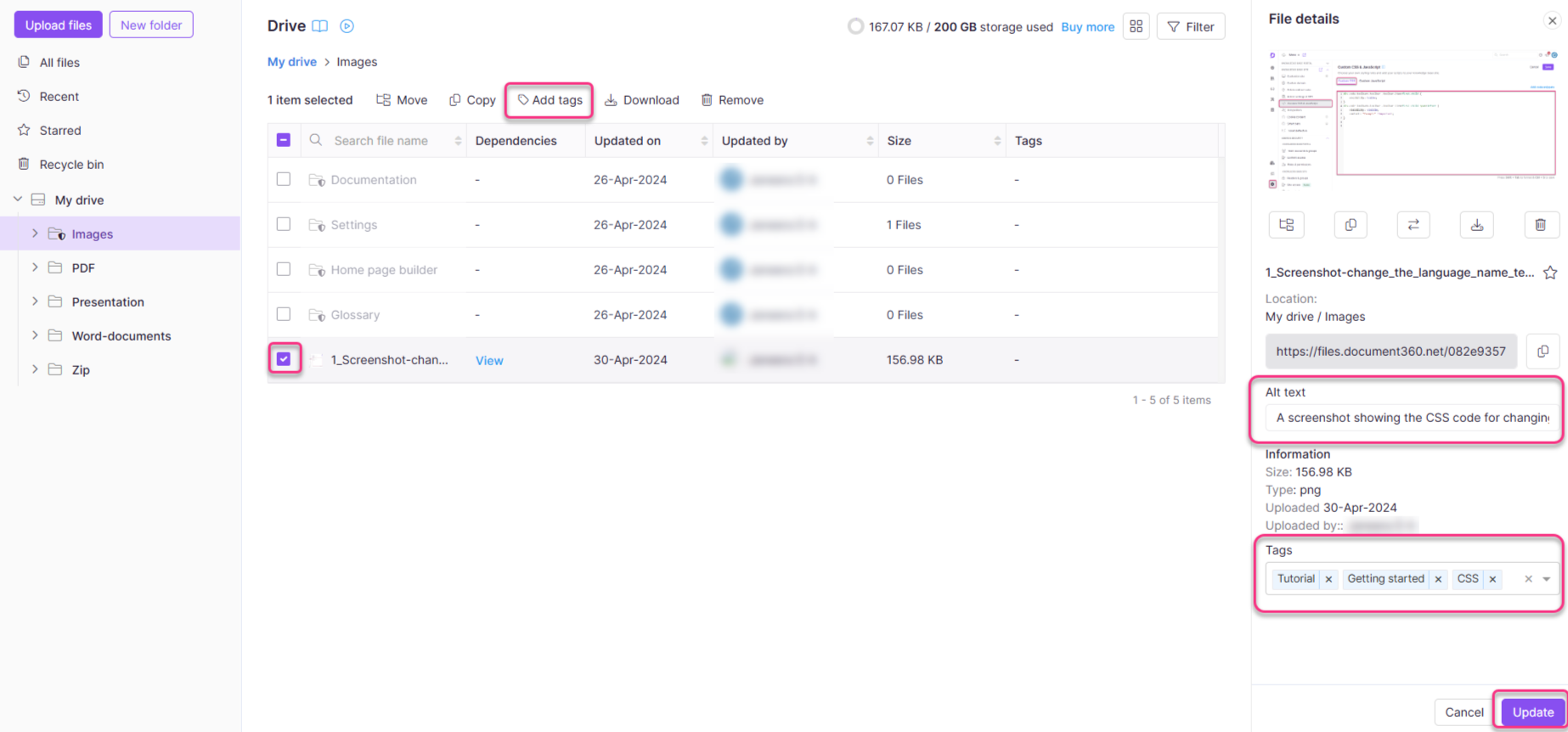
Selecteer het bestand dat je wilt taggen.
-
Klik op Tags toevoegen in de bovenste menubalk.
Het paneel met bestandsdetails verschijnt.
-
Voeg in het veld Tags nieuwe tags toe of selecteer uit bestaande. Om een tag te verwijderen, klik je op de × ernaast.
-
Als het bestand een afbeelding is, voeg dan beschrijvende tekst toe in het Alt-tekstveld , of klik op Genereren zodat Eddy AI alternatieve tekst voor je voorstelt.
-
Klik op Update.
Voeg tags toe aan meerdere bestanden
Gebruik deze methode om tags aan meerdere bestanden tegelijk toe te voegen. Let op: alt-tekst kan niet in bulk worden toegevoegd na upload.
-
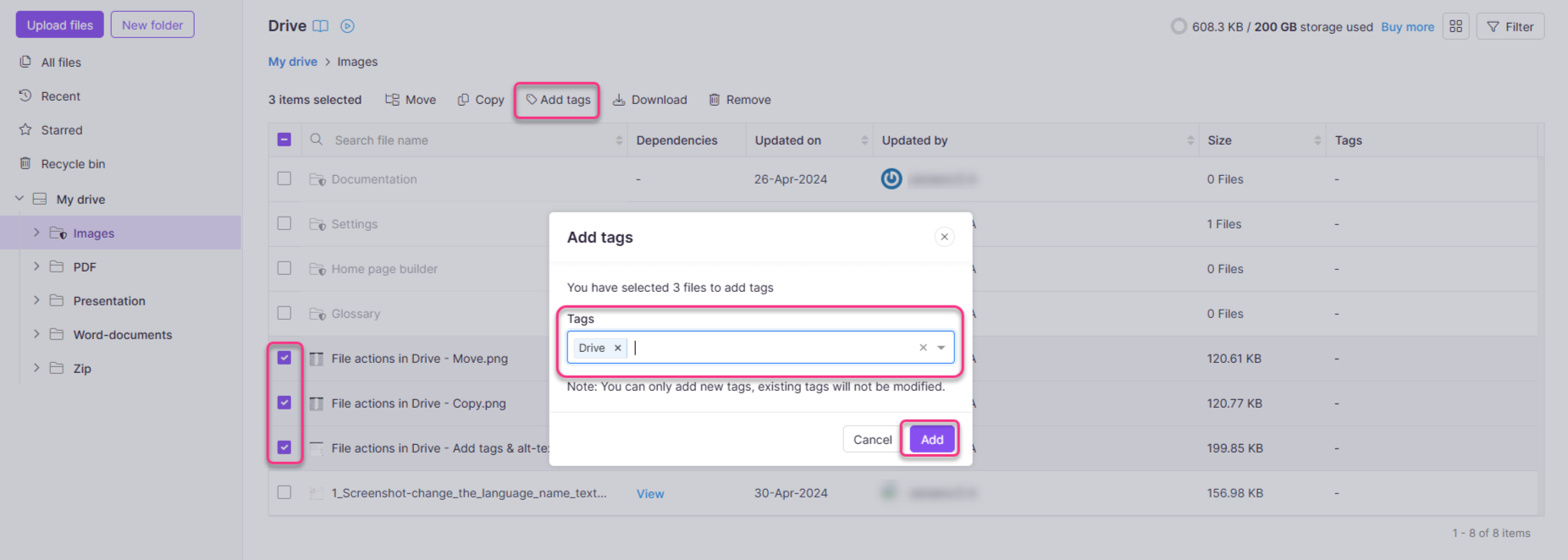
Open Drive () en selecteer de bestanden die je wilt taggen.
-
Klik op Tags toevoegen in het bovenste menu. Het venster Tags toevoegen verschijnt.
-
Voer in het veld Tags , de relevante tags in. Je kunt bestaande tags toevoegen of nieuwe tags aanmaken.
-
Klik op Toevoegen.
De tags worden aan alle geselecteerde bestanden toegevoegd. Alle bestaande tags op die bestanden worden behouden.
Bestandstags en artikeltags delen dezelfde bibliotheek in Document360. Een tag die hier wordt aangemaakt, verschijnt in zowel de Drive- als artikeltagvelden in je project.
Voeg tags en alternatieve tekst toe tijdens het uploaden
Wanneer je bestanden uploadt naar Drive, kun je tags toevoegen aan elk bestandstype om het later makkelijker te vinden te maken. Je kunt ook zelf alternatieve tekst toevoegen, of voor afbeeldingen laat Eddy AI alternatieve tekst en een bestandsnaam voor je voorstellen.
Tags: gebruik Add tags voor alle bestanden onderaan het uploadpaneel om dezelfde tags toe te passen op elk bestand in de batch, ongeacht het bestandstype. Selecteer bestaande tags, of typ een nieuwe om deze aan te maken. Dit is een handmatige invoer, niet door AI gegenereerd.
Alt-tekst: voor afbeeldingen kan Eddy AI alternatieve tekst en een bestandsnaam voor je voorstellen. Hoe je het genereert hangt af van of je één afbeelding uploadt of meerdere:
- Een enkele afbeelding uploaden: het bestandsnaamveld en het Alt-tekstveld hebben elk hun eigen aparte Genereer-knop , dus je genereert ze één voor één.
- Meerdere afbeeldingen uploaden: elke afbeeldingstegel heeft een eigen Eddy-icoon dropdown met bestandsnaam, alternatieve tekst en beide, dus je kunt één of beide afzonderlijk voor die afbeelding genereren. Om alt-tekst te genereren voor elke afbeelding in de batch tegelijk, gebruik je de knop Genereren in de banner bovenaan het uploadpaneel.
Drive ondersteunt een breed scala aan afbeeldingsbestandstypen, maar Generate is alleen beschikbaar voor JPEG-, JPG-, PNG- en WEBP-afbeeldingen. Je kunt nog steeds handmatig alt-tekst toevoegen aan elk afbeeldingsbestand, ongeacht het formaat. Gegenereerde bestandsnamen en alt-tekst worden gebruikt met dezelfde AI-krediettoelaag. Als je organisatie een naamgevingsconventie heeft geconfigureerd voor afbeeldingsbestanden, volgen gegenereerde bestandsnamen die conventie. Zie de Drive-afbeeldingsnaamconventie om er een op te zetten.
Best practices
- Tag bij uploaden — Tags toevoegen tijdens het uploaden is de enige mogelijkheid om alt-tekst in bulk toe te voegen. Maak er een gewoonte van om alt-tekst te taggen en toe te voegen voordat bestanden in artikelen worden gebruikt.
- Gebruik consistente tagnamen — Omdat bestands- en artikeltags dezelfde bibliotheek delen, gebruik een naamgevingsconventie die in beide contexten werkt. Vermijd duplicaten zoals "screenshot" en "screenshots".
- Schrijf betekenisvolle alternatieve tekst — Beschrijf wat de afbeelding toont, niet wat het is. Bijvoorbeeld, "Dashboard dat maandelijks actieve gebruikers per regio toont" is nuttiger dan "screenshot" of "afbeelding".
- Gebruik tags ter aanvulling van mappen — Mappen definiëren locatie; tags definiëren context. Een bestand in een "Q1 2025"-map kan ook worden getagd als "onboarding" en "feature-release" voor cross-categorie opvraging.
- Audit tags periodiek — Omdat tags gedeeld worden met artikelen, kunnen ongebruikte of verkeerd gespelde tags in Drive de tagbibliotheek projectbreed rommelig maken. Ruim ze regelmatig op.
FAQ
Wat is alt-tekst in Document360 Drive en hoe wordt het gebruikt?
Alt-tekst (alternatieve tekst) in Document360 Drive is een korte beschrijving van de inhoud van een afbeelding. Het wordt voornamelijk gebruikt voor toegankelijkheidsdoeleinden, zodat slechtziende gebruikers de context van afbeeldingen in artikelen begrijpen. Alt-tekst moet beschrijvend maar beknopt zijn, en betekenisvolle informatie over de afbeelding bieden.
- Specificeer alt-tekst voor elke afbeelding om toegankelijkheidsnaleving te waarborgen en de gebruikerservaring te verbeteren.
- Alt-tekst kan tijdens het uploadproces worden ingesteld of later worden bewerkt via afbeeldingseigenschappen in Document360 Drive.
- Elke alttekst kan tot 140 tekens lang zijn.
Kan ik Generate gebruiken voor een PDF of een ander niet-afbeeldingsbestand?
Nee. Generate is alleen beschikbaar voor JPEG-, JPG-, PNG- en WEBP-afbeeldingen. Drive ondersteunt ook andere afbeeldingsformaten — je kunt daar nog steeds handmatig alt-tekst aan toevoegen — en voor niet-afbeeldingsbestandstypen kun je nog steeds tags en bestandsnaam handmatig toevoegen.
Gebruikt het genereren van een bestandsnaam of alternatieve tekst mijn AI-credits?
Ja. Gegenereerde bestandsnamen en alt-tekst gebruiken dezelfde AI-kredietlimiet als alternatieve tekstgeneratie elders in Document360 — er is geen aparte limiet voor bestandsnamen.
Kan ik voor elke afbeelding in één batch alt-tekst genereren, of slechts één tegelijk?
Beide. Gebruik de Genereer-knop in de banner bovenaan het uploadpaneel om alt-tekst te genereren voor elke afbeelding in de batch in één keer. Om een bestandsnaam, alt-tekst of beide voor slechts één afbeelding te genereren, gebruik je het eigen Eddy-icoon dropdown van die afbeelding.
Kan ik een alternatieve tekst of suggestie voor bestandsnaam genereren nadat een bestand al is geüpload?
Ja. Voor alt-tekst open je het Bestandsdetailspaneel van het bestand en klik je op Genereren naast het Alt-tekstveld. Voor een bestandsnaam gebruik je Rename vanuit het menu, en klik vervolgens op Bestandsnaam genereren.
Waarom ziet mijn gegenereerde bestandsnaam er anders uit dan ik had verwacht?
Als je organisatie een naamgevingsconventie heeft geconfigureerd voor afbeeldingsbestanden, volgt Eddy AI die conventie bij het genereren van een bestandsnaam (bijvoorbeeld hoofdletters met koppeltekens) in plaats van een generieke suggestie. Check bij je beheerder of je naamgevingsinstellingen om te zien welke stijl wordt toegepast.