Het paneel Bestandsdetails geeft je een volledig overzicht van een bestand in Document360 Drive, inclusief de metadata, miniatuurweergave en snelle toegang tot alle bestandsacties vanaf één plek.
Waarom het paneel met bestandsdetails gebruiken
- Bekijk metadata van bestanden — Controleer de locatie, grootte, type, uploaddatum en wie het heeft geüpload zonder Drive te verlaten.
- Bestandseigenschappen beheren — Bewerk tags en alt-tekst direct vanuit het paneel zonder elders te navigeren.
- Toegang tot alle bestandsacties op één plek — voer verplaatsen, kopiëren, vervangen, downloaden, verwijderen, tags toevoegen en afhankelijkheden bekijken vanuit één paneel in plaats van door menu's te zoeken.
Voordat je begint
- Tags, alt-tekst en de bestandsnaam zijn de enige bewerkbare eigenschappen in het paneel met bestandsdetails. Alle andere metadata is alleen-lezen.
- Alt-tekst is alleen beschikbaar voor afbeeldingsbestanden.
Toegang tot het paneel met bestandsdetails
Er zijn drie manieren om het paneel met bestandsdetails te openen:
- Klik direct op de bestandsnaam in Drive.
- Klik direct op de thumbnail in Drive.
- Klik op het More () icoon naast de bestandsnaam en selecteer Details bekijken in het dropdownmenu.
Het paneel met bestandsdetails opent rechts.
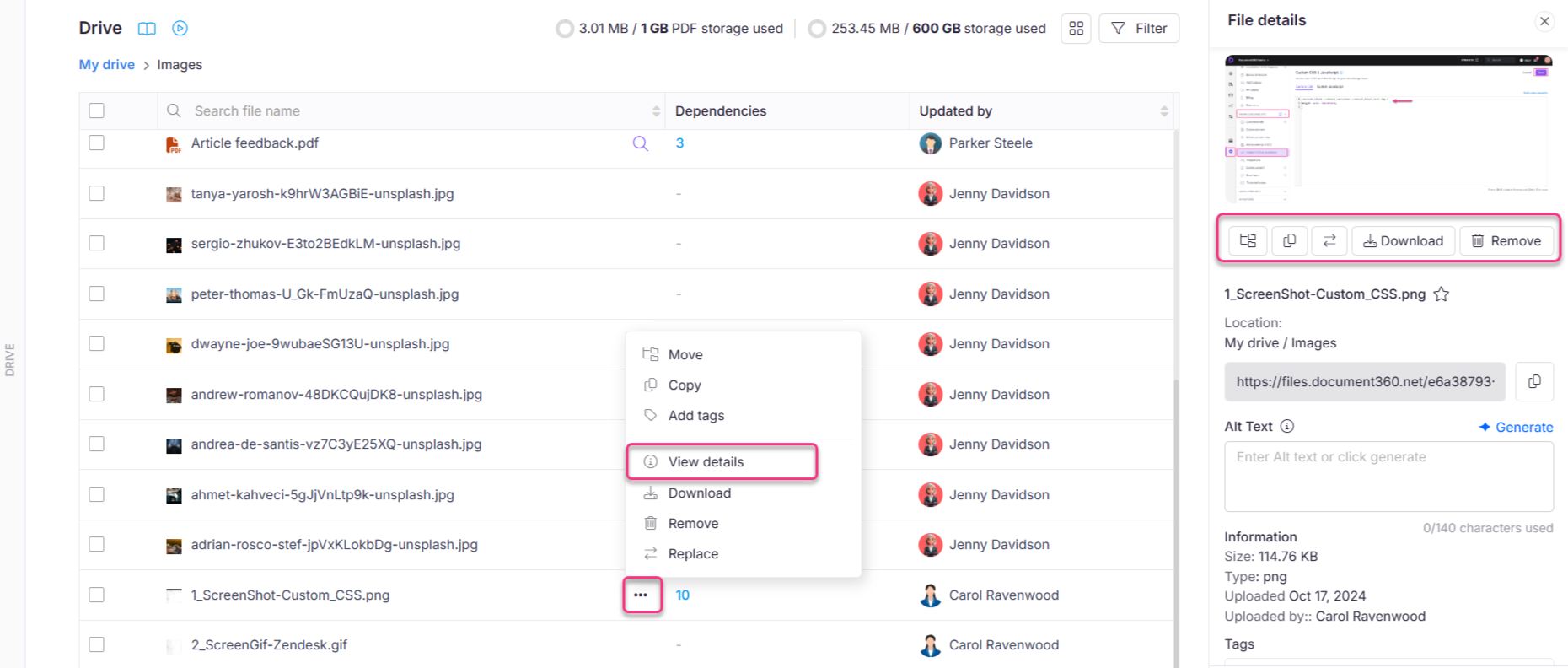
Wat staat er in het paneel met bestandsdetails
Thumbnail preview
Een visuele preview van het bestand verschijnt bovenaan het paneel.
Bestandsacties
Een rij pictogrammen onder de miniatuur geeft je directe toegang tot alle bestandsacties:
| Actie | Wat het doet |
|---|---|
| Beweeg | Verplaatst het bestand naar een andere map binnen hetzelfde project |
| Begrepen | Dupliceert het bestand naar een andere map binnen hetzelfde project |
| Vervang | Overschrijft het bestand met een nieuwe versie van hetzelfde type |
| Hernoeming | Klik op het potloodpictogram naast de bestandsnaam om het hernoemingsvenster te openen. Voor afbeeldingsbestanden klik op Bestandsnaam genereren zodat Eddy AI een naam voorstelt |
| Download | Downloadt het bestand als .zip naar je lokale opslag |
| Verwijder | Verwijdert het bestand uit de Schijf |
| Ster | Voegt het bestand toe aan je sterrenbestanden. Klik opnieuw om het te verwijderen |
Bestandsmetadata
Het paneel toont de volgende alleen-lezen informatie over het bestand:
| Veld | Beschrijving |
|---|---|
| Bestandsnaam | Naam van het geüploade bestand |
| Locatie | Het mappad waar het bestand is opgeslagen in Drive |
| Grootte | De bestandsgrootte |
| Type | Het bestandsformaat (bijvoorbeeld PNG, PDF, MP4) |
| Geüpload door | De naam van de gebruiker die het bestand heeft geüpload |
| Geüpload op | De datum waarop het bestand aan Drive werd toegevoegd |
| Bijgewerkt door | De naam van de gebruiker die het bestand voor het laatst heeft aangepast |
| Bijgewerkt op | De datum waarop het bestand voor het laatst is gewijzigd (bijvoorbeeld na een naamswijziging of vervanging) |
Bewerkbare eigenschappen
| Veld | Details |
|---|---|
| Tags | Voeg tags toe, selecteer of verwijder tags. Bestands- en artikeltags delen dezelfde bibliotheek. |
| Alt-tekst | Alleen beschikbaar voor afbeeldingsbestanden. Beschrijft de afbeelding voor toegankelijkheid en SEO. Als je AI hebt ingeschakeld, klik dan op Genereren zodat Eddy AI alternatieve tekst voor je afbeelding kan genereren. |
Klik op Bijwerken nadat je wijzigingen hebt gedaan aan tags of alternatieve tekst.
Best practices
- Gebruik het paneel als je vaste plek voor bestandsacties — Omdat alle acties op één plek beschikbaar zijn, is het openen van het Bestandsdetailspaneel vaak sneller dan rechtsklikken of de bovenste menubalk gebruiken.
- Controleer metadata voordat je vervangt of verwijdert — Bekijk de uploaddatum en het bestandstype voordat je onomkeerbare acties onderneemt zoals Vervangen of Verwijderen.
- Houd alt-tekst en tags up-to-date — Telkens wanneer de inhoud van een bestand verandert (bijvoorbeeld na een Vervangen), bezoek het paneel opnieuw om de alt-tekst en tags bij te werken zodat ze overeenkomen met de nieuwe inhoud.
- Gebruik View-afhankelijkheden voordat je het verwijdert — Controleer altijd waar een bestand wordt gebruikt voordat je het verwijdert, om te voorkomen dat artikelen of pagina's die ernaar verwijzen worden beschadigd.