Je kunt bestanden uploaden naar elke map of submap in je Drive met slepen en neerzetten of de optie Meer. Bestanden die naar de Drive zijn geüpload zijn beschikbaar voor gebruik in artikelen, homepage-aanpassing en hergebruikende elementen van content in je kennisbank.
Waarom bestanden beheren in Drive
Drive is de enige bron van waarheid voor alle assets in je kennisbank. Bestanden uploaden via Drive — in plaats van direct in de artikeleditor — geeft je meer controle over waar assets worden opgeslagen, hoe ze worden georganiseerd en hoe ze hergebruikt worden in je content.
Door via Drive te uploaden in plaats van inline in de editor kun je:
- Sla assets op in een voorspelbare, georganiseerde mappenstructuur die je categoriehiërarchie weerspiegelt.
- Voeg tags en alternatieve tekst toe bij het uploaden, waardoor bestanden direct doorzoekbaar en toegankelijk worden.
- Hergebruik hetzelfde bestand over meerdere artikelen zonder het te dupliceren, zodat je Drive slank blijft.
- Houd een centrale locatie waar bijdragers gedeelde assets kunnen vinden, auditen en bijwerken.
De juiste uploadmethode kiezen
| Methode | Het beste voor | Werkt op lege mappen? |
|---|---|---|
| Slepen en neerzetten | Snel één of meer bestanden uploaden terwijl de map al open is in het hoofdpaneel. | Ja — gebruik het sleep-en-neerzetten-gebied in het midden van de mapweergave. |
| Meer opties | Bestanden uploaden naar een specifieke submap direct vanuit het linker navigatiepaneel zonder eerst de map te openen. | Ja. |
Voeg een bestand toe met slepen en neerzetten
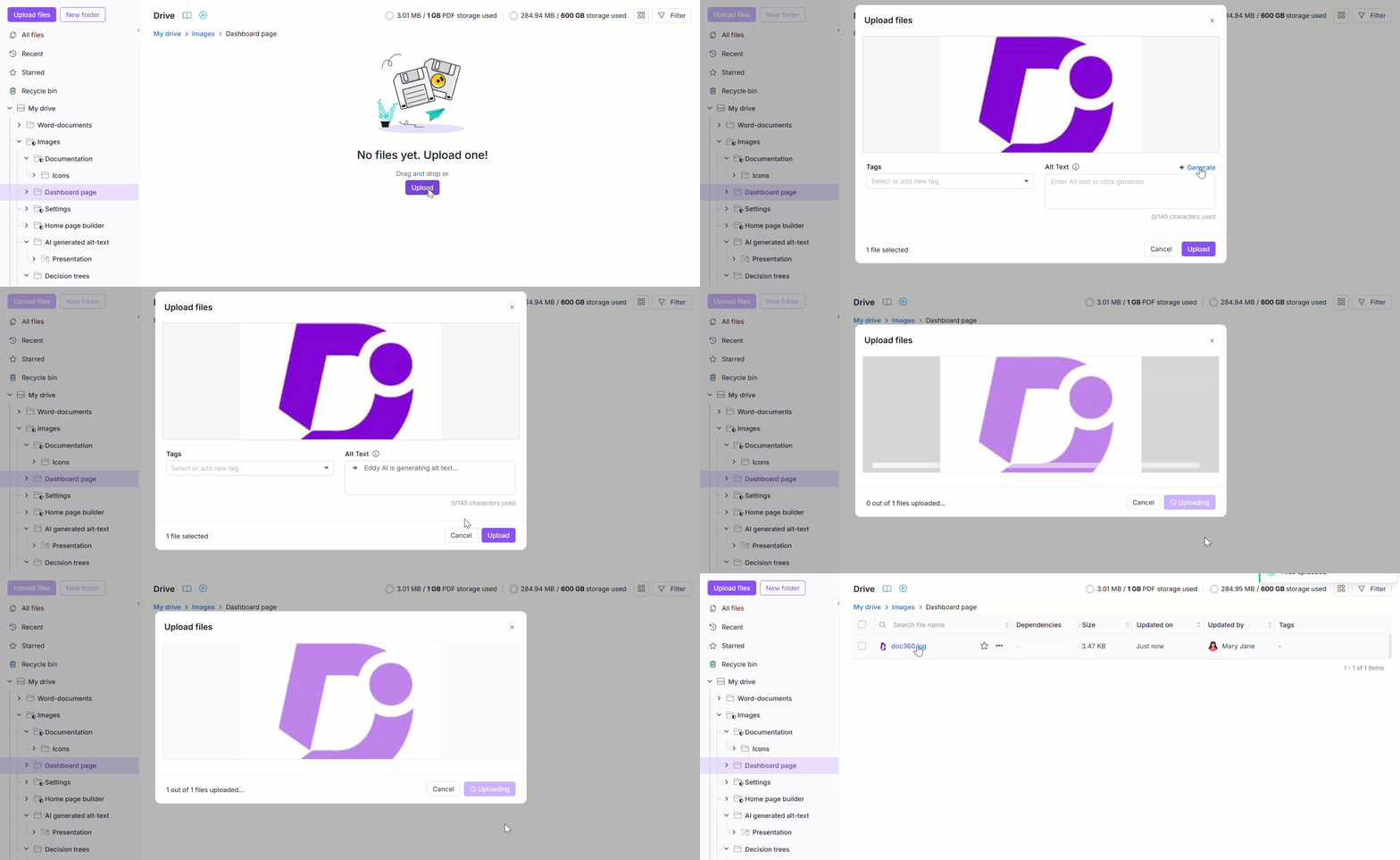
Om bestanden te uploaden met slepen en neerzetten,
- Klik op het Drive-icoon in de linker navigatiebalk en open de bestemmingsmap.
- Sleep een of meer bestanden van je apparaat en plaats ze in het aangewezen gebied in het midden van de mapweergave. Of klik op Uploaden van mijn apparaat en selecteer je bestanden met de verkenner.
- Bevestig of verander in het uploadpaneel de maplocatie waar de bestanden worden opgeslagen. De map die momenteel in de Mapmanager is geselecteerd is ingesteld als standaardlocatie.
- Bewerk het veld Bestandsnaam als je een bestand wilt hernoemen voordat je het uploadt. Voor één afbeelding klik je op Genereren zodat Eddy AI een naam voorstelt op basis van de afbeeldingsinhoud. Voor meerdere afbeeldingen gebruik je het Genereren-dropdown van elke afbeelding om een bestandsnaam, alt-tekst of beide te genereren. Als je organisatie een naamgevingsconventie heeft geconfigureerd voor afbeeldingsbestanden, volgen gegenereerde namen die – zie de Drive-afbeeldingsnaamconventie.
- Voeg tags toe met Tags toevoegen voor alle bestanden onderaan het uploadpaneel. Selecteer bestaande tags, of typ een nieuwe om deze aan te maken.
- Voeg alt-tekst toe voor afbeeldingen. Voor één enkele afbeelding voer je handmatig alt-tekst in in het Alt-tekstveld , of klik je op Genereren. Voor meerdere afbeeldingen gebruik je het Genereren-dropdownmenu van elke afbeelding, of klik je op Genereren in de banner bovenaan het uploadpaneel om alt-tekst te genereren voor elke afbeelding in de batch tegelijk.
- Klik op Uploaden.
Voeg een bestand toe met de optie Meer
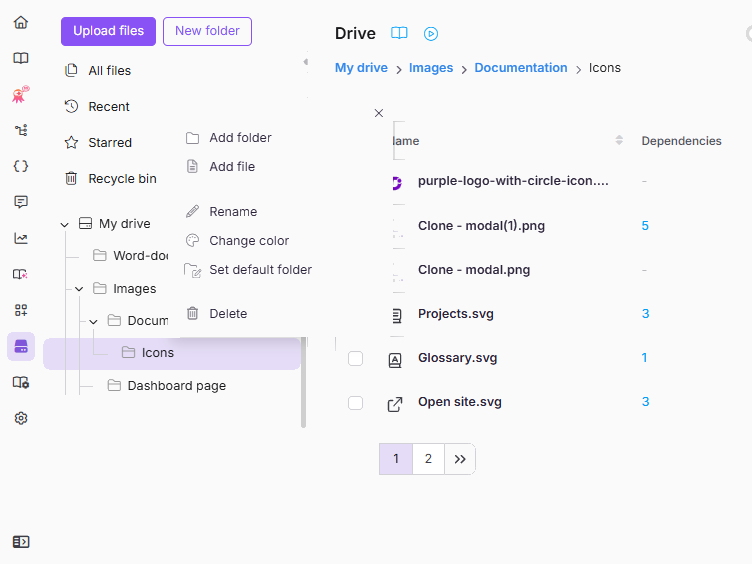
Om bestanden te uploaden naar een specifieke submap vanuit het linker navigatievenster,
- Klik op het Drive-icoon in de linker navigatiebalk.
- Klik op het Meer-icoon naast de doelmap en selecteer Bestand toevoegen.
- Upload je bestanden op twee manieren: klik op Uploaden vanaf mijn apparaat en selecteer bestanden met de verkenner, of sleep en laat de bestanden vallen in het uploadgedeelte.
- Bewerk het veld Bestandsnaam indien nodig. Voor één afbeelding klik je op Genereren zodat Eddy AI een naam voorstelt. Voor meerdere afbeeldingen gebruik je het Genereren-dropdown van elke afbeelding. Als je organisatie een naamgevingsconventie heeft geconfigureerd voor afbeeldingsbestanden, volgen gegenereerde namen die — zie Drive-afbeeldingsnaamconventie.
- Voeg tags toe met Tags toevoegen voor alle bestanden, en voeg alt-tekst toe voor afbeeldingen handmatig of door per afbeelding te klikken — per afbeelding, of voor de hele batch met de banner bovenaan het paneel.
- Klik op Uploaden.
Bestandsnaam, tags en alt-tekst
Het wordt sterk aanbevolen om een duidelijke bestandsnaam, tags en alternatieve tekst toe te voegen tijdens het uploaden. De bestandsnaam wordt automatisch ingesteld vanuit het originele bestand en kan worden aangepast voordat je uploadt; tags en alternatieve tekst zijn optioneel, maar beide hebben een betekenisvolle invloed op hoe vindbaar en toegankelijk je bestanden zijn binnen de kennisbank.
| Veld | Wat het doet | Noten |
|---|---|---|
| Bestandsnaam | Stelt de naam in waaronder het bestand wordt opgeslagen en weergegeven in Drive. | Beschikbaar voor alle bestandstypen. Maximaal 150 tekens. Kan niet , %, #, =, \, /, :, *"?<, bevatten +of >. Voor afbeeldingen, klik op Genereren voor een door Eddy AI voorgestelde naam (gebruikt dezelfde credits als Alt-tekst). |
| Tags | Labelt het bestand voor zoek- en filtermogelijkheden in Drive. Tags worden gedeeld tussen artikelen en bestanden uit dezelfde tagbibliotheek. | Beschikbaar voor alle bestandstypen. Bij het uploaden van een mix van afbeeldingen en andere formaten kunnen alleen tags worden toegevoegd — geen alt-tekst. |
| Alt-tekst | Biedt een tekstbeschrijving van een afbeelding voor schermlezers en ondersteunende technologie, ter ondersteuning van toegankelijkheidsnaleving. | Alleen beschikbaar voor afbeeldingen. Maximaal 140 tekens. Klik op Genereren voor een door Eddy AI voorgestelde alternatieve tekst (gebruikt dezelfde credits als de bestandsnaam). Kan worden toegevoegd of bewerkt na upload via het detailpaneel van het bestand. |
Als de onaangeraakte standaardnaam van een bestand botst met een bestaand bestand in de bestemmingsmap, voegt Document360 er automatisch een nummer aan toe (bijvoorbeeld logo.png wordt logo(1).pnghet ). Als je handmatig het veld bestandsnaam bewerkt naar een naam die al door een ander actief bestand in Drive wordt gebruikt, wordt het uploaden geblokkeerd met een fout "Bestandsnaam bestaat al", en moet je een andere naam invoeren voordat de upload kan worden voltooid. Als je van plan bent de inhoud van een bestaand bestand te vervangen terwijl je de naam behoudt, raadpleeg dan Bestand vervangen.
Alt-tekst moet beschrijvend en beknopt zijn, en betekenisvolle context over de afbeelding bieden. Gebruik bijvoorbeeld "Staafdiagram dat Q3-omzet per regio toont" in plaats van "grafiek" of "afbeelding". Goede alternatieve tekst verbetert zowel toegankelijkheidsnaleving als doorzoekbaarheid binnen Drive.
Bestandslimieten en beperkingen
De volgende limieten gelden voor alle bestandsuploads in Drive:
| Limiet | Waarde |
|---|---|
| Maximaal aantal bestanden per rootmap | 5.000 bestanden (inclusief alle bestanden in de hoofdmap en de submappen) |
| Maximale grootte per enkel bestand | 150 MB standaard; kan hoger zijn met de Large File add-on (decimale eenheden: 1 MB = 1.000.000 bytes — ongeveer 143,05 MiB in binaire eenheden) |
| Maximale gecombineerde grootte voor upload van meerdere bestanden | 160 MB |
| Aanbevolen beeldresolutie | Onder de 536 MP (megapixel) voor cross-browser compatibiliteit |
Bestandsnamen mogen geen , %, #, =, \, , /:, "<>?*, , of |, bevatten +en zijn beperkt tot 150 tekens. Als de oorspronkelijke bestandsnaam — zoals die op uw apparaat bestaat — al +, %, #, of =bevat, wordt de upload onmiddellijk geweigerd; hernoem het bestand op uw apparaat en probeer het opnieuw. Bestanden met een ander niet toegestan teken of namen boven de limiet zullen niet worden geüpload. Zie Een bestand hernoemen voor meer informatie.
Beperk toegestane bestandstypen
Standaard staat Document360 toe dat alle mediaformaten naar de Drive worden geüpload. Je kunt uploads beperken tot specifieke bestandstypen om asset-standaarden binnen je team af te dwingen — bijvoorbeeld alleen .png en .svg bestanden toestaan.
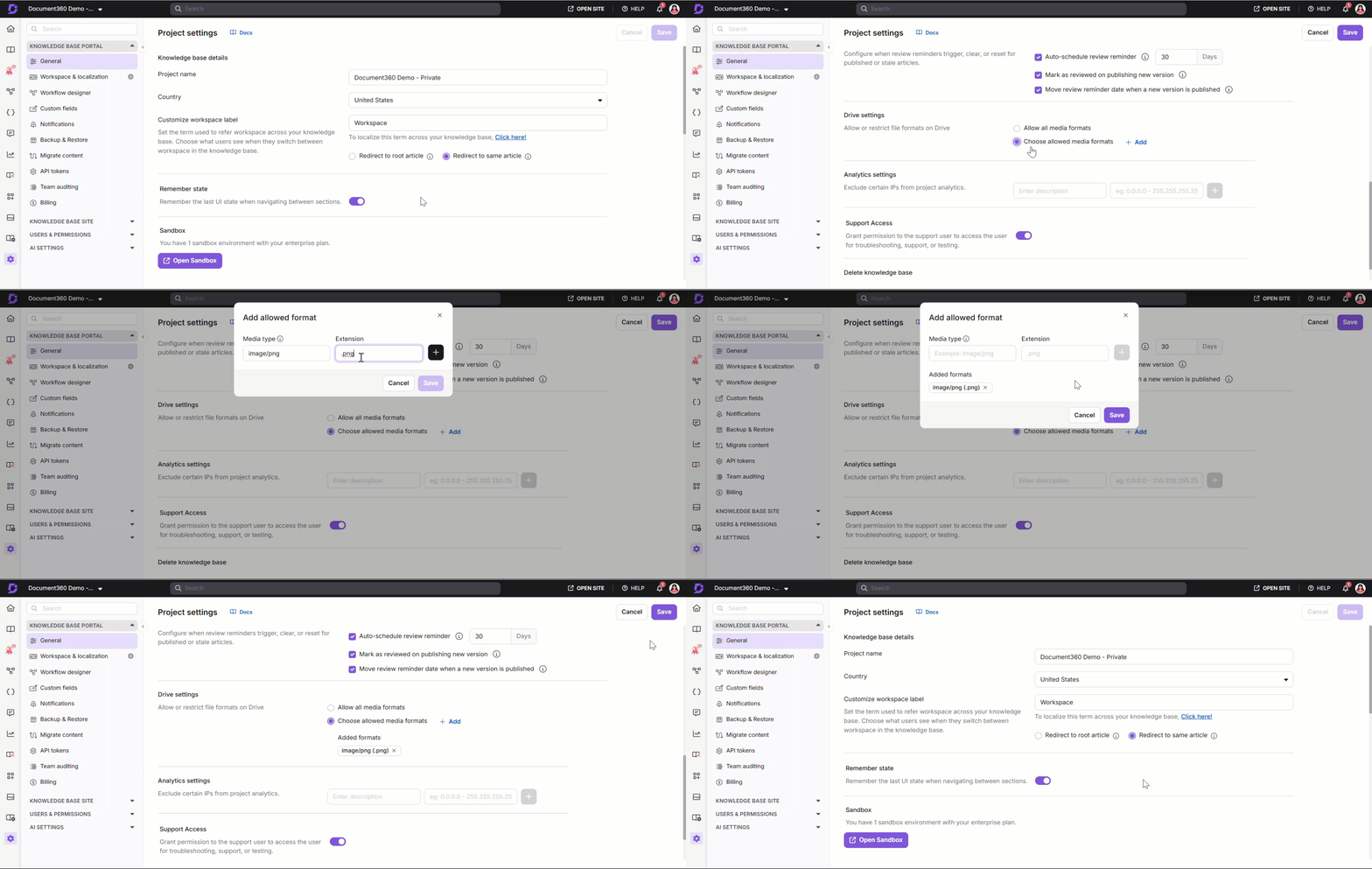
Om bestandstypebeperkingen toe te voegen,
- Ga naar Instellingen in de linker navigatiebalk.
- Ga naar het Knowledge Base-portaal > de algemene instellingen voor > Drive.
- Scroll naar beneden naar de instellingen van de Schijf. Standaard is 'Alle mediaformaten toestaan ' geselecteerd.
- Klik op Kies toegestane mediaformaten en vervolgens op Voeg toe.
- Voer het Media-type in het formaat
media-type/extensionin — bijvoorbeeld,image/png. - Enter de Uitbreiding in kleine letters — bijvoorbeeld
.png. Dit veld is hoofdlettergevoelig. - Klik + om het formaat toe te voegen aan de toegestane lijst.
- Klik op Opslaan.
Het Extensieveld is hoofdlettergevoelig. Voer altijd extensies in kleine letters in (bijvoorbeeld .png, .svg, .jpg). Een verkeerd gekleurde extensie kan voorkomen dat geldige bestanden worden geüpload.
Best practices
- Noem bestanden duidelijk bij uploadtijd. Gebruik een duidelijke, beschrijvende naam, of klik op Genereren op een afbeelding zodat Eddy AI er een voorstelt. Als je beheerder een naamgevingsconventie heeft ingesteld onder Portaalinstellingen > AI-instellingen > Drive-afbeeldingsnaamconventie, volgen de voorgestelde namen van Eddy AI die automatisch.
- Tag bestanden tijdens het uploaden. Taggen tijdens de uploadflow is sneller dan bestanden later afzonderlijk bijwerken, en houdt Drive doorzoekbaar naarmate je content groeit.
- Voeg alt-tekst toe aan elke afbeelding. Gebruik een beknopte beschrijving van wat de afbeelding toont — niet alleen wat het is — en houd het onder de 140 tekens. Dit ondersteunt toegankelijkheidsnaleving en verbetert de doorzoekbaarheid in Drive.
- Beperk bestandstypen om assetstandaarden af te dwingen. Als je team een gedefinieerde formaatconventie volgt (bijvoorbeeld
.pngvoor screenshots,.svgvoor diagrammen), configureer dan bestandstypebeperkingen in de Drive-instellingen in plaats van te vertrouwen op bijdragers die het onthouden. - Gebruik Vervang om bestaande bestanden bij te werken, niet om opnieuw te uploaden. Het vervangen van een bestand behoudt de originele URL, zodat alle artikelreferenties intact blijven.
FAQ
Kan ik een bestand hernoemen nadat ik het naar Drive heb geüpload?
Ja. Je kunt een bestand op elk moment hernoemen nadat je het hebt geüpload. Selecteer het bestand in Drive, kies Naam Hernoemen in het menu Meer, en voer een nieuwe naam in. Hernoemen verandert de CDN-URL van het bestand niet, dus elk artikel of pagina die al naar het bestand verwijst, werkt zonder extra stappen. Je kunt ook de bestandsnaam instellen tijdens het uploaden, met het veld Bestandsnaam in het uploadpaneel. Voor de volledige set hernoemingsopties, zie Een bestand hernoemen.