Bestandsafhankelijkheden laten zien hoe vaak een bestand in je kennisbank is gebruikt, inclusief artikelen, aanpassing van de homepage en tools voor hergebruik van inhoud. Weten waar een bestand wordt gebruikt helpt je weloverwogen beslissingen te nemen voordat je het hernoemt, vervangt of verwijdert.
Waarom bestandsafhankelijkheden bekijken
- Voorkom gebroken inhoud: Controleer voordat je een bestand verwijdert of vervangt de afhankelijkheden om te voorkomen dat artikelen of pagina's die ernaar verwijzen worden beschadigd.
- Controleer je mediabibliotheek: Identificeer bestanden zonder afhankelijkheden om ongebruikte assets van Drive op te schonen.
- Bestandsgebruik bijhouden: Begrijp de volledige reikwijdte van waar een bestand voorkomt in artikelen, het aanpassen van de homepage en het hergebruiken van inhoud (variabelen, fragmenten en woordenlijst).
Voordat je begint
- Afhankelijkheden worden bijgehouden voor alle bestandstypen, niet alleen afbeeldingen.
- Een bestand zonder afhankelijkheden wordt weergegeven met een – in de kolom Afhankelijkheden.
- Afhankelijkheden worden gevolgd over drie gebieden: Artikelen, KB-aanpassing (homepage) en Content Reuse (variabelen, fragmenten en woordenlijst).
- Afhankelijkheden in gearchiveerde artikelen en categoriepagina's worden niet meegeteld.
Bekijk bestandsafhankelijkheden
Er zijn twee manieren om bestandsafhankelijkheden te bekijken:
- Vanuit de aandrijvingslijst
- Van het paneel met bestandsdetails
Vanuit de aandrijvingslijst
-
Navigeer naar het Drive () icoon in het kennisbankportaal.
-
Blader door de mappen om het beoogde bestand te vinden.
-
Klik in de kolom Afhankelijkheden op het nummer (bijv. 6) dat naast het bestand wordt weergegeven. Dit getal geeft het aantal gerelateerde gebieden met afhankelijkheden weer aan.
- Bestanden met afhankelijkheden: Als een bestand afhankelijkheden heeft, toont het veld Afhankelijkheden het aantal afhankelijkheden.
- Bestanden zonder afhankelijkheden: Als een bestand geen afhankelijkheden heeft, wordt het veld Afhankelijkheden aangegeven met een '-'.
Wees voorzichtig bij het omgaan met mappen, omdat deze bestanden met afhankelijkheden kunnen bevatten. Controleer altijd individuele bestandsafhankelijkheden voordat je wijzigingen aanbrengt in een map.
-
Na het klikken op het nummer verschijnt het dialoogvenster bestanden. Dit paneel geeft informatie over de associaties van het bestand in verschillende gebieden, zoals Artikelen, KB-aanpassing en hergebruik van inhoud.
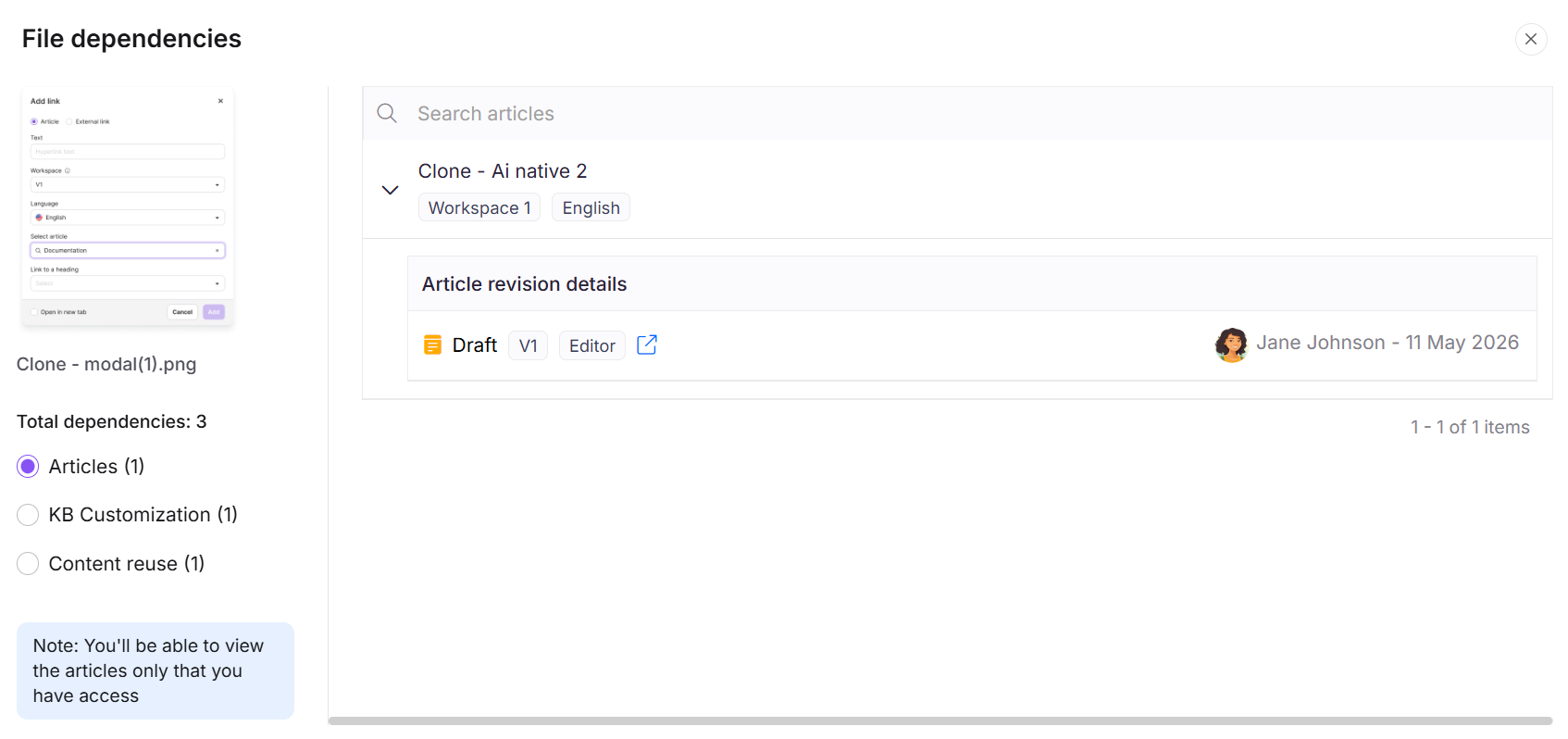
Het bestand afhankelijkheidspaneel begrijpen
Het panel organiseert afhankelijkheden in drie secties:
Artikelen
Vouw elk vermeld artikel uit om te bekijken:
- Artikelstatus
- Artikelversie
- De gebruiker die aan het artikel is gekoppeld
- De datum
- Een Open site (↗) icoon om direct naar het artikel te navigeren
Gearchiveerde artikelen en categoriepagina's worden niet vermeld in de sectie Artikelen en zijn niet opgenomen in de afhankelijkheidstelling. Een bestand dat alleen in gearchiveerde inhoud wordt gebruikt, toont een streepje in de kolom Afhankelijkheden, alsof het niet meer wordt gebruikt. De afhankelijkheden blijven behouden en verschijnen opnieuw wanneer de inhoud wordt ontgearchiveerd.
KB-aanpassing
Geeft een weergave van elke startpagina waar het bestand wordt gebruikt.
Hergebruik van inhoud
Breid een willekeurig hergebruikhulpmiddel uit om de snippetnaam en de taal waarin het wordt gebruikt te bekijken. Contenthergebruik omvat variabelen, snippets en woordenlijstvermeldingen.
Elk bestand dat wordt gebruikt in artikelen, homepage-aanpassing of hergebruiktools voor inhoud (variabelen, fragmenten, woordenlijst) wordt in Drive vermeld onder bestandsafhankelijkheden.
Filter bestanden op afhankelijkheden
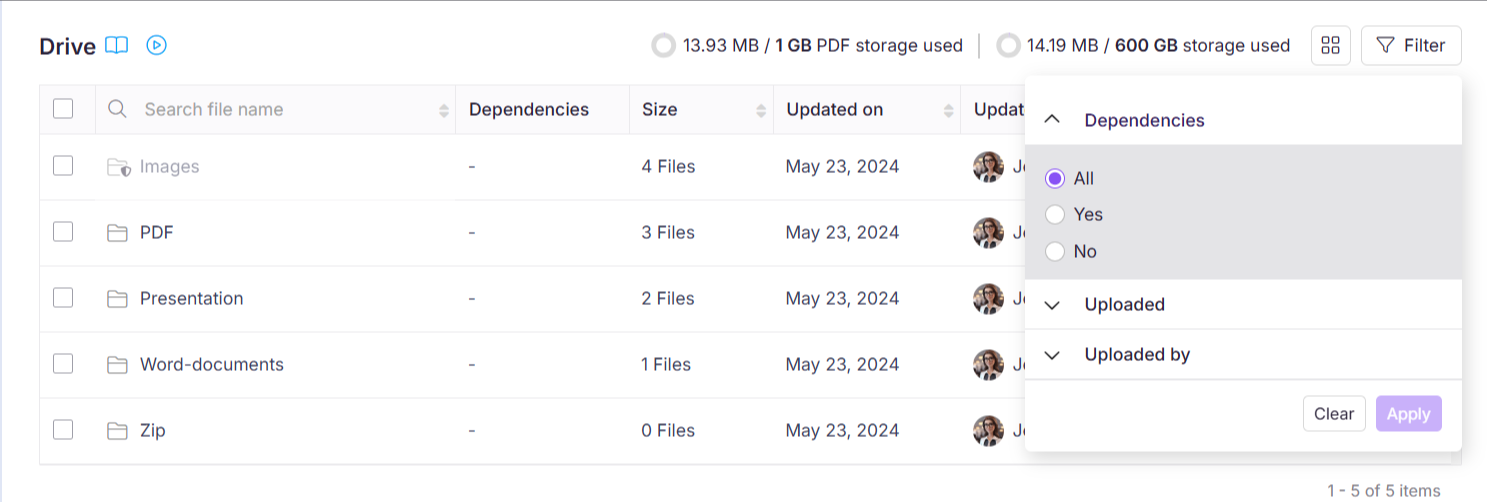
Gebruik het filter om snel bestanden met of zonder afhankelijkheden op je Drive te identificeren.
- Klik op het Filter () rechtsboven.
- Vouw het tabblad Afhankelijkheden uit en kies de benodigde optie (All, Ja of Nee) om de bestanden te filteren op basis van filteropties.
- Klik op Aanpassen om de gewenste resultaten te bekijken.
Dit helpt om de schijf vrij te houden van verouderde afbeeldingen of bestanden zonder afhankelijkheden.
Bestanden die alleen worden gebruikt in gearchiveerde artikelen of categoriepagina's worden teruggegeven door het No dependency filter, omdat gearchiveerde inhoud niet wordt meegeteld. Het verwijderen verwijdert het bestand uit gearchiveerde inhoud die er nog steeds naar verwijst, en het resultaat is pas zichtbaar zodra die inhoud is ontarbeerd. Controleer de archiefpagina voordat je bestanden verwijdert die via dit filter zijn geïdentificeerd.
Best practices
- Controleer altijd afhankelijkheden voordat je een bestand verwijdert: Een bestand met een aantal afhankelijkheden wordt actief gebruikt. Het verwijderen ervan breekt elk artikel of pagina die ernaar verwijst. Gearchiveerde inhoud wordt niet meegeteld, dus controleer ook de Archief-pagina als je project archivering gebruikt.
- Gebruik regelmatig het filter "Zonder afhankelijkheden": Periodiek filteren voor bestanden zonder afhankelijkheden helpt je ongebruikte assets te identificeren en op te schonen, waardoor Drive slank en beheersbaar blijft. Bestanden die alleen in gearchiveerde inhoud worden gebruikt, verschijnen ook in deze lijst, dus bevestig dit voordat je verwijdert.
- Bekijk de afhankelijkheden op mapniveau zorgvuldig: Mappen tonen geen gecombineerde afhankelijkheidstelling. Controleer altijd individuele bestandsafhankelijkheden voordat u bulkwijzigingen aanbrengt in de inhoud van een map.
- Navigeer direct vanuit afhankelijkheden: Gebruik het Open-site-icoon in de sectie Artikelen om direct naar het artikel te springen en te controleren hoe het bestand in context wordt gebruikt voordat je wijzigingen aanbrengt.