Het vervangen van een bestand in Document360 Drive overschrijft de inhoud door een nieuwe versie, terwijl dezelfde bestandsnaam en CDN-URL behouden blijven. Elk artikel of pagina die naar het bestand verwijst, weerspiegelt automatisch de bijgewerkte inhoud zonder dat er links hoeven worden gewijzigd. Stapsgewijze handleidingen, interactieve demo's en opgenomen video's die het bestand gebruiken, tonen de bijgewerkte afbeelding pas op de Knowledge Base-site nadat ze opnieuw zijn gepubliceerd.
Waarom bestanden vervangen
Je moet mogelijk een bestand vervangen wanneer:
- Verouderde visuals bijwerken — Een screenshot, diagram of afbeelding moet een UI- of productwijziging weergeven.
- Fout corrigeren — Het verkeerde bestand is geüpload en moet worden vervangen zonder opnieuw te linken tussen artikelen.
- Hergebruikte assets verversen — Een bestand dat over meerdere artikelen of pagina's wordt gebruikt, heeft één update nodig die overal waar het verschijnt wordt verspreid.
Voordat je begint
- Het vervangende bestand moet hetzelfde bestandstype hebben als het origineel (bijvoorbeeld een PNG kan alleen worden vervangen door een PNG).
- Er kan maar één bestand tegelijk worden vervangen.
- Het vervangen van een bestand is onomkeerbaar. De originele inhoud wordt permanent overschreven en kan niet worden hersteld tenzij je een offline back-up hebt. In tegenstelling tot verwijderde bestanden zijn overschreven bestanden niet beschikbaar in de Schijfprullenbak.
- Na vervanging kan het bijgewerkte bestand tot 1 uur duren om te worden weergegeven op alle artikelen en pagina's waarop het wordt gebruikt.
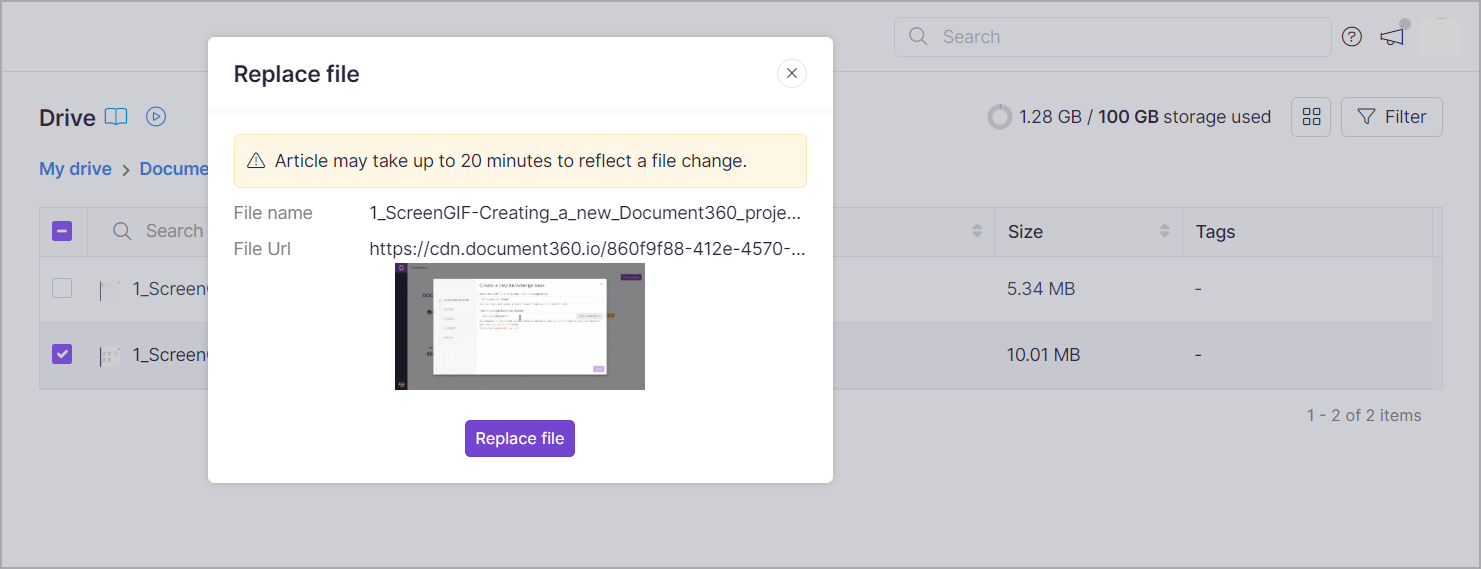
- Als het bestand wordt gebruikt in een stapsgewijze handleiding, interactieve demo of opgenomen video, publiceer die inhoud dan opnieuw om de bijgewerkte afbeelding op de Knowledge Base-site te tonen. Er verschijnt een waarschuwing in het Vervang bestand-dialoog wanneer dit van toepassing is.
Vervang een bestand
Er zijn twee manieren om een bestand in Drive te vervangen:
- Vervang een bestand uit het contextmenu
- Vervang een bestand uit het paneel met bestandsdetails
Vervang een bestand uit het contextmenu van het bestand.
-
Klik op het Drive () icoon in de linker navigatiebalk.
-
Navigeer naar de map waar het bestand dat je wilt vervangen zich bevindt.
-
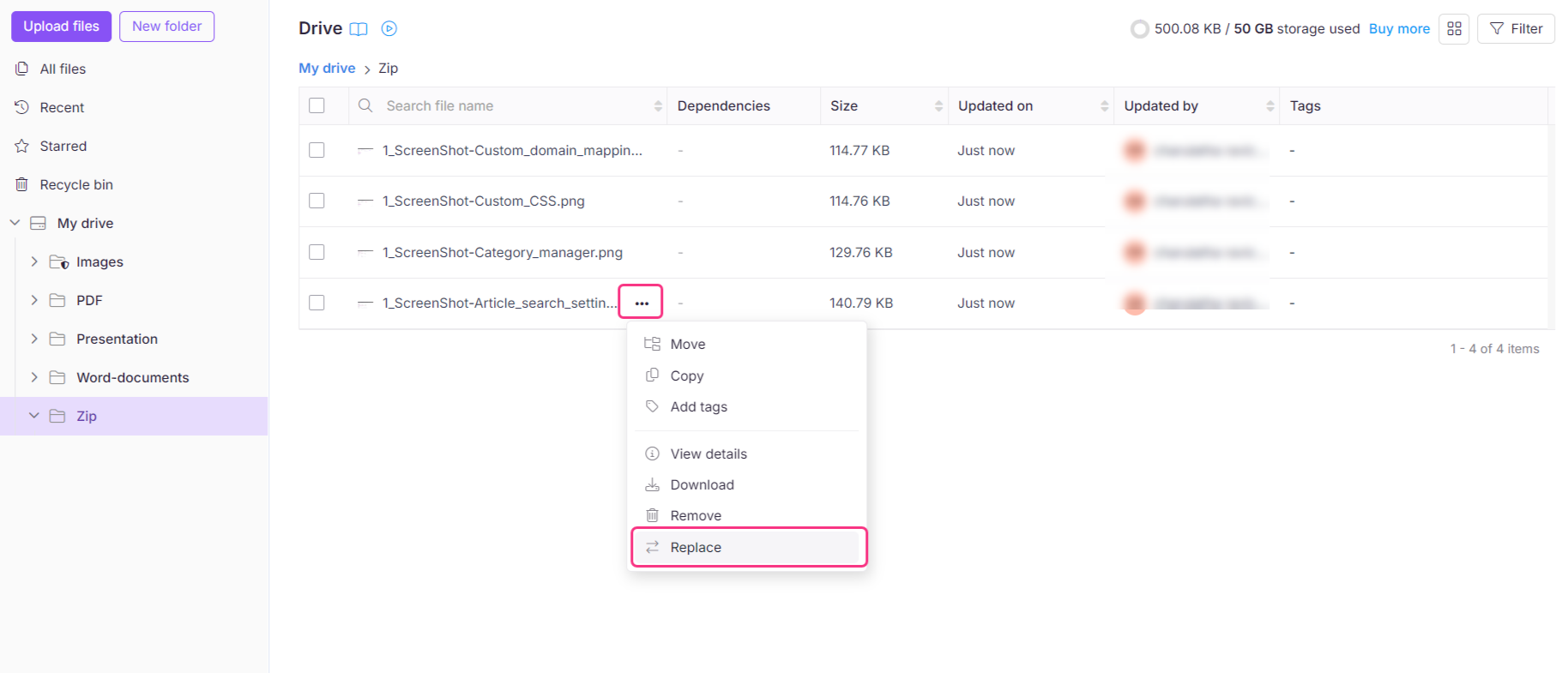
Beweeg je muis over het gewenste bestand en klik op het More ()-icoon.
-
Klik op Vervangen.
Je lokale bestandsbeheerder zal openen.
-
Selecteer het nieuwe bestand om het bestaande bestand te vervangen en klik op Openen.
Het nieuwe bestand wordt bijgewerkt in de Drive.
Vervang een bestand uit het paneel met bestandsdetails
- Klik op het Drive () icoon in de linker navigatiebalk.
- Navigeer naar de map waar het bestand dat je wilt vervangen zich bevindt.
- Beweeg je muis over het gewenste bestand en klik op het More ()-icoon.
- Klik op Bekijk details.
- Aan de rechterkant van het paneel opent een paneel met bestandsdetails .
- Klik op het Vervangen ()-icoon.
- Klik in het venster Bestand Vervangen op Bestand Vervangen.
Je lokale bestandsbeheerder zal openen.
-
Selecteer het nieuwe bestand om het bestaande bestand te vervangen en klik op Openen.
Het nieuwe bestand wordt bijgewerkt in de Drive.
Het vervangen van een bestand overschrijft permanent de inhoud. Het origineel kan niet worden teruggehaald uit de Prullenbak van de Schijf of ergens anders in Document360 — alleen een offline back-up kan het herstellen. Zorg dat je een lokale kopie hebt voordat je verder gaat.
Het vervangen bestand behoudt zijn oorspronkelijke bestandsnaam en CDN-URL. Updates kunnen tot 1 uur duren voordat ze verschijnen op alle artikelen en pagina's waarop het bestand wordt gebruikt.
Best practices
- Maak een back-up voordat je vervangt — Download het originele bestand voordat je het vervangt, vooral als het over meerdere artikelen wordt gebruikt. Dit is je enige hersteloptie als de vervanging per ongeluk is uitgevoerd.
- Controleer het bestandstype voordat je uploadt — De vervanging moet overeenkomen met het originele bestandstype. Proberen een ander type te uploaden werkt niet.
- Plan voor de verspreidingsvertraging — Wijzigingen duren tot 1 uur om overal zichtbaar te worden. Vermijd het vervangen van een bestand direct voor een geplande publicatie of beoordeling, omdat beoordelaars de oude versie nog kunnen zien.
- Gebruik vervang in plaats van opnieuw uploaden — Als een bestand al gelinkt is in artikelen, is vervangen altijd beter dan het uploaden van een nieuw bestand en opnieuw linken, omdat de URL hetzelfde blijft.
FAQ
Is er een manier om de geschiedenis of eerdere versies van het bestand te zien voordat je het vervangt?
Op dit moment geeft Document360 geen versiegeschiedenis van bestanden in de Drive. Het wordt aanbevolen om back-ups van belangrijke bestanden te maken voordat je ze vervangt.
Wat gebeurt er met het oude bestand nadat ik het heb vervangen?
De inhoud van het oude bestand is permanent overschreven en kan niet worden hersteld. Zorg ervoor dat je belangrijke bestanden back-uppt voordat je ze vervangt.
Kan ik bestanden in bulk vervangen in de Drive?
Je kunt geen bulk-vervanging van Drive-bestanden doen. Vervanging kan alleen op individuele bestanden worden uitgevoerd. De bulkbewerkingen die beschikbaar zijn wanneer je de selectievakjes van meerdere bestanden selecteert zijn Verplaatsen, Kopiëren, Tags toevoegen, Downloaden en Verwijderen.