ZOHO PageSense is a conversion optimization and personalization platform that helps you optimize your website, personalize pages for your target audience, and boost overall conversion rates. It provides tools for tracking, analysis, optimization, and personalization, including heatmaps, A/B testing, form analytics, and session recording.
Integrating ZOHO PageSense with Document360 gives you a complete Conversion Rate Optimization (CRO) solution for your knowledge base site.
Before you begin
- You need a ZOHO PageSense account.
- You need your ZOHO PageSense ID. See How to find your ZOHO PageSense ID below.
Access your ZOHO PageSense ID
The ZOHO PageSense ID is a unique code obtained from the ZOHO PageSense application. It is required to connect ZOHO PageSense with Document360.
- Register a ZOHO PageSense account and sign in.
- Create a Project.
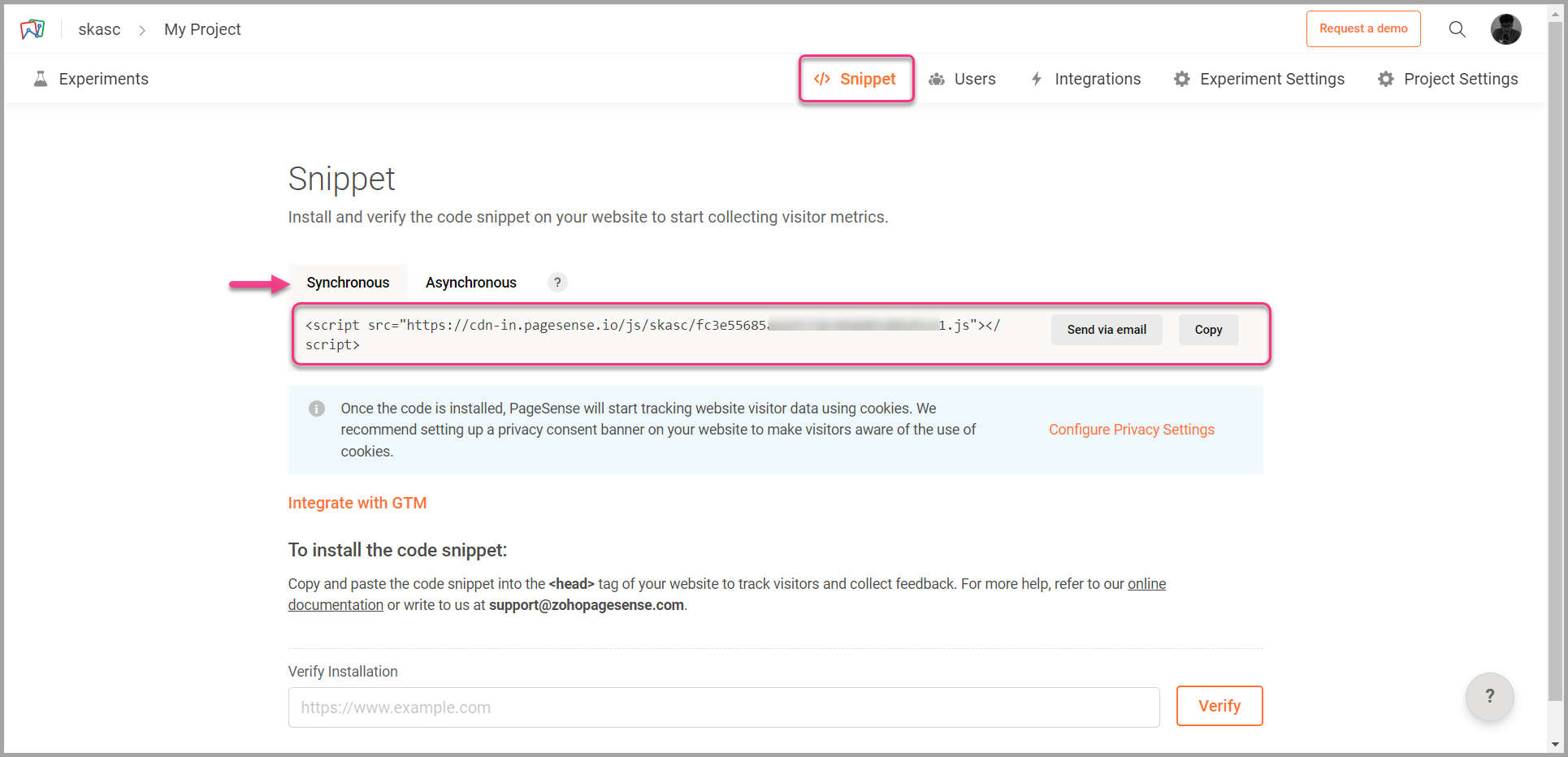
- On the Project Dashboard, click Snippet in the top bar.
- On the Snippet page, click the Synchronous tab and copy the ZOHO PageSense ID from the snippet.
Integrate ZOHO PageSense with Document360
- In the Document360 portal, navigate to Connections () > Integrations () in the left navigation bar.
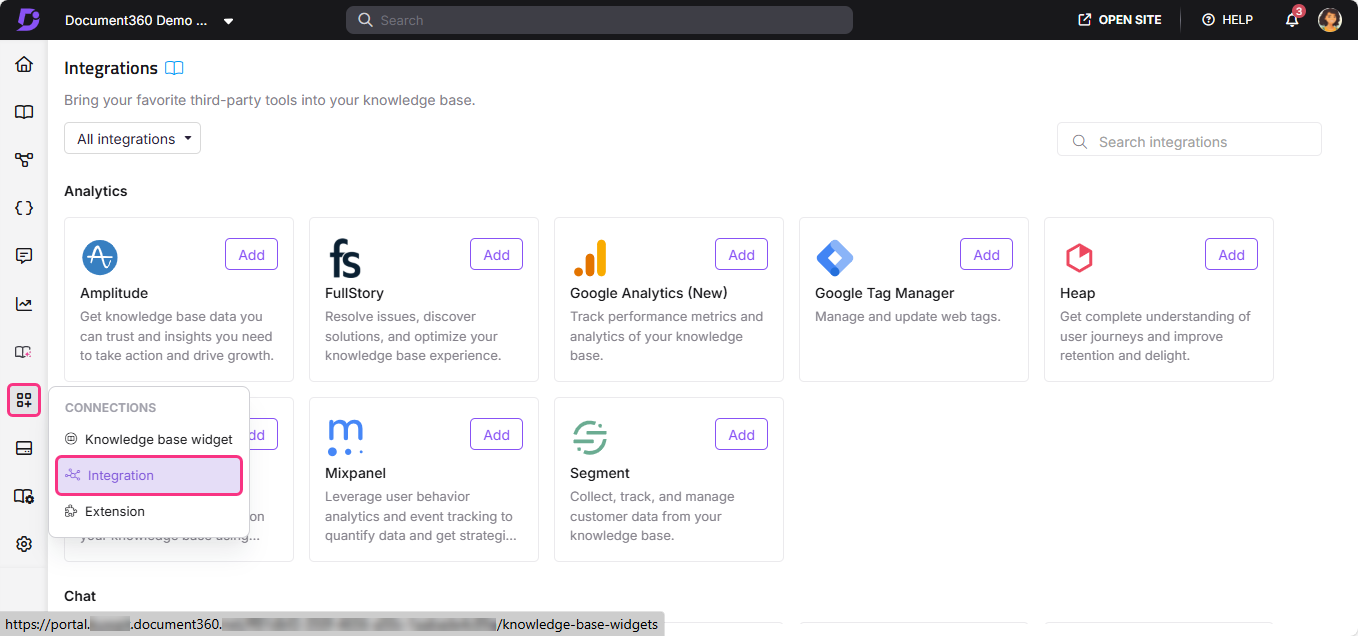
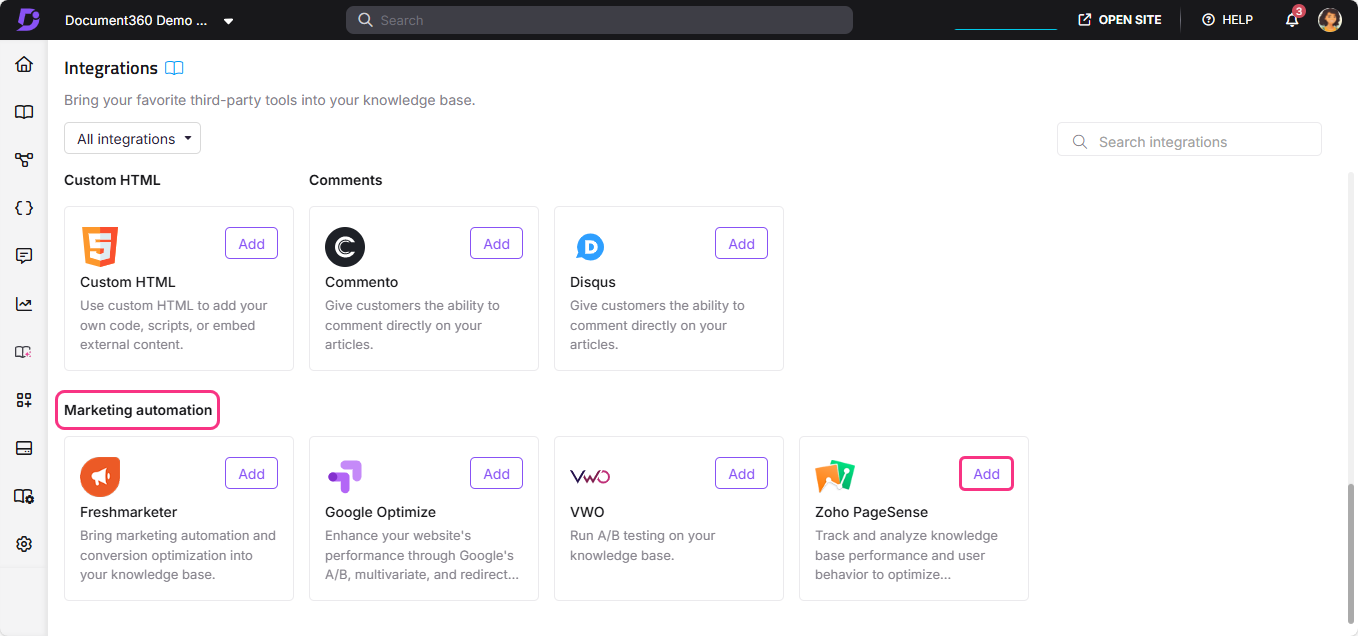
- Select ZOHO PageSense from the list of integrations and click Add. The Add new integration panel appears.
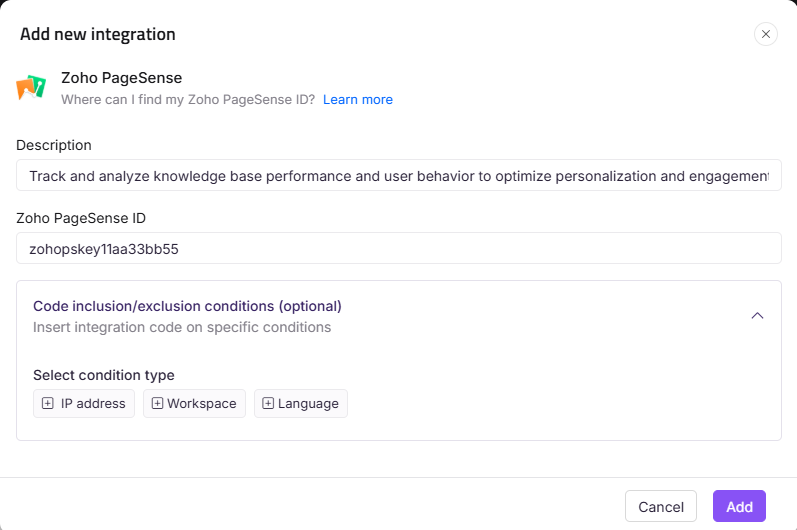
- Add a Description and enter your ZOHO PageSense ID.
The ZOHO PageSense ID is a code obtained from the ZOHO PageSense application. It is required to connect ZOHO PageSense and Document360 in the knowledge base portal.
- Optionally, expand Code inclusion/exclusion conditions to control when the integration runs based on IP address, Workspace, or Language.
- Click Add.
After setup, open your ZOHO PageSense account to view site analytics and performance. Use ZOHO PageSense to track, test, analyze, and optimize your knowledge base for better conversion.
Integrating ZOHO PageSense with Document360 gives you a one-step solution for Conversion Rate Optimization (CRO), with access to heatmaps, A/B testing, form analytics, and session recording.
Best practices
- Use heatmaps to see which content readers engage with most. After integration, run heatmaps on your highest-traffic articles to understand which sections readers click, scroll to, or ignore.
- Use A/B testing to improve article structure. Test different heading styles, content layouts, or call-to-action placements to find what drives readers to take action or stay on the page longer.
- Use session recording to identify friction points. Watch recordings of reader sessions to spot where users struggle to find what they need, then use those insights to improve content or navigation.
- Use form analytics to improve feedback collection. If your knowledge base includes feedback forms, form analytics shows you where readers drop off without completing them.
- Use Code inclusion/exclusion conditions to limit where tracking runs. Add your office IP address as an exclusion to keep internal visits from affecting your conversion data.
FAQ
What is the ZOHO PageSense ID?
The ZOHO PageSense ID is a unique code obtained from the ZOHO PageSense application. You can find it by going to your Project Dashboard, clicking Snippet in the top bar, selecting the Synchronous tab, and copying the ID from the snippet code shown.
What CRO tools does ZOHO PageSense include?
ZOHO PageSense includes heatmaps, A/B testing, form analytics, and session recording, giving you a complete set of tools to track, analyze, and optimize your knowledge base site for better conversion rates.
What can I do after completing the ZOHO PageSense integration?
After setup, open your ZOHO PageSense account to view site analytics and performance for your knowledge base. You can run experiments using heatmaps, A/B tests, form analytics, and session recordings to identify opportunities to improve your content and boost conversions.
Can I limit which workspaces or languages ZOHO PageSense tracks?
Yes. When adding or editing the ZOHO PageSense integration, expand Code inclusion/exclusion conditions and add conditions based on IP address, Workspace, or Language. See Code inclusion and exclusion conditions for full details.
Why should I use ZOHO PageSense instead of a standard analytics tool?
Standard analytics tools track traffic and page views. ZOHO PageSense goes further by helping you understand why readers behave the way they do and test changes to improve outcomes. Tools like A/B testing and session recording let you make data-driven decisions about your knowledge base content and layout.