The Content access page lets you control which workspaces, languages, categories, and articles each user or user group can access in the knowledge base portal. You can assign, edit, deny, or remove access at any level of the content hierarchy.
When to manage content access
- You want to restrict a user or group to specific workspaces or languages.
- You need to give a new team member access only to the content areas they will be working on.
- A user's access requirements have changed and you need to update or remove their existing access.
- You want to grant complete project-level access to a user or group in a single operation.
Before you begin
- You must have the Owner or Admin portal role.
How to access the Content access page
- Navigate to Settings () > Users and security in the left navigation bar in the knowledge base portal.
- In the left navigation pane, navigate to Content access.
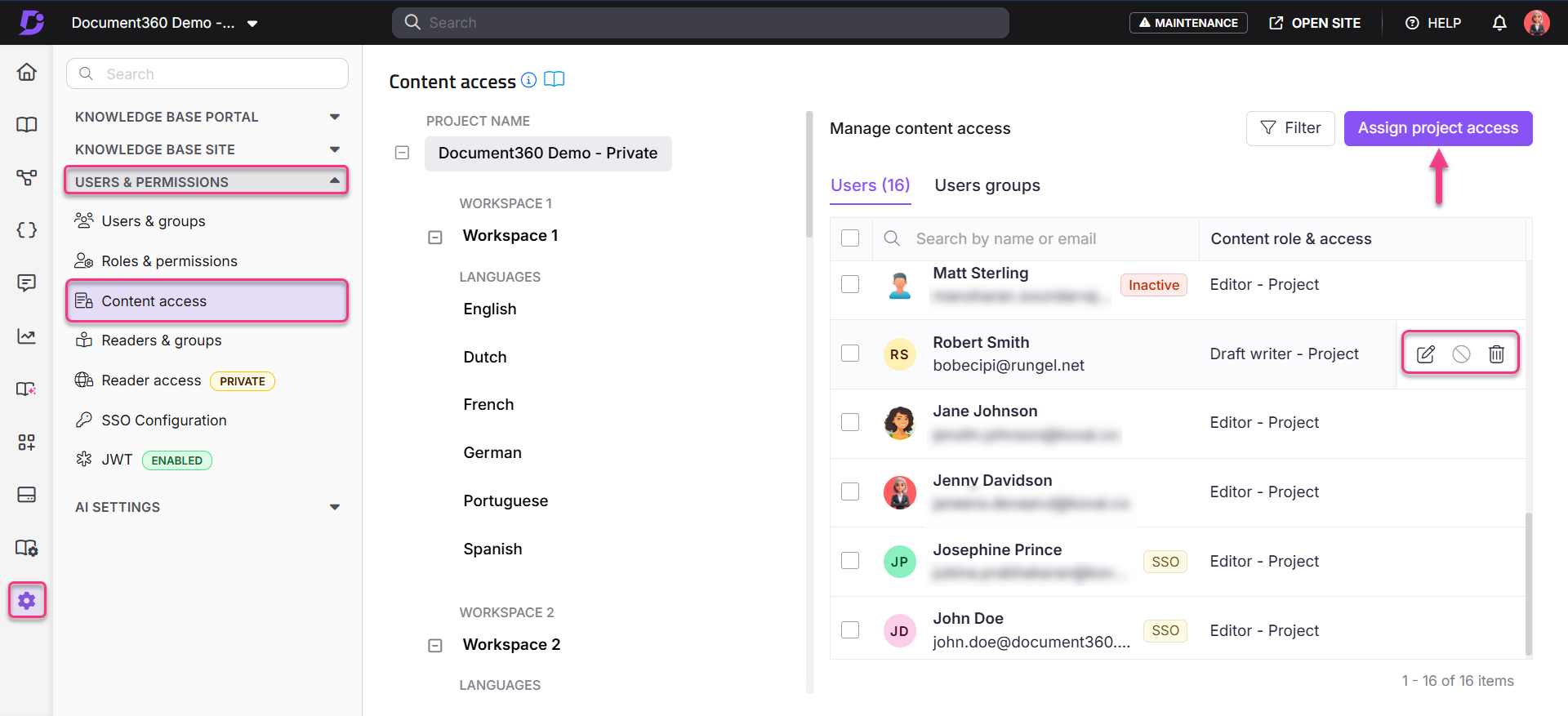
You can view all the workspaces and languages available in the project. The Manage content access section is on the right side of the screen. It displays existing content access settings for your project's users and user groups.
Managing access for individual users and groups
In the Manage content access section, hover over a user or group to reveal three action icons:
| Action | Icon | What it does |
|---|---|---|
| Edit | Modify the content access for a user. Click the Save () icon to apply changes or Cancel () to go back. | |
| Deny | Restrict the user's access to specific content. If a user belongs to multiple groups and one group has a restriction, the restriction takes precedence — the user will be denied access regardless of permissions granted by other groups. | |
| Remove | Removes the user's explicit access at this content level. The user may still be able to access this content if they have inherited access from a parent level. See Understanding permission precedence. |
You can also select checkboxes next to multiple users to apply bulk Edit, Deny, or Remove actions.
Filtering the content access view
You can filter the user data on this page by clicking the tree-view workspace and language selection on the left, or by using the Filter option at the top right to filter by Project, Workspace, or Language.
Assigning project-level access
To assign complete project-level content access to a user or user group:
-
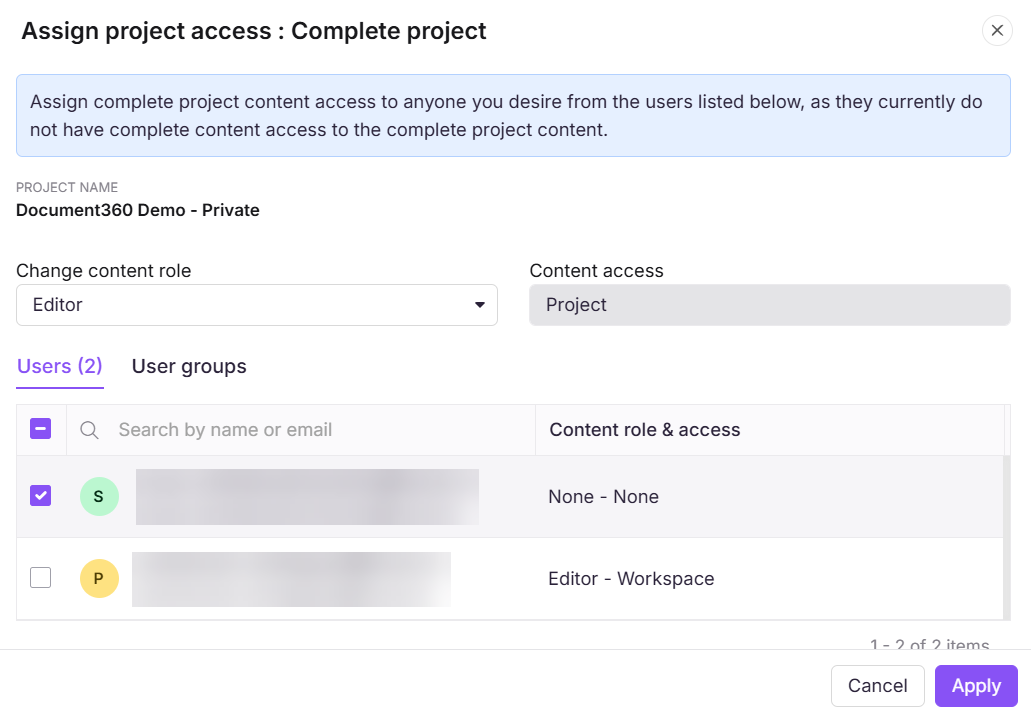
Click Assign project access on the Manage content access page.
The Assign project access: Complete project dialog appears.
-
Click the Change content role dropdown and choose one of the content roles: Editor, Draft writer, or Reviewer.
-
The Content access field will be set to Project level by default.
NOTE
If a user belongs to multiple groups with access to the same content, and one of those groups has restrictions, the restriction will take precedence. The user will be denied access to that content, regardless of the permissions granted by other groups.
Block inherited accounts
The Block Inherited Accounts toggle becomes visible only when you select a specific workspace and language from the tree-view on the left.
When enabled, this toggle prevents all inherited and future users from accessing the selected workspace or language. The user who performs the block retains access.
For more information, see Block user and user group access inheritance.
Best practices
- Use the tree-view filter on the left to scope the access view to a specific workspace or language before making changes — this prevents accidentally modifying access at the wrong level.
- Use Deny when you want to explicitly block a user from a specific content area even if they have inherited access. Use Remove only when you want to clear explicit access while keeping inherited access intact.
- Assign project-level access at onboarding and use workspace or language-level access adjustments for exceptions only — this keeps your access model simple and consistent.
FAQ
If a user belongs to multiple groups with different permissions, which one applies?
If any group assigned to the user has restricted access to a category, the restriction takes precedence. The user will not be able to view the content, even if access is granted through another group.
Why is a newly created workspace not appearing in the content access settings for user groups?
If you've recently created a workspace and it's not appearing in the content access dropdown when assigning roles or permissions to user groups, it is likely because the workspace does not have any published articles yet. Workspaces without published content are temporarily excluded from the content access list, as there is no content to assign access to.
To resolve this, publish at least one article in the new workspace. Once published, the workspace will appear in the content access dropdown. If the issue persists, contact the Document360 support team.
If I grant access to a root category, will users automatically get access to its subcategories?
Yes, by default, access to a root category is inherited by all its subcategories. If you want to restrict an entire subcategory branch so that inherited access stops flowing into it, use Block Inheritance instead of manually denying individual users. See Block inheritance for more details.
Why is a user unable to access a category even though access is granted?
A user may belong to multiple groups with different access permissions. If any group assigned to the user has restricted access to a category, the restriction takes precedence. The user will not be able to view the content, even if access is granted through another group.
If a reader has two accounts with the same email — one standard login and one SSO — will their content access be merged?
No. Each account maintains its own content access determined by the assigned roles and permissions. The two accounts are treated independently.