Plans supporting this feature: Business Enterprise
Ask Eddy AI is Document360's AI-powered assistive search feature that delivers instant, contextual answers directly from your knowledge base. No more manually scanning through dozens of articles to find what you need.
Ask Eddy AI is an AI assistant embedded in your Document360 knowledge base site and search bar. When a user types a question, Eddy retrieves relevant content from your knowledge base and synthesizes a direct, cited answer, instead of returning a list of links and making the user do all the reading.
It's available on the knowledge base home page, the KB site search bar, and through the KB widget for embedded or third-party integrations.
Powered by OpenAI
Ask Eddy AI uses OpenAI APIs in its backend. Data transmitted to OpenAI is governed by their API privacy policy, which explicitly prohibits using customer API data to train their models. Document360 is SOC 2 compliant, and both Document360 and OpenAI comply with GDPR regulations.
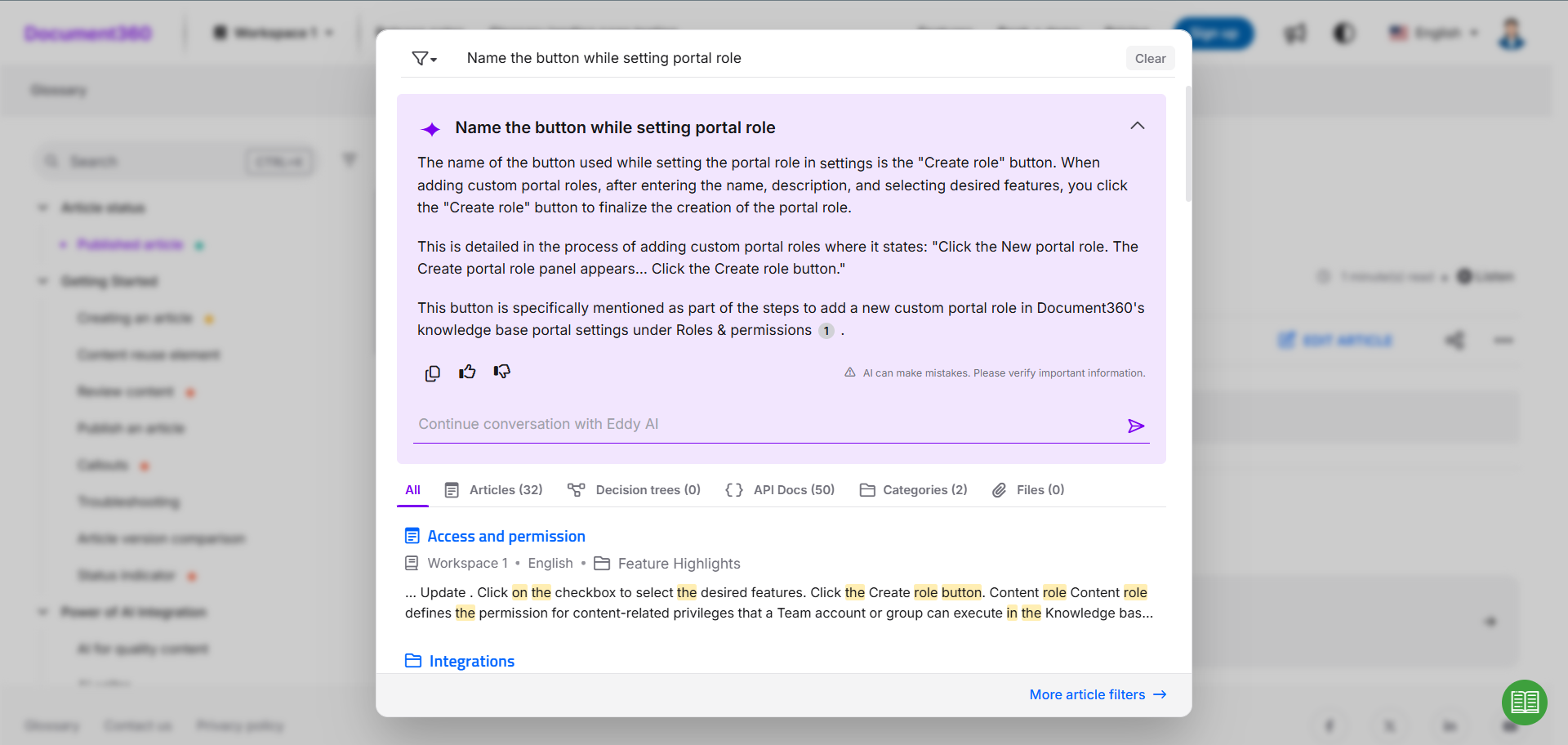
How Ask Eddy AI works
Understanding what's happening under the hood helps you get better results and set the right expectations.
Indexing: After you enable Ask Eddy AI, Document360 begins indexing all published content in your knowledge base — including text, tables, code blocks, LaTeX, tabs, step-by-step guides, content reuse elements, and PDF attachments (up to 40 MB).
Query processing: When a reader asks a question, Eddy searches the indexed content for the most relevant passages.
Answer generation: Eddy synthesizes a response using those passages and returns it with numbered citations linking back to the source articles.
Context window: Eddy retains context across the last five queries in a session, enabling follow-up questions without losing the thread.
Content refresh: When you publish changes to an article, Eddy's index updates within approximately 15 minutes. Deleted articles are also removed from Eddy's responses within 15 minutes.
Important
Eddy is a language model, not a computational engine. It generates responses based on text patterns and semantic understanding. It is not designed for mathematical calculations, precise date arithmetic, or analytical reasoning. For date-based or numerical queries, results may be approximate.
Scope
Ask Eddy AI does not limit its search to the article a reader is currently viewing. It searches across the entire workspace (based on your language and workspace filters) to return the most relevant answer.
Strikethrough text
Any text formatted with strikethrough is treated as hidden content and is excluded from Eddy's search results.
Prerequisites
Before enabling Ask Eddy AI, confirm the following:
You have admin or owner-level access to your Document360 portal.
Your knowledge base content is published (draft articles are not indexed).
If you want PDF attachments indexed, ensure the files are 40 MB or smaller and are embedded, attached, or linked from external drives in an article.
Enable Ask Eddy AI for your Knowledge base site
In your Knowledge base portal,
Navigate to Settings () > AI settings in the left navigation bar.
In the left navigation pane, navigate to Eddy AI settings.
Expand the AI search suite accordion and turn on the AI assistive search toggle.
Document360 will begin indexing your knowledge base content. Once indexing is complete, the Ask Eddy AI button appears on your KB site search bar and home page.
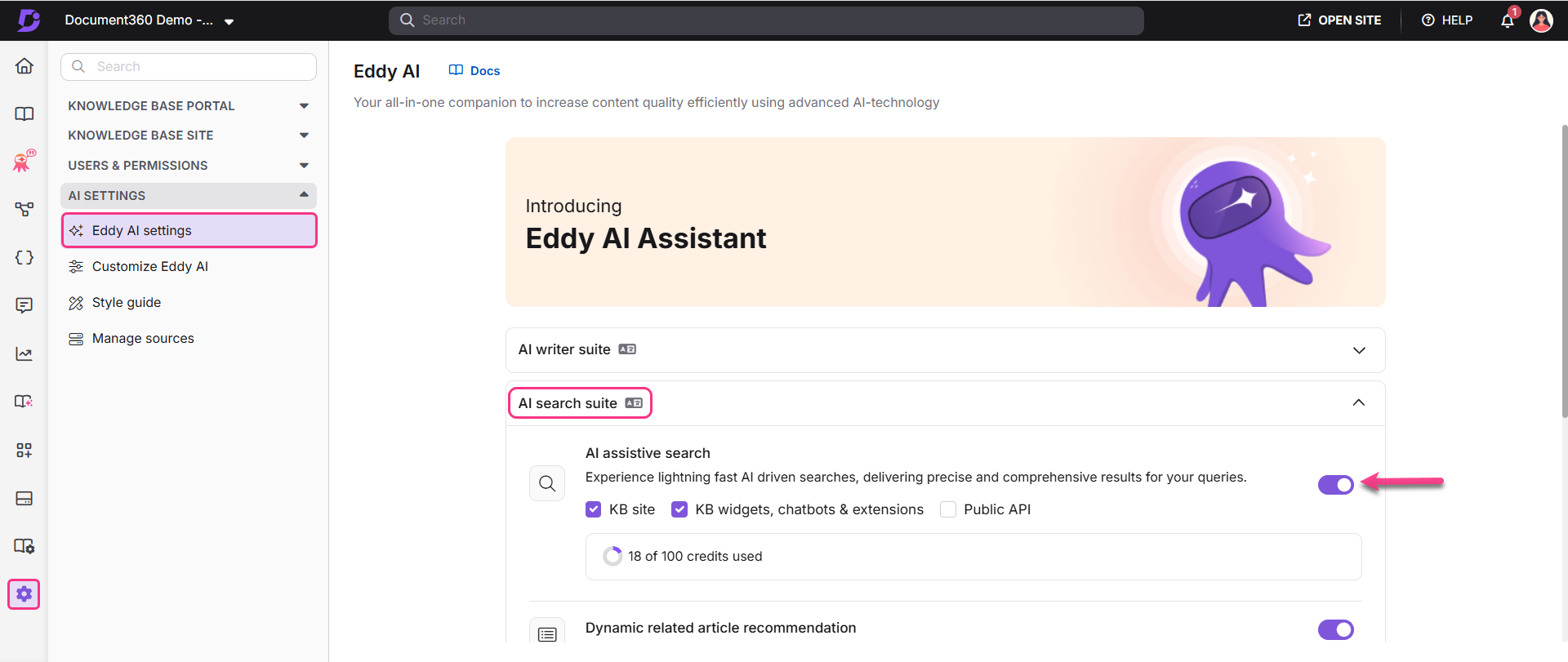
Choose where to enable Ask Eddy AI:
Option | What it does |
|---|---|
KB site (default) | Enables Eddy AI for searches on the Knowledge base site |
KB widgets, chatbots & extensions | Enables Eddy AI for embedded widgets and third-party integrations |
Public API | Activates Eddy AI for all API endpoints using a single API token |
Workspace scope
By default, Eddy retrieves answers from the main workspace. To pull from a different workspace or across all workspaces, use the workspace filter on your knowledge base site.
Use Ask Eddy AI as a reader
Once enabled, here is what the experience looks like for anyone visiting your knowledge base site.
For your information
The Conversational Eddy AI enhancement is available exclusively in KB site 2.0. To explore KB site 2.0 without impacting your existing Knowledge base, go to Settings () > Customize site. For more details, read the article on KB site 2.0 migration.
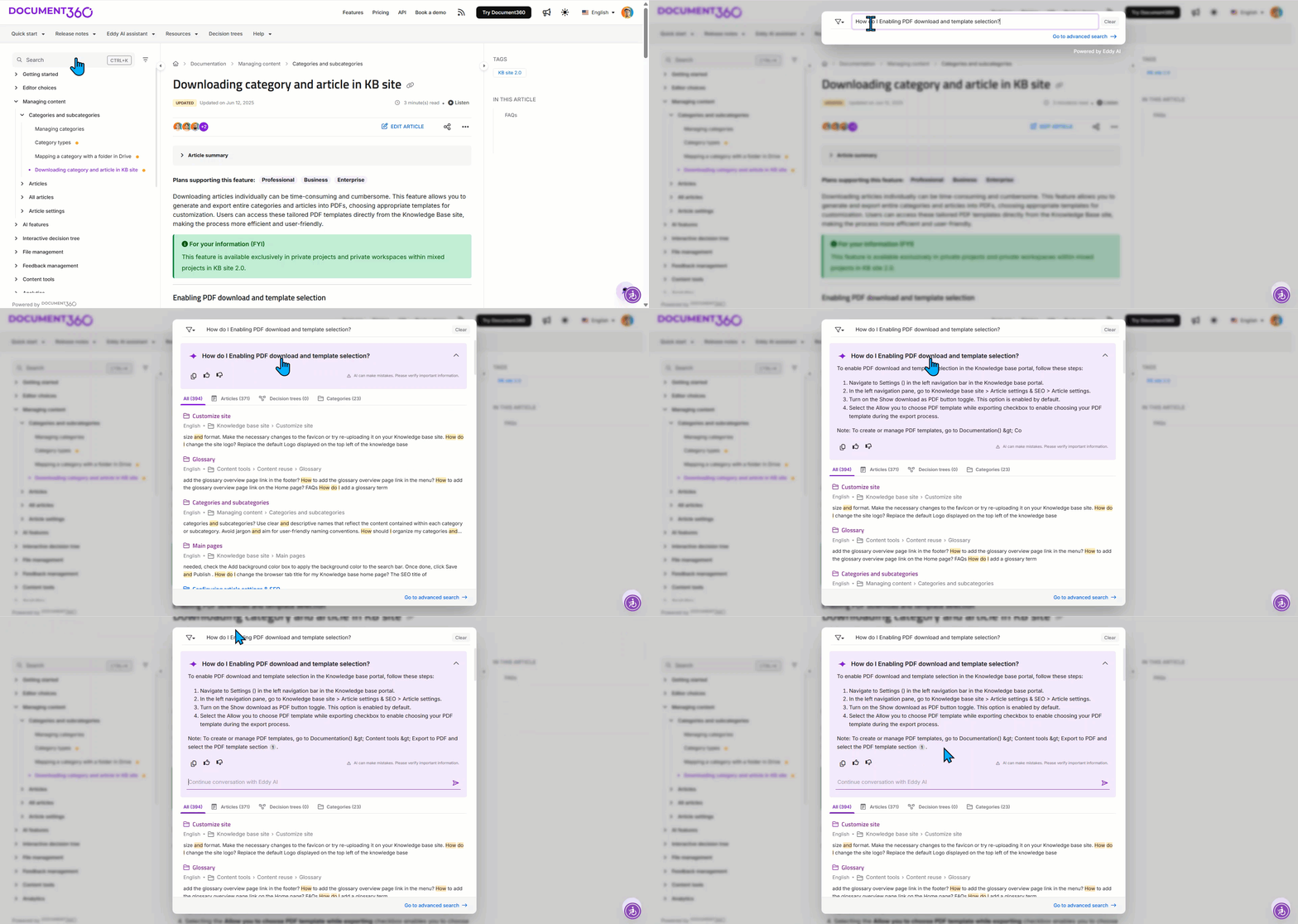
Click on the Search bar at the top of the page or press
Ctrl + Kon the Knowledge base site.Start typing the keyword, and the general search results will appear.
NOTE
If Ask Eddy AI is not enabled in the Knowledge base portal, only the search bar will be available in the Knowledge base site.
Press Enter and Ask Eddy AI will generate results. Eddy AI will provide answers in the language in which the question is asked.
The generated response will contain citations with reference numbers indicating which parts of the response were sourced from which articles. Click a reference number to open the corresponding source article in a new tab.Click the Copy () icon to copy the generated content if needed.
Provide feedback by clicking the Like () or Dislike () icon for the generated result. Selecting Dislike () will open a feedback form for you to add comments on why you disliked the Eddy AI response.
PRO TIP
You can select a specific workspace or all workspaces from the filter icon () dropdown to fetch relevant results from Eddy AI based on the selected context. If you filter workspaces during an Ask Eddy AI conversation, the generated results will be reset.
NOTE
Eddy AI’s response will be contextual and will be based on the last five queries. Eddy responds in the language the question is asked in (for queries of three or more words). For one- or two-word queries, Eddy responds in the knowledge base site's default language.
After the first query and answer, click the Continue conversation with Eddy AI text field to enter your next query and press Enter or click the Send icon.
Search within PDF attachments
Eddy AI search supports searching and indexing content within PDF files that are part of your knowledge base articles. This includes both embedded files and files attached to the article.
What Eddy AI indexes in PDFs:
PDF files that are embedded, attached, or inserted as links from external drives.
Documents written in any language supported by Eddy AI.
Files that are 40 MB or smaller in size.
How citations work for PDFs:
When an answer is sourced from a PDF attachment, it appears as a separate citation from the article itself.
The citation includes the name of the article the attachment belongs to.
If the same PDF is linked to multiple articles, Eddy displays whichever article either contributes to the same answer or has the closest content match to your query.
Clicking a PDF citation will open or download the file, depending on your browser settings.
What Eddy AI will NOT index from PDFs:
Excluded content | Reason |
|---|---|
Multi-column layouts | Layout parsing not supported |
Non-selectable (scanned/image-only) text | No OCR on image-based text |
Code blocks, LaTeX, tables, lists within PDFs | Structured content extraction not supported in PDFs |
Files over 40 MB | Size limit |
Files with no article dependency (0 dependencies) | Not associated with any article |
Files when AI search is turned off at project level | Global setting override |
Excel files
Ask Eddy AI does not index or retrieve information from Excel (.xlsx) files uploaded in articles. Only PDF attachments are supported.
Multilingual support
Ask Eddy AI supports over 20 languages in the KB widget, enabling a seamless experience for global audiences without requiring separate knowledge bases.
Supported languages: English (en-US, en-GB), French (fr), Spanish (es), German (de), Norwegian (no), Dutch (nl), Portuguese (pt), Swedish (sv), Italian (it), Korean (ko), Finnish (fi), Polish (pl), Arabic (ar), Hebrew (he), Danish (da), Brazilian Portuguese (pt-br), Japanese (ja), Czech (cs), Lithuanian (lt), Spanish (Mexico) (es-mx), and Greek (el) ensuring a seamless user experience.
For more information, read the article on Integrating Eddy AI in the KB widget.
To learn about all languages supported by Eddy AI assistive search (including non-widget search), see the Eddy AI language support article.
Localizing and customizing Eddy AI UI text in the knowledge base site
You can customize the labels, prompts, and UI text that appear in Eddy AI's assistive search interface using the Localization variables feature. This is useful for localizing to a specific language or aligning with your brand's tone of voice.
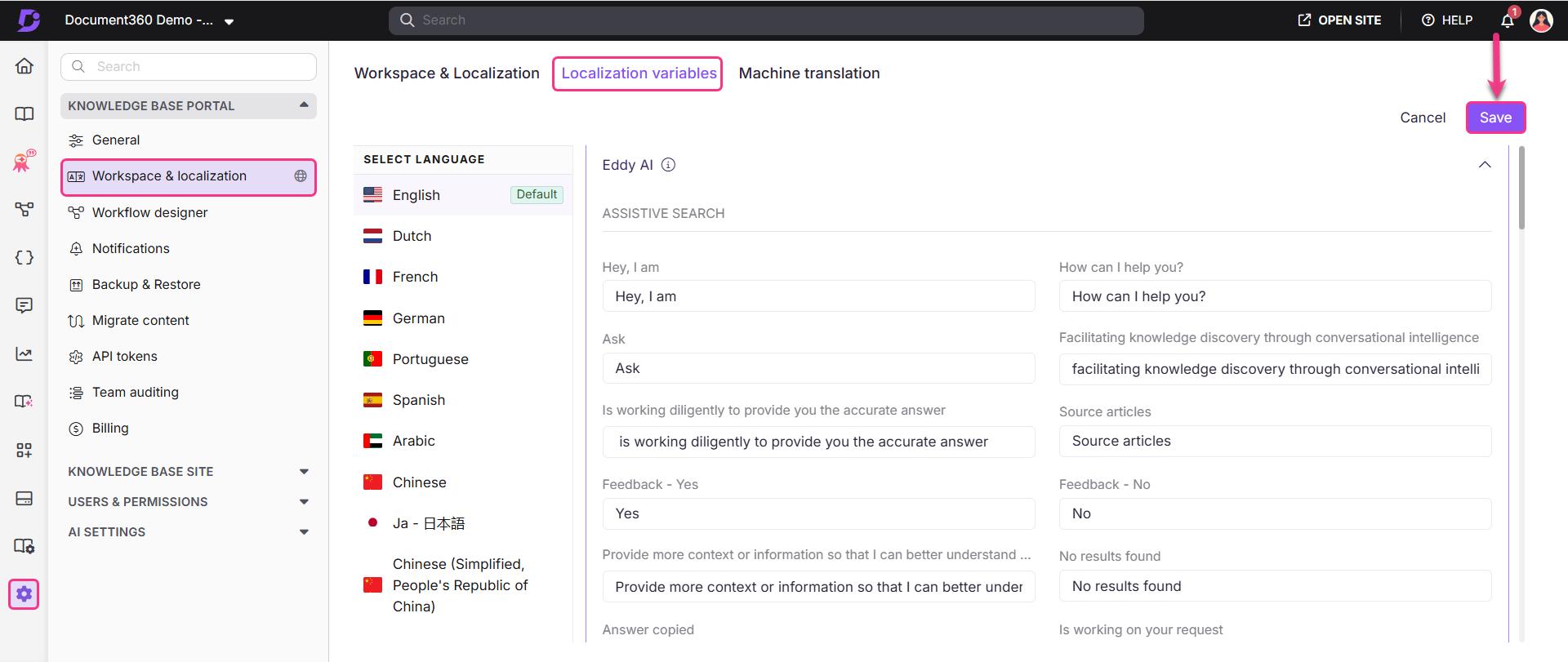
In your Knowledge base portal, navigate to Settings () > Knowledge base portal in the left navigation bar.
In the left navigation pane, navigate to Workspace & localization.
By default, the Workspace & localization tab is selected.
Navigate to the Localization variables tab.
In the Eddy AI accordion, update the variable values according to your desired language.
Fetching results from external sources
By default, Ask Eddy AI retrieves answers exclusively from your Document360 knowledge base. However, the Adding external sources for AI Assistive search feature enables Federated search allowing you to configure and pull information from multiple external sources alongside your knowledge base content. This broadens the scope of answers Eddy can generate and helps surface information that may live outside Document360.
Managing credits
One Eddy AI credit equals one question (prompt) asked by a user. The standard allocation is 1,000 credits per month.
Checking your credit balance: Navigate to Settings () > AI settings > Eddy AI settings > AI search suite > AI assistive search to see remaining credits. Only admins and owners can view this.
Purchasing additional credits: Go to Settings () > Knowledge base portal > Billing > Request add-on and click the relevant option. Credits cannot be purchased during a trial period.
Why is the Ask Eddy AI button greyed out?
If the button appears inactive, it means your monthly credit limit has been reached. You need to purchase additional credits or wait for the monthly renewal to resume using the feature.
Setting up Eddy AI credits notification
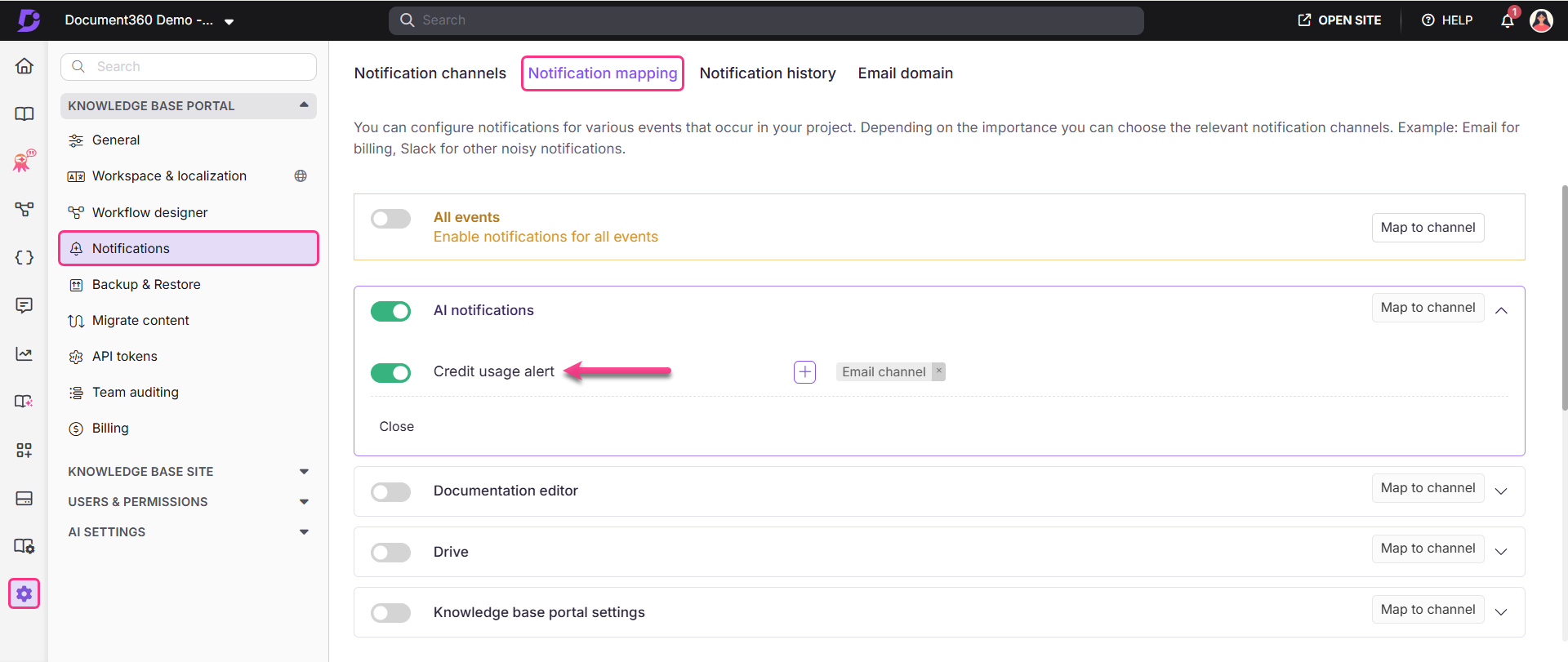
All credit notifications are delivered in English. You can configure notifications for the Ask Eddy AI credit balance. Alerts can be delivered via email, webhook, Microsoft Teams, or Slack, depending on your existing notification configuration. To enable the Credit usage alert toggle,
Navigate to Settings () > Knowledge base portal in the left navigation bar in the Knowledge base portal.
In the left navigation pane, navigate to Notifications.
By default, the Notification channels tab is selected.
Go to the Notification mapping tab.
In Eddy AI notifications accordion, turn on the Credit usage alert toggle.
Once enabled, Document360 will send reminders to the configured notification channels when the credit balance drops to 20%, 10% of the total allotted balance, and when the balance expires.
Configuring email notifications
After enabling the credit usage alert, go to Settings () > Notifications > Notification channels.
Select New channel and select SMTP.
Click Next.
Configure the details and click Save.
Enter the channel name and the destination email address. Add CC or BCC addresses if needed.
Email domain: If you haven't configured a custom email domain, credit notifications will be sent from
support@document360.comby default. To configure your own domain, go to Settings () > Notifications > Email domain. For more information, read the article on the SMTP notification channel.
Data privacy and security
No PII collected: Ask Eddy AI does not collect any Personally Identifiable Information (PII). The data collected includes prompts (questions), Eddy's responses, citation articles, and feedback, all of which is available as part of Eddy AI Search Analytics.
OpenAI data handling: Data is sent to OpenAI via their API. OpenAI's policy explicitly states they will not use API-submitted data to train their models or improve their services. Read the complete OpenAI API data usage policies.
Access control: Ask Eddy AI respects your knowledge base access settings. If a logged-in user does not have permission to view a specific article, Eddy will not include that content in its answer, it will respond with "I do not know" for questions whose answers exist only in restricted articles.
Compliance: Document360 is SOC 2 compliant. Both Document360 and OpenAI comply with GDPR.
Availability note: Ask Eddy AI is available only on the Knowledge base site. It is not available on API documentation pages. f you have any queries regarding Document360's data policy, please read our Privacy policy.
Troubleshooting
This section provides a solution to an issue you may encounter when using Eddy AI to display search results in Document360.
Eddy AI displays incorrect dates in search results
Error: Eddy AI may display inaccurate dates when showing search results.
Steps to resolve:
To troubleshoot inaccurate date calculations in Eddy AI search results, follow these steps:
Perform a keyword search. Check if Eddy AI returns the expected results when using non-date-based keywords.
If results are correct for general searches but differ for date-based keywords, note that Eddy AI is optimized for text-based responses and may not process date-specific queries as expected.
If search results remain irrelevant, contact support@document360.com with the following details:
Reader access to your projects.
A recording of the search queries you used and the results that did not populate as expected.
NOTE
Eddy AI is a language model, not a computational engine. It generates responses based on text patterns rather than analytical reasoning or numerical computations.
It cannot calculate or interpret time-based scenarios unless explicitly defined in the input.
Empty cells in tables are auto-filled in Eddy AI responses
When a response is structured using a table and includes empty cells, Eddy AI attempts to dynamically populate those cells based on the context of the user’s query. If no relevant information is found, it fills the cell with the placeholder text “Information not available.”
How Eddy AI handles empty cells:
It checks the context of the user’s question.
It tries to insert relevant content into any empty cells.
If nothing appropriate is found, the cell is filled with “Information not available.”
To maintain accuracy and clarity:
Avoid leaving table cells empty when drafting or editing content.
Ensure all cells contain meaningful information to prevent unintended or generic fillers in the final response.
FAQ
How does Ask Eddy AI protect your data?
We know that privacy and security are critical for many organizations. We are committed to protecting your organization’s and users’ data and privacy. We use industry-standard security practices, reputable sub-processors with SOC 2 compliance, and provide the controls needed for organizations to meet their data protection requirements.
How quickly does Eddy AI's response reflect new content?
After updating an article, it generally takes around 15 minutes for Eddy AI's response to align with the changes if a question is posed regarding the updated content. Similarly, when deleting an article, Eddy AI typically takes about 15 minutes to stop referencing the content from the deleted article.
What happens if I select French as the workspace language but ask questions in English?
If you set French as your workspace's preferred language but ask questions in English, Eddy AI will respond in English.
NOTE
If the search query contains one or two words, the response will be generated in the language of your knowledge base site. If the search query contains three or more words, Eddy AI will respond in the language of the query itself.
Is Eddy AI available in the API Documentation?
Eddy AI assistive search is available only on the Knowledge base site and is not implemented for API documentation.
Can Eddy AI answer questions that require a user login or involve restricted articles?
No, Eddy AI answers questions based on the user’s access control and permissions. If a logged-in user does not have access to a specific article, but asks a question related to it, Eddy AI will respond with No results found..
Will the Eddy AI search return results from content inside accordions, even if they are collapsed by default?
Yes, Eddy AI indexes and retrieves content from within accordions, even if they are collapsed by default. This ensures that all relevant information is included in the search results, providing a complete and accurate search experience.
Does Ask Eddy AI use the content of the current page to answer questions?
No, Ask Eddy AI does not limit its response to the article or page the reader is currently viewing. Instead, it searches across the entire workspace (based on the language and workspace filters applied) to fetch the most relevant information from all available articles.