Review reminders alert team members when an article is due for review, helping you keep knowledge base content accurate and up to date. When a published article reaches its review due date, it enters a Stale state. A red dot indicator appears next to the article in the category tree and a Stale badge appears in the editor.
Review reminders help you flag articles for periodic review so your knowledge base always reflects the latest information. You can trigger a reminder immediately or set it to run on a scheduled interval, and apply it to a single article or across a group. Reminders can be set from the article editor, the All articles page, or the Article review reminders page in Content tools, and Project Owners and Admins can also define default reminder behaviour at the project level.
When to use review reminders
- Time-sensitive documentation: Set reminders on articles that cover information that changes frequently, such as pricing, API references, compliance policies, or product features.
- Scheduled content audits: Use scheduled reminders to build a regular content audit cycle across your knowledge base without manually tracking review dates.
- Post-release updates: After a product release, remind contributors to verify that related articles still reflect the latest changes.
- Compliance and governance: Ensure regulated or sensitive content is reviewed and approved on a defined schedule.
- Project-wide management: Use the Article review reminders page in Content tools to manage reminders across your entire project from one place.
Before you begin
- Only Project Owners and Admins can configure project-level review reminder settings.
- Review reminders apply only to published articles. Draft-only articles will not enter the Stale state until they are published.
Set a review reminder
There are three ways to set a review reminder in Document360.
From the article editor
Set a reminder directly from the article you are working on. Best for applying reminders to individual articles during the writing or review process.
Learn more →From the All articles page
Select and apply reminders to multiple articles at once. Best for bulk updates across a category or workspace. You can also mark multiple stale articles as reviewed from here.
Learn more →From Article review reminders
Create named reminders with assigned reviewers and frequency settings from Content tools. Best for project-wide reminder management.
Learn more →From the article editor
- Navigate to Documentation () in the left navigation bar.
- Open the article.
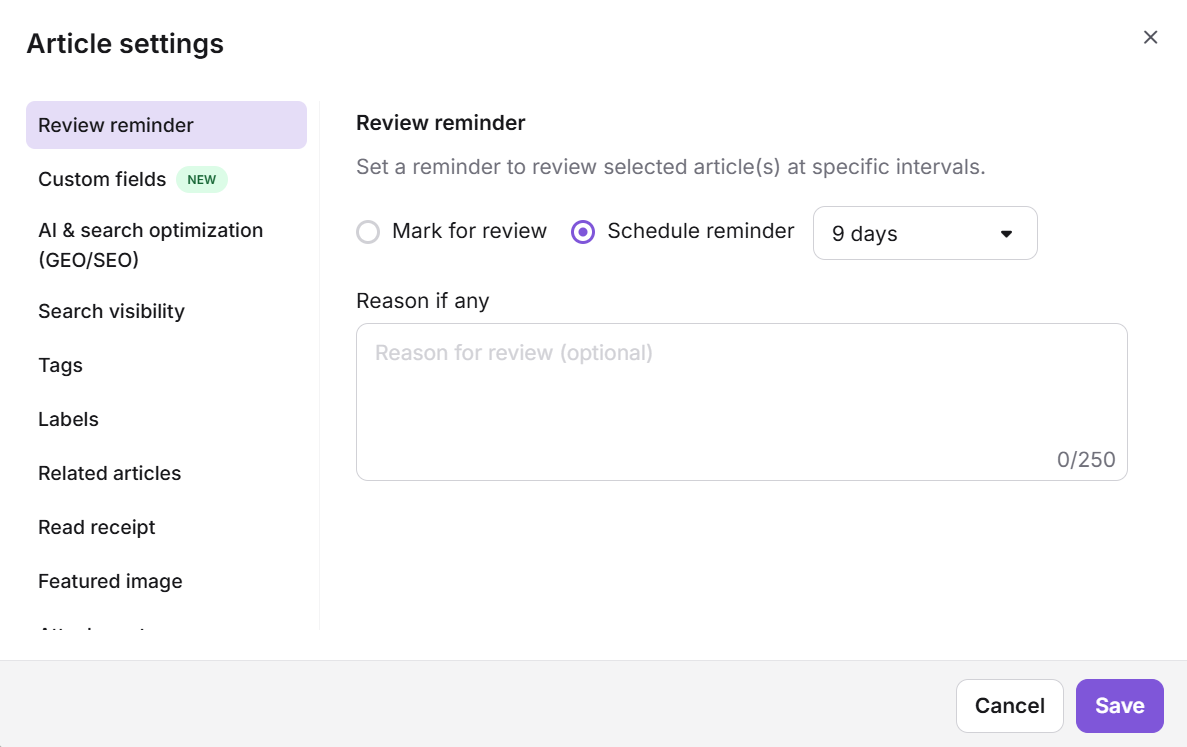
- Click the More () icon in the article header and select More article options. The Article settings panel appears with the Review reminder tab selected by default.
- Choose one of the following options:
- Mark for review: Immediately marks the article for review. Once published, the article enters the Stale state.
- Schedule reminder: Sets a reminder at a specific interval. Enter the number of days after which the article should be reviewed.
- Enter a reason for the review in the Reason for review field. This is optional, up to 250 characters.
- Click Save.
Review reminders apply only to published articles. Draft-only articles will not enter the Stale state until they are published.
From the All articles page
Use the All articles page to set reminders for multiple articles at once, or to mark multiple stale articles as reviewed in bulk.
To set a review reminder:
- Navigate to Documentation () > All articles ().
- Select the articles you want to set a reminder for.
- Click Review reminder above the article list and choose the reminder interval in days.
To mark multiple stale articles as reviewed:
- Navigate to Documentation () > All articles ().
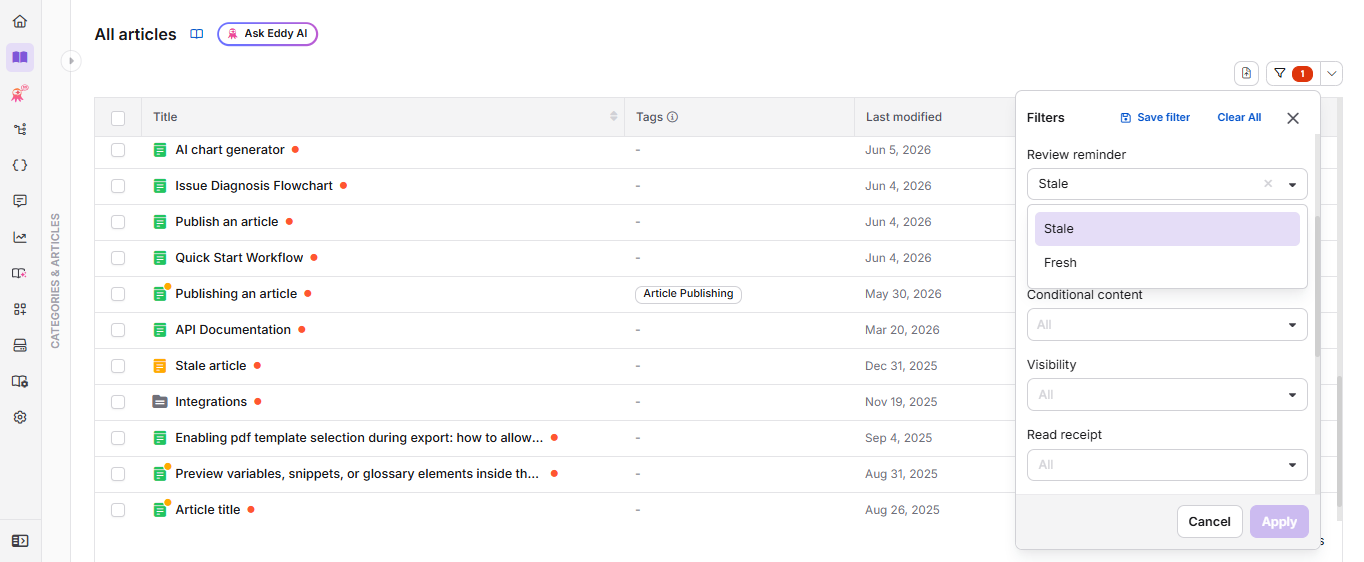
- Click Filter, expand the Review reminder dropdown, and select Stale to list all stale articles.
- Select the articles you want to mark as reviewed.
- Click Mark as Reviewed above the article list.
From Article review reminders in Content tools
- In the left navigation bar, navigate to Content tools () > Content management > Article review reminder. The Article review reminders page appears with a list of reminders you have already created.
- Click Add reminder.
- Enter the Reminder name, set the reminder frequency, and add the Reviewers in the dialogue box.
- Click Next.
.png)
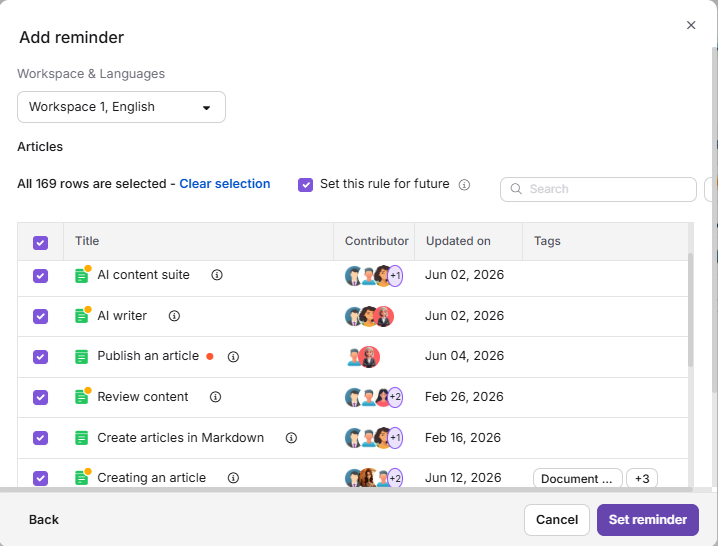
- Select the Workspace and Language.
- Select the articles to apply the reminder to.
Use the Filter options to retrieve articles by category, contributor, tags, or date.
- To apply the same reminder to all selected articles in the future, select the Set this rule for future checkbox.
- Click Set reminder.
Clear a review reminder
Once an article has been reviewed, you can clear its Stale status by marking it as reviewed.
From the Stale badge
- Open the stale article in the knowledge base portal.
- Click the Stale badge in the article header. A review panel opens showing when the article became stale and who published the latest version.
- Review the content and make any necessary updates.
- Click Mark as reviewed.
.png)
From Article settings
- Open the stale article in the knowledge base portal.
- Click the More () icon and select More article options.
- Go to the Review reminder tab.
- Review the content and make any necessary updates.
- Click Mark as reviewed.
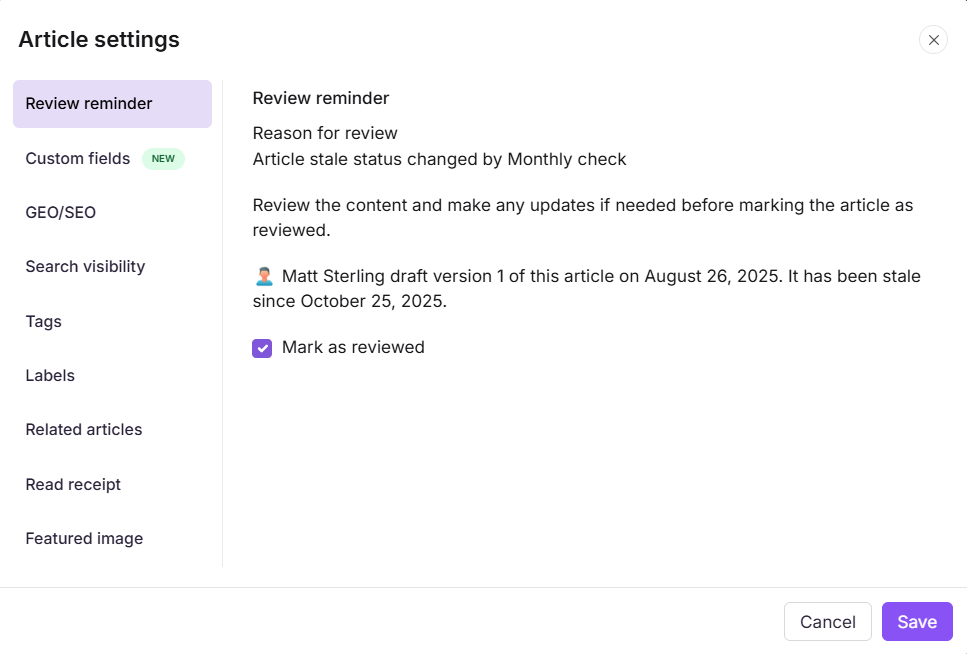
Once marked as reviewed, the Stale status is cleared and the article returns to its Published state.
Stale article indicators
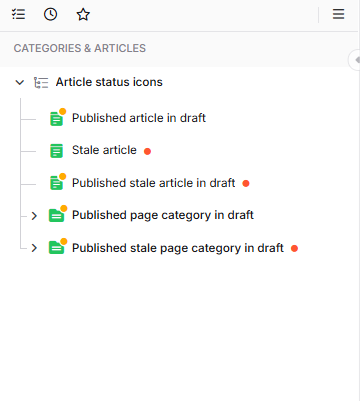
When an article enters the Stale state, the following indicators appear:
| Indicator | Where it appears |
|---|---|
| Red dot | Next to the article name in the category tree. |
| Stale badge | In the article editor header, next to the workflow status. The badge is interactive and lets you mark the article as reviewed directly from the editor. |
| Yellow dot on the green article icon, alongside a red dot | Appears when a stale article is currently open in edit mode. The yellow dot on the green article icon indicates the active draft, and the red dot indicates the article is still in the Stale state. |
Project-level review reminder settings
Project Owners and Admins can configure default review reminder behaviour for articles across the project.
- Navigate to Settings () > Knowledge base portal in the left navigation bar.
- In the General settings page, locate the Review reminder settings section.
For detailed information about configuring these settings, see General project settings.
Article-level review reminder settings override project-level configurations.
Best practices
- Set a consistent review cadence: Use scheduled reminders rather than manual review flags for articles in active documentation areas. This ensures content is reviewed regularly without relying on memory.
- Always add a reason for review: Even though the Reason for review field is optional, a descriptive note helps reviewers understand what to check, leading to faster and more accurate reviews.
- Assign a specific reviewer: When creating reminders from the Article review reminders page in Content tools, assign a reviewer so accountability is clear.
- Enable "Mark as reviewed on publishing new version": If contributors regularly update and republish articles, enabling this setting at the project level reduces manual cleanup of Stale statuses.
- Leverage the All articles filter: Filter for Stale articles in the All articles page as part of a regular content audit to catch articles that have not been reviewed on schedule.
- Apply reminders to future articles: Use the Set this rule for future articles option when creating reminders in Content tools to automatically apply the same reminder interval to new articles added to a category.
FAQ
Does a review reminder apply to draft articles?
No. Review reminders apply only to published articles. A draft article will not enter the Stale state until it is published, even if a reminder has been set.
What happens when an article becomes Stale?
When a published article reaches its configured review reminder date, it enters the Stale state. A red dot indicator appears next to the article in the category tree, and a Stale badge appears in the editor. Contributors can review and mark the article as reviewed directly from the editor or from the Article settings pane.
What happens to a stale article on the knowledge base site?
A stale article continues to appear and function normally on the knowledge base site. The Stale state is an internal indicator visible only in the knowledge base portal. Readers on the site are not notified that an article is stale.
Does the article-level reminder override the project-level reminder setting?
Yes. If a review reminder is configured at the article level, it takes precedence over the project-level default reminder configuration set by the Project Owner or Admin.
Can I set different review intervals for different articles?
Yes. Review reminder intervals are configured at the article level, so each article can have its own reminder schedule. Use the Article review reminders page in Content tools to manage multiple reminders with different intervals across your project.
How do I set a review reminder for all articles in my project at once?
Navigate to Content tools > Content management > Article review reminder and create a new reminder. You can select all articles across workspaces and languages, and optionally apply the rule to future articles as well.