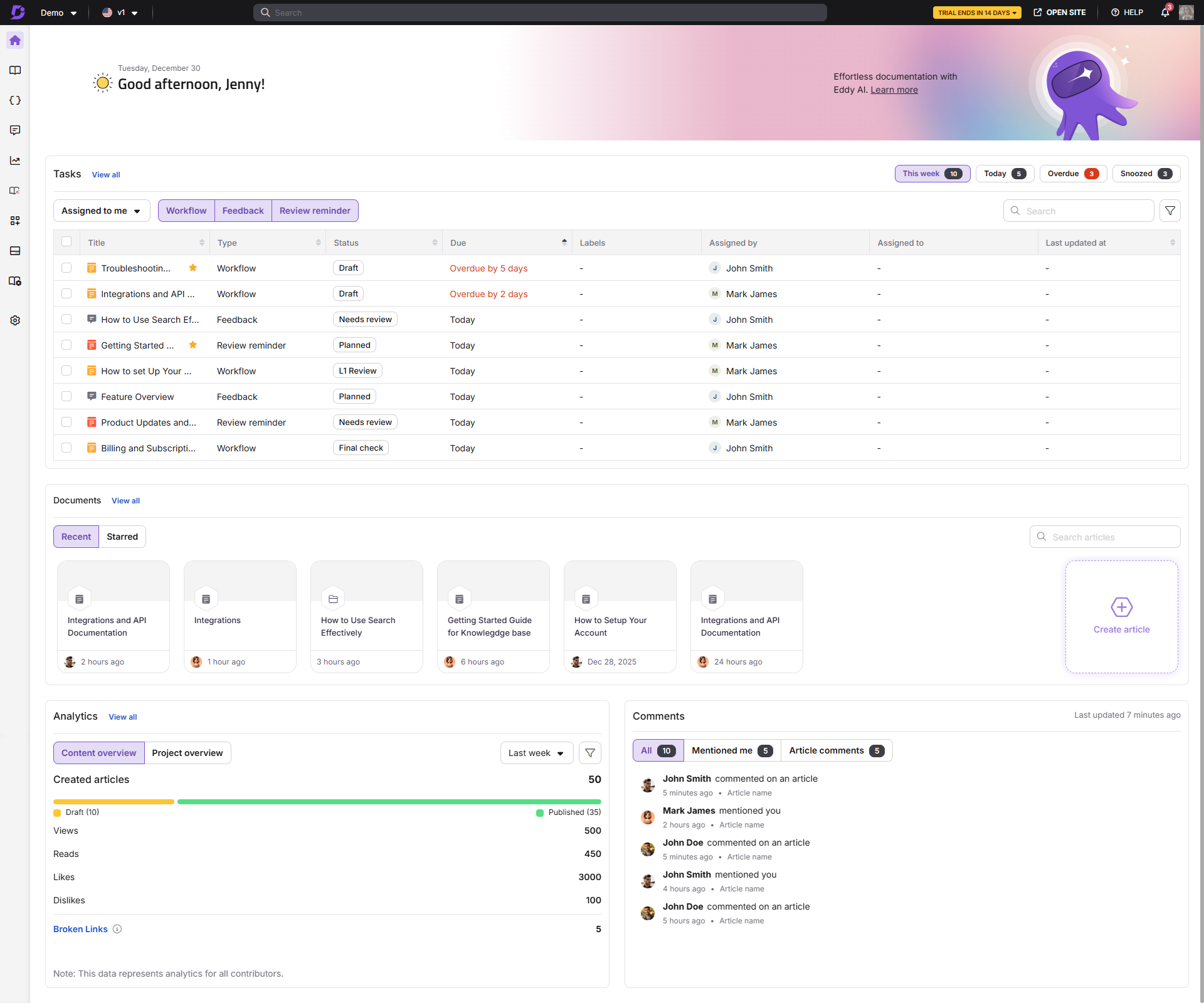
The Document360 Overview page is your personal dashboard for documentation activity. It surfaces your assigned tasks, recent and starred articles, content performance, and inline comments in one place. At the top of the page you will see the current date along with a personalized greeting. Each section appears as a card that updates based on your role and the workspace you select. You can search within individual cards, open detailed views where available, and act directly from the page without navigating to individual modules.
What's on the Overview page
The Overview page is organized into the following cards. The cards visible to you depend on your role and plan.
| Card | What it shows | Who can see it |
|---|---|---|
| Tasks | Assigned workflow, feedback, and review reminder tasks for the current week | All users |
| Documents | Recently accessed and starred articles | All users |
| Analytics | Article performance metrics and project-level stats | Contributors and Admins |
| Comments | Inline comments on articles you contributed to or were mentioned in | All users |
You can use the Workspace & language dropdown at the top of the page to filter all cards to a specific workspace. If you select an API documentation workspace, the page displays only data relevant to that workspace.
Tasks card
The Tasks card shows all documentation tasks assigned to you for the current calendar week (Sunday to Saturday), including tasks due today and overdue tasks. It covers three task types: Workflow, Feedback, and Review reminders.
The Tasks card on the Overview page shows only tasks due Today, This week, Overdue, and Snoozed for the current week. To see all tasks across all timeframes, use the dedicated Tasks page.
Quick actions on the Tasks card
You can manage tasks directly from the card without opening the full Tasks page. Hover over any task or select its checkbox to reveal available actions.
Hover actions
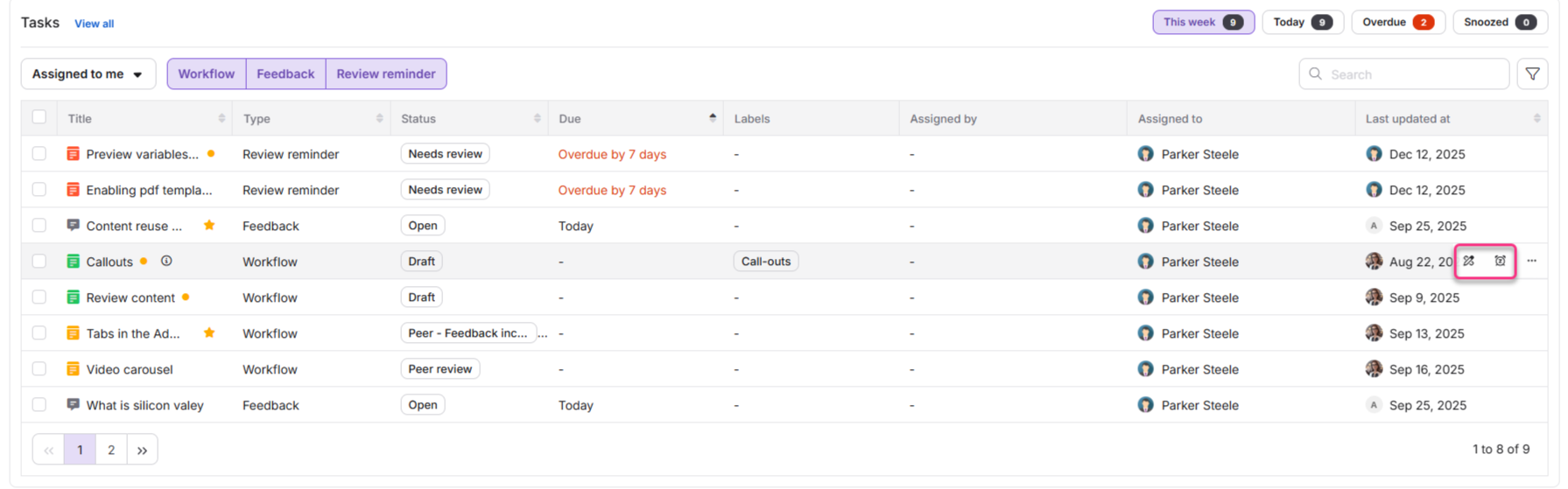
When you hover over a task, two actions appear:
- Snooze: Postpone the task to Tomorrow (9 AM), Next week (same day, 9 AM), or a custom date and time. Available for all task types.
- One task-specific action:
- Workflow tasks: Update workflow status
- Feedback tasks: Manage feedback
- Review reminder tasks: Mark as reviewed
More options menu ()
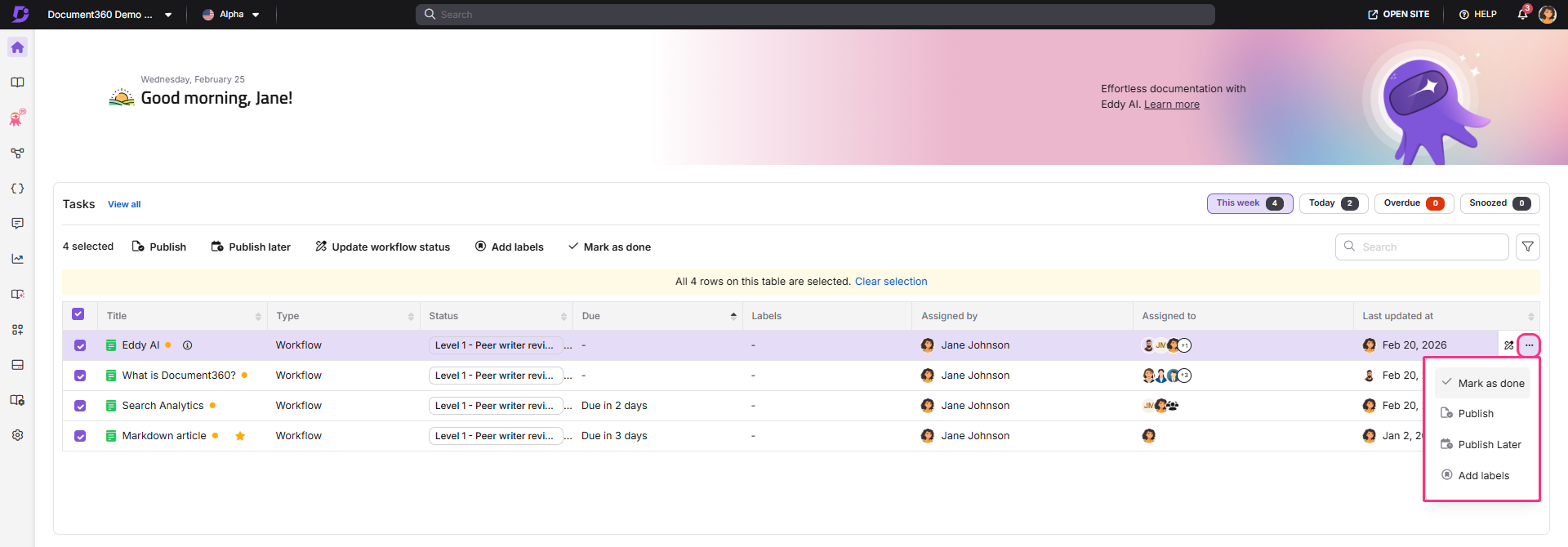
Click the More options icon to access additional actions per task type:
- Workflow tasks: Mark as done, Publish, Publish later, Add labels
- Review reminders: Publish, Publish later, Add labels
Selection actions
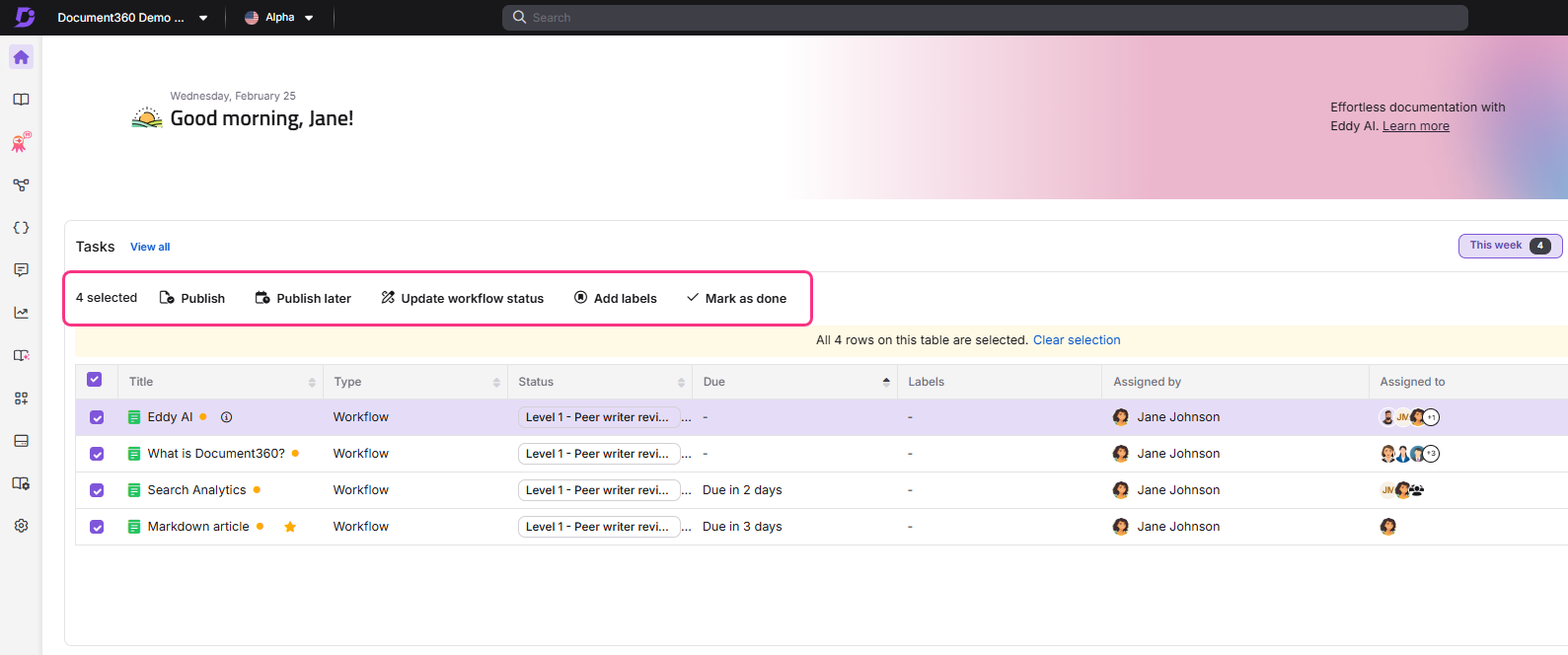
Select the checkbox next to an article name to access:
- Workflow tasks: Publish, Publish later, Update workflow status, Snooze, Add labels, Mark as done
- Feedback tasks: Snooze, Manage feedback
- Review reminders: Publish, Publish later, Snooze, Add labels, Mark as reviewed
When you select multiple tasks, only actions common to all selected task types appear.
View all tasks
To open the full Tasks page with all tasks across all timeframes, click View all in the Tasks card header. For complete details on task columns, filters, and management actions, see Tasks page.
Documents card
The Documents card shows articles you have recently accessed or starred. Toggle between the Recent and Starred tabs.
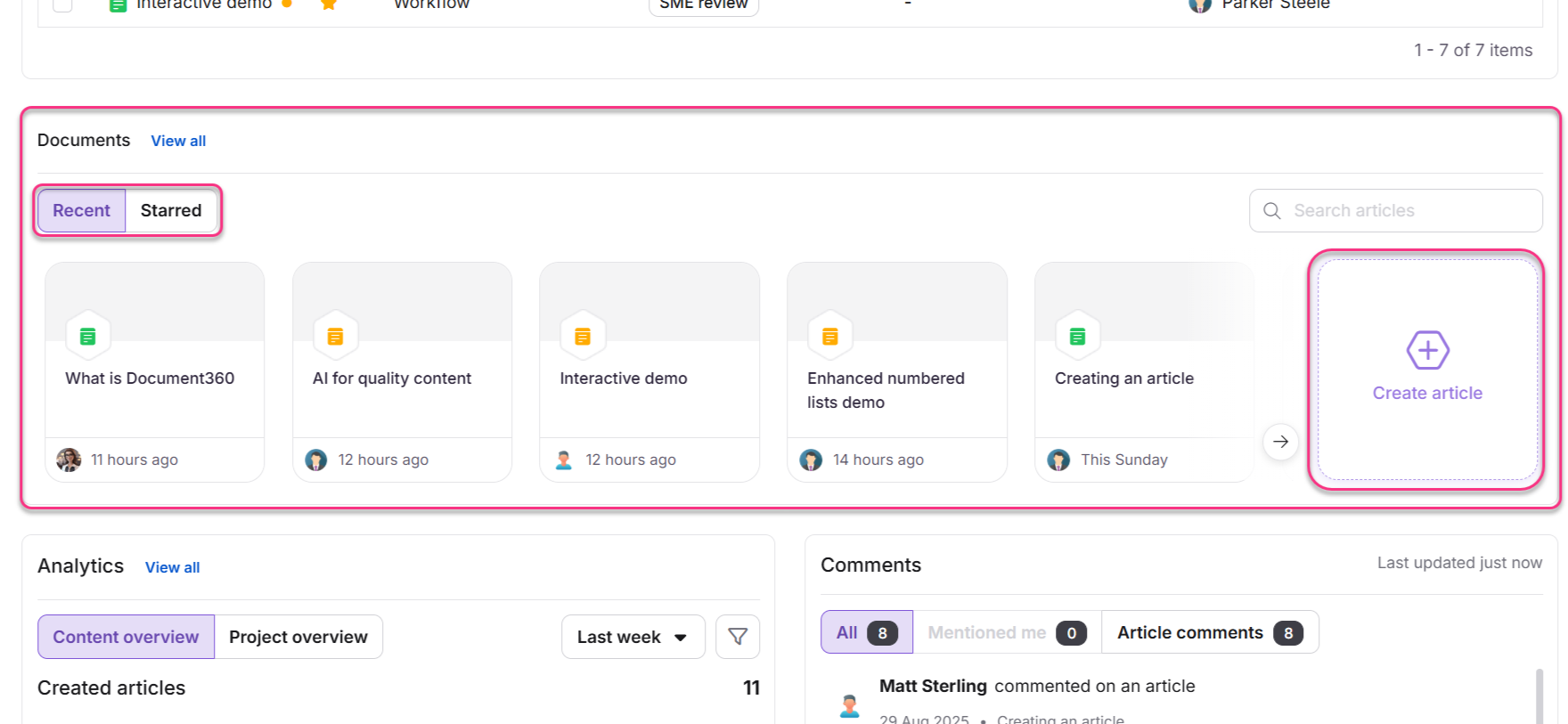
You can also create a new article directly from this card using the Create article button. This opens the Create new article dialog where you enter the article title and select the target category. If All workspaces is selected in the Workspace & language dropdown, the article is created in the main workspace. You can also search within the Recent and Starred views using the search bar in the card.
Recent tab
Displays up to 10 articles you have recently viewed or modified, sorted by most recent activity. Each entry shows the article title, last updated time, and contributor avatar. Clicking an article opens it in the editor. To view additional details such as contributors, article status, and URL, hover over the article row and click the info icon that appears.
Only articles and folders from the knowledge base are shown. Drive files are not included. For folders without contributor information, a hyphen (-) is displayed.
Starred tab
Displays up to 10 items (articles and folders) you have marked as important. Each entry shows the item title, last updated time, and item type. Clicking a starred item opens it in the editor or folder view. To view additional details, hover over the item and click the info icon that appears. Click the star icon on any row to remove it. Starred items are personal; they do not appear in other users' lists.
Analytics card
The Analytics card displays content performance metrics for your articles, including views, reads, likes, and dislikes. The data and available filters depend on your role.
Contributor view
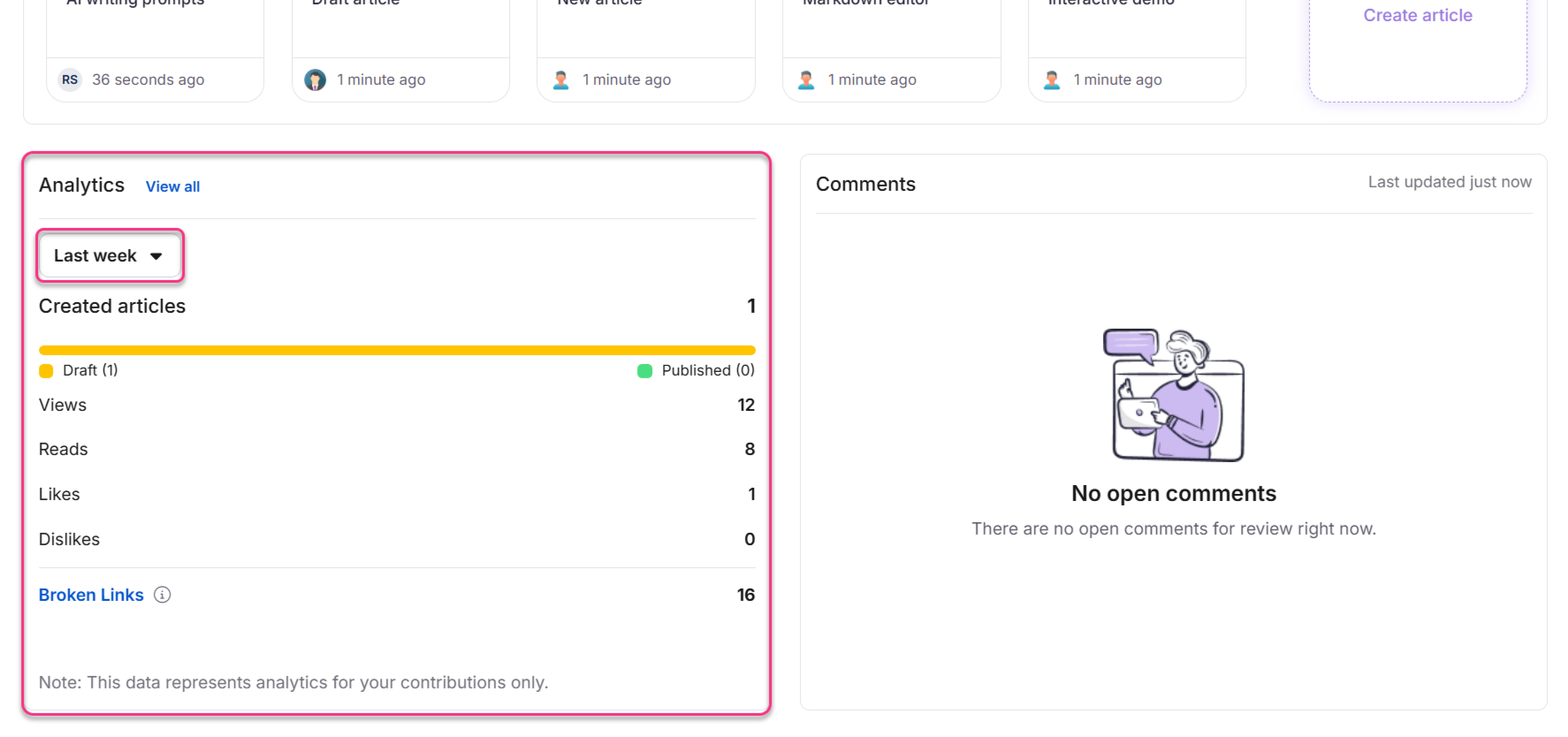
Contributors see metrics for the articles they have created or updated: created articles (Draft and Published), views, reads, likes, and dislikes. You can filter by Last week, Last month, or a custom date range. The count of broken links detected in your articles is shown at the bottom and reflects the latest scan only.
Admin view: Content overview tab
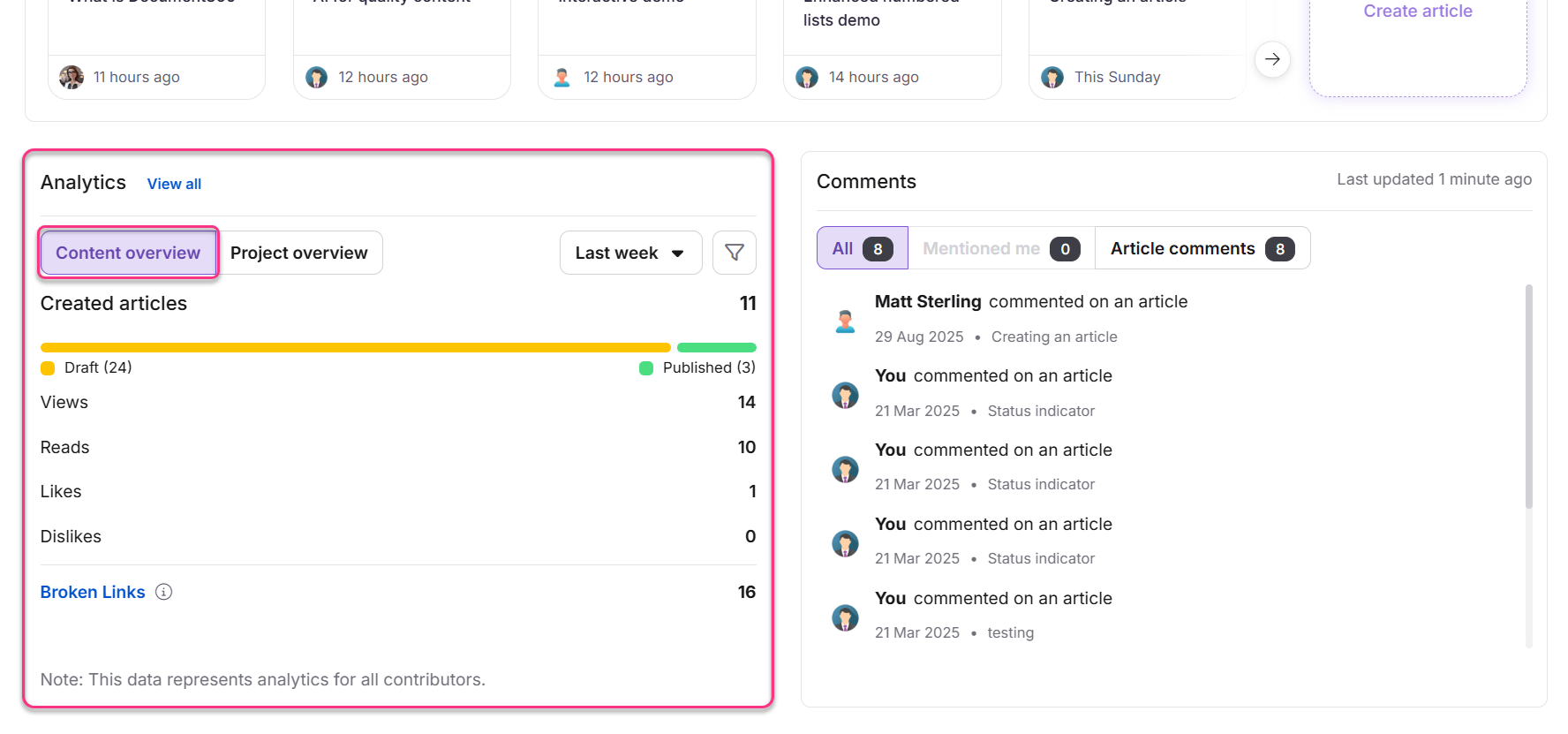
If you are an admin, the Analytics card includes two tabs: Content overview and Project overview. The default tab is Content overview. It shows combined metrics across all contributors. You can filter by a specific user, a user group, or multiple users and groups. The broken links count at the bottom reflects the latest scan.
Admins can filter analytics by individual users, user groups, or multiple users and user groups at once. If no filter is applied, the metrics reflect all contributors in the project.
Admin view: Project overview tab
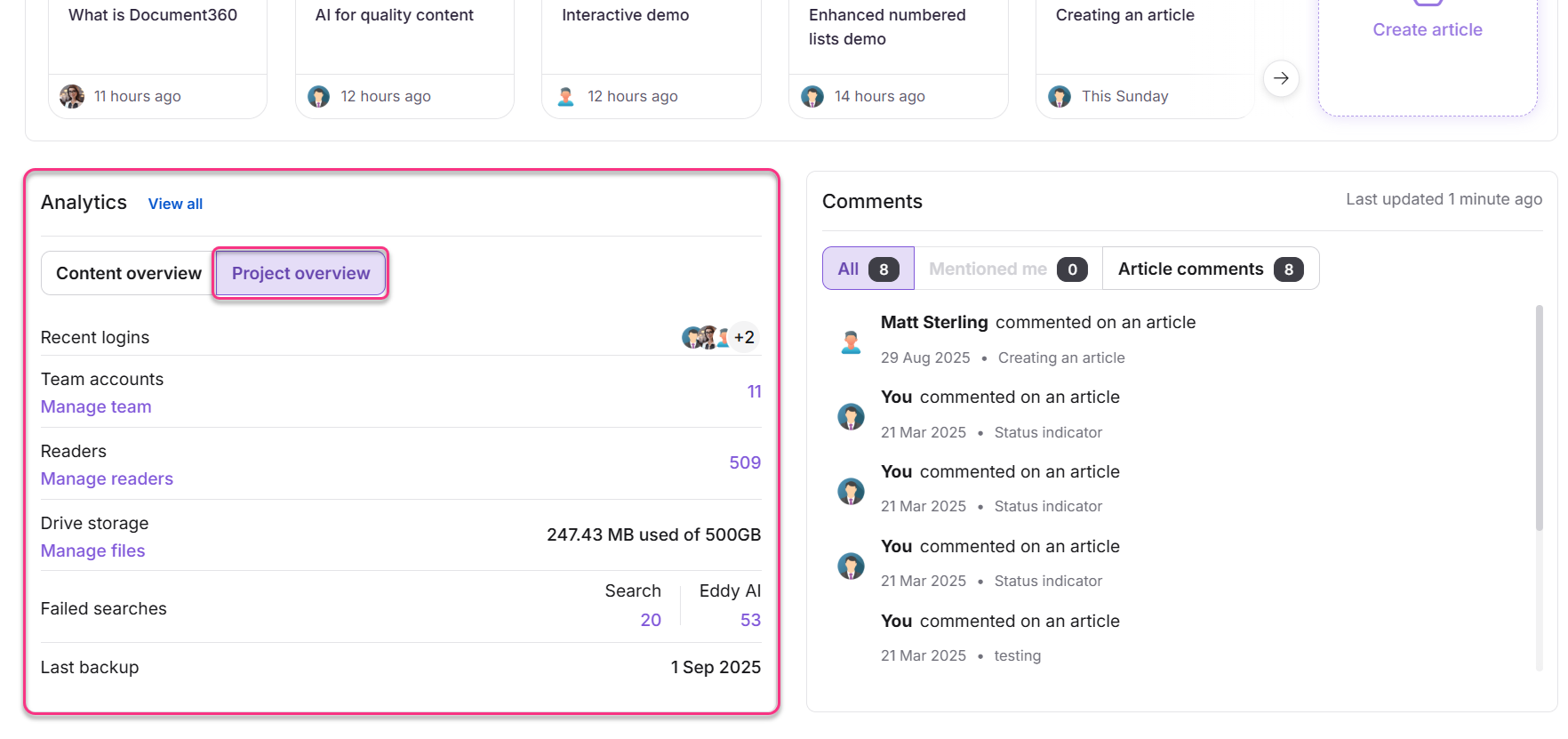
The Project overview tab shows high-level project metrics that are not affected by contributor or date filters:
- Recent logins: The last 5 users who accessed the project, sorted by login time.
- Users: Total number of users. Click Manage team to go to Users & groups.
- Readers: Total number of readers. Click Manage readers to go to Readers & groups.
- Drive storage: Storage used vs. total available. Click Manage files to open Drive.
- Failed searches: No-result searches separated by Knowledge base site search and Eddy AI.
- Last backup: Date of the most recent project backup.
The metrics in the Project overview tab are cumulative and do not support time-based filtering. This tab is available to all admins regardless of plan.
Caution: If analytics is not available for your plan, the Analytics card is hidden entirely. If you do not have permission to access analytics, a message is shown in place of the card.
Click View all at the top of the Analytics card to open the Article analytics page.
Comments card
The Comments card displays inline comments that are relevant to you.
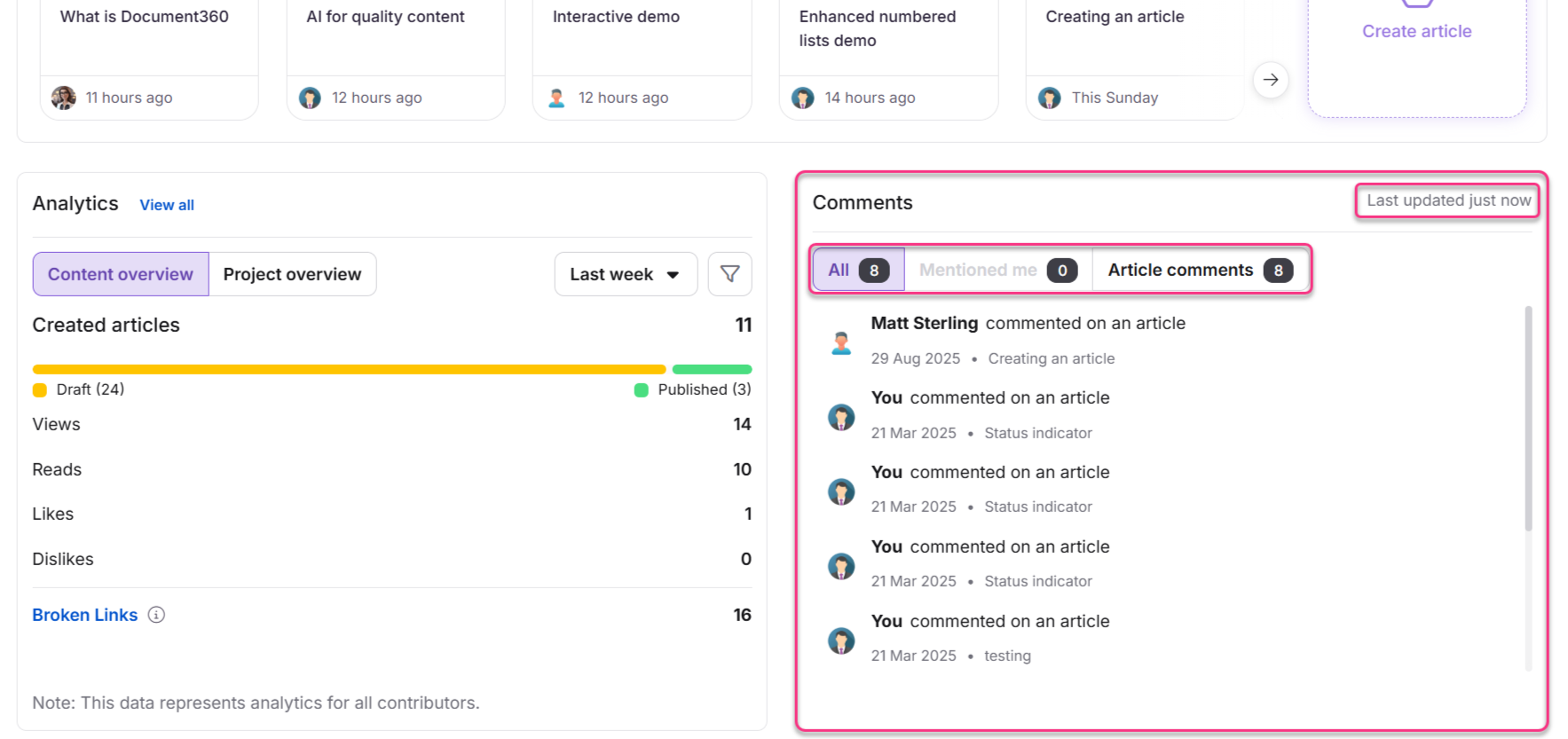
You will see:
- Comments on articles you have contributed to
- Comments where you are directly mentioned using @mention
Admins see the same view as contributors. If you are an admin but have not contributed to any articles, you see only comments where you were mentioned. Each entry shows the article title, the name of the commenter, and the timestamp. Clicking a comment takes you directly to the relevant article.
Filter comments using the tabs:
- All: All relevant comments
- Mentions: Comments where you are directly mentioned
- Article comments: Comments on articles you contributed to
The card refreshes automatically every 2 minutes and on each page reload. The last refresh time is shown in the corner of the card.
Best practices
- Use the workspace filter to scope the Overview page to the workspace you are actively working in. This prevents tasks and analytics from other workspaces from creating noise.
- Check the Tasks card at the start of each day on the Today timeline to see what requires attention without navigating to the Tasks page.
- Star articles you return to frequently using the Starred tab in the Documents card so you can open them directly from the Overview page.
- Monitor the Analytics card to catch broken links early. The broken links count reflects the latest scan and is independent of the date filter you apply.
FAQ
What is the difference between the Tasks card on the Overview page and the standalone Tasks page?
The Tasks card on the Overview page shows only tasks assigned to you for the current calendar week (Sunday to Saturday), including today's and overdue tasks. The standalone Tasks page lists all tasks assigned to you regardless of timeframe, and supports advanced filters by assignee, labels, status, and custom date ranges. Use the Tasks card for a quick daily check-in, and the Tasks page for full task management.
Why is the Analytics card not visible on my Overview page?
The Analytics card is hidden if your current plan does not include the analytics module, or if your user role does not grant analytics access. Contact your project admin to check your plan and role permissions.
Is there an automated changelog feature in Document360 to track documentation updates?
Document360 does not currently provide a built-in feature that automatically generates a changelog entry whenever an article is created or updated. You can create a dedicated article and update it manually with changes listed by date. However, readers can follow specific articles or categories and receive notifications when content is published or updated. For teams that require automation, you can configure notification events such as article creation or updates and route them to Slack, Microsoft Teams, email, or webhooks for use in external workflows.