The AI & search description generator (powered by Eddy AI) automatically generates meta descriptions for your articles and category pages based on their content. A meta description appears in search engine results and is also used by AI agents to retrieve and cite your content — a well-written one improves both click-through rates and AI retrieval accuracy. The AI & search description generator removes the need to write these manually, saving time while keeping descriptions consistent and optimised.
The AI & search description generator is supported in English only. You can manually add AI & search descriptions for articles in other languages. For all languages supported by Eddy AI, see Multilingual support for Eddy AI Writer Suite.
Search engines do not crawl private articles. AI & search descriptions on private articles will not appear in search results.
When to use the AI & search description generator
- New articles without a meta description — generate a description immediately after publishing to ensure the article is search-engine ready and AI-retrievable from day one.
- Bulk AI & search description audits — use the Content management > AI & search description module to generate descriptions for multiple articles at once, especially useful when launching a new knowledge base or after a major content migration.
- Updating stale descriptions — when article content changes significantly, regenerate the description to reflect the updated focus. Note that regenerating a description on unchanged content produces the same result and consumes a credit.
- Prioritising high-traffic articles — use the filter options in the bulk module to identify cornerstone content without descriptions and address those first for maximum SEO and AI retrieval impact.
Before you begin
-
You must have sufficient credits. One credit is consumed per description generated.
-
The article's preprocessed word count must exceed 200 words. The word count shown at the bottom of the Document360 editor includes all elements — HTML tags, images, URLs, and code blocks — which are excluded during preprocessing. After preprocessing, the count may be lower.
Example: An article showing 250 words in the editor may contain images, HTML, and links. After preprocessing removes those elements, the count could drop below 200, making it ineligible for generation.
-
The Ask Eddy AI button is only available to team members with the relevant access permissions. If the button is inactive, contact your administrator.
Generate an AI & search description for a single article or category page
-
In the Knowledge Base portal, open the desired article or category page.
-
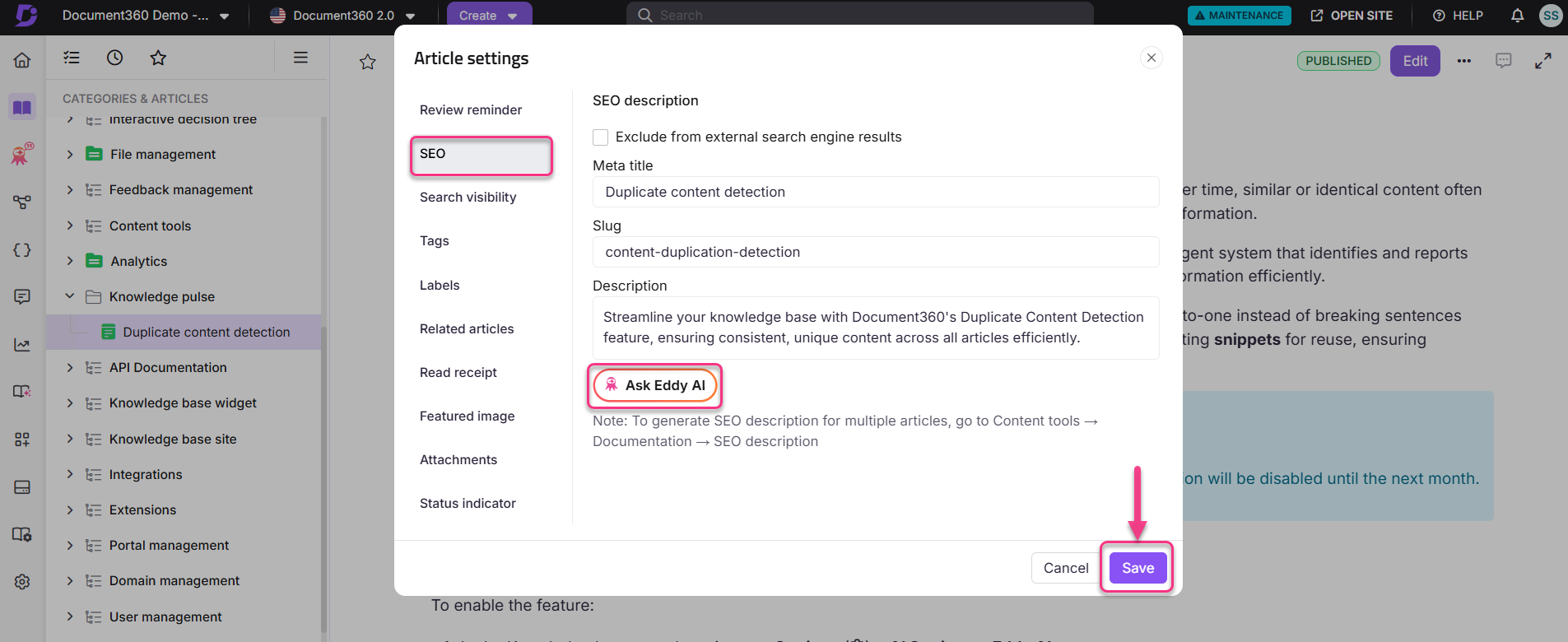
Click the More (⋯) icon in the article header and select SEO.
The Article settings panel appears.
-
Expand the SEO section and click Ask Eddy AI.
Eddy AI generates a meta description based on the article or category page content.
-
Review the generated description and click Save.
- If the article already has an AI & search description, generating a new one replaces it and consumes one credit.
- Generating a description for unchanged content produces the same result and still consumes one credit.
- You can manually update the SEO title and AI & search description at any time in the individual article settings or from the AI & search description overview page.
- The AI & search description generator only generates meta descriptions. To generate an SEO title, use Document360's AI title recommender feature. For articles without a custom SEO title, the article title is used as the SEO title by default.
Generate AI & search descriptions for multiple articles or category pages
Use this method to generate descriptions for multiple articles and category pages in the same version and language at once.
-
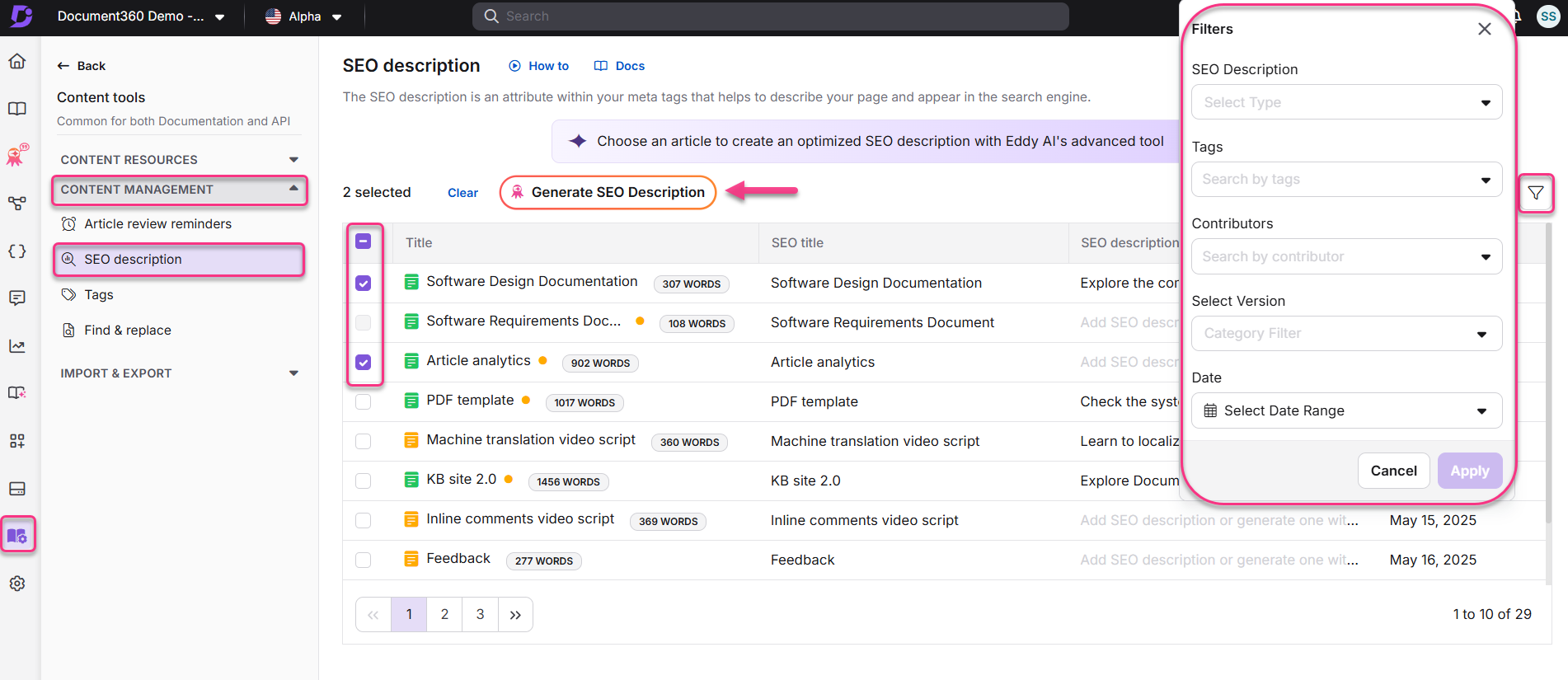
In the Knowledge Base portal, go to Content tools > Content management in the left navigation bar.
-
In the left navigation pane, select AI & search description.
-
Select the desired workspace from the project workspace dropdown.
-
Ensure the selected language is English.
All articles and category pages in the selected workspace and language appear.
NOTEThe preprocessed word count appears next to each article or category page name. You can only generate meta descriptions for items with a preprocessed word count above 200.
-
Use the filter options to narrow down articles by AI & search description availability, category, contributor, tags, or last updated date.
Example: To generate descriptions for articles that have not been updated recently, filter by Date to prioritise older articles.
-
Select the checkbox next to each eligible article (preprocessed word count over 200) and click Generate AI & search description.
-
Review the descriptions and click Yes in the confirmation prompt to save.
Prioritise generating descriptions for high-traffic or cornerstone content first. Improving descriptions for these pages has the biggest impact on overall search engine visibility and AI retrieval accuracy.
You can switch between languages in the AI & search description module to manually update meta descriptions for articles in other languages. However, the AI generation option is only available for English.
Managing credits
Each meta description generation consumes one credit, whether for a single article or as part of a bulk generation. Credits are valid for the lifetime of the project and are not affected by subscription plan changes. Unused credits are non-refundable.
All paid projects receive 10 free credits. Free credits are not available on the Trial plan.
Best practices for AI & search descriptions
- Keep it concise (155–160 characters) — descriptions appear as snippets in search results and are used by AI agents to assess relevance. Keep them brief but informative.
- Be factual and specific — AI agents favor concrete statements. "Explains how to configure role-based access in Document360" is better than "Everything you need to know about access."
- Front-load the topic — both search engines and AI models weight the first ~20 words heavily. State what the article is about immediately.
- Include relevant keywords — incorporate primary and secondary keywords naturally to reflect the core topic and improve discoverability.
- Align with user intent — ensure the description answers what your target audience is looking for to attract the right readers and improve click-through rates.
- Write a unique description for every page — avoid duplicate meta descriptions across your knowledge base, as these can negatively affect SEO and AI retrieval clarity.
- Avoid keyword stuffing — overloading the description with keywords makes it seem unnatural and can reduce its effectiveness.
- Focus on clarity and relevance. Descriptions improve both click-through rates and AI retrieval accuracy — a description that directly states what question the article answers performs best in both channels.
- Always review the generated description before saving to ensure it accurately reflects the intent and focus of your article. AI-generated descriptions are efficient but benefit from a quick manual check.
Best practices for SEO titles
- Optimal length (50–60 characters) — keep titles under 60 characters to prevent truncation in search results.
- Include primary keywords — place primary keywords at the beginning of the title to improve relevance for search engines.
- Accurately reflect the content — the title should represent the article's subject matter to avoid misleading users or increasing bounce rates.
- Make it engaging — use power words or questions to attract attention and encourage clicks.
- Avoid redundancy — keep the title clear and free from unnecessary repetition.
- Brand inclusion (optional) — add your brand name at the end of the title for visibility, but only if space allows without truncating essential keywords.
Data privacy
The AI & search description generator uses an OpenAI integration to generate descriptions. OpenAI does not use data submitted through the {{ glossary.API}} to train its models or improve its services. For full details, read the OpenAI API data usage policies and the Document360 Privacy policy.
FAQ
What happens when I generate an AI & search description for an article that already has one?
The newly generated description replaces the existing one, and one credit is consumed. If the article content has not changed since the last generation, the same description will be produced and one credit is still consumed.
Why does the word count in the editor differ from the preprocessed word count?
The word count displayed at the bottom of the Document360 editor includes all content elements — HTML tags, images, URLs/links, and code blocks. The preprocessed word count excludes these elements. Because only preprocessed content is used for generation, an article that appears to meet the 200-word threshold in the editor may fall short after preprocessing.
Can I switch between languages in the AI & search description module?
Yes. You can switch between languages in the AI & search description module to view and manually update meta descriptions for articles in other languages. However, the AI generation option (Ask Eddy AI) is only available for English.