Je kunt mappen en submappen naar elke locatie binnen je Drive-hiërarchie verplaatsen. Het verplaatsen van een map herorganiseert waar je assets zijn opgeslagen zonder artikelreferenties te breken — alle bestands-URL's blijven na de verplaatsing ongewijzigd.
Waarom een map verplaatsen
Naarmate je kennisbasis groeit, moet je Drive-structuur vaak meegroeien. Door mappen te verplaatsen kun je je Drive georganiseerd houden zonder inhoud te verstoren die naar de bestanden verwijst.
Veelvoorkomende redenen om een map te verplaatsen zijn:
- Het herstructureren van de Drive om een heringerichte categoriehiërarchie in je kennisbank te spiegelen.
- Een submap promoveren naar een root-level map (of een rootmap degraderen naar een andere) naarmate je contentscope verandert.
- Mappen van meerdere bijdragers samenvoegen tot een gedeelde, gestandaardiseerde structuur.
- Mappen groeperen op project, team of contenttype na een eerste ad-hoc setup.
Het verplaatsen van een map heeft geen invloed op de bestands-URL's van bestanden binnen deze map. Alle afbeeldingen die aan artikelen gekoppeld zijn blijven intact na de verhuizing. Systeemmappen kunnen niet worden verplaatst.
De juiste methode kiezen
Document360 biedt twee manieren om een map te verplaatsen. Gebruik de onderstaande vergelijking om te bepalen wat bij jouw situatie past.
| Methode | Het beste voor | Ondersteunt bulk move? |
|---|---|---|
| Meer opties | Het verplaatsen van één of meerdere mappen naar een specifieke bestemming, vooral als de bestemming diep in de hiërarchie staat of visueel moeilijk te vinden. | Ja — selecteer meerdere mappen en gebruik dan de actie Verplaatsen vanuit de werkbalk. |
| Slepen en neerzetten | Snel een enkele map herpositioneren wanneer de bestemming zichtbaar is in het linker navigatiepaneel. | Nee — drag and drop beweegt map voor map. |
Verplaats een map met de optie Meer
Om een map te verplaatsen met de optie Meer,
-
Klik op het Drive-icoon in de linker navigatiebalk.
-
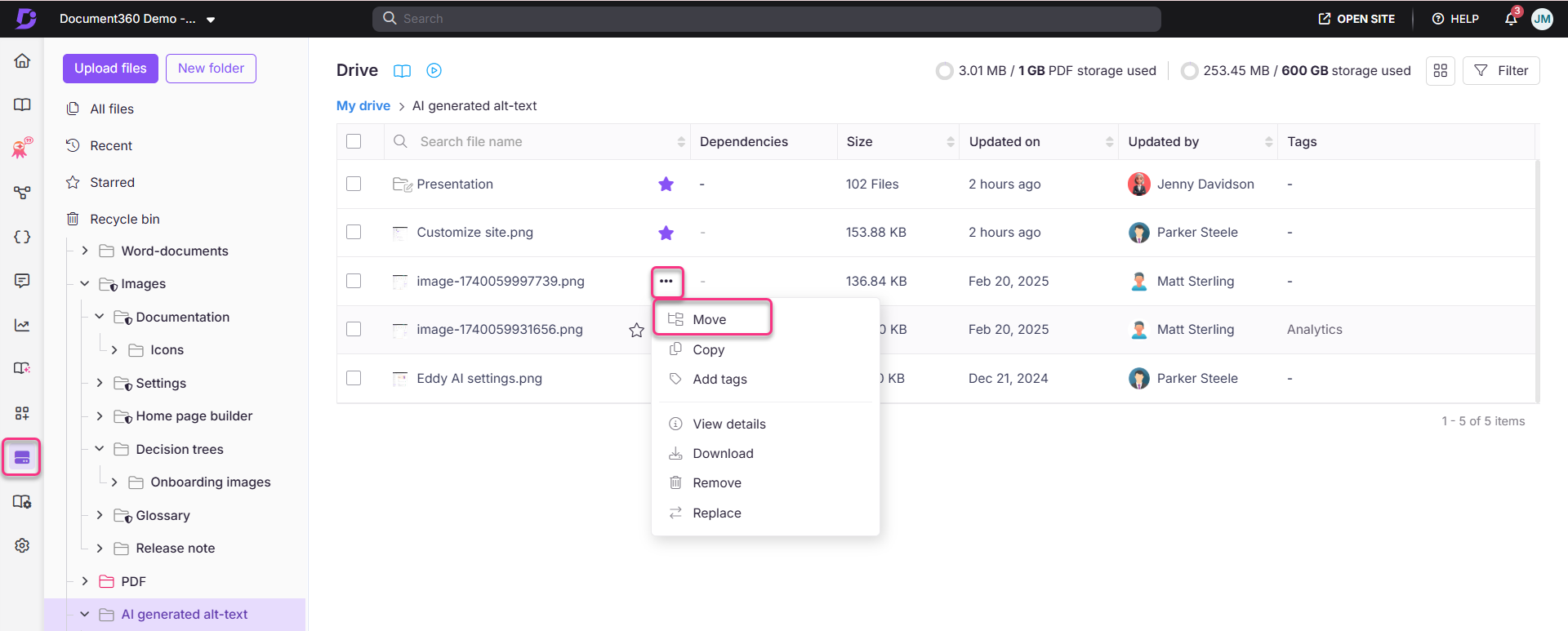
Beweeg je muis over de map die je wilt verplaatsen en klik op het Meer-icoon .
-
Selecteer Bewegen. Het Move-files-paneel verschijnt.
-
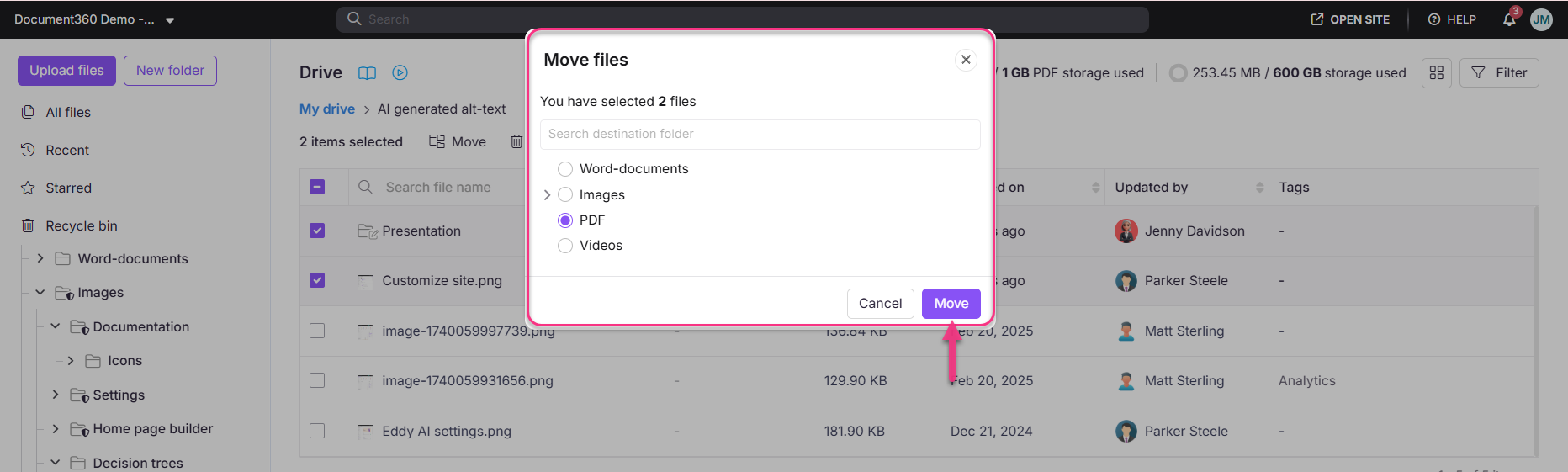
Selecteer de bestemmingsmap uit de lijst. Gebruik het zoekveld om snel de bestemming te vinden door trefwoorden in te typen.
-
Klik op Bewegen.
De map, samen met zijn submappen en bestanden, wordt verplaatst naar de geselecteerde bestemming.
Verplaats meerdere mappen tegelijk
Om meer dan één map tegelijk te verplaatsen,
-
Klik op het Drive-icoon in de linker navigatiebalk.
-
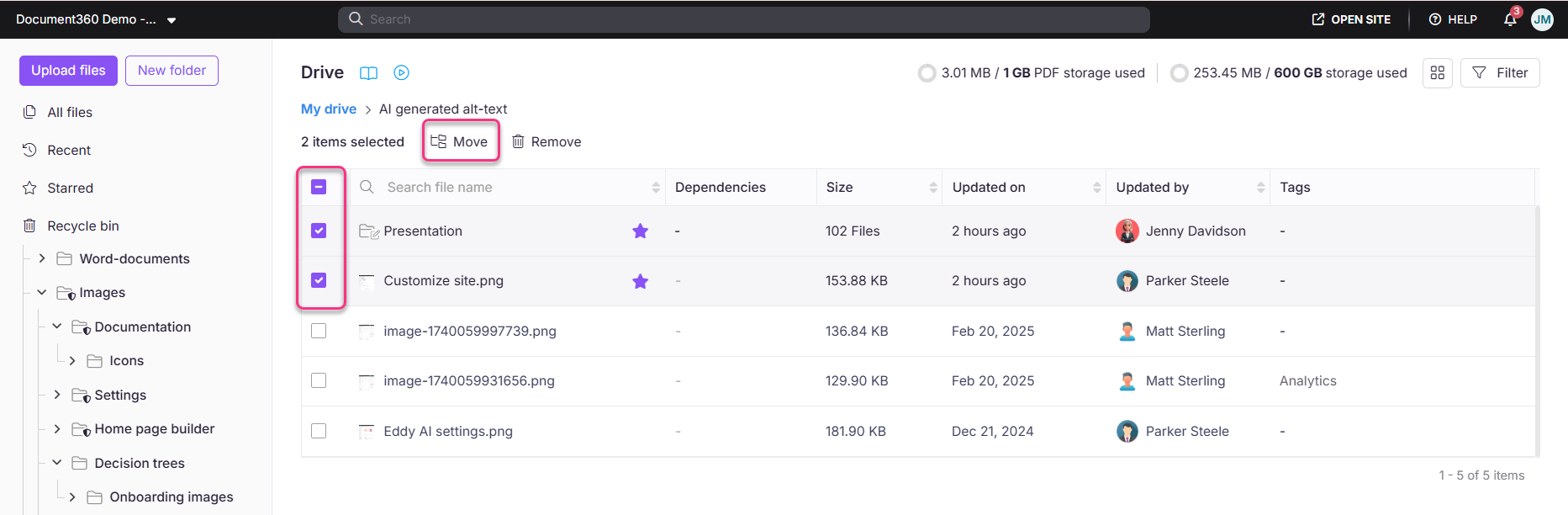
Selecteer één of meer mappen door op de selectievakjes naast hun namen te klikken.
-
Klik op Bewegen vanuit de werkbalk die bovenaan verschijnt.
-
Selecteer de bestemmingsmap en klik op Verplaatsen.
Verplaats een map met slepen en neerzetten
Om een map te verplaatsen met sleep-en-neerzetten,
-
Klik op het Drive-icoon in de linker navigatiebalk.
-
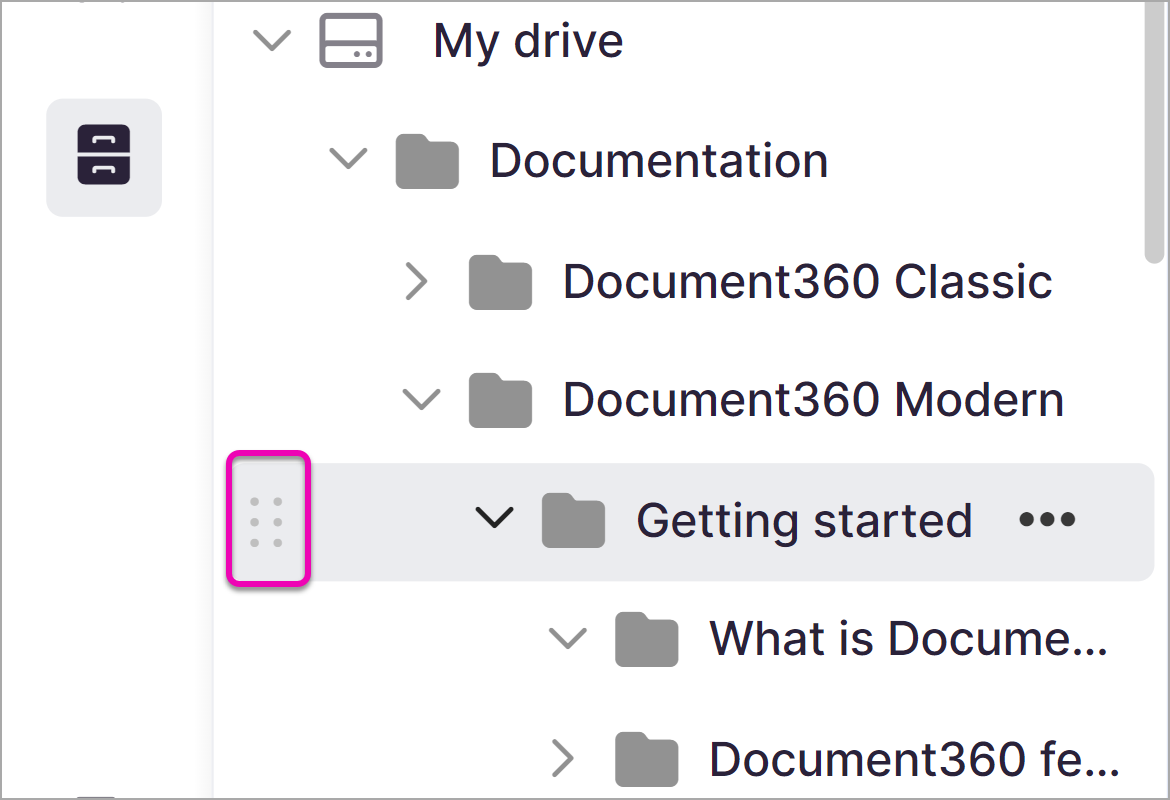
Klik in het linker navigatiepaneel op de map die je wilt verplaatsen.
-
Sleep de map naar de gewenste bestemming in het navigatiepaneel.
-
Leg de map op de doelmap om hem naar binnen te verplaatsen.
Drag and Drop verplaatst map voor map. Om meerdere mappen tegelijk te verplaatsen, gebruik je de hierboven beschreven optie Meer.
Best practices
- Spiegel je categoriestructuur. Houd de hiërarchie van je Drive-mappen afgestemd op de categorieën en subcategorieën van je kennisbank. Dit maakt het makkelijker om assets te vinden en categorie-naar-map mappings in te stellen. Zie Mapping a category with a map in Drive voor meer informatie.
- Verplaats mappen voordat je categorie-mappings instelt. Als je van plan bent een categorie aan een specifieke Drive-map toe te wijzen, bepaal dan eerst je mapstructuur. Het verplaatsen van een map nadat een categoriemapping is ingevoerd, breekt de mapping niet, maar vooruit plannen voorkomt onnodige wijzigingen.
- Controleer bestandsafhankelijkheden voordat je een grote herstructurering uitvoert. Hoewel het verplaatsen van een map de bestands-URL's niet breekt, is het goede praktijk om te bekijken welke artikelen naar bestanden in de map verwijzen voordat grote wijzigingen worden aangebracht. Raadpleeg Bestandsacties in Drive voor richtlijnen voor het bekijken van bestandsafhankelijkheden.
- Vermijd het verplaatsen van de standaardmap zonder de instelling bij te werken. Als de map die je verplaatst als standaardmap is ingesteld, blijft deze na de verhuizing ook als standaard functioneren. Als de verhuizing echter de organisatorische intentie van die map verandert, overweeg dan de standaardinstelling van de map bij te werken. Zie Een standaardmap instellen voor meer informatie.