Je kunt elke map of submap in je Drive hernoemen om je assetstructuur duidelijk en up-to-date te houden. Het hernoemen van een map verandert alleen de weergavenaam — de slug van de map en alle bestands-URL's erin blijven ongewijzigd, waardoor er geen artikelverwijzingen worden onderbroken.
Waarom een map hernoemen
Een goed benoemde mapstructuur maakt het voor bijdragers sneller om assets te vinden, te uploaden en te organiseren. Hernoeming wordt noodzakelijk wanneer:
- Een categorie of sectie van je kennisbank is hernoemd en je wilt dat de Drive dit weerspiegelt.
- Een map is aangemaakt met een tijdelijke of generieke naam (zoals Nieuwe map of Test) en heeft een permanente, beschrijvende naam nodig.
- Je team heeft een nieuwe naamgevingsconventie aangenomen en bestaande mapnamen moeten worden afgestemd.
- De scope van een map is veranderd — bijvoorbeeld, vroeger bevatte het assets voor één product, maar nu bestrijkt het een breder bereik.
Wat verandert en wat niet
Voordat je een map hernoemt, is het belangrijk te begrijpen wat de hernoeming beïnvloedt.
| Wat verandert er | Wat blijft hetzelfde |
|---|---|
| De weergavenaam van de map in de Drive en het linker navigatiepaneel. | De slug (URL-identificatie) van de map — deze wordt niet bijgewerkt wanneer je de naam hernoemt. |
| Hoe de map eruitziet voor bijdragers die op de Drive bladeren. | Alle bestands-URL's binnen de map — artikelafbeeldingsreferenties blijven intact. |
| De naam wordt weergegeven in categorie-naar-map mappenpanelen. | Alle bestaande categorieën-naar-map toewijzingen — ze blijven werken na een hernoeming. |
Systeemmappen kunnen niet worden hernoemd. Je kunt systeemmappen identificeren aan het schildpictogram naast hun naam in de Drive.
Hernoem een map
Om een map of submap te hernoemen,
- Klik op het Drive-icoon in de linker navigatiebalk.
- Zoek in het linker navigatiepaneel de map of submap die je wilt hernoemen. Mappen en submappen worden weergegeven in boomweergavestijl.
- Klik op het Meer-icoon naast de gewenste map.
- Klik op Hernoemen.
- Voer de nieuwe naam in en klik op Naam Wijzigen.
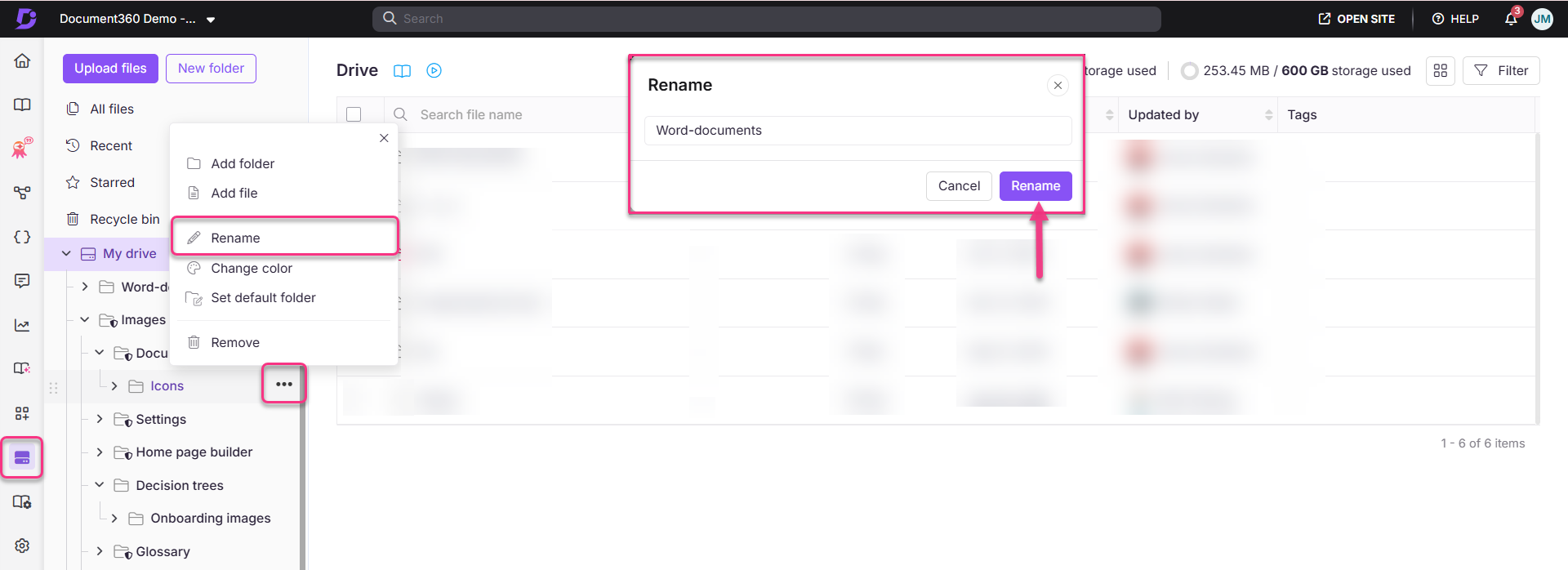
De map wordt direct bijgewerkt met de nieuwe naam op de Drive en in het linker navigatievenster.
Best practices
- Spiegel je categorienamen. Door de Drive-mappennamen consistent te houden met de categorieën en subcategorieën van je kennisbank, is het voor bijdragers makkelijker om te weten waar ze assets moeten uploaden zonder te hoeven gokken. Wanneer je een categorie hernoemt, werk dan de bijbehorende Drive-mapnaam bij zodat deze overeenkomt.
- Gebruik duidelijke, beschrijvende namen. Vermijd afkortingen of interne stenografie die alleen sommige bijdragers zullen begrijpen. Geef de voorkeur aan namen zoals Product-screenshots — Onboarding boven PS-ONB.
- Stel vroeg een naamgevingsconventie vast. Spreek af over een standaardformaat voor mapnamen (bijvoorbeeld met koppeltekens, naamletters of onderwerp-gebaseerde voorfixen) voordat je Drive groeit. Tientallen mappen later hernoemen kost veel tijd, ook al brengt het geen technisch risico met zich mee.
- Vertrouw niet op de weergavenaam als permanente identificatie. Aangezien de slug niet wordt bijgewerkt wanneer je een map hernoemt, vermijd dan het gebruik van de mapnaam als referentie in externe tools of documentatie. Gebruik in plaats daarvan het locatiepad van de map.