An API key is a unique code that Document360 generates to allow external applications to communicate with your knowledge base securely. You can create and manage API keys directly from the Document360 portal to enable integrations with analytics tools, automation platforms, or any third-party service that supports the Document360 API. It's the current, recommended way to authenticate. But, if you're looking for the older, project-wide credential, see API tokens (v2).
When to use API keys
Use API keys when you need to:
- Integrate with external tools — Connect Document360 with analytics platforms, CRMs, or automation tools that need to read or write knowledge base data.
- Automate content workflows — Use POST or PUT keys to programmatically create or update articles without logging into the portal.
- Restrict operation types — Issue separate keys per integration, each scoped to only the HTTP methods that integration requires (for example, a read-only GET key for a reporting dashboard).
- Manage media asset access — Control how long signed URLs for drive assets remain valid when accessed via the API in private or mixed projects.
Before you begin
Before you create the key, decide:
- The portal role it needs (what API operations it may perform).
- The content role it needs (what it may do to the content it can reach).
- The content-access scope - the whole project, or specific workspaces/languages/categories.
- Whether it should expire.
You can change a key's role and content scope later from its Edit dialog, so this isn't a one-shot decision. But get it as close to right as you can up front, since editing a key's scope changes what any integration already using its secret can do, immediately and without warning to that integration.
API keys page
The API keys page is the central interface for viewing, creating, editing, and deleting keys.
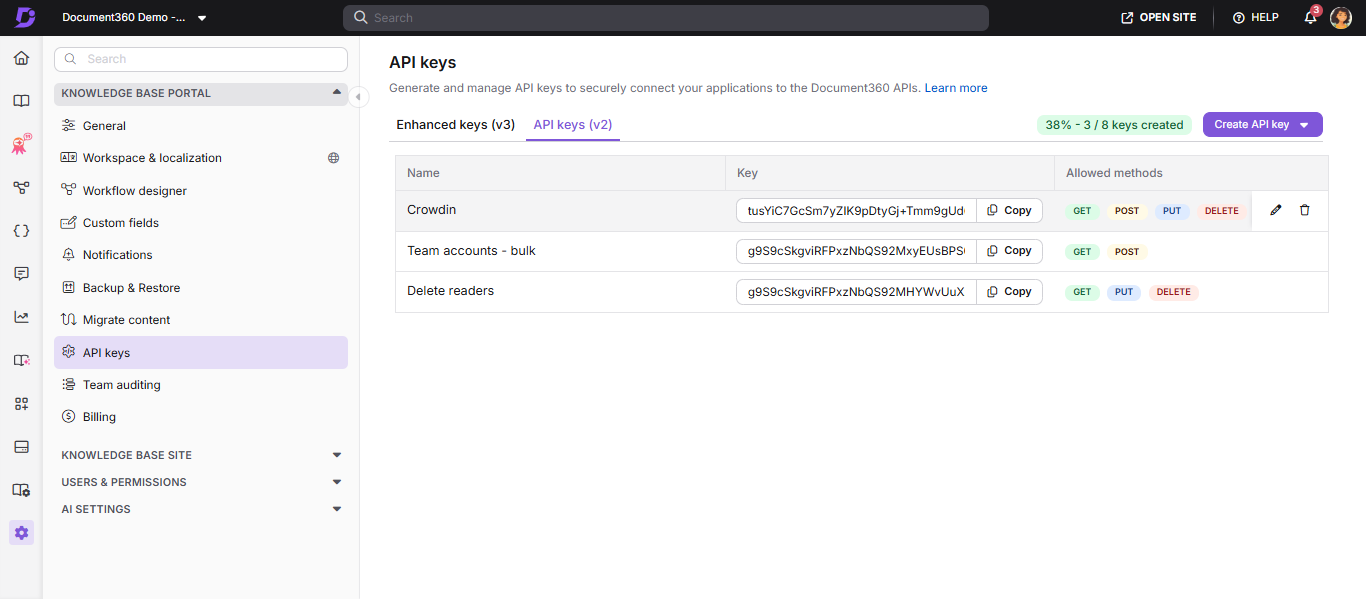
What this page looks like depends on the project's history:
- Projects that already had legacy tokens before API keys (v3) launched show two tabs — Enhanced keys (v3) and API keys (v2) - with a banner on the v2 tab recommending a move to enhanced keys for more granular control.
- Projects created after API keys (v3) launched show a single, unified API keys page with no tabs and no version picker. Every key created here is a v3-style API key - there's no legacy API token option.
Document360 shows how many keys you've created against your plan's quota, but doesn't track where a key is used or which endpoints it's called against.
Creating an API key
- Navigate to Settings () > Knowledge base portal > API keys.
- Click Create API key.
- Enter a name for the key.
- Choose the portal role the key should carry.
- Choose the content role the key should carry, and if it's not "None," choose its content-access scope — the entire project, or specific workspaces/languages, or specific categories.
- Optionally, set an expiry date. Leave it as "Never" for a key that doesn't expire.
- Optionally, expand Advanced to set the Access validity limit for drive assets (15 minutes to 36 hours) — this controls how long signed drive-asset URLs stay valid when this key is used, separately from the key's own expiry.
- Click Generate key. Copy the secret now - it's shown only once and can't be retrieved again.

A key's access can never exceed what the account creating it holds. If you request a role or content scope beyond your own access, the request is rejected with the error message: "Access denied: you are denied access to some content in this project, so you cannot grant a token access to the entire project."
Sending an API key
GET /v3/projects/{projectId}/articles
X-API-Key: d360_sk_xxxxxxxxxxxxxxxxxxxxxxxxxxxxxxxxxxxxxxxxxx
Also accepted as Authorization: Bearer d360_sk_..., so a client that already has a Bearer-header code path can reuse it unchanged.
Security properties
- Your secret is shown only once, right when you create the key. After that, Document360 stores only a hash of it, so it can't be recovered from the portal. If you lose it, you'll need to create a new key.
- Each key can still be identified by a masked value showing its last 4 characters, so you can tell keys apart without exposing anything usable as a credential.
- Disable immediately stops a key from authenticating, but doesn't delete it. You can re-enable it again at any time. Delete removes the key for good, and this can't be undone.
- Document360 tracks when each key was last used, so you can find and retire keys that nobody's calling anymore.
- A key's role and content access aren't locked in once it's created. Open its Edit dialog whenever you need to change them. You don't have to delete and recreate a key just to adjust its scope.
- Your plan's active-key quota is shared across API keys and API tokens. Disabling a key does not free up a slot. Only deleting one does.
Two portal permissions control who can do what here. View API keys lets someone list and inspect keys, but never see the secrets. Manage API keys lets someone create, edit, enable or disable, and delete keys.
Rate limits
API keys get separate read and write rate-limit buckets, so a read-heavy job can't exhaust the allowance a write job needs. Successful responses carry X-RateLimit-Limit and X-RateLimit-Remaining; a breach returns 429. Check these headers for your actual limit — it's set per plan.
Best practices
- One key per integration, so you can disable or delete one without affecting others.
- Apply least privilege — grant only the portal role, content role, and content scope the integration actually needs.
- Set an expiry where practical, especially for short-lived or trial integrations.
- Review keys periodically and retire ones that are no longer used.
- Label keys clearly — e.g., "Analytics – Read Only," "CMS Sync – Write."
- Use Edit, not recreate, when scope needs to change. If you do need a brand-new secret — for example, after a suspected leak — create the replacement key before deleting the old one, so the integration isn't interrupted in between.
FAQ
Can I change a key's role or content scope after creating it?
Yes. Open the key's Edit dialog to change its name, portal role, content role and access, or expiry. You don't need to delete and recreate the key to change its scope.
What's the difference between disabling and deleting a key?
Disabling immediately stops a key from authenticating, but keeps it in your list so you can re-enable it later — and it does not free up a quota slot. Deleting removes the key permanently, can't be undone, and does free a quota slot.
What happens if I don't set an expiry?
The key doesn't expire on its own. You can still disable or delete it at any time.
API tokens (v2)
API tokens (v2) only appear for projects that already had them before API keys (v3) launched. If your project's API keys page shows no tabs, this credential type isn't available to you — use an API key instead (see above).
An API token is Document360's original credential — a single, project-wide token restricted only by HTTP method, with no role or content scoping. It still works, and existing integrations built on it aren't affected by anything above. For any new integration, use an API key instead (see above).
How to create an API token
- Navigate to Settings () > Knowledge base portal > API keys.
- On the API keys page, click Create API key and choose API v2 — Legacy API keys with unrestricted access (we recommend migrating to v3) from the dropdown.
The Add API token dialog appears. - Enter a name for the token.
- Select one or more HTTP methods to allow: GET, POST, PUT, DELETE.
- Optionally, expand Advanced and set the access validity limit for drive assets (15 minutes to 36 hours).
- Click Add.
An API token can't be restricted to specific articles or categories, can't carry a role, and can't expire on its own — only its drive-asset access validity is configurable. If you need any of that, create an API key instead.
Sending an API token
The token is sent the same way an API key is — as a header on each request. Unlike a key, it's visible in the portal any time after creation.
FAQ
Do I have to move off my API token?
Not immediately, but you should plan to. Document360 recommends moving to API keys (v3) now, for both new and existing integrations. Over time, and with advance notice, remaining API token (v2) integrations will be migrated to API keys and the v2 credential will be retired. No cutover date has been set yet — when one is, it will be communicated well ahead of time.
Can I restrict an API token to specific articles or categories?
No — only by HTTP method. For anything narrower, create an API key instead.
How can I increase the drive asset access validity for private and mixed projects?
Edit or create the token, expand Advanced, and set the access validity limit. Default is 15 minutes; maximum is 36 hours.