Managing Eddy AI unanswered queries feedback helps you identify what readers are searching for but cannot find in your knowledge base. The Unanswered queries tab in the Eddy AI Feedback manager surfaces content gaps and missing keyword coverage, giving you a direct signal for where to create or update documentation. Acting on this feedback reduces unanswered searches and improves the overall search experience for your readers.
Before you begin
Only feedback with an Open status can be selected for bulk actions. Closed items cannot be bulk-selected.
Try to keep unanswered searches as low as possible compared to answered searches. Unanswered searches typically occur when relevant information is missing from your documentation. Keeping your documentation up to date helps reduce these instances.
Address unanswered queries feedback
To review and act on a feedback item in the Unanswered queries tab:
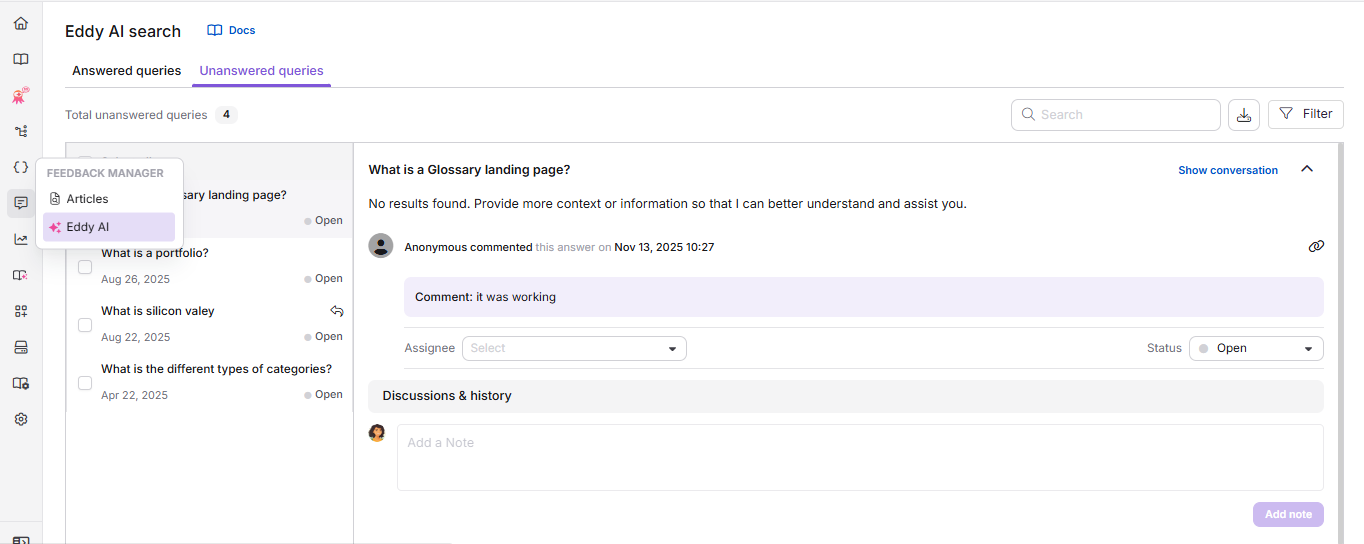
- Select the Unanswered queries tab in the Eddy AI Feedback manager.
- Check and review the Eddy AI search query provided by the reader. This tells you what they were looking for but could not find.
- Read any additional comments from the reader to gain more context about their needs.
-
Use the Assignee dropdown to assign the feedback to the relevant team member.
-
Take the necessary steps to address the feedback, such as:
- Creating new content to cover the missing topic.
- Updating existing articles to include the relevant information.
- Adding keywords to existing articles to improve search matching.
-
Type your notes or updates in the Discussions & history field, then click Add note to keep it internal, or Add note & notify reader to also email it to the reader. Either action just adds to the discussion without changing the feedback's status.
-
Use the Status dropdown to track the feedback's progress. The available statuses are:
Status Description Open Default status. The feedback has not yet been addressed. Planned The feedback has been reviewed and is scheduled for future action. In progress A team member is actively working on the feedback. Complete The feedback has been addressed. You can still add comments if needed. Closed The feedback is no longer active. No further actions can be performed.
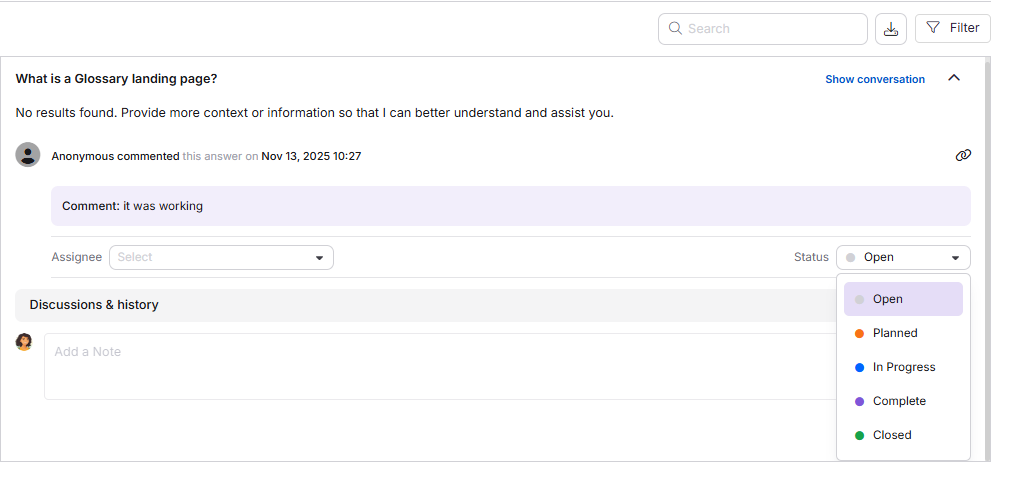
Selecting Closed opens a confirmation popup, since closing a feedback item can't be undone. Click Close feedback to close it silently, or Close & notify reader to also email your comment to the reader.
By addressing feedback in this tab, you can close content gaps and improve the search experience for your readers.
Bulk-manage unanswered queries feedback
To update the assignee or status for multiple unanswered query feedback items at once:
- Select the checkboxes next to the feedback items you wish to update. Only items with an Open status can be selected for bulk actions.
- From the toolbar above the feedback list, click () Assign to, () Change status, or () Mark as closed, depending on what you want to do.
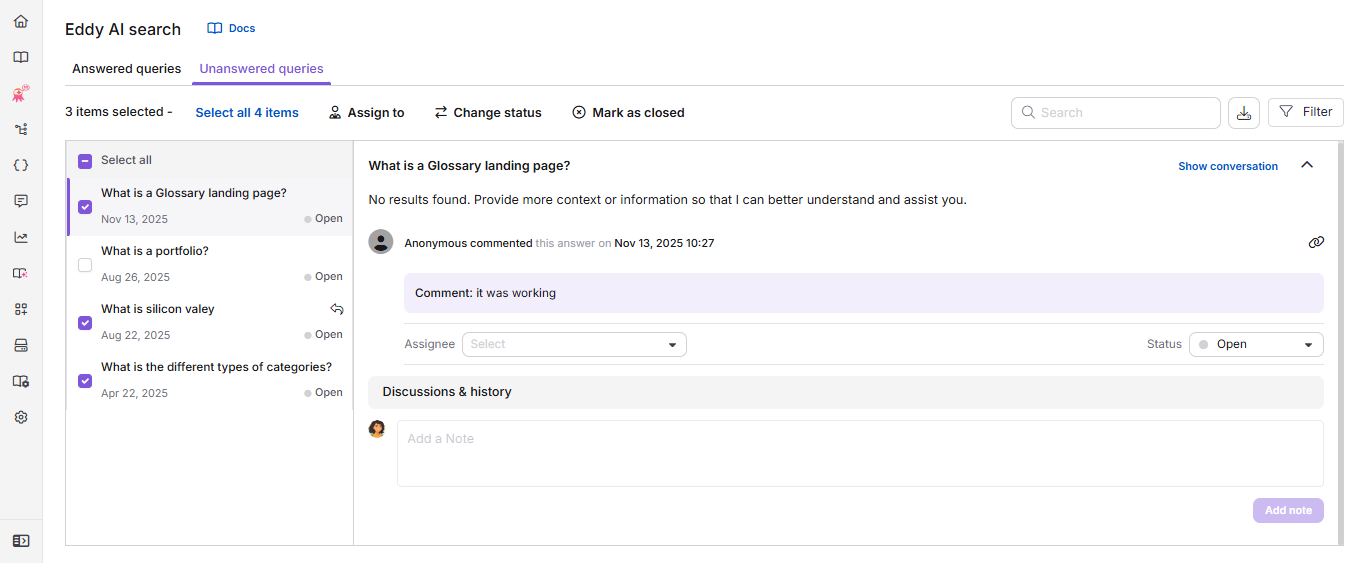
Clicking Assign to or Change status opens the Manage feedback pop-up:
- To assign the feedback, click the Assignee dropdown and select the desired team member. Use the search field to find them quickly.
- To set the status, click the Status dropdown and select the desired status: Open, Planned, In progress, or Complete.
- Click Save.
Clicking Mark as closed () opens a confirmation popup for the selected items. Click Close all feedback to close them without notifying readers, or Close & notify reader to also send your comment to each reader.
Manage unanswered queries feedback from the Overview page
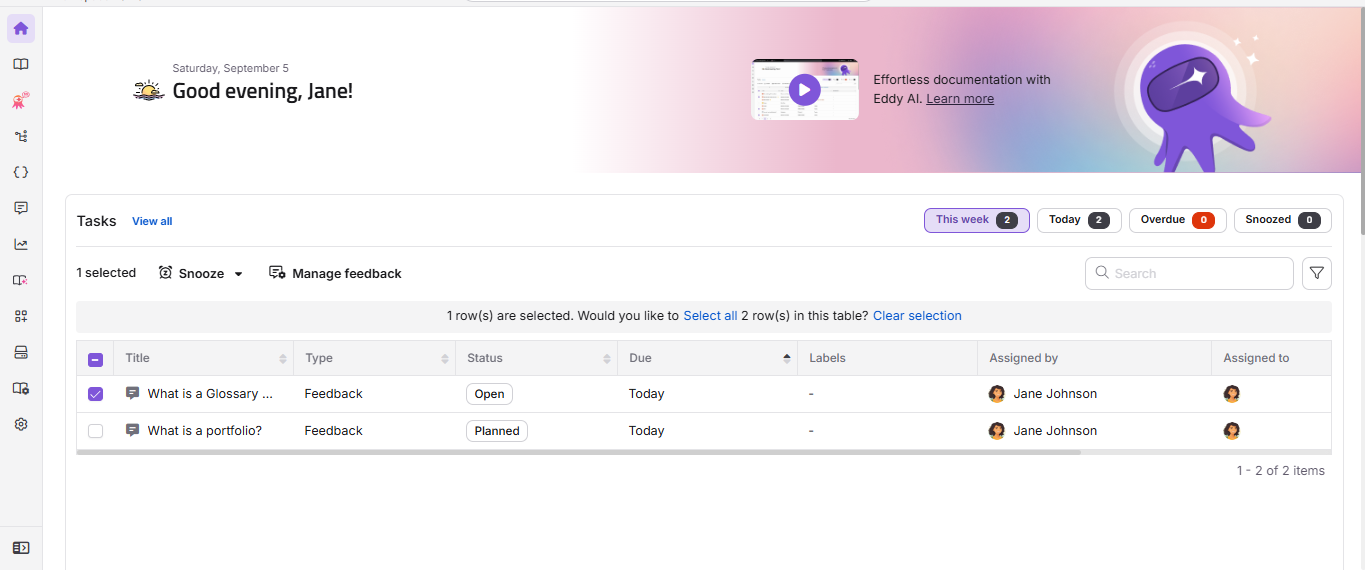
The Tasks card on the Overview page displays Eddy AI search feedback assigned to you from the Feedback manager, including unanswered query feedback items.
- Each feedback task displays the feedback title, task type, status, due date, and assignee.
- To perform quick actions, hover over the task or select the checkbox next to it. You can:
- Snooze (): Temporarily postpone a task by choosing Tomorrow (9 AM), Next week (Monday, 9 AM), or a custom date and time.
- Manage feedback (): Assign the feedback to a team member, set its status to Open, Planned, In progress, or Complete, or select Mark as closed to close it.
- Clicking on a feedback task takes you directly to the corresponding entry in the Unanswered queries tab of the Feedback manager.
Best practices
- Group unanswered queries by topic before acting on them. Multiple readers searching for the same concept signal a high-priority content gap that warrants a new article rather than a quick keyword patch.
- When you create a new article in response to an unanswered query, link back to the feedback item in the Discussions & history field and mark it as Complete to close the loop.
- Use the Filter option to narrow down unanswered queries by date range so you can focus on recent gaps first, particularly after a product update or new feature launch.
- Consider adding the keywords from unanswered queries to related existing articles, even if a dedicated article is not yet planned, to improve search matching in the short term.
- Check the Eddy AI search analytics page alongside this tab. The analytics page groups unanswered queries by theme, which helps you identify the most common topics that need coverage.
FAQ
What should I do first when I see a new unanswered query?
Start by reading the query and any reader comments to understand what they were looking for. Then check whether relevant content already exists in your knowledge base but may be missing keywords. If the topic is not covered at all, create a new article and mark the feedback item as Planned or In progress while work is underway.
Can I use feedback to improve search results?
Yes. Use the unanswered query feedback to add relevant keywords to existing articles, update outdated content, and create new articles to cover missing topics. This directly improves content discoverability and reduces future unanswered searches.
Why can't I select closed feedback items when using bulk selection?
Closed feedback items cannot be selected using the bulk selection option in the Feedback manager. Bulk selection applies only to active (non-closed) feedback items. To export closed feedback items, use the Filter option, for example by applying a date range or status filter, and then export the results.
How do unanswered queries appear in Eddy AI search analytics?
The Eddy AI search analytics page groups unanswered queries by keyword theme for the selected month, highlighting the most common topics with unresolved searches. Post-processing runs on a monthly basis using 30 days of data. You can use these grouped themes to prioritize which content gaps to address first.
Will the reader be notified when I respond to their unanswered query feedback?
Readers are notified only if they selected the Notify me about updates checkbox when submitting their feedback. On the portal side, you also need to click Add note & notify reader instead of the plain Add note option (or Close & notify reader, if you're closing the item).