Moving a file in Document360 Drive lets you reorganize your media library by relocating files between folders — without breaking any links to articles that already use them. The file's CDN URL stays the same regardless of where it lives in the folder structure.
Why move files
As your knowledge base grows, so does your media library. You may need to move files when:
- Reorganizing your Drive — Restructuring folders to match a new content taxonomy or project structure.
- Correcting misplaced uploads — A file was uploaded to the wrong folder and needs to be placed in the right location.
- Consolidating media assets — Grouping related images or files together for easier management.
Because the file's URL does not change after a move, any article referencing that file continues to display it correctly — no re-linking required.
Before you begin
- The destination folder must exist within the same project. Moving files across projects is not supported.
- Only one file can be moved at a time.
Move a file
-
Open Drive from your Document360 project.
-
Select the file you want to move.
-
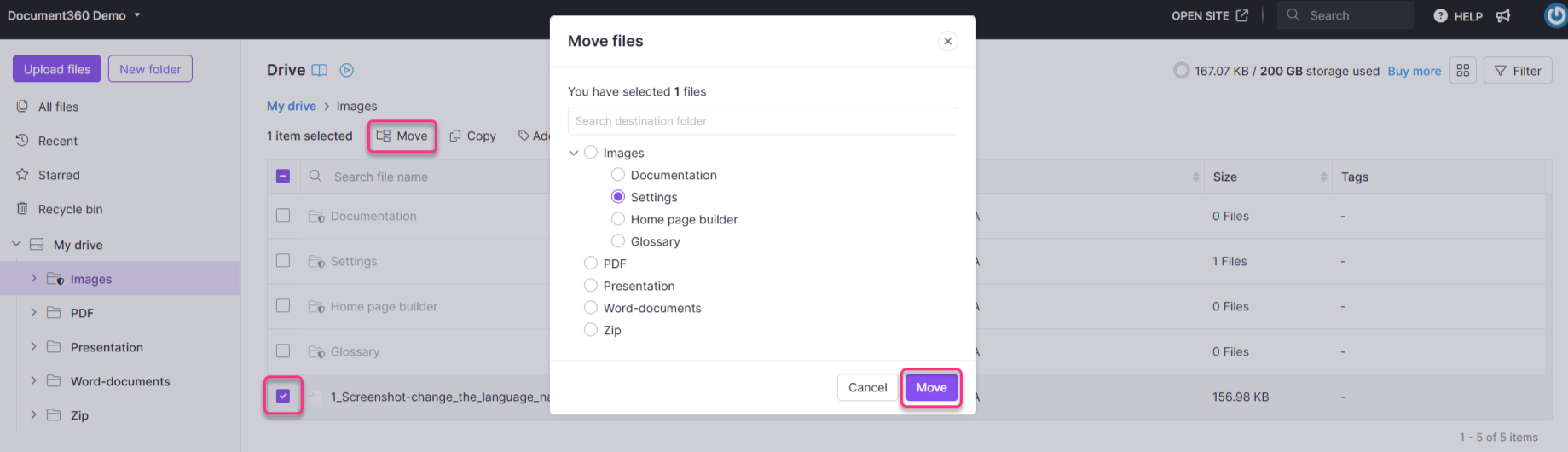
Click Move in the top menu bar. The Move files dialog appears.
-
Locate the destination folder, either by typing its name in the search bar or by browsing the folder list manually.
-
Click Move.
The file is now in the new folder.
 NOTE
NOTEMoving a file does not change its CDN URL. Any article that references the file continues to display it without any updates needed.
https://cdn.document360.io/project-id/Images/Documentation/image name.image_type
Best practices
- Organize before you scale — Set up a clear folder structure early so files land in the right place from the start, reducing the need to move them later.
- Use meaningful folder names — Descriptive folder names make it easier to find the right destination when moving files.
- Search, don't scroll — Use the search bar in the Move files dialog to quickly locate the destination folder, especially in large Drive libraries.