Block inheritance for users controls who on your team can access and manage content in the knowledge base portal. When you block inheritance at any level, only the users you manually add will be able to access that content — all other users lose access, even if they previously inherited it from a parent level.
When to use this
- You want to restrict a specific workspace to only a subset of your team, even though the full team has inherited access to it.
- A category contains sensitive content that only specific users should manage.
- You need to reset accumulated inherited permissions and start fresh with an explicit access list.
WARNING
Blocking inheritance is immediate. All users who previously had inherited access will lose access at that level and below as soon as the toggle is enabled.
Before you begin
- You must have the Owner or Admin portal role.
- The user performing the block is automatically included in the access list and cannot be removed.
Block content access at workspace or language level
For example, you have six inherited users in Workspace 1 and want to provide access only to one user and yourself.
-
Navigate to Settings () > Users and security in the left navigation bar in the knowledge base portal.
-
In the left navigation pane, navigate to Content access.
-
Select the required workspace and language from the tree-view on the left.
-
Turn on the Block inherited account toggle in the Manage content access tab.
All inherited team members lose access. Only you (the person who blocked) retain access.
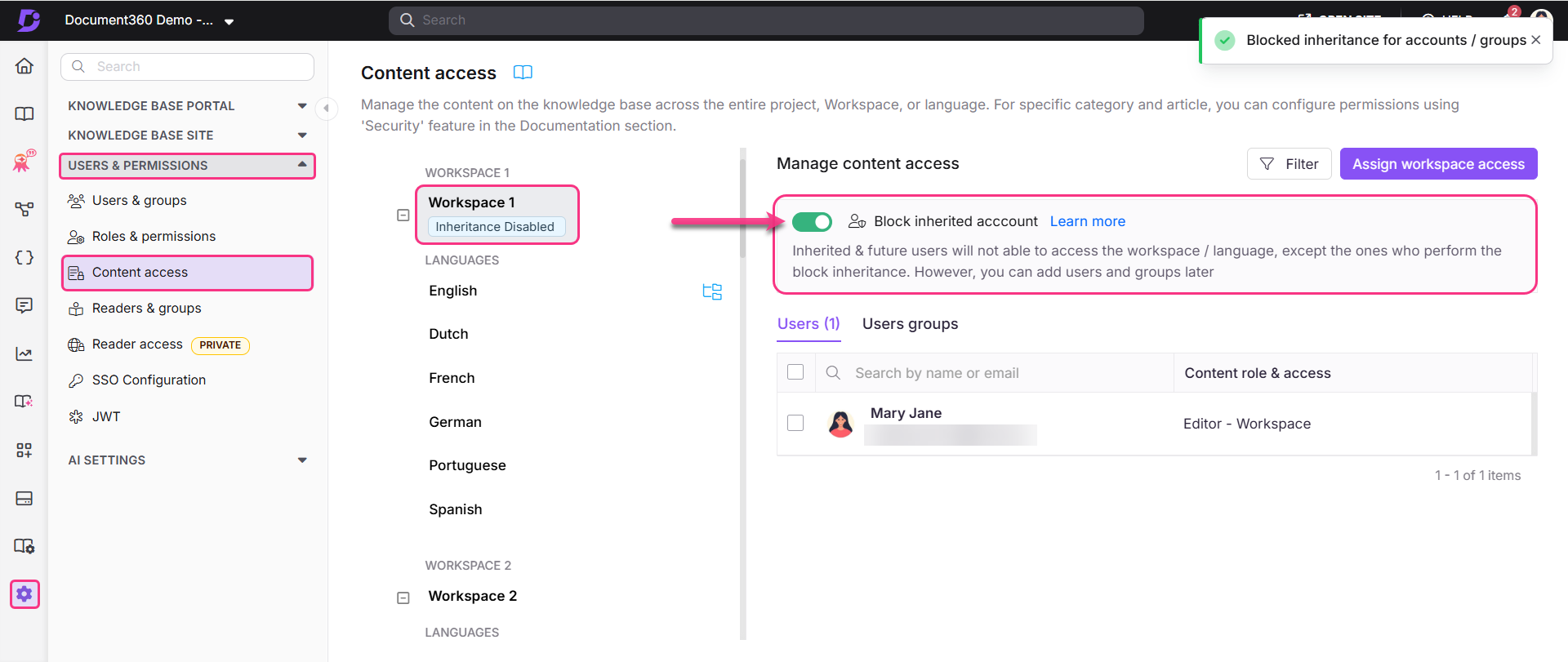
After blocking, only users with explicit access to this workspace are displayed.
- To grant access to specific users after blocking, click Assign workspace access and select the required users or user groups. See Manage content access.
- To restore inherited access, turn off the Block inherited account toggle.
Block content access at category or article level
To block access to users or user groups for a category or article:
- Navigate to Documentation () and hover over the desired category or article in the Categories & Articles pane.
- Click the More () icon that appears next to the category or article name.
- Click Security, then choose Knowledge base portal Access control to manage content access for users and user groups.

-
The Assign control access: Knowledge base portal panel appears with the list of users and user groups that have access to the selected content level.
-
Turn on the Block inherited account toggle.
This filters out all inherited accounts, so only users and user groups with explicit access at this level are displayed. By default, the user performing this action is selected and cannot be removed.
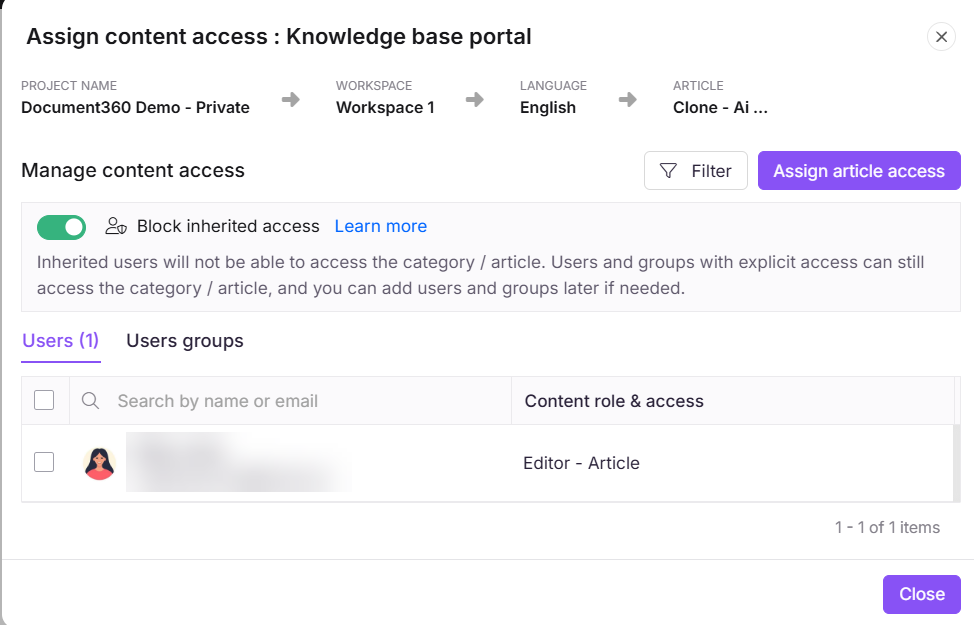
- To restore inherited access, turn off the Block inherited account toggle and click Yes in the Allow inheritance confirmation prompt.
Limits and limitations
| Item | Detail |
|---|---|
| Immediate effect | Blocking takes effect immediately — all inherited users lose access at that level and below |
| Performer is always included | The user who performs the block is automatically added to the access list and cannot be removed |
| Workflow assignments | When Block inherited account is enabled for a category or article, only users with explicit access at that level appear in the Assignee dropdown for workflow status. To assign a user, first grant them content access. |
Best practices
- Before blocking, review the list of inherited users so you know who will lose access.
- After blocking, explicitly add all users who need access before communicating the change — users who lose access will be unable to work on that content immediately.
- Use workspace-level blocking when you need to restrict an entire workspace. Use category or article-level blocking for fine-grained restrictions within a workspace that is otherwise open.
FAQ
Why are some users not visible when assigning workflow status after enabling Block inherited account?
When Block inherited account is enabled for a category or article, only users and user groups explicitly granted access at that level can access the content. As a result, when updating the workflow status, the Assignee dropdown will display only those users who have effective access to the selected content. Inherited users who no longer have access will not appear in the list.
To assign additional users, first grant them content access, then update the workflow status.