Content Security Policy (CSP) is a browser-enforced security mechanism that controls which external resources — scripts, styles, images, fonts, and frames — are allowed to load on your Knowledge base site. When enabled in Document360, a CSP directive is embedded in your site's page source, restricting resource loading to only the domains you explicitly configure. This protects your Knowledge Base from common web vulnerabilities such as Cross-Site Scripting (XSS), clickjacking, and data injection attacks.
When to use Content Security Policy
Enable CSP when any of the following apply to your Knowledge Base:
- Your site embeds third-party content such as videos, chat widgets, or analytics tools.
- Your articles or theme include custom HTML sections with inline scripts.
How CSP works in Document360
Document360 implements CSP via a <meta http-equiv="Content-Security-Policy"> tag embedded in your site's page source, rather than via an HTTP response header.
This means:
- All CSP rules are applied at the page level through the meta tag.
- If you inspect the HTTP response header, CSP will appear absent — this is expected behavior.
- To confirm CSP is active, right-click your Knowledge Base site, select View page source, and search for
Content-Security-Policy.
HTTP response headers require server-side configuration. Document360 uses a meta element so you can configure CSP entirely from the Settings UI without any infrastructure changes. The security protection is equivalent for the vast majority of directives, with the exception of frame-ancestors, which is only supported via HTTP headers in some browsers. Document360 handles this automatically.
Before you begin
Only project owners, admins, or users with access to Security settings can configure Content Security Policy.
How to enable Content Security Policy
- Navigate to Settings () > Knowledge base site > Security.
- Toggle on Enable content security policy.
- Configure the required directive groups:
- Code policy
- Resource control
- Embedding & Security
- Reporting
- Click Save.
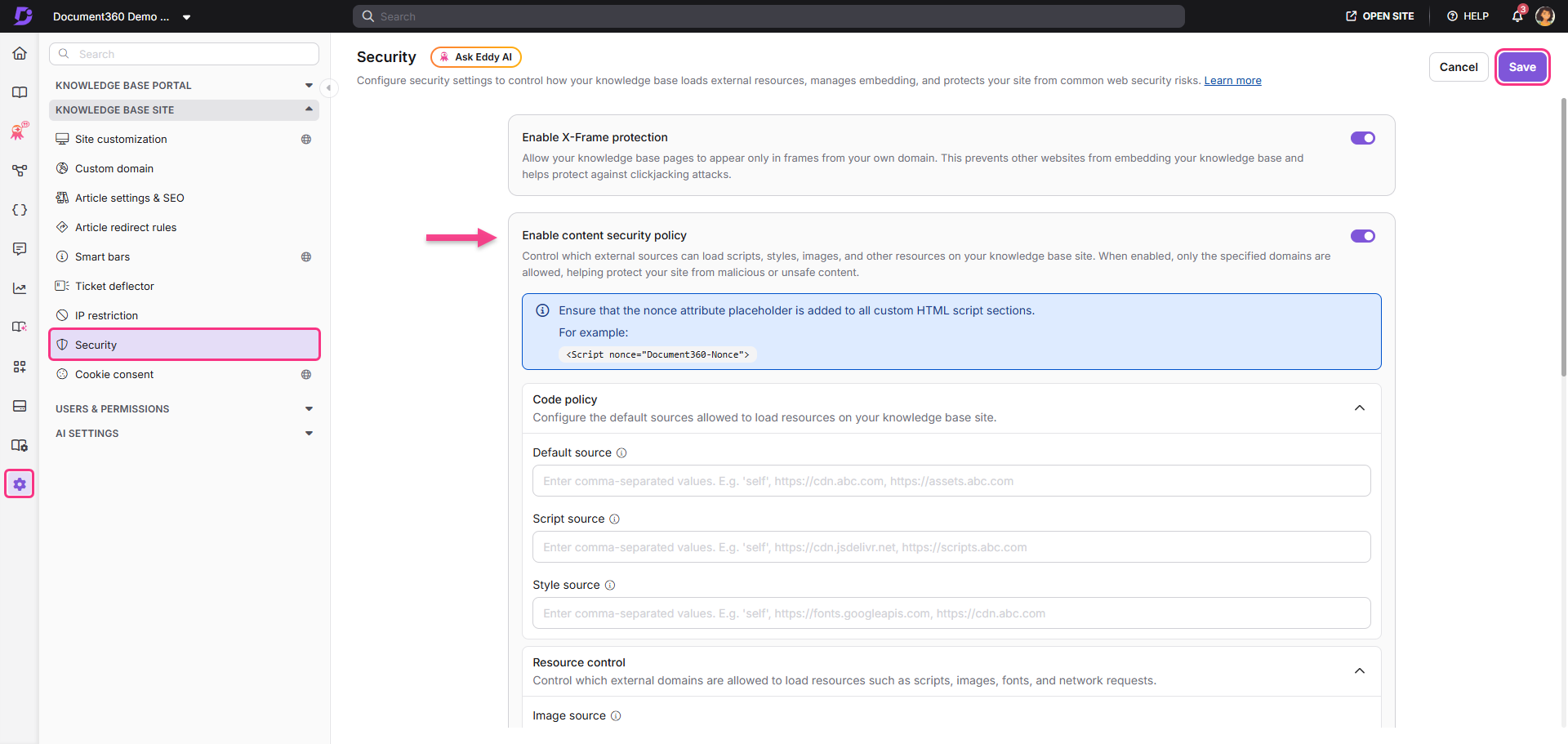
When CSP is enabled, ensure that the nonce attribute placeholder is added to all custom HTML script sections. Example:
<script nonce="{{Document360-Nonce}}">
- The character limit for each field is 5000.
- Use commas (,) to separate multiple domains.
- Keep URLs in the format:
https://example.com - Existing CSP configurations remain preserved when toggling CSP off and on.
X-Frame protection
The X-Frame protection option is available alongside CSP settings on the Security page. When enabled, it adds an X-Frame-Options: SAMEORIGIN response header to your Knowledge Base pages, preventing them from being loaded inside an iframe on any external domain.
This is a simpler, blunter control than frame-ancestors — it does not allow you to permit specific trusted domains.
| X-Frame protection | Frame-ancestors (CSP) |
|---|---|
| Blocks all external framing (SAMEORIGIN only) | Allows you to specify a list of trusted domains |
| Delivered via HTTP response header | Delivered via meta element in page source |
| Simpler to configure — one toggle | More flexible — precise per-domain control |
| No exceptions allowed | Exceptions can be explicitly listed |
X-Frame-Optionsand theframe-ancestorsCSP directive both govern frame embedding behaviour. If you configure both, ensure they are consistent to avoid conflicting rules. For example, do not enable X-Frame Protection while also adding an external domain toframe-ancestors— the X-Frame header will override the CSP directive in browsers that support both.- Document360 also applies the
X-Content-Type-Options: nosniffsecurity header across Knowledge Base resources to help prevent browsers from MIME-type sniffing and interpreting files with incorrect content types.
Use cases
Embedded videos
If your articles include videos from YouTube or Vimeo, use the Frame source directive to allow only those trusted domains.
- Add to Frame source:
https://www.youtube.com,https://player.vimeo.com - This ensures embedded media loads correctly while blocking unauthorised iframe content.
Third-party analytics and feedback tools
If your Knowledge Base uses Google Analytics, Mixpanel, or a feedback widget, add their script and data collection domains to Script source and Connect source.
- Script source example:
https://www.google-analytics.com,https://cdn.mixpanel.com - Connect source example:
https://api.mixpanel.com
Live chat widgets
Chat widgets like Intercom or Zendesk typically need permissions across multiple directives because they load scripts, make API calls, and serve their own UI.
- Script source:
https://widget.intercom.io,https://js.intercomcdn.com - Connect source:
https://api.intercom.io,https://nexus-websocket-a.intercom.io - Image source:
https://static.intercomassets.com
Custom fonts
Google Fonts and Adobe Typekit load from two different domains — one for the stylesheet and one for the actual font files. Both must be listed.
- Style source:
https://fonts.googleapis.com - Font source:
https://fonts.gstatic.com
Embedding your Knowledge Base in a customer portal
If you need to display your Knowledge Base inside an iframe within your own product or SaaS application, use the Frame ancestors directive to permit that specific domain.
- Frame ancestors example:
https://app.yourcompany.com - Setting Frame ancestors to
'none'blocks all external framing. Only change this if you have a legitimate embedding requirement.
Custom HTML and inline scripts
If your articles or theme include custom HTML sections with inline <script> tags, those scripts will be blocked by a strict CSP unless they carry a nonce attribute. Use the Document360 nonce placeholder:
<script nonce="{{Document360-Nonce}}">

  // Your custom inline script

</script>
The {{Document360-Nonce}} placeholder is replaced at render time with a unique per-request value that matches the nonce listed in the CSP. This allows the trusted inline script to run without needing to weaken your policy with 'unsafe-inline'.
Compliance and security-hardened environments
Teams operating under frameworks such as SOC 2, ISO 27001, or HIPAA often require a documented resource-loading policy. CSP provides a machine-enforced version of that policy. The Reporting directives additionally give you an audit trail of any attempted policy violations.
FAQ
Why does my CSP validation tool say CSP is missing from the response header?
Document360 implements CSP via a meta element in the page source, not via an HTTP response header. Tools that only check response headers will therefore report CSP as missing. To confirm CSP is enabled, right-click your Knowledge Base site, select View page source, and search for "Content-Security-Policy". If the term appears, CSP is active.
Can I allow specific domains to embed my Knowledge Base?
Yes. Use the Frame ancestors directive under the Embedding & Security group to specify which external domains are permitted to embed your Knowledge Base pages in their own frames.
What happens if I disable CSP after previously configuring it?
Disabling the Content security policy toggle removes CSP enforcement from your Knowledge Base site. However, your saved directive configurations are retained and will be reapplied if you re-enable CSP. No configuration data is lost when toggling the feature off.