In Document360, you can edit an existing user's portal role and content access permissions from the knowledge base portal. Updating these settings lets you control what a user can view, manage, and contribute to within your project.
Why edit a user
Team members' responsibilities change over time. A writer may be promoted to an editor, a contributor may need access to additional workspaces, or a user's scope may need to be narrowed after a project restructure. Editing a user lets you keep permissions aligned with current responsibilities without removing and re-adding the account.
Use this article when you need to:
- Change a user's portal role (for example, from Contributor to Admin).
- Update the content role a user holds (for example, from Draft Writer to Editor).
- Adjust which workspaces, languages, or categories a user can access.
- Set up mixed access — edit permissions for some categories and read-only access for others.
Before you begin
- You must have the Owner or Admin project role.
- The user you want to edit must already exist in the project.
How to edit a user
-
Navigate to Settings () > Users and security in the left navigation bar in the knowledge base portal.
-
In the left navigation pane, navigate to Users and groups > Users.
-
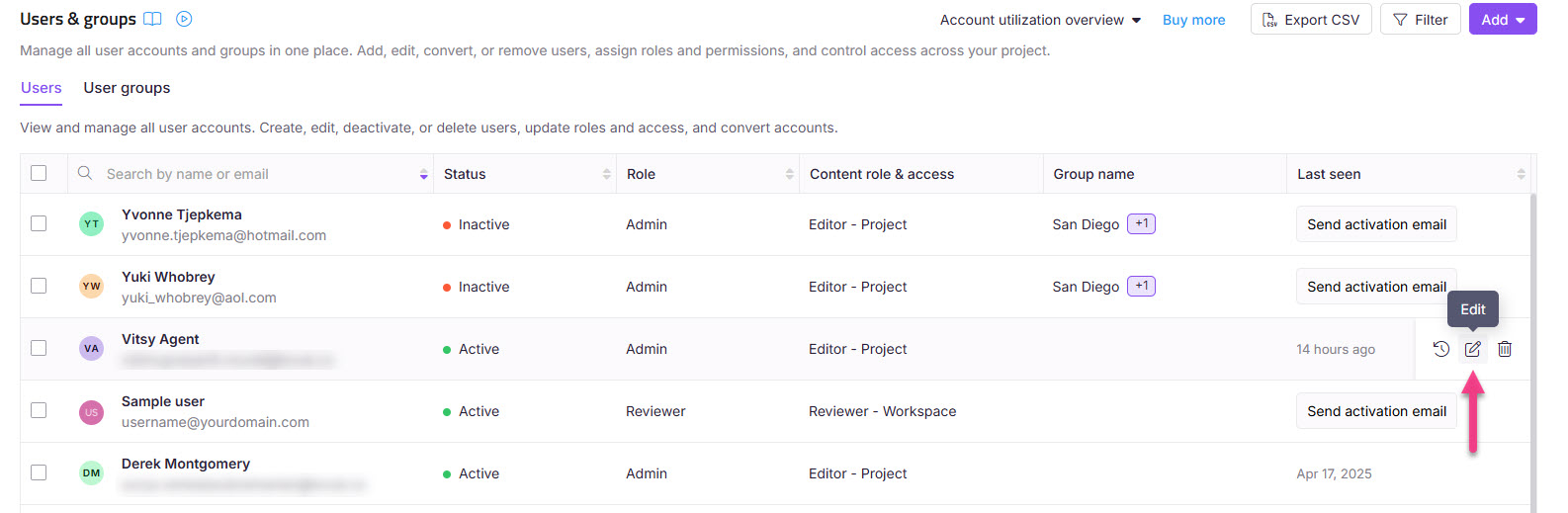
Hover over the desired user and click the Edit () icon.
-
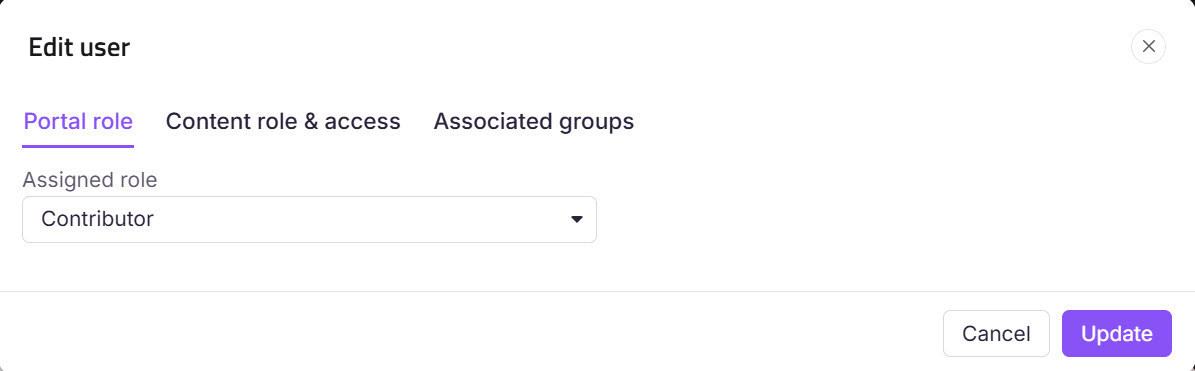
To update the portal role:
- Click Manage project role.
- Select the desired portal role in the Edit user panel.
- Click Update.
-
To update content access permissions:
- Click Manage content roles & permissions.
- Select the desired Content role and Content access in the Edit user panel.
- Click Update.
- Selecting a parent category automatically selects all its subcategories, shown with an Inherited badge.
- If Block Inheritance has been applied to a specific category or subcategory, that will be excluded from the automatic selection. It appears unchecked with an Inheritance blocked badge, and you can manually select it to grant explicit access to that category.
- The category tree only displays categories you have access to.
FAQ
Can I update a user's email ID in the project?
No, you cannot update the email ID of other users in your project.
Who can change the access permissions for a user?
Users with Admin or Owner portal roles in a project can change the access permissions for a user.
Users with the Manage users permission can also change the access permissions for a user.
Users cannot change their own access permissions.
How do I give a user the same permissions as another user?
Document360 does not have a one-click option to copy one user's permissions to another. To give a user the same access as an existing user, you can either match their settings manually or use a user group:
Match manually: Edit the user and set the same Portal role, Content role, and Content access (workspace, language, or category) as the existing user, following the steps above.
Use a user group (recommended for more than one user): Add both users to a user group that carries the shared project role and content access. Every user in the group inherits the same permissions, and you manage them in one place. See Manage user groups.
This applies to all content, including API documentation categories — access to API documentation is governed by the same content access settings as any other category.
How do you add a user with edit access to one category and read-only access to the rest?
You can achieve this by creating a custom content role and assigning appropriate permissions to the user.
Creating a custom content role
Navigate to Settings () > Users and security in the left navigation bar in the knowledge base portal.
In the left navigation pane, navigate to Roles and permissions.
Under the Content role tab, click New content role.
In the Create content role panel:
Enter the desired role name and description.
In the Features section, select the View checkbox for Categories and Articles.
Click Create role.
NOTE
For more information, read the article on Roles and permissions.
Creating a user with specific permissions
Navigate to Settings () > Users and security in the left navigation bar in the knowledge base portal.
In the left navigation pane, navigate to Users and groups > Users.
Click Add and select User.
In the New user panel:
Enter the email address for the user.
Select the appropriate Project role.
In the Content role & access section:
Content role: Select Editor from the dropdown.
Content access: Choose Category and select the desired category or categories you want the user to edit.
Click Add another content role to set read-only access for other categories:
Content role: Select the custom content role created in Step 1.
Content access: Choose the desired category or categories that the user can view only.
Click Create user.
This creates a user with edit access to specific categories and read-only access to the remaining categories.
Updating an existing user
Navigate to Settings () > Users and security in the left navigation bar in the knowledge base portal.
In the left navigation pane, navigate to Users and groups > Users.
Hover over the desired user and click the Edit () icon.
In the Content role & access section, click Manage content roles & permissions.
Assign two content roles as follows:
Editor role: Assign this to categories that the user should edit.
Custom content role: Assign this to categories that the user should only view.
Select the respective categories for each role and click Update.
This updates the user to have edit access for specific categories and read-only access to the remaining categories.