The Zoom element allows you to magnify a selected area of your recording for a set period of time. Use it to draw viewer attention to actions or details that are easy to miss, such as a small button, an input field, or a status indicator, so that complex workflows are easier to follow. The Zoom element is available in explainer videos and interactive videos.
Zoom for real-world scenarios
| Scenario | Recommended configuration |
|---|---|
| Drawing attention to a small toggle or checkbox | Tight zoom area, Medium animation speed |
| Showing a value entered in a form field | Zoom area covering the field and its label, Slow animation speed |
| Highlighting a status message or error text | Zoom area sized to the message, Slow animation speed |
| Calling out a menu item during a quick click-through | Zoom area covering the menu entry, Fast animation speed |
| Guiding viewers through a dense settings screen | Several short zooms placed sequentially along the timeline |
Adding a zoom element
- Open the explainer video or interactive video you want to edit.
- In the right pane, scroll to the Add elements section.
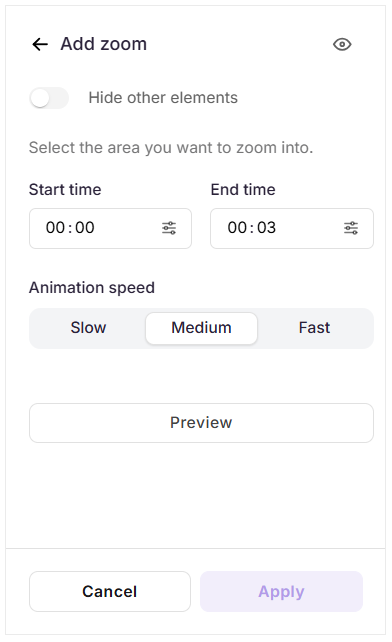
- Click Zoom. The Add Zoom panel appears on the right.
- Enable the Hide other elements toggle to temporarily hide the other elements you have added, such as highlights, calls to action, or text. Other elements are hidden for editing only and are not deleted.
- Drag the zoom element across the screen to define the exact area you want to magnify.
- In the Start time field, enter the timestamp at which the zoom should appear.
- In the End time field, enter the timestamp at which the zoom should disappear.
- Under Animation speed, select how the zoom transitions in and out:
- Slow - Best for detailed or text-heavy areas that viewers need time to read.
- Medium - Suitable for most call-outs.
- Fast - Best for brief call-outs during a quick sequence.
- Click Preview to check the zoom effect before saving.
- Click Apply to save the zoom element.
The Zoom panel opens with the list of zooms added so far, each displaying its animation speed and time range.
You can add multiple zooms to the same explainer video or interactive video. However, two zooms cannot be applied within the same timeframe.
Managing zoom elements
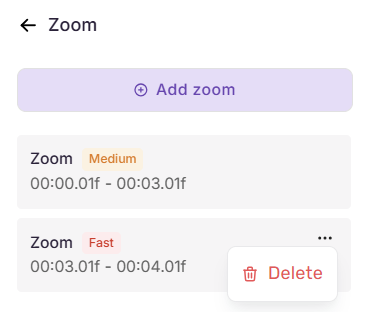
Once added, zoom elements are listed in the Zoom panel, each displaying the animation speed and time range.
- Add another zoom - Click Add zoom at the top of the panel and configure it the same way.
- Edit a zoom - Click any zoom in the list to open its configuration panel with the existing details filled in. Change any field, then click Apply to save.
- Delete a zoom - Hover over a zoom element in the list and click the More icon (). Click it, select Delete, and confirm.().
Best practices
- Keep zoom windows short and focused - Target a single action or detail. Zooming into a large area adds little clarity and can disorient viewers.
- Match the animation speed to the content - Use Slow for detailed or text-heavy areas that need reading time, and Fast for quick call-outs.
- Plan the timeline before adding - Because zooms cannot share a timeframe, map your zoom placements against the recording timeline first when you are adding several.
- Preview before applying - Use Preview to confirm that the zoomed region frames the intended content and does not cut off surrounding context.
FAQ
Can I add the Zoom element to a Step by step guide?
No. The Zoom element is not available in a Step by step guide. To magnify a step image in a guide, use the Zoom in effect toggle under Slide behaviour. For more information, see Editing a Step by step guide.
What happens if two zooms fall within the same timeframe?
The zoom is not saved. Adjust the Start time or End time of one zoom so that the timeframes do not intersect.
Does Hide other elements affect what viewers see?
No. Hide other elements applies to the editing view only. All elements remain visible in the published Flo.
Can I change the zoom area after applying it?
Yes. Click the zoom in the Zoom panel to reopen its configuration panel, drag the zoom area to a new position, and click Apply.