The Knowledge base widget can behave unexpectedly when configuration settings, content access filters, API keys, or JWT authentication are not aligned correctly. Most issues — from a floating icon that won't hide, to articles opening outside the widget, to the widget failing to load altogether — have a specific setting or credential mismatch as the root cause. This guide covers the most common widget issues and the steps to resolve each one.
Widget icon is still visible after mapping to a custom button
The default floating widget icon continues to appear on your Knowledge base site even after you map the widget to a custom button. This happens because the widget script renders the floating icon by default — mapping to a button does not automatically suppress it. You need to explicitly enable the Hide widget toggle in the widget's style settings.
Steps to resolve
- Navigate to Connections > Knowledge base widget in the left navigation bar. A list of created widgets appears.
- Hover over the desired widget and select the Edit icon.
- In the Configure & connect tab, expand the Style widget accordion.
- Locate the Hide widget toggle and turn it on.
- Select Save to apply the changes.
- Refresh your Knowledge base site to confirm the floating icon is no longer visible.
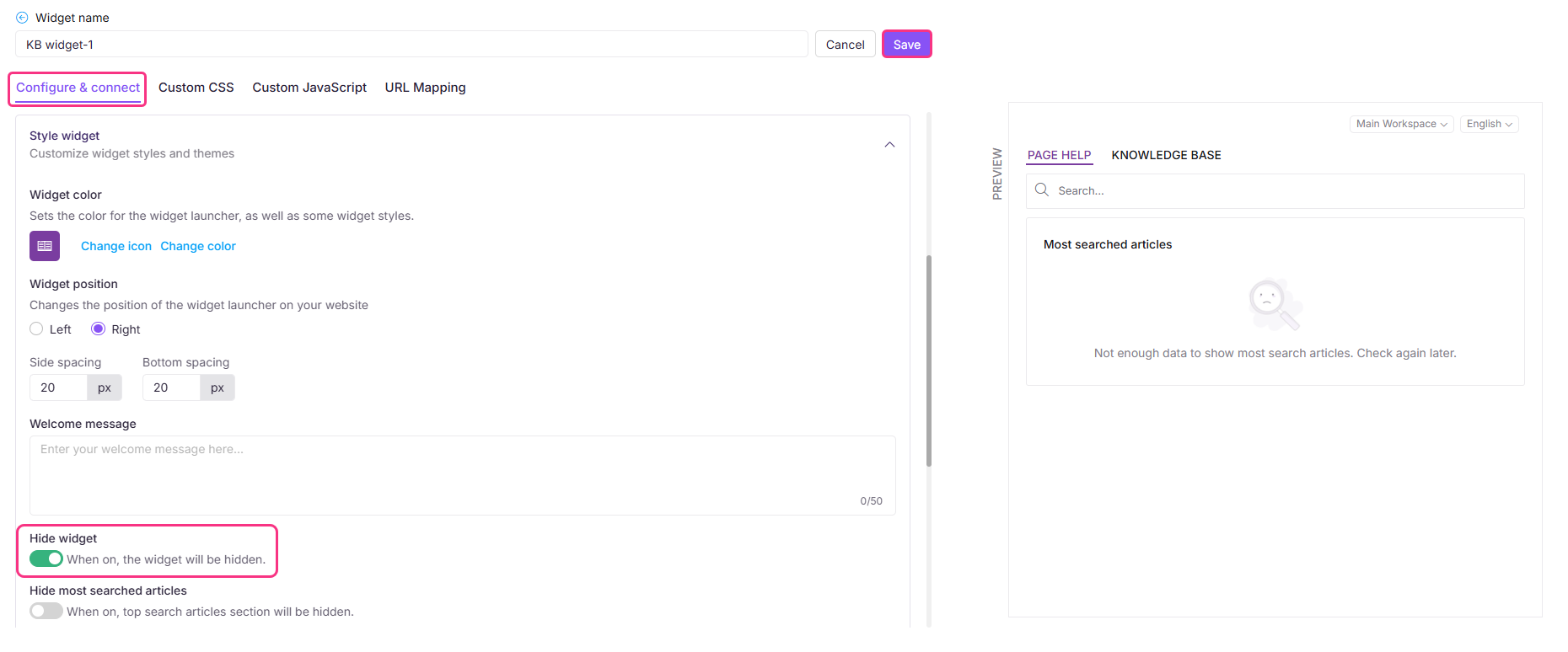
The widget icon will no longer appear on the site, but the widget will continue to function as expected when triggered via your custom button.
If you are also using URL mappings to control widget visibility, refer to Customizing the Knowledge base widget using Custom CSS/JavaScript for advanced hiding options.
"Most searched articles" section is not visible
The Most searched articles section and the mapped article list for a specific URL are not appearing in the widget. This typically occurs when the Hide most searched articles toggle is enabled in the widget style settings — enabling this option hides both the Most searched articles section and any article list mapped to a specific URL.
Steps to resolve
- Hover over the desired widget and select the Edit icon.
- In the Configure & connect tab, expand the Style widget accordion.
- Locate the Hide most searched articles toggle and turn it off.
- Select Save to apply the changes.
- Refresh the Knowledge base site and confirm that the Most searched articles section and mapped articles list are now visible.
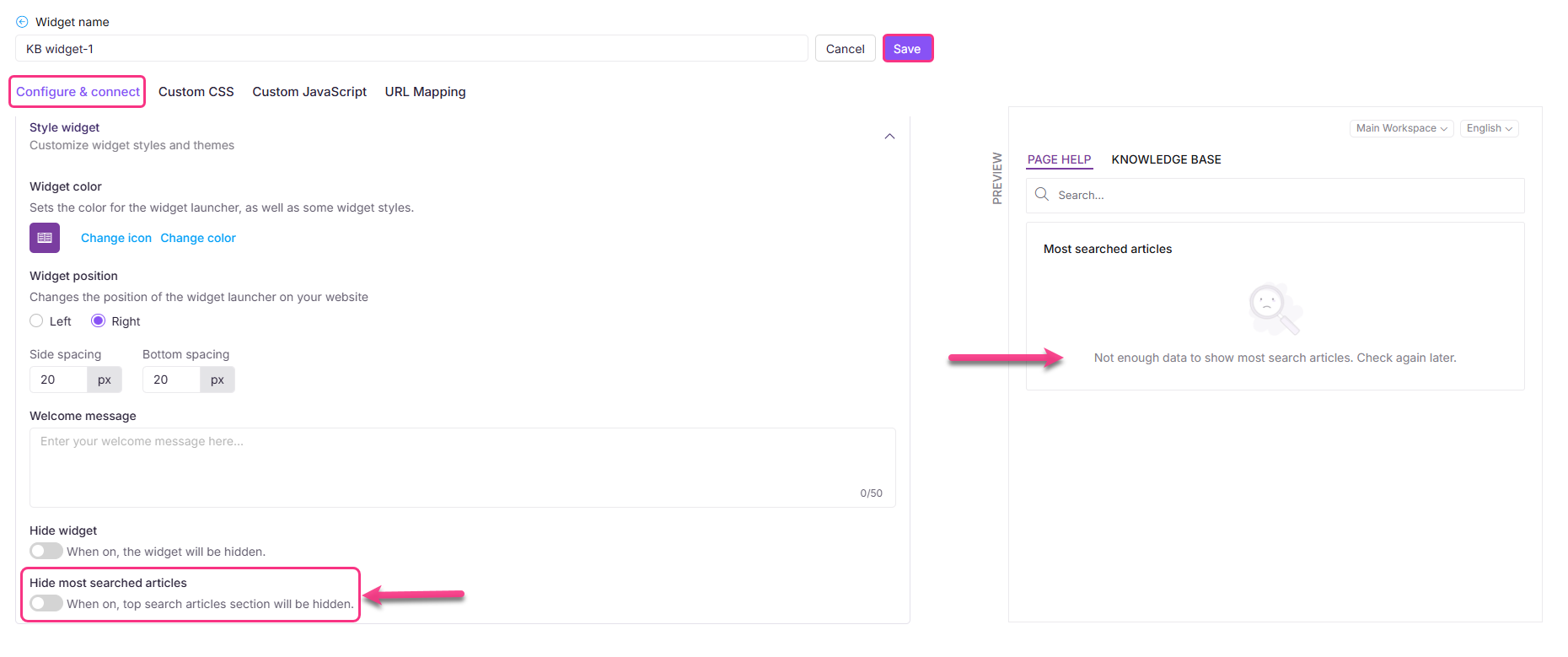
If the issue persists after disabling the toggle, double-check the article-to-URL mappings and review other display settings within the widget configuration.
Article links are redirecting to the KB website instead of opening within the widget
Article links inside the widget follow navigation behaviour based on the destination content type and the widget's content access scope. If a link opens outside the widget, the destination article's category is likely not included in the widget's content access configuration.
How link navigation works in the widget
| Scenario | Behaviour |
|---|---|
| Internal link to an article in the same standard workspace | Opens inside the widget |
| Internal link to an article in another standard workspace | Opens inside the widget when the destination workspace, language, and category are included in the widget's content access filters |
| Link to API documentation | Always opens in a new browser tab |
| Destination article restricted by reader group permissions or widget filters | Widget displays a restricted access state |
| Destination link cannot be resolved | Widget shows a fallback state — no raw error is exposed |
The widget does not honour the Open in new tab setting for same-domain links. These will always open within the widget.
Steps to resolve
If links are opening outside the widget when you expect them to open inside, add the missing category to the widget's content access configuration.
- Navigate to Connections > Knowledge base widget and select Edit.
- In the Configure & connect tab, expand Content access.
- Select Category and add the missing category.
- Select Save.
- Test the article links in the widget to confirm they now open within it.
Users can view articles in the widget but get an access-denied or login page when using Open Article or Open Site
This happens when users have access to content through the Knowledge Base Widget but do not have the required permissions to access the Knowledge Base Site directly. The widget and the Knowledge Base Site use separate access control mechanisms: widget access is controlled through the widget's content access settings, such as project, workspace, or category-level permissions, while site access is controlled through site authentication methods such as JWT, SSO, and Reader Group permissions. As a result, a user may be able to view content within the embedded widget but encounter an access-denied page when attempting to open the same article on the Knowledge Base Site.
Steps to verify
- Confirm whether users have been added as Readers and assigned to appropriate Reader Groups.
- Verify whether users are expected to access content only through the embedded widget or through the Knowledge Base Site as well.
- Test the behavior in an incognito or private browsing session to validate the end-user experience.
Resolution options
Option 1: Restrict users to the widget experience
If users should access documentation only through the embedded widget: keep content access configured through widget permissions, and hide the Open Article or Open Site option using Custom CSS in the widget. This prevents users from navigating to the Knowledge Base Site and encountering authentication or permission-related issues. See Customizing the Knowledge base widget using Custom CSS/JavaScript for the CSS snippet.
Option 2: allow users to access the Knowledge Base Site
If users need direct access to the Knowledge Base Site: add users as Readers, assign them to Reader Groups with the required content permissions, and ensure site-level permissions align with the content users are expected to access.
Option 3: Disable unused JWT configuration
If JWT authentication is enabled for the knowledge base site but is not actively required (for example, if readers are only meant to access content through the widget), the mismatch between widget access and site access can also be resolved by disabling or removing the unused JWT configuration. Before disabling JWT, validate internally that no other integration or reader workflow depends on it. Once confirmed, disable JWT from the site's JWT configuration settings. This aligns the site behavior with the intended access model and removes the authentication mismatch.
Additional information
JWT authentication for the Knowledge Base Site and JWT authentication for the Knowledge Base Widget are configured independently. Enabling or disabling JWT for one does not automatically affect the other.
The Workspace and Language dropdowns cannot be hidden
The Workspace and Language dropdowns are visible in the widget by default and cannot be removed through the current settings. To reduce confusion for readers, scope the widget to a single workspace using the content access filters — readers will only see content from that workspace, making the dropdowns less relevant.
Steps to reduce the impact
- Navigate to Connections > Knowledge base widget and select Edit.
- In the Configure & connect tab, expand Content access.
- Set the workspace scope to a single workspace.
- Select Save.
The widget is not loading on my Knowledge base site
If the widget fails to load and you recently rotated or updated your API key, the widget script is likely using an outdated key.
Steps to resolve
Update the API key in your widget installation script with the current key to restore functionality.
The widget is loading on a domain I did not intend
If the widget appears on domains you did not configure, your allowlist is likely empty. An empty allowlist means no domain restrictions are applied — the widget loads everywhere.
Steps to resolve
Add your intended domains to the allowlist. This blocks all other domains from loading the widget.
Ticket deflector is not appearing in the dropdown
Only ticket deflectors with Online status appear in the widget dropdown. If yours is missing, it is likely set to Offline.
Steps to resolve
- Navigate to Settings > Ticket deflector.
- Locate the relevant ticket deflector.
- Toggle its status to Online.
- Return to the widget configuration and confirm the deflector now appears in the dropdown.
Ticket deflector tab is not showing in the widget
If the ticket deflector tab does not appear in the widget, the Show ticket deflector toggle may be disabled, or the API key in your installation script may be outdated.
Steps to resolve
- Navigate to Connections > Knowledge base widget and select Edit.
- Confirm the Show ticket deflector toggle is enabled.
- Select Save.
- If the tab still does not appear, verify that the API key in your widget installation script is current and update it if needed.
- Refresh the page and confirm the tab is now visible.
Decision Tree links in the widget return a 404
Decision Tree links are not currently supported inside the widget. They will either open in a new browser tab or return a 404 error — this is a known limitation.
Workaround
Use standard article links in your ticket deflector content instead of Decision Tree links.
Decision Tree links cannot be made to open inside the widget at this time. There is no configuration change that will resolve this — only replacing the links will prevent the 404 error.
JWT authentication issues
The JWT client secret is configured at the project level and shared across all widgets in the project that have JWT authentication enabled. Regenerating the client secret from any widget, including a test or non-production widget, immediately invalidates the previous secret for all other JWT-enabled widgets in the same project. Any backend service not updated with the new secret will begin returning authentication errors and the widgets it serves will stop loading.
All other widget settings (embed code, content access, Custom CSS, Custom JavaScript, URL mappings) are specific to each widget and do not affect other widgets. The JWT client secret is the only exception.
If you maintain separate production and test widgets within the same project, treat client secret regeneration as a project-wide operation. Update every backend service that serves a JWT-enabled widget immediately after regenerating.
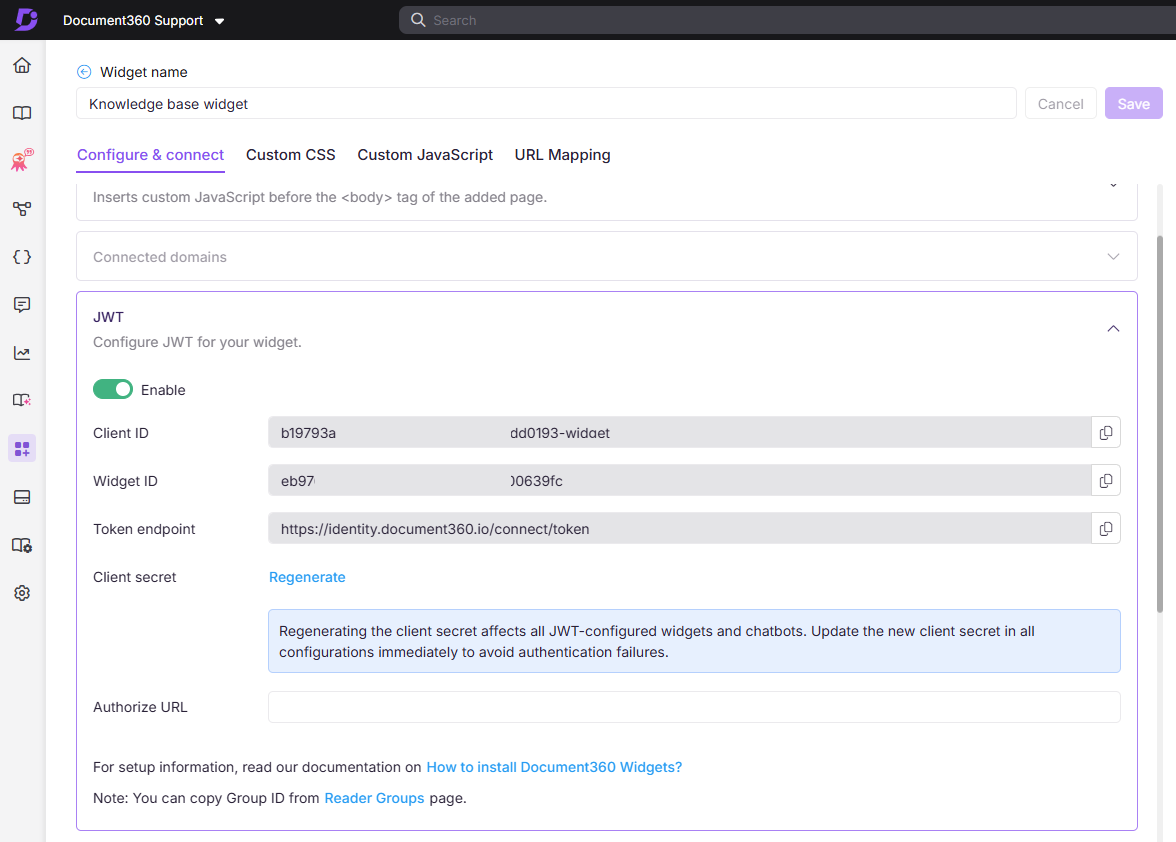
Document360 displays the client secret only once, at the moment it is generated. It cannot be retrieved again after you close or navigate away from the page. If the secret was not saved at generation, regenerate it and update all backend services with the new value before closing the page.
Known limitation
Client secret regeneration events are not currently captured in Team Auditing. If your widget stops authenticating and no team members recall making a change, audit logs will not identify who regenerated the secret or when. Regenerate the client secret, update all backend services, and verify the widget loads correctly.
If a Postman request or the live widget fails to return a valid token, use the table below to identify the cause and resolution.
| Symptom | Likely cause | What to do |
|---|---|---|
Response status is 401 Unauthorized |
Incorrect Client ID or Client Secret in the request | Verify the credentials in the JWT section of the widget configuration. If you recently regenerated the secret, update it everywhere it is used. |
Response status is 400 Bad Request |
Malformed payload or missing required fields | Confirm that all required fields — username, readerGroupIds, widgetId, and projectId — are present and correctly formatted. |
| Widget loads but displays no content | No valid reader group IDs in the token payload | Confirm that the readerGroupIds values match existing reader group IDs in your Document360 project. At least one valid group ID is required. |
| Token is generated but the widget shows an error | Authorize URL mismatch | Ensure the Authorize URL in the portal matches the exact URL of the webpage where the widget is embedded. |
| Authentication fails after regenerating the client secret | Old client secret still in use in one or more integrations | Update the new client secret in all JWT-configured widgets, chatbots, and backend applications that use it. |
Widget does not load at all; authentication endpoint returns HTTP 500 |
Client secret was regenerated in the portal but the backend service was not updated | Navigate to Connections > Knowledge base widget > Edit > JWT and regenerate the client secret. Update the new secret in your backend authentication endpoint immediately. Until the backend is updated, Document360's token endpoint will reject all requests with HTTP 500 and the widget will not mount. |
| Authentication suddenly fails, but no changes were made to this widget | The client secret was regenerated from a different JWT-enabled widget in the same project, including a test or sandbox widget. The secret is shared across all JWT-enabled widgets and chatbots in the project. | Check whether any other JWT-enabled widget in the project had its client secret regenerated recently. If so, update the new secret in every backend service that serves a JWT-enabled widget in the project. |
An HTTP 500 from the authentication endpoint means the backend service is using an outdated client secret. The widget will not load at all until the secret is updated in the backend — updating the portal configuration alone is not sufficient.
Custom script for switching to the Knowledge Base tab stopped working after migrating to Widget V2
If you have a custom script that automatically switches the widget from the Page Help tab to the Knowledge Base tab, and it stopped working after your widget moved to Widget V2, this is expected without an update to the script.
Why this happens
Widget V1 rendered both the Page Help and Knowledge Base sections in the page at the same time, and simply hid or showed each one using CSS classes. A custom script could toggle those classes to switch tabs.
Widget V2 is built differently. It only loads the content of whichever tab is currently active; the other tab's content is not present in the page until you switch to it. A script that looks for both sections and toggles their classes will find nothing to act on, since the inactive tab's elements no longer exist in the page. There is currently no dedicated postMessage or mw() command for switching tabs directly; supported commands are limited to show, hide, and toggle for opening and closing the widget.
Steps to resolve
- Update your script to click the Knowledge Base tab element directly, instead of toggling CSS classes on the Page Help and Knowledge Base sections.
- See "Keep the Knowledge Base tab active if the widget switches to Page Help" in Customizing the Knowledge base widget using Custom CSS/JavaScript for a ready-to-use script.
- Paste the updated script into the Custom JavaScript tab of your widget settings and save.
FAQ
I made changes in the widget settings but nothing changed on my site. What should I do?
Select Save in the widget configuration, then do a hard refresh of your page (Ctrl+Shift+R on Windows or Cmd+Shift+R on Mac). Some changes require the page cache to clear before they take effect.
Feedback icon (like/dislike) stays active after a hard refresh
After a reader clicks Like or Dislike on an article inside the widget, the icon can remain visually active even after a hard refresh (Ctrl+Shift+R on Windows, Cmd+Shift+R on Mac). This happens because the reaction state is stored in the reader's browser rather than pulled fresh from the server on every load. A hard refresh reloads the page but does not clear this stored state; only clearing the browser's cache and site data does.
If the feedback panel was closed or cancelled without clicking Submit, the reaction itself was never recorded in the Feedback manager; only the local visual icon state persists. See Liking or disliking an article for how feedback submission and this browser-stored state work.
I rotated my API key. Do I need to update it in more than one place?
Yes. If you use the API key in multiple widget installation scripts, ticket deflectors, or chatbot configurations, update each one individually. A single outdated reference will stop that surface from loading.
Can I hide the Workspace and Language dropdowns entirely?
No. These dropdowns cannot be removed from the widget UI. Scoping the widget to a single workspace via content access filters is the recommended way to reduce their visibility and relevance for readers.
The widget loads but shows restricted access for some articles. Why?
The destination article is either outside the widget's content access scope or restricted to a reader group that the current user does not belong to. Review the content access filters and reader group configuration in the widget settings.
Decision Tree links work on my KB site but not inside the widget. Is this a bug?
No. Decision Tree links are not currently supported inside the widget — this is a known limitation. They will open in a new tab or return a 404. Replace them with standard article links as a workaround.