The Archived page in Document360 is where your archived articles and categories are stored. Archived content is removed from the category tree, the knowledge base site, and search, but keeps its revision history. Unlike the Recycle bin, the Archived page has no retention period. Content stays there until you unarchive it.
When to use the Archived page
Use the Archived page when you need to:
- Find an article or category that was archived and bring it back into the documentation
- Check what content your team has retired, and who archived it
- Preview an archived category to confirm what it contains before restoring it
- Review retired content periodically as part of a knowledge base audit
Access the Archived page
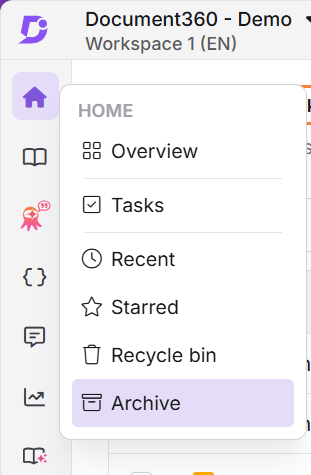
Navigate to Home () > Archive () in the left navigation bar.
If nothing has been archived yet, the page shows an empty state: No archived articles yet. Articles you archive will appear here. You can restore them anytime.
Understand the Archived page
The Archived page lists every archived article and category in the current workspace and language.
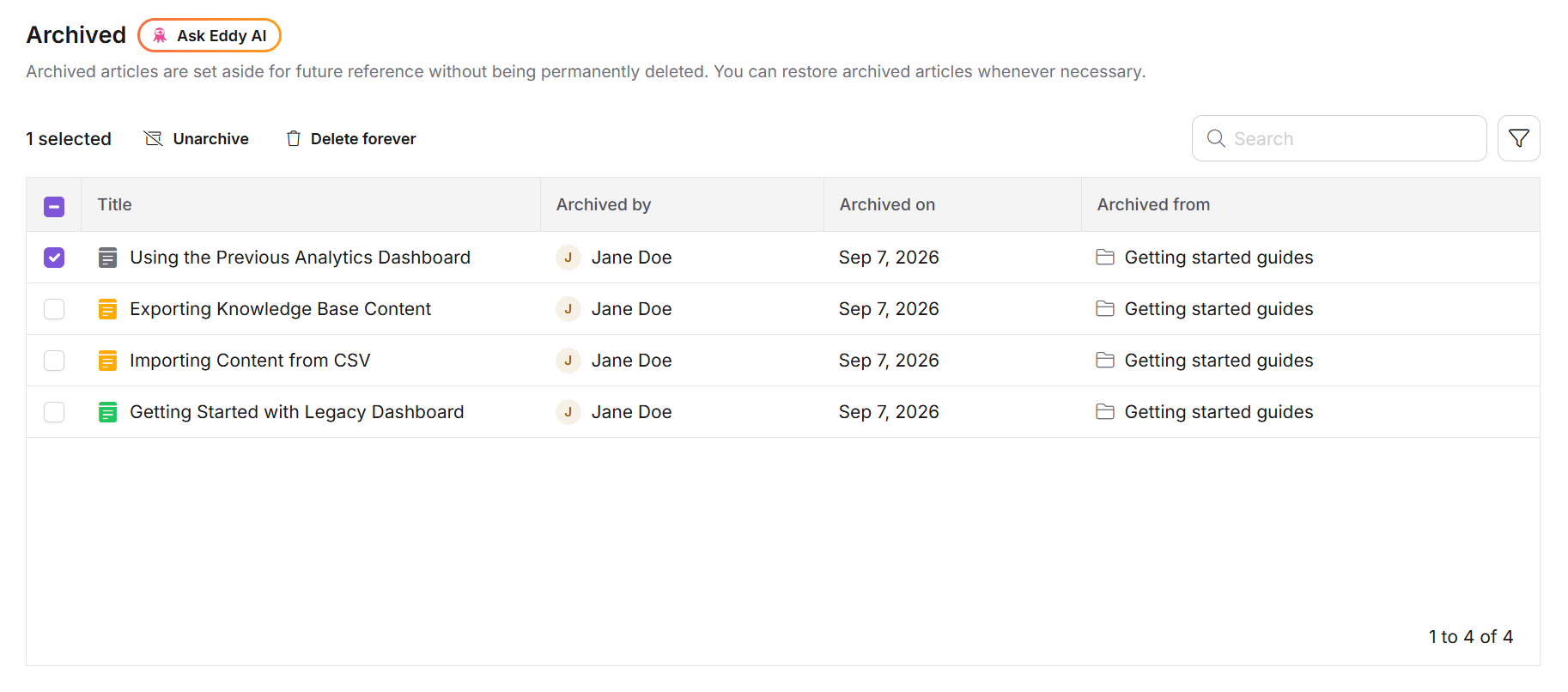
Each row shows the following details:
| Column | What it shows |
|---|---|
| Title | The name of the archived item, with an icon indicating whether it is an article or a category. |
| Archived by | The team member who archived the item. |
| Archived on | The date the item was archived. |
| Archived from | The category path the item was archived from. |
The list is paginated and has no limit on the number of archived items it can hold.
Actions available on the Archived page
Hover over a row to reveal the available actions:
- Preview: View the contents of an archived category without restoring it. (Available for categories only. Articles do not have a preview.)
- Unarchive: Return the item to its most recent location in the documentation, with its previous status intact.
- Delete forever: Remove the item permanently from your knowledge base.
Preview an archived category
- Hover over the category row and click Preview.
- The preview pane opens, showing the category tree and the articles inside the category.
Preview is only applicable for categories. Individual archived articles do not have a preview option.
Unarchive an item
- Hover over the row and click Unarchive. The Confirm unarchive dialog appears.
- Click Unarchive.
The item returns to its most recent location in the documentation. A Published article returns as Published and becomes available on the knowledge base site again. A Draft article returns as Draft. Unarchived items are placed at the end of the ordering within their category.
Search and filters
The Archived page includes search and filter tools to help you locate archived content quickly.
- Search bar: locate archived articles and categories by title.
- Filters: narrow down the list using:
- Type (All, Article, Category)
- Archived by (filter by user)
- Archived on (filter by date)
- Ask Eddy AI: ask questions about your archived content directly from the page header.
Archived page vs. Recycle bin page
| Archived page | Recycle bin page | |
|---|---|---|
| What it holds | Articles and categories you have archived | Articles and categories you have deleted |
| Retention | Indefinite | 30 days |
| Revision history | Preserved | Preserved until permanent deletion |
| Recovery action | Unarchive | Restore |
| Automatic removal | No | Yes, after 30 days |
For details on deleted content, refer to Recycle bin page.
Permissions
Access to the Archived page depends on your role and permissions in Document360.
- Team members with View permission only cannot archive or unarchive content.
- Team members with View and Update permissions can archive and unarchive articles and categories.
Contact your workspace admin if you cannot access the Archived page or if the Unarchive action is unavailable.
Best practices
- Use the Archived from column to trace content: it shows the original category path, so you can confirm you have the right item before unarchiving.
- Preview categories before unarchiving: a category brings all its articles back with it. Use Preview to check the scope first.
- Filter by Archived by when content goes missing: if a team member reports an article has disappeared, filtering by user shows who archived it and when.
- Review the Archived page on a schedule: archived content is retained indefinitely, so the list grows over time.
- Check the Archived page before deleting a category: deleting a parent category also removes archived content beneath it, and no warning is shown.
FAQ
How long is content kept on the Archived page?
Indefinitely. Unlike the Recycle bin, the Archived page has no retention period and no automatic cleanup. Archived content stays there until a team member unarchives it.
Can I unarchive an item to a different location?
No. Unarchiving always returns the item to its most recent location in the documentation. If you need it elsewhere, unarchive it first and then use the Move action to relocate it.
Why can I preview some items but not others?
Preview is available for categories only. Selecting an archived category opens a preview pane showing its category tree and the articles inside it. Individual archived articles do not have a preview.
Does the Archived page show content from all workspaces and languages?
No. The Archived page shows archived content for the current workspace and language only. However, archiving an article from one language archives it in all languages.
Is there a limit to how many items the Archived page can hold?
No. The Archived page supports an unlimited number of archived articles and categories, with pagination to keep the list manageable.
An archived item is missing from the Archived page. What should I do?
First, clear the search bar and any filters, and confirm you are in the correct workspace and language. If the item still does not appear, check whether its parent category was deleted. Deleting a parent category also removes archived content beneath it from the Archived page. If the parent category is in the Recycle bin, restoring it returns the archived content to the Archived page.