Archiving an article removes it from the category tree and the knowledge base site while keeping its version history intact. Archived articles are stored on the Archive page, where you can find, review, and unarchive them. Use archiving for content you want to retire but may need again.
Archiving is not the same as deleting. Archived articles do not go to the Recycle bin and are not subject to the 30-day retention period. They remain on the Archive page until you unarchive them.
When to archive an article
- The article is outdated and no longer useful to readers, but you may need it later for reference or an audit.
- The article covers a feature or process that has been retired, and you want it out of search results and Eddy AI responses.
- You are cleaning up a large knowledge base and want to reduce the number of live articles without losing version history.
- The content may be republished in future, so deleting it is not an option.
Before you begin
Before archiving an article, ensure the following:
- You have View and Update permissions for the workspace. Users with view-only access cannot archive articles.
- You have reviewed where the article is linked from. Archiving affects related articles, replicated instances, internal links, and article redirect rules.
Archive an article
- Navigate to Documentation () in the left navigation bar.
- Hover over the article in the Categories & Articles pane and click the More () icon.
- Select Archive (). The Confirm archive dialog appears, listing the areas that archiving affects.
- Review the listed areas and click Archive.
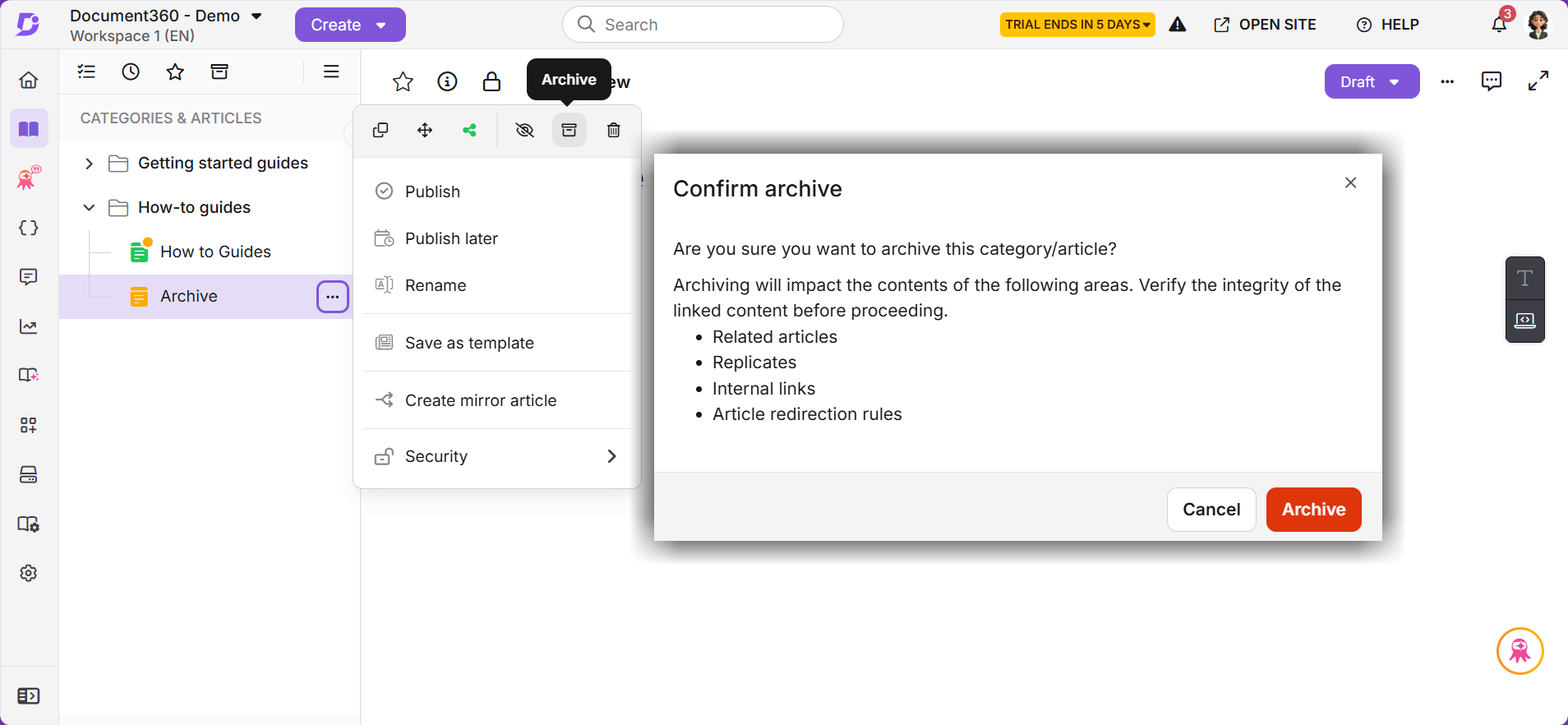
The Confirm archive dialog asks you to verify the integrity of linked content before proceeding. It lists four areas:
- Related articles: the archived article is no longer suggested as a related article.
- Replicates: replicated instances of the article are removed from their categories.
- Internal links: links to the archived article from other articles no longer resolve.
- Article redirection rules: redirect rules pointing to the archived article are affected.
Other ways to archive an article
- From the article editor: Open the article, click the More () icon at the top right, and select Archive (). Click Archive in the confirmation dialog.
- From a Folder or Index category (single article): Hover over the article inside the category, click the More () icon, and select Archive (). Click Archive in the confirmation dialog.
- From a Folder or Index category (multiple articles): Select the checkboxes for the articles you want to archive. The toolbar shows the number of items selected. Click Archive () and confirm.
- From the All articles page: Navigate to Documentation () > All articles (). Select the articles and click Archive (). Confirm the action.
You can archive articles in any status: Draft, Published, or Hidden.
What happens when you archive an article
- The article is removed from the category tree and moved to the Archived page.
- The article is no longer accessible on the knowledge base site. Direct links to it return a page-not-found response.
- The article is excluded from portal search, knowledge base site search, and AI-powered search. Search exclusion takes effect within 60 seconds.
- The article is no longer suggested by dynamic related article recommendations.
- Replicated instances of the article are removed from their categories. The original article is the one that is archived.
- The article's revision history, metadata, tags, attachments, and SEO settings are preserved.
- Content reuse links to variables, snippets, glossary terms, and Drive files are preserved, but the article is hidden from the dependency viewer in each of those modules.
- Any workflow assignment on the article is cleared.
- The article's URL slug remains reserved and cannot be reused by another article.
- The archive action is recorded in the team auditing, and relevant users receive a notification.
In a workspace with multiple languages enabled, archiving an article archives that article in all languages.
Unarchive an article
- Navigate to Home ()> Archive () page in the left navigation bar.
- Locate the article you want to restore. Use the search bar or filters to narrow the list.
- Hover over the article row and click Unarchive. The Confirm unarchive dialog appears.
- Click Unarchive.
The article returns to its most recent location in the documentation with its previous status intact. A Published article returns as Published and becomes available on the knowledge base site again. A Draft article returns as Draft.
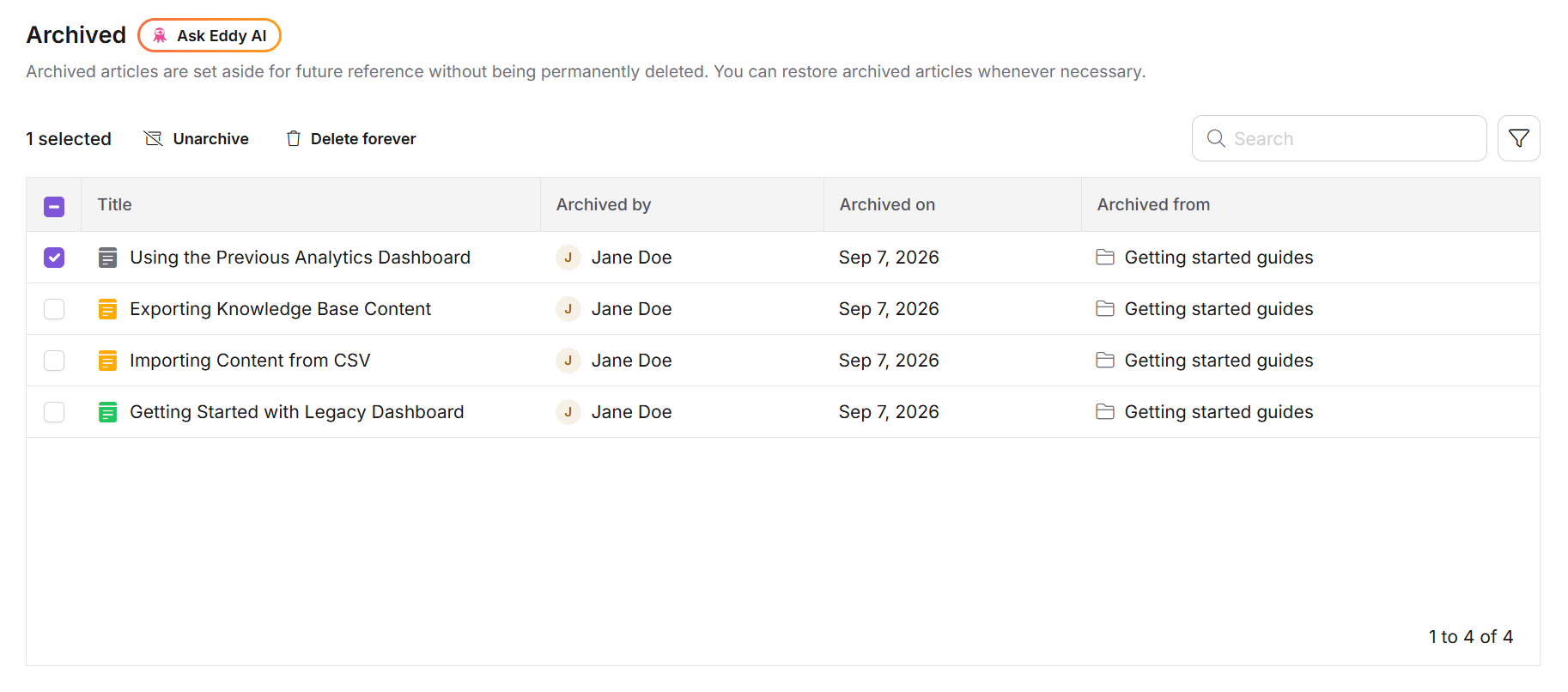
When you unarchive an article:
- The article is re-indexed for search and re-added to the Eddy AI corpus.
- Replicated instances of the article are restored.
- Content reuse dependency views are restored.
- The article is placed at the end of the ordering within its category.
For more details on managing archived content, refer to Archived page.
Archive vs. hide vs. delete
| Action | What it does | Visible on KB site | In portal search | Recoverable |
|---|---|---|---|---|
| Archive | Moves the article to the Archive page and removes it from the category tree. | No | No | Yes. Unarchive at any time. |
| Hide | Hides the article from the knowledge base site. The article stays in the category tree. | No | Yes | Yes. Unhide at any time. |
| Delete | Moves the article to the Recycle bin. | No | No | Yes, within 30 days. |
Limitations
- The slug of an archived article stays reserved. You cannot create a new article with the same slug while the original is archived.
- Archived articles are skipped when you clone a workspace or a category.
Best practices
- Check linked content before archiving: the confirmation dialog lists related articles, replicates, internal links, and redirect rules. Check each one, especially for articles that other content depends on.
- Archive instead of deleting when the content may return: archiving preserves revision history, while deleting starts a 30-day countdown to permanent removal.
- Use Hide for temporary removal: if you only need the article off the knowledge base site for a short period and want it to stay in the category tree, hide it instead.
- Review the Archive page periodically: archived content is retained indefinitely, so the list grows over time.
FAQ
What is the difference between archiving and deleting an article?
Deleting an article moves it to the Recycle bin, where it is permanently removed after 30 days. Archiving moves the article to the Archive page, where it is retained indefinitely with its full revision history until you unarchive it. Archiving is the better option when the content may be needed again.
Do archived articles appear in Eddy AI answers?
No. Archived articles are removed from the Eddy AI knowledge corpus on both the portal and the knowledge base site. Eddy AI does not surface archived content in its answers.
I archived an article, but it still appears in search results. Why?
Search exclusion is processed asynchronously and takes effect within 60 seconds of archiving. Wait a minute and search again. If the article still appears after that, confirm it is listed on the Archive page.
Can I reuse the slug of an archived article?
No. The slug of an archived article stays reserved and cannot be assigned to a new article. If you need the slug, unarchive the article and change its slug, or choose a different slug for the new article.
What happens to replicated versions when I archive the source article?
Replicated instances are removed from their categories when you archive the source article. Only the original article is archived. When you unarchive it, the replicated instances are restored.
Can all users archive articles?
No. Archiving requires View and Update permissions for the workspace. Users with view-only access cannot archive or unarchive content. Contact your workspace admin if the Archive option is unavailable.