Deleting an article removes it from its category and sends it to the Recycle bin, where it remains for 30 days before being permanently deleted. You can restore a deleted article from the Recycle bin at any time within that window.
Deleted articles are moved to the Recycle bin and can be restored within 30 days. After 30 days, they are permanently deleted and cannot be recovered.
When to delete an article
- The article is no longer accurate or relevant to your knowledge base.
- The article was created by mistake or is a draft that is no longer needed.
- The content is outdated but may still be referenced. In this case, consider using the Deprecate status instead of deleting. A deprecated article remains visible on the knowledge base site with a Deprecated tag, signalling to readers that the content is no longer maintained.
Delete an article
- Navigate to Documentation () in the left navigation bar.
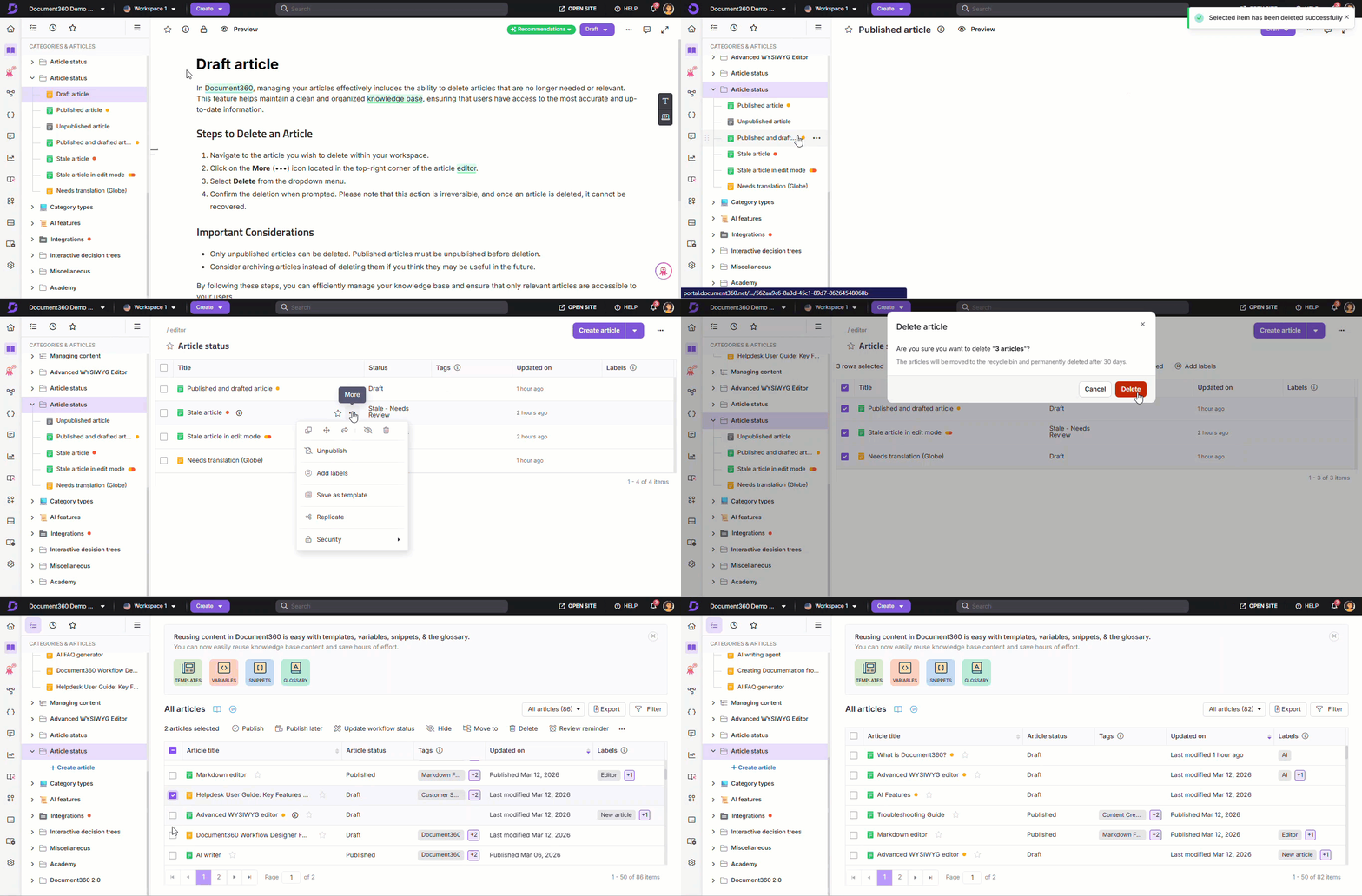
- Hover over the article in the Categories & Articles pane and click the More () icon.
- Select Delete ().
- Click Yes in the confirmation dialog.
Other ways to delete an article
- From the article editor: Open the article, click the More () icon at the top right, and select Delete (). Click Yes in the confirmation dialog.
- From a Folder or Index category (single article): Hover over the article inside the category, click the More () icon, and select Delete (). Click Yes in the confirmation dialog.
- From a Folder or Index category (multiple articles): Select the checkboxes for the articles you want to delete, then click Delete (). Click Yes in the confirmation dialog.
- From the All articles page: Navigate to Documentation () > All articles (). Select the articles and click Delete (). Click Yes in the confirmation dialog.
What happens when you delete an article
- The article is removed from its category and moved to the Recycle bin.
- If the deleted article has replicated versions in other categories, those replicated instances are also removed.
- The article remains in the Recycle bin for 30 days, after which it is permanently deleted.
- Deleted articles are not accessible on the knowledge base site.
During a collaborative editing session, if another contributor is actively editing the article when you delete it, they'll see a message that the article has been deleted, and they're automatically redirected to the next available article.
Collaborative editing is rolled out in phases, so if you don’t see it yet, it’s on its way.
Restore a deleted article
Deleted articles can be recovered from the Recycle bin within 30 days of deletion.
- Navigate to the Overview page () in the left navigation bar.
- Hover over the Overview icon and select Recycle bin.
- Locate the deleted article and click Restore.
Delete vs. deprecate vs. hide
| Action | What it does | Visible on KB site | Recoverable |
|---|---|---|---|
| Delete | Removes the article to the Recycle bin. | No | Yes, within 30 days. |
| Deprecate | Marks the article as deprecated with a status tag. | Yes, with a Deprecated tag. | N/A — article remains in place. |
| Hide | Hides the article from the knowledge base site without removing it. | No | Yes — unhide at any time. |
Best practices
- Consider deprecating before deleting. If an article is outdated but still linked or referenced, deprecate it first so readers are informed rather than encountering a broken link.
- Check for replicated versions before deleting. Deleting the source article removes all its replicated instances across categories. Verify where the article is replicated before proceeding.
- Use the Recycle bin as a safety net. If you delete an article by mistake, restore it from the Recycle bin within 30 days.
- Use bulk delete carefully. Review your selection before confirming. Bulk deletions affect all selected articles and their replicated instances.
FAQ
Can I recover a deleted article?
Yes. Deleted articles are moved to the Recycle bin and can be restored within 30 days. After 30 days, they are permanently deleted and cannot be recovered. Navigate to the Overview page, hover over the Overview icon, and select Recycle bin to find and restore deleted articles.
What is the difference between deleting and deprecating an article?
Deleting an article removes it from the knowledge base site and sends it to the Recycle bin. Deprecating an article keeps it visible on the knowledge base site but adds a Deprecated status tag, indicating to readers that the content is outdated and no longer maintained. Use deprecation when the article may still be useful as a reference.
What happens to replicated versions when I delete the source article?
Deleting the source article removes all replicated instances from their respective categories. There is no way to preserve the replicated instances once the source is deleted.
Can I delete multiple articles at once?
Yes. You can bulk delete articles from a Folder or Index category or from the All articles page. Select the checkboxes for the articles you want to delete, click the Delete () icon, and confirm.
Can I archive articles in Document360 instead of deleting them?
Document360 does not have a built-in archive feature. As a workaround, you can create a hidden category named "Archive" and move outdated articles into it, use a private workspace as a dedicated archive, or export articles as PDF or HTML for external storage before deleting.